Buddybuild, a Vancouver, Canada-based application development service, today confirmed that it has been purchased by Apple. In a reversal of Apple’s typical statement that “we generally do not discuss our purpose or plans” for “smaller technology companies” bought “from time-to-time,” Buddybuild itself explained exactly what it will be doing within Apple.
The Buddybuild service promises “a continuous integration, continuous deployment, and user feedback platform for development teams,” currently helping developers to release iOS and Android apps using GitHub, GitLab, and BitBucket. With Buddybuild, every “git push” to the developer’s preferred git service automatically triggers a secure new build of the app, the running of unit or UI tests, and preparation of the app for beta testing or deployment to Apple’s TestFlight service.
In other words, Buddybuild streamlines the process of developing an app by building it, testing it, and readying it for sharing with testers. Apple similarly purchased the third-party service TestFlight in 2014 to assist developers in testing and gathering feedback for iOS apps; Buddybuild provides a more comprehensive approach.
According to Buddybuild’s site, the team has joined Apple’s Xcode engineering group and will build developer tools for iOS. For the time being, the team will remain in Vancouver and preserve its namesake service so that iOS apps can continue to be shipped by existing customers.
Buddybuild presently offers its service to iOS and Android customers, but will discontinue Android and Free Starter services on March 1. As of today, it is no longer accepting new customers for iOS or Android.
Apple confirmed the acquisition with VentureBeat but did not provide any additional information.
Wednesday, 3 January 2018
Apple buys app development service Buddybuild, team will join Xcode and drop Android support

Friday, 29 December 2017
10 Alternative Android Keyboard Apps
Every Android device has its own keyboard build into the system, but no matter how feature-filled the built-in keyboard is, it is still very general. So, if you think the current keyboard in your mobile device is not offering you much or you have some special requirements that it isn’t fulfilling, then you can always take help from an alternative keyboard.
In today’s post I’m going to list 10 of the best alternative keyboard apps for Android that offer different features for its usres. Let’s check them one by one in the following.
1. SwiftKey Keyboard
SwiftKey is a wonderful alternative keyboard for your mobile. It comes with 70+ customization options including colors, designs, and themes. What I found unique is this keyboard is undockable yet resizable unlike many others, which allows you to place it anywhere on the screen.
Moreover, it packs in all essentials such as text prediction and autocorrection, slide typing, emoji packs and emoji keyboard, along with support for 150+ languages.
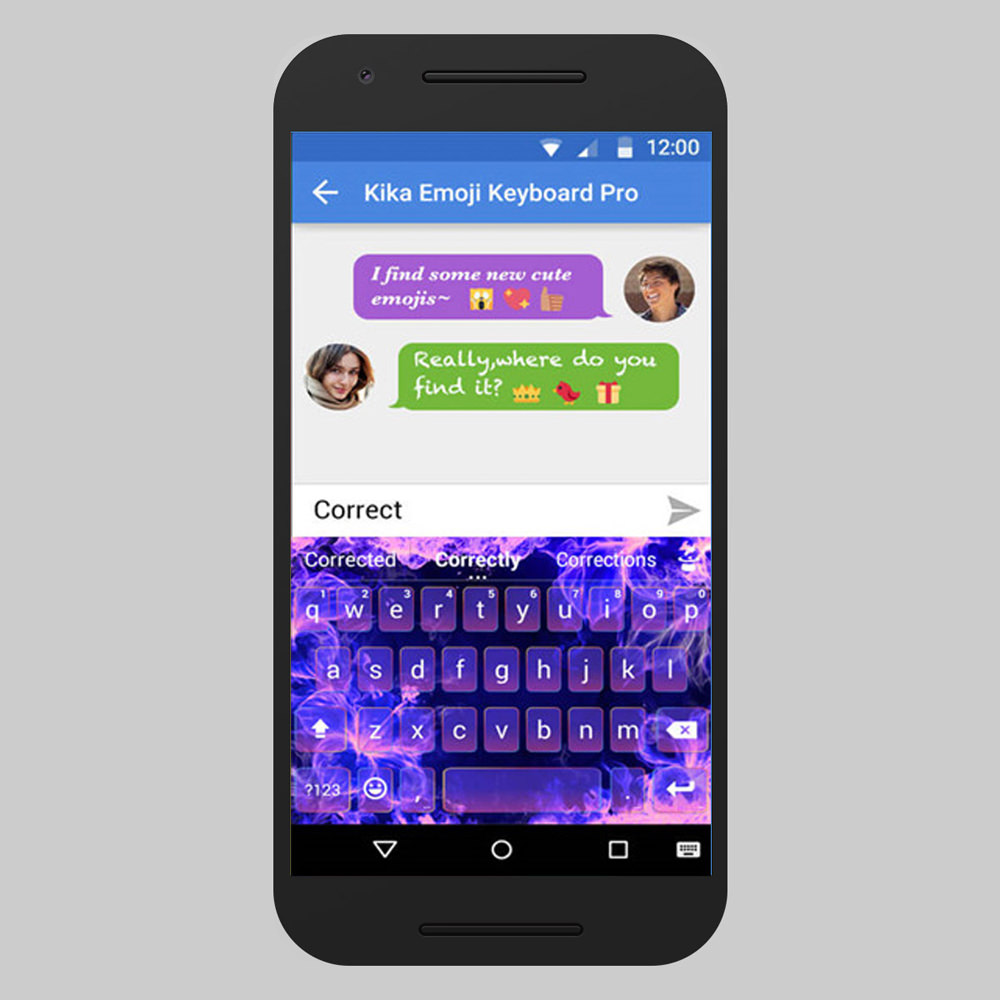
2. Kika Keyboard
Kika Keyboard is a full-featured emoji keyboard for the creative in you. With hundreds of themes and customization options like fonts, colors, wallpapers, and keyboard layouts, you can make it your own. It offers GIFs, emoticons, kaomojis, animated emojis, emoji arts and symbols, an emoji dictionary, and an emoji maker (make emojis from photos).
Also, it supports 82 languages and features must-haves like text prediction and correction, one-hand mode, and swipe typing, etc.
3. Flash Keyboard
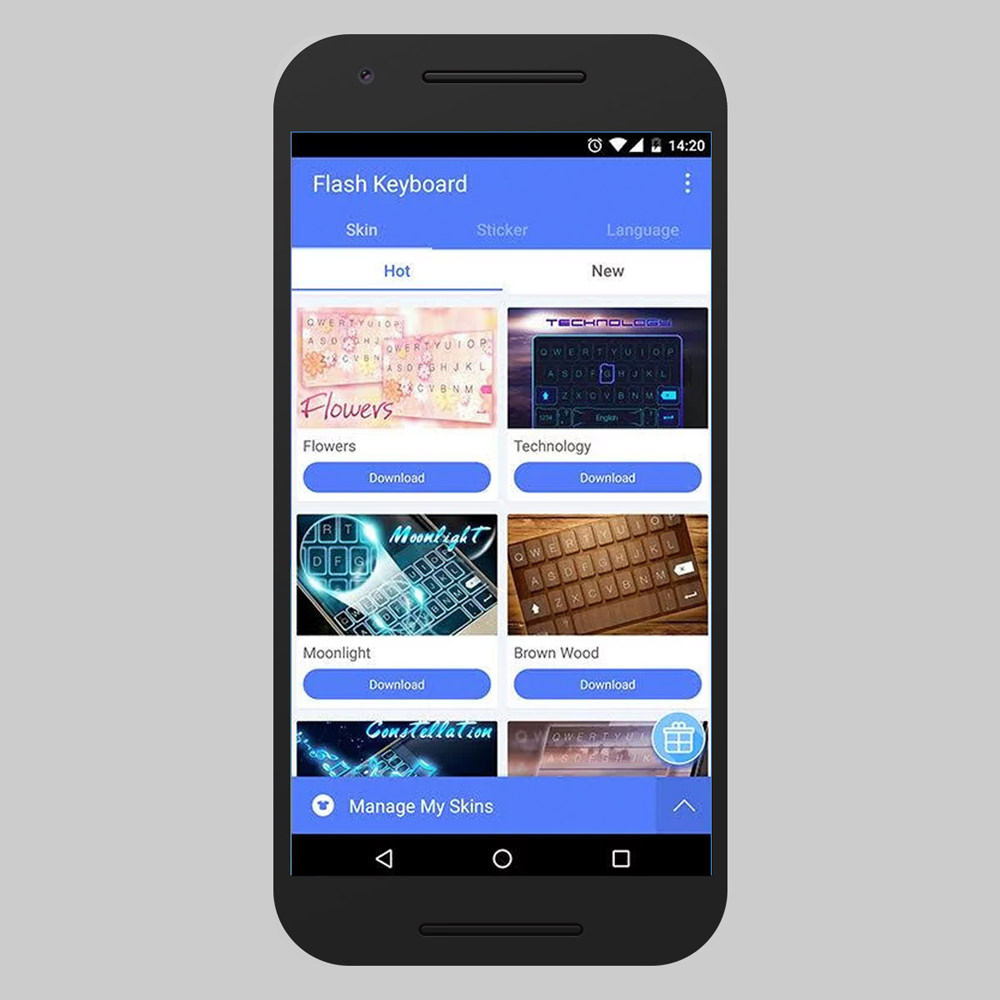
Flash Keyboard is another emoji-focused keyboard to help you have much fun in your daily conversations. This app offers numerous personalization options including colors, themes, and backgrounds. Like Kika Keyboard, this app features 3k+ emojis, stickers, and GIFs as well as a sticker maker to create custom stickers from your photos.
Additionally, it has all the essentials like text prediction and correction, slide typing, layouts, and support for 50+ languages.
4. Cheetah Keyboard
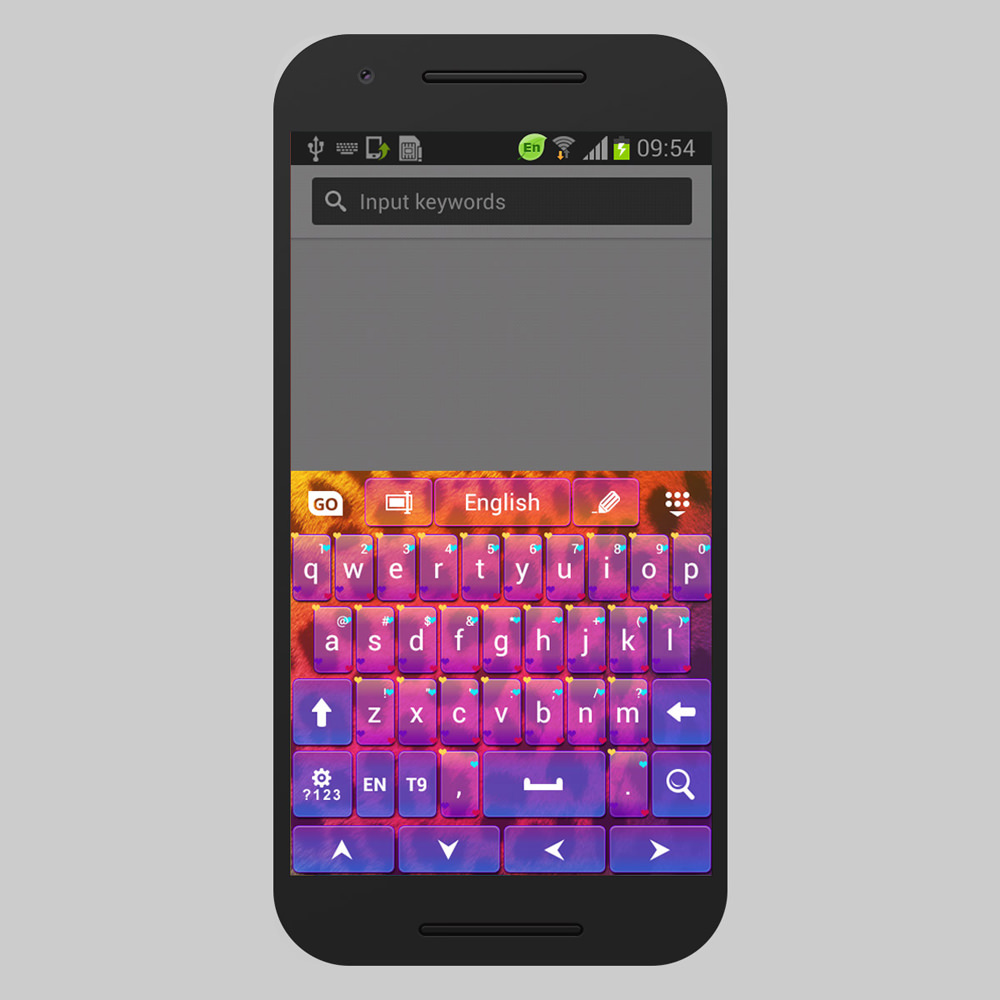
Cheetah Keyboard is the one-of-its-kind 3D keyboard with powerful features and customization options. These include 3k+ colorful themes, fonts, sounds, and backgrounds to make it your own. What I find unique in this app is a ‘Smart Reply’ feature which suggests possible responses to a message.
It features a theme maker, a robust dictionary, voice input, swipe typing, text auto-correction, etc. as well as GIFs, emojis, and memes. Cheetah Keyboard also offers 80 languages.
5. ai.type Free Emoji Keyboard
ai.type Keyboard is the smartest keyboard that plans to transform the messaging experience. Some of its intelligent features include text narration, on-keyboard search, and unit conversions. It offers personalization options like colors, fonts, background images, thousands of themes, and a theme designer like above keyboard apps.
Moreover, the app has support for 50+ languages, offers emoji support, text prediction and correction features, and swipe typing etc.
6. Fleksy + GIF Keyboard
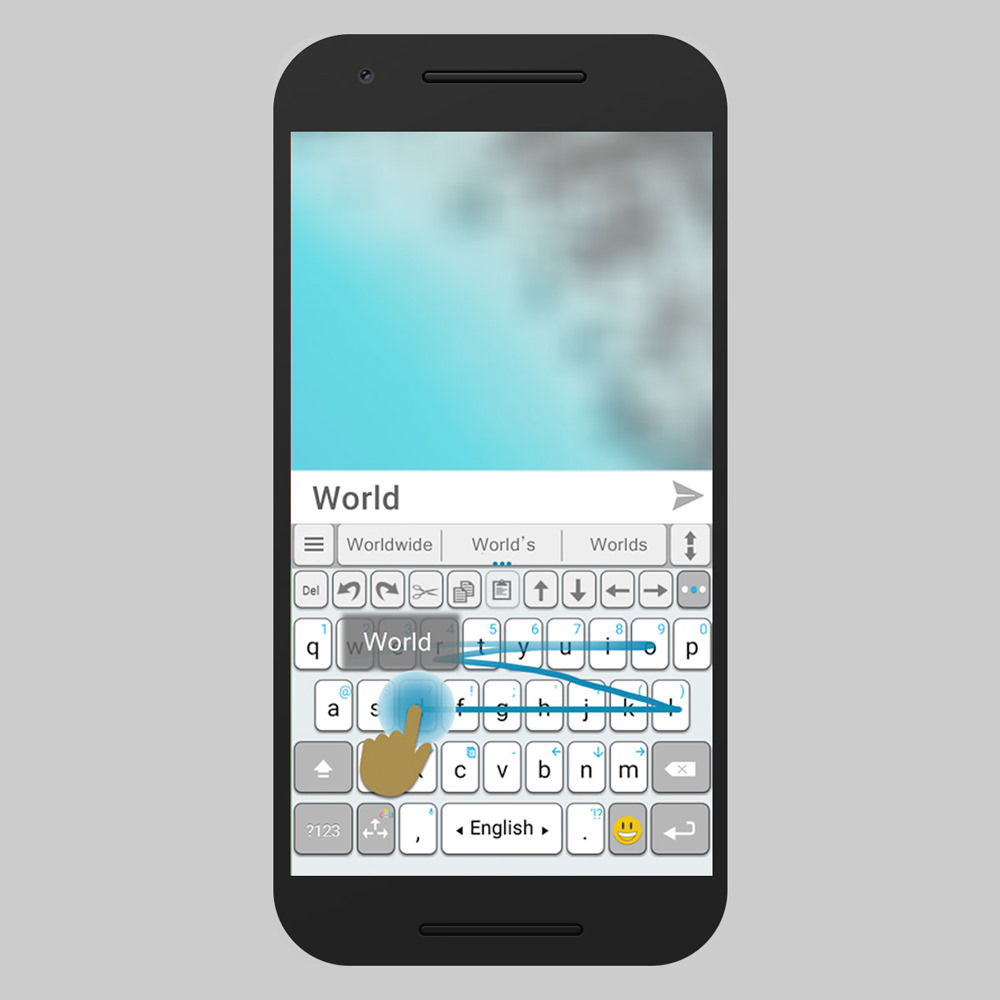
One of my old favorites, Fleksy is a smart keyboard like ai.type that boasts of fastest typing speed. What I see distinctive is this app is that it’s extensible, i.e., you can add or remove features using its extensions.
Along with its customizability features like colors, themes, and layout sizes, the app also offers 800+ emojis, stickers, thousands of GIFs, and key pops, etc.
The app comes with essential features like gesture typing, text prediction and correction, and support for 40+ languages.
7. FancyKey Keyboard
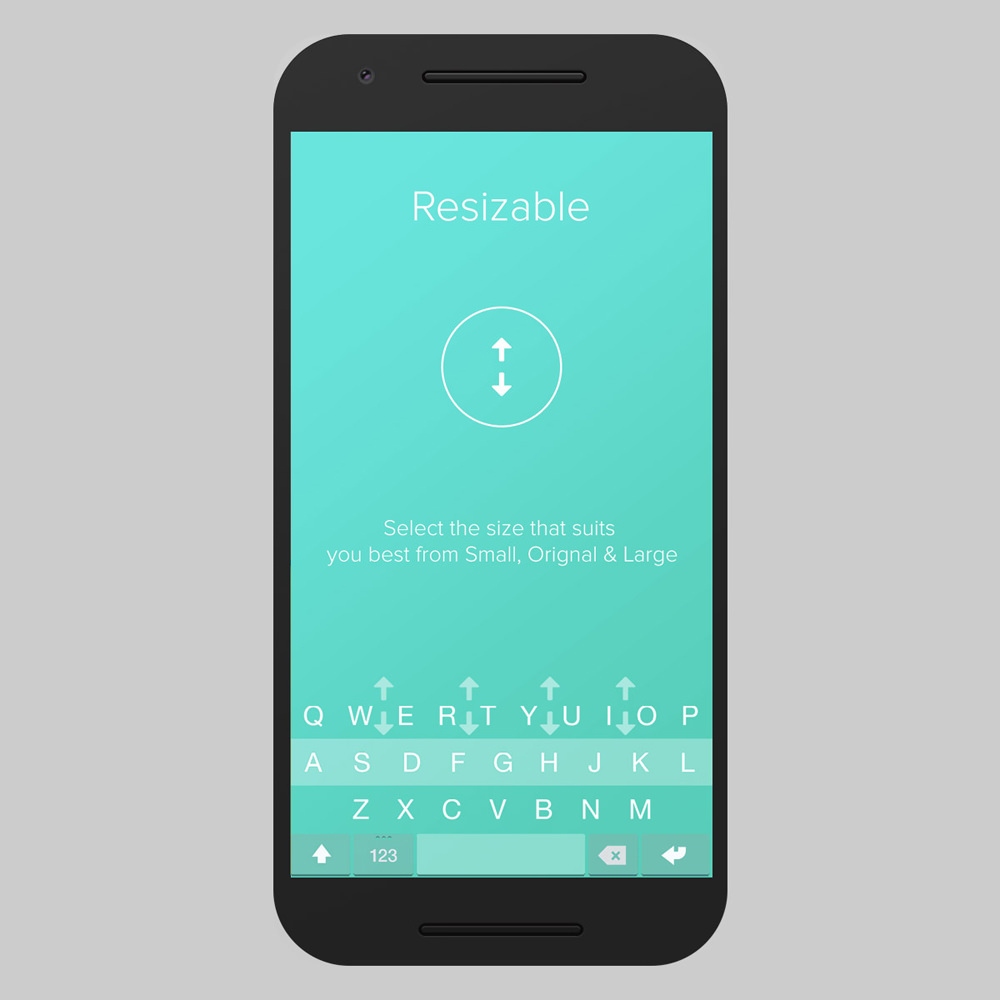
FancyKey Keyboard is a clam and pleasing keyboard that offers a fancy theme designer to design your own creative theme. Other customization options include numerous fonts, backgrounds, sounds, themes, layouts, key shapes, and typing effects.
This keyboard packs in 1.6k+ emojis, emoji arts, and more fun features. Last but not the least, it brings all the expected features like word suggestion and auto-correction, swipe typing, etc. It supports 30+ languages as well.
8. Typany Keyboard
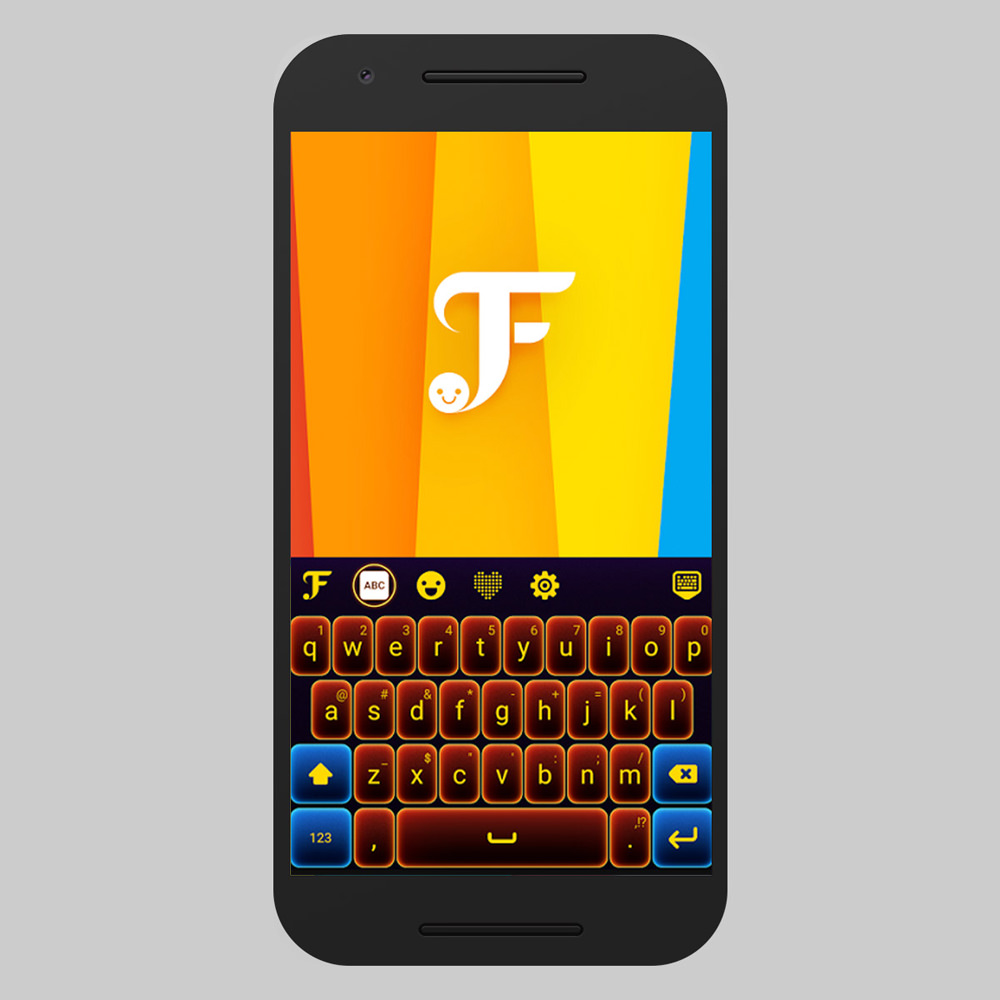
Typany Keyboard is another FancyKey-like keyboard that offers a bunch of cool features including a theme maker. I liked its doodle designer and emoji maker that help to showcase your creativity to others in a fun way. You can personalize colors, photo backgrounds, sound effects, and themes, as well as keyboard layouts.
Also, it offers all essentials like text and emoji prediction and correction, stickers, etc. and boasts of a comprehensive support for 100+ languages.
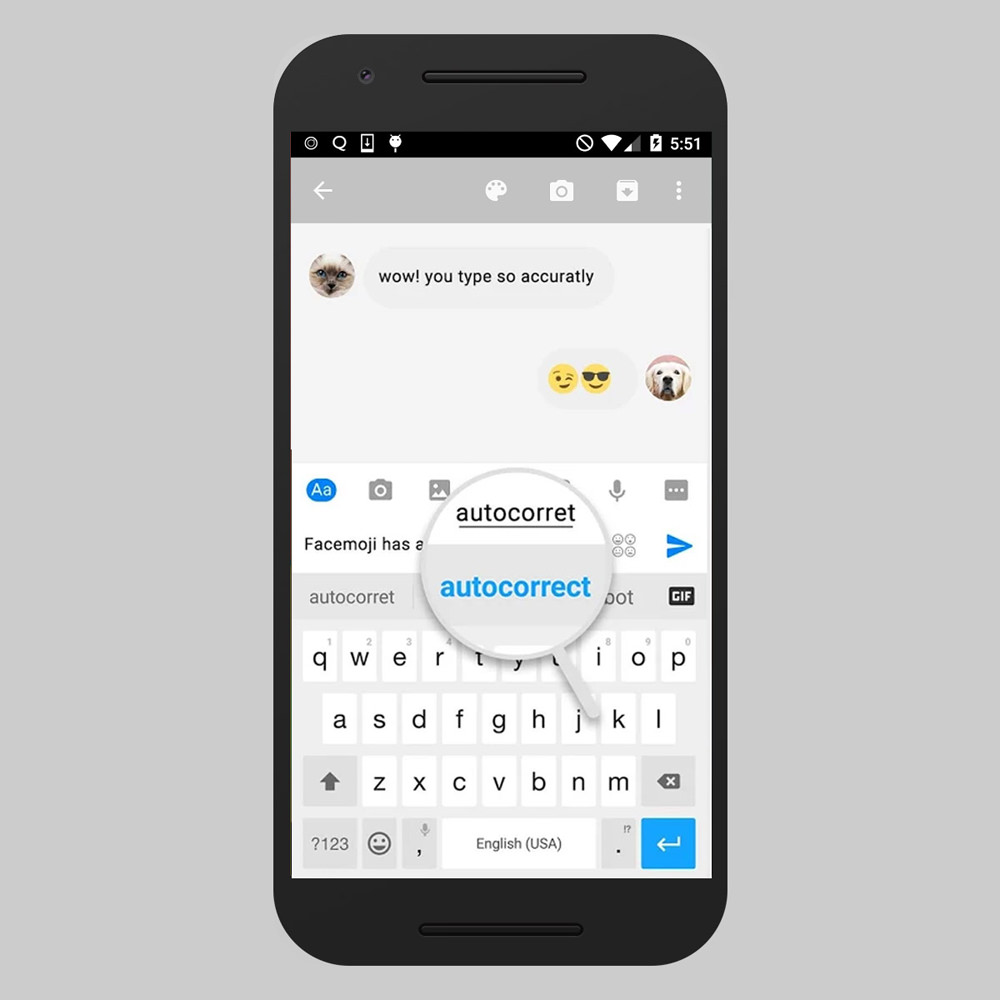
9. Facemoji Emoji Keyboard
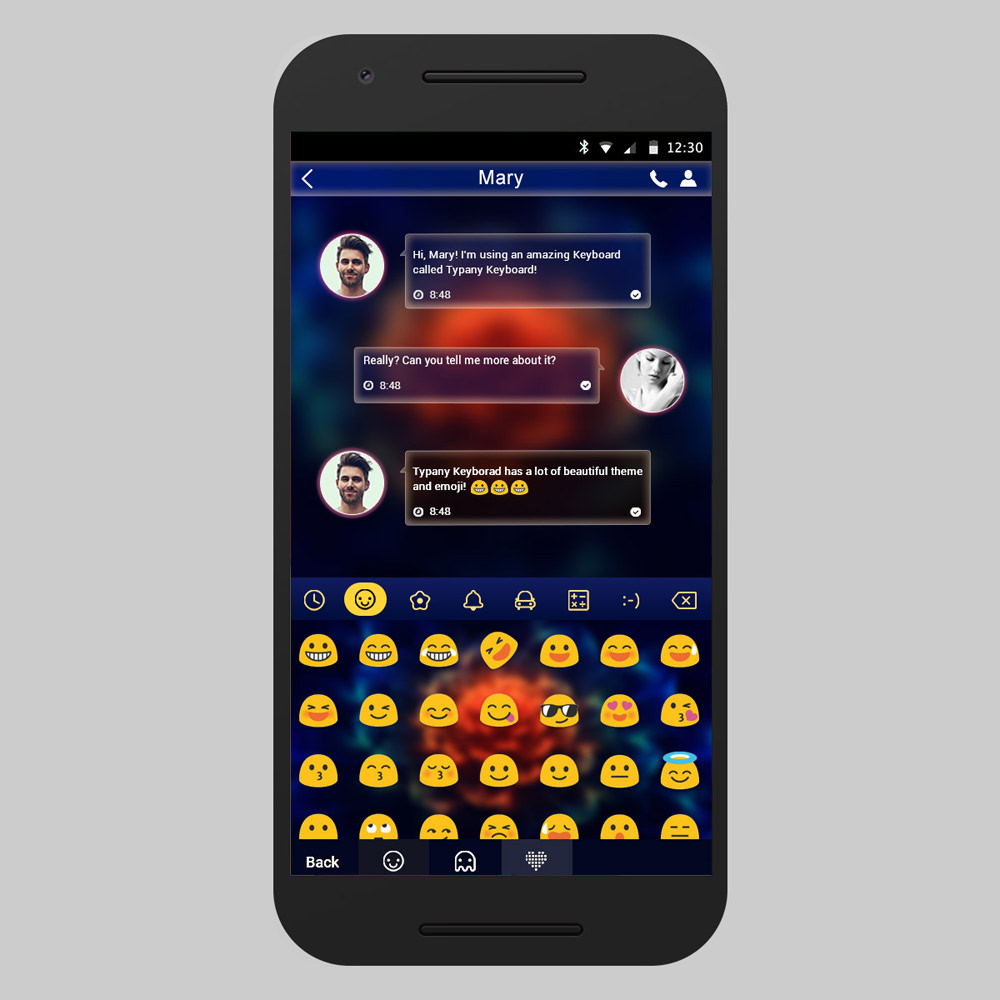
Facemoji Emoji Keyboard is another emoji-focused keyboard app which boasts of bringing fun to your daily conversations. It packs in 3.5k+ emojis, symbols, stickers, and GIFs, a feature to turn your face into an emoji (face emoji) and offers 30+ languages.
If I talk about personalization, you can change color, font, background, tapping effect, and layout of this keyboard. It also offers word prediction and correction, swipe typing, clipboard, etc.
10. Ginger Keyboard
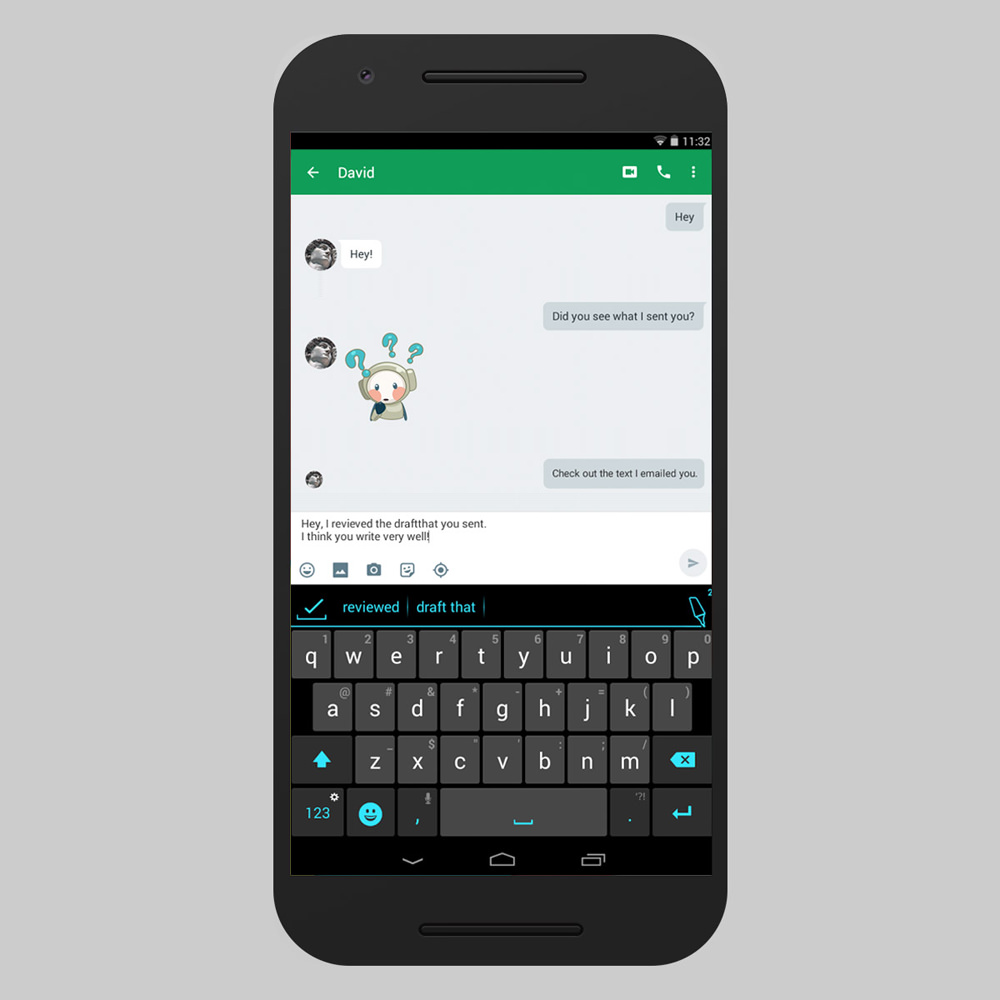
Another of my old favorites, I know Ginger Keyboard as a productivity tool, but that is not all. This app offers many unusual features such as in-keyboard games, a smart bar for app shortcuts, grammar and spell checker, etc.
Apart from that, it also offers you to use 50+ languages, 100+ themes as well as a theme designer to personalize the keyboard. Also, let us not forget about 1k+ emojis, stickers, GIFs, and a lot more fun features along with word prediction and swipe typing.
Bonus: Slash Keyboard
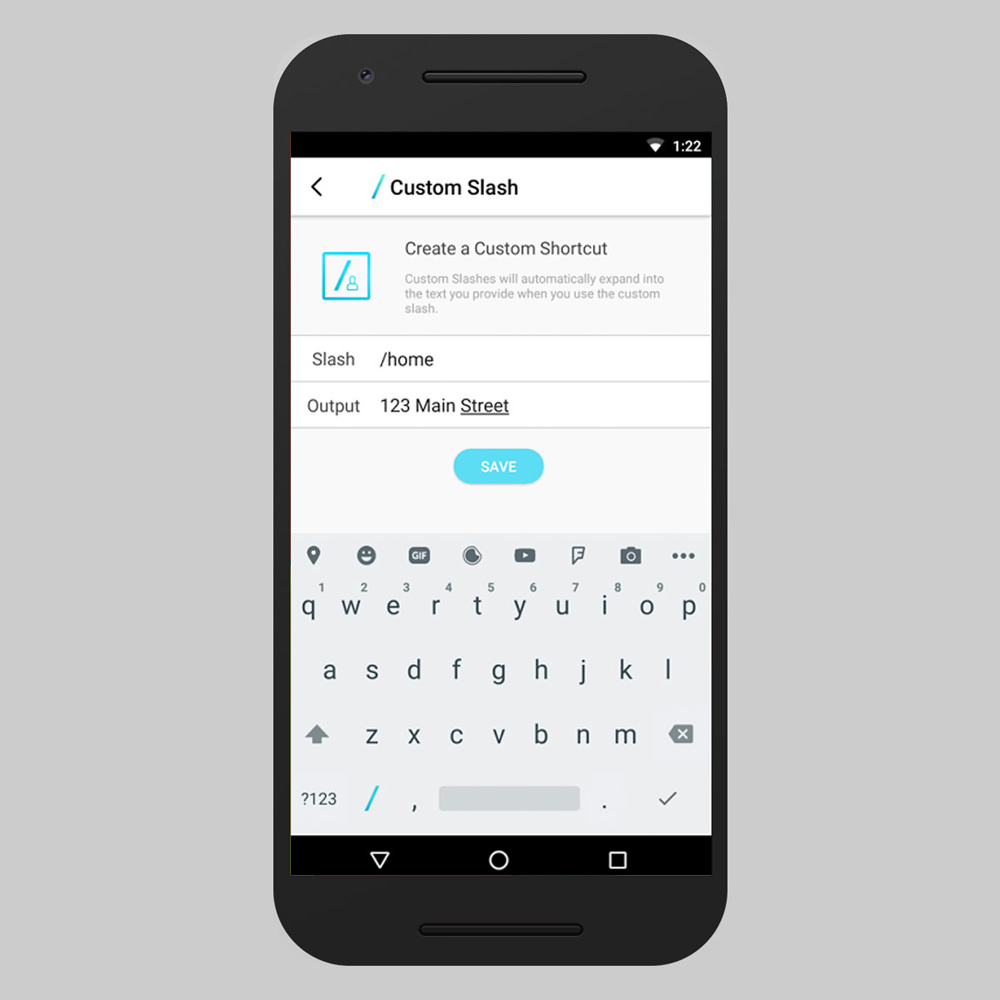
Slash Keyboard is the one-of-its-kind app with Slack-like slash commands, which means you can press “/” to unlock 20+ features and services. Though it offers just 10+ themes to make the keyboard your own, yet its integration with your favorite apps like Dropbox, Twitter, and more helps you have more fun in your conversations.
For example, you can share stickers, GIFs, songs, tweets, contacts, files, and more things right from the keyboard.
Wednesday, 27 December 2017
How to Transfer Contacts, Photos & Music from Android to iPhone
If you"re an Android user thinking about moving to iPhone (or if you"ve already made the switch from Android to iOS), you may be concerned about transferring all your data - music, photos, videos, contacts, calendar and so on - and making sure nothing is lost in the process. Luckily you"ve come to the right place.
The good news is that transferring contacts and the rest from Android phone to iPhone really couldn"t be simpler - it turns out that Google is great at this stuff.
The basic principle is to back up to either the cloud or a desktop machine, and then sync to your new device. Even better, Apple has launched an Android app specifically to guide you through this process.
If you"d like to make the same journey in the opposite direction, see How to transfer from iPhone to Android. And for transfers within Apple"s walled garden, try How to move from an old iPhone to a new iPhone.
Move to iOS app
Apple"s Move to iOS Android app wirelessly transfers a user"s "contacts, message history, camera photos and videos, web bookmarks, mail accounts, calendars, wallpaper, and DRM-free songs and books" from an Android phone to their new iPhone.
You"ll also be given some advice on apps. The switching process will suggests any free apps that were on your Android device and which are also available on Apple"s App Store, helping you to quickly get back on your feet. Paid-for apps which you owned on Android will need to bought again for iOS, unfortunately, but these will be added to your wish list in the App Store.
Once the process is done, the Android app helpfully prompts users to recycle their Android phone. This is presumably for environmentally friendly reasons, although cynics might argue that the company is trying to make it harder for ex-Androiders to go back.
Apple has more details about the Move to iOS app here, and the app is available on the Google Play store. (You might be surprised by the app"s respectable rating. When it first launched the reviews were brutal.)
This app makes the process of moving from Android to iPhone far simpler. But there are other ways to get the job done.
Transfer contacts with a Google account (easy)
There are two ways of transferring contacts from Android to iOS. We"ll outline them both below, but if you"ve been using your Android phone for any length of time we strongly suggest you try them in the order given.
If you"ve been using your Android phone and Google account (Gmail, Google Play and so on) for any length of time the chances are that all of your contacts will be associated with your Google account. At the very least the ones you use most often should be.
Make sure you"ve backed up your Android phone. Go to Settings on your Android phone and choose "Accounts and Sync" or similar. (The variation between the different active versions of Android, and the different modded versions supplied by the various handset manufacturers, make it hard to be precise about the wording.)
Enter your Gmail account details and enable synchronisation. Your phone contacts and Google Contacts should now synchronise.
Then unlock your new iPhone. Open the Settings app, scroll down and tap Accounts & Passwords (or Mail, Contacts, Calendars in some older versions of iOS), then add your Gmail account. Make sure Contacts are enabled for the account. You should now find that all of your Google contacts are in your iPhone.
Transfer contacts with a Google account (advanced)
For belt and braces, and to make sure this process always works in future, consider doing the following, either on your iPhone after you"ve followed the steps above, or on your Android before you make the move:
- Open the Settings application on your iPhone.
- Select Accounts & Passwords (or Mail, Contacts, Calendars on older versions of iOS).
- Select Add Account.
- Select Other.
- Select Add CardDAV Account.
- Fill out your account information in the following fields:
Server: Enter "google.com"
User Name: Enter your full Google Account or Google Apps email address.
Password: Your Google Account or Google Apps password. (If you"ve enabled two-step verification, you"ll need to generate and enter an application-specific password.)
Description: Enter a description of the account (such as Personal Contacts). - Select Next at the top of your screen.
- Make sure the Contacts option is set to ON.
After you"ve completed the setup process, open the Contacts app on your device, and syncing will automatically begin between your iPhone and Google. Any time you set up any smartphone, Google should hold the key to all of your contacts.
Swap SIMs
This works only if your Android phone takes the same size of SIM as your iPhone (see Which size of SIM does my iPhone need?). You can of course cut down a larger SIM to fit, but do this only as a last resort - if you get it wrong the SIM and your contacts are gone for good.
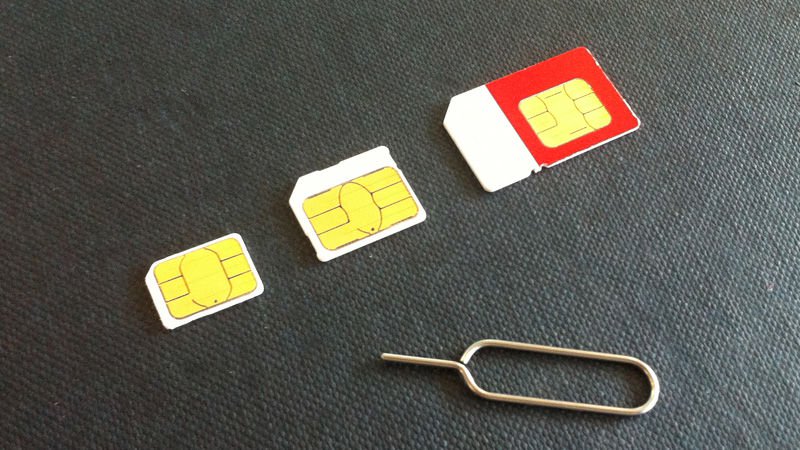
First, save all contacts on the Android phone to its SIM. Next, insert the SIM into your iPhone, taking care not to mislay the iPhone"s SIM. Finally, go to Settings and select Contacts (or Mail, Contacts, Calendars in older versions of iOS) and tap Import SIM Contacts.
When the operation has finished, you can replace the iPhone"s SIM card with the original card.
Transfer apps
There"s no easy way around this. If you had to pay for an app on Google Play, you"ll probably have to pay for it again on Apple"s App Store.
That"s the bad news. The good news is that in almost every case the app you like using on Android will be available on iOS, and if the app is based on user accounts and logins, the details you use on one are likely to work on the other. And hopefully any in-app purchases, extra content you"ve bought or services you"ve signed up to through the Android app will be accessible on your iPhone.
Open the App Store on your new iPhone, create an Apple ID account if necessary, and start searching for those apps you love. And remember that there may be free alternatives.
Transfer photos & videos
There are a couple of simple ways of doing this. The first involves installing a data-transferring app.
You can find several such apps on the Apple App Store, but remember you need to find them first on your Android in the Google Play store. We recommend Copy My Data (iOS/Android) and PhotoSync (iOS/Android).
Then it"s easy. Simply install your chosen app on both your Android and your iPhone, and you"ll be guided through the process of moving files from one to the other.
The other way to move photos from Android to iPhone is to use a computer with iTunes. You need only to find the photos and videos on your Android phone, move them to your computer, sync them to iTunes, and then sync your new iPhone with iTunes. A similar process works for music, as we will outline below.
To transfer your photos from Android to iPhone, simply connect your Android phone to your PC or Mac. Choose the photos and videos you want to move, and drag them to a folder on your computer. For simplicity we would create a new folder on the Desktop called "Photos for transfer".
Now plug in your iPhone to your PC or Mac, open iTunes, and click your iPhone. Click Photos, select the "Sync Photos from" checkbox, and choose the folder into which you saved your photos. Click Apply and the photos will sync to your iPhone.
Transfer music
The principle here is similar to that of transferring photos from Android to iPhone. You need to get music files from your Android and on to your PC or Mac, then get those files into iTunes and sync up your iPhone.
The critical stage here is to back up your Android to a PC or Mac. Because most Android devices can be mounted and used as external storage, this can be as simple as dragging all of your music files from the mounted Android phone"s folder structure, and moving them into the music folder on your PC or Mac.
Now install and open iTunes on your computer. Go to Library, and click Music. Open the folder into which you put your music files, and drag them to the Music view in iTunes.
Now hook up your iPhone, click iPhone, and click Music. You can choose to sync your entire library, or select only the songs or artists you just added. Then click Sync and the songs will be added to your iPhone.
Monday, 25 December 2017
8 iPhone & Android Apps To Create Cinemagraph
Cinemagraphs create GIF animations with small elements that move while the rest of the picture stays static. Being neither a static picture nor a proper animated GIF, a cinemagraph mesmerizes its viewer in mysterious ways.
Although you can manually create cinemagraphs, but it would require much practice and expertise if you are using a regular photo editor. However, I know some handy smartphone apps that can help you create amazing cinemagraphs without much effort. Even a novice can download them and start creating cool cinemagraphs.
Let’s check out the following collection of 8 of the best cinemagraphs apps for Android and iOS.
1. Loopsie
It may not be the most customizable cinemagraph creating app, but Loopsie definitely supports some of the most powerful features. It creates full HD cinemagraphs, and its built-in stabilizer automatically stabilizes your shaky videos.
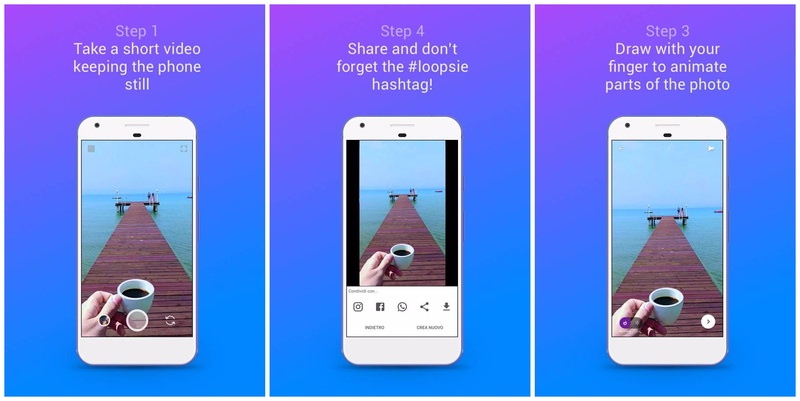
I also liked that Loopsie lets you create cinemagraphs in both repeat and bounce manners. Therefore, you can either make the video repeat from start after finishing or play it backward instead. In the free version, Loopsie’s watermark will be added to all of your cinemagraphs, but you can remove it with a $1.99 in-app purchase.
2. Cinemagraph Pro
Cinemagraph Pro by Flixel is the go-to app for many professional photographers thanks to its amazing customization options and easy to use interface. You can create cinemagraphs out of both still images and videos, and it also has support for repeat and bounce style with adjustable speed.
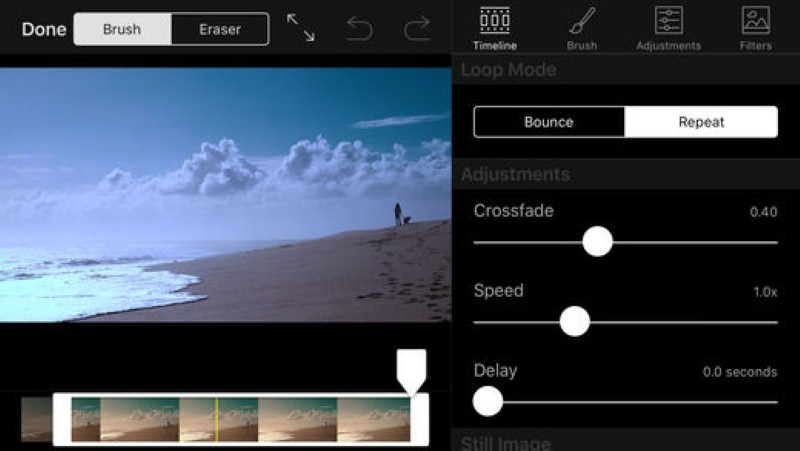
The only problem with Cinemagraph Pro is its $200/ year price tag. Though it can be used for free if you don’t mind the watermark and lower video quality, but for professional use, you’ll have to buy the full package worth $200 annually. The package contains fully featured Cinemagraph Pro app and Flixel cloud service.
3. Motion Stills
Created by Google, Motion Stills lets you create both cinemagraphs and time-lapse videos. However, it’s very basic and there are hardly any additional editing tools. Nevertheless, it’s video stabilizing feature is definitely worth trying.
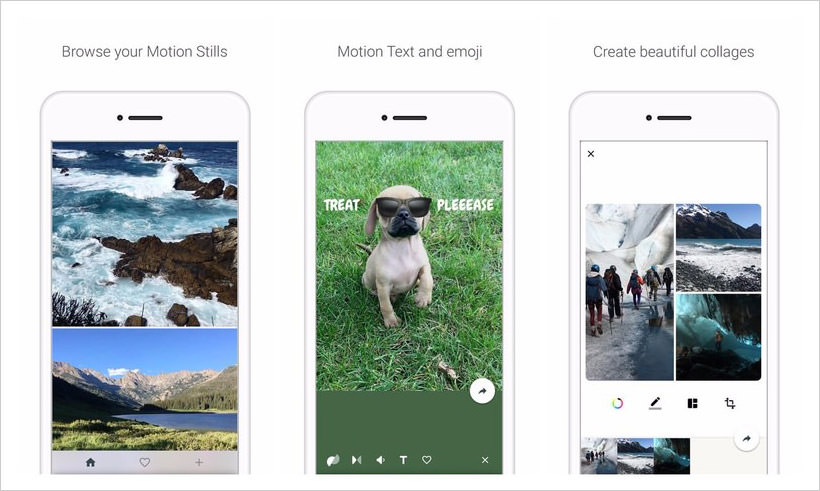
The app will let you create a looping 3-second video using its amazing stabilizer to ensure it looks like a still image. You won’t find any editing features, but you can still join clips to create a movie.
4. PICOO Camera
With PICOO Camera, you just select an area on the screen that you want to animate and then shoot the video for an amazing cinemagraph. You can either use square or circle pattern to select the area or draw a custom area with your finger.
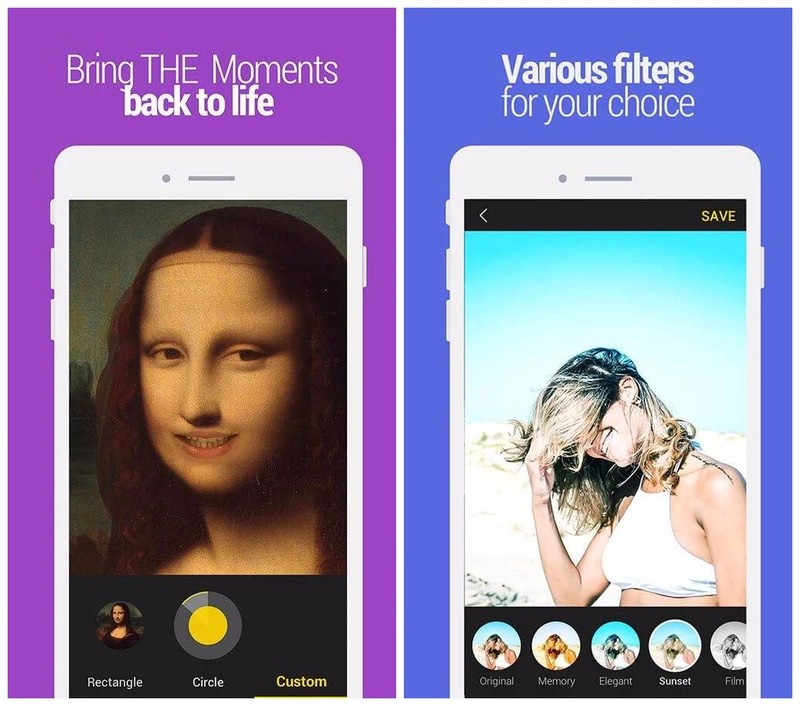
Agreed, that the result may not be perfect in some situations, but PICOO Camera does a fine job in most cases. On top of that, it also comes with filters to further beautify your cinemagraphs.
5. MaskArt
It’s basically a cinemagraphs converter app that turns your existing videos into mysterious cinemagraphs. You just have to highlight all the areas you want to animate and the rest will become a still image, creating a perfect cinemagraph.
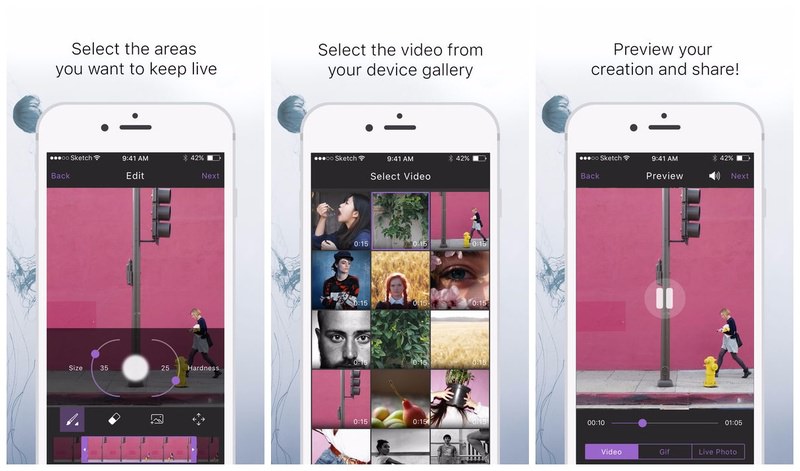
This type of approach is actually better than directly shooting cinemagraph videos as you have more control over what to animate and won’t have to worry about changes in the scene. To top it off, MaskArt also lets you add a custom photo right on the cinemagraph, giving you more customization options.
6. fotodanz
Although fotodanz developers stopped managing it some time ago, but just a few months back they’ve started working on it and its again ready for show time. It follows a similar approach to MaskArt, you’ll just need to shoot a video (from fotodanz app) and highlight the area you want to animate.
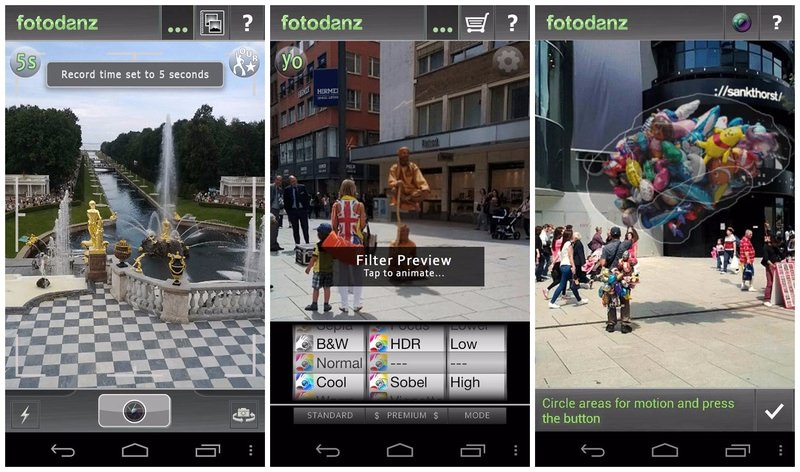
Unfortunately, you can only shoot videos up to 5 seconds, but for cinemagraphs it’s more than enough. It also gives you control of loop styles, adjust length and speed, rotate image, and add filters. Creating cinemagraphs is free, but you’ll have to make an in-app purchase to access the advanced filters.
7. Video Loop Perfect Editor Cinemagraph Clips Maker
For a rather long and complicated name, this is actually a very easy to use app. You just have to upload your video and draw the frame that you want to animate. Afterward, apply some filters if you like and save the cinemagraph to your phone or directly share it.
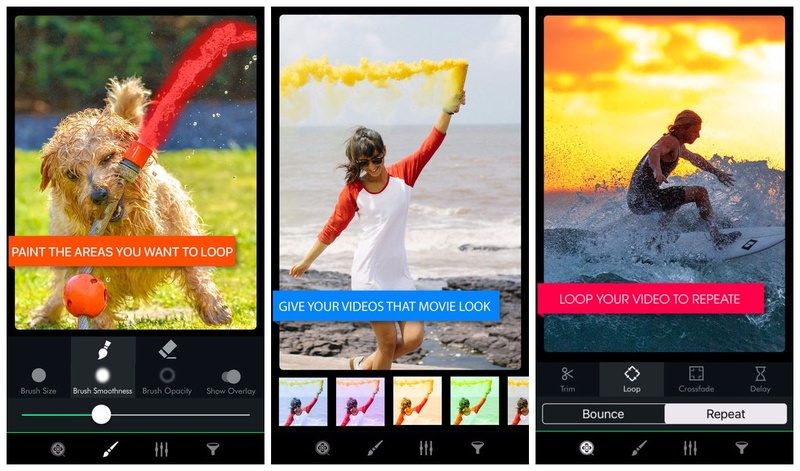
The app does add its watermark on all of the cinemagraphs created, but you can remove it with a $1.99 in-app purchase.
8. Cinemagraph
It’s a reliable app for creating cinemagraphs, but doesn’t come with a stabilizer. Therefore, you’ll have to either use a smartphone Tripod or make sure you have some kind of support so you won’t make a shaky video. Similar to other apps in this list, you’ll have to draw an area that you want to animate and then shoot the video.
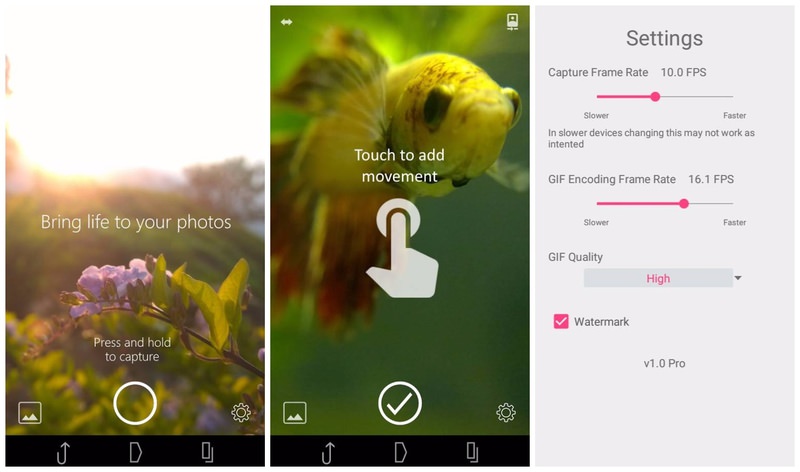
Interestingly, Cinemagraph app lets you edit your cinemagraph frame-by-frame. You can add multiple types of filters and customize animation in every frame. You can also tap on the focus object to quickly create a cinemagraph out of a focused item.
Ready to create some cinemagraphs?
All of these apps let you create cinemagraphs for free. However, some of them either add a watermark or offer lower quality video in free versions.
In my views, Cinemagraph Pro is definitely the most powerful app in this list, but only professional photographers should go for it’s expensive paid version. For regular users, PICOO Camera and MaskArt are great options.
Edward Snowden’s new app turns any Android phone into a surveillance system
NSA Whistleblower Edward Snowden is among the backers of a new surveillance app that helps guard against computer hijackings.
Haven is an open source app that will run on any Android phone, particularly inexpensive and older devices. It operates like a surveillance system, using the device’s camera, audio recording capability and even accelerometer to detect movement and notify a user. The idea is that, even with the best encryption in the world, a device is vulnerability to physical, in-person tampering — also known as “evil maid” because literally a hotel maid could access it.
The app was developed by The Guardian Project, Freedom Of The Press and Snowden to offer eyes and ears to prevent, or at least increase awareness, of whether a device has been tampered with.
So, for example, you’d set up a burner Android device in a hotel safe alongside your laptop. Haven could then be set to broadcast any audio or movement, basically if anyone opened the safe it will snap a photo, record audio and detect motion. Alerts can be sent via SMS, Signal or to a Tor-based website.
Writing for The Intercept, Micah Lee, a member of Freedom Of The Press who help set up and test the app, admitted that the app does have some shortcomings — such as maintaining constant internet access for notifications, preventing battery drain and false positives — but it offers something new for those who would welcome the peace of mind from additional surveillance. While beyond helping keep hardware secure, it could also have other uses.
“Haven can also be used as a cheap home or office security system to detect break-ins or vandalism while you’re away, positioning the phone to send you photographs when someone walks within range. Or you can use it to monitor for wildlife in rural areas, or to capture evidence of human rights violations and disappearances,” Lee wrote.
Haven can be downloaded via Google Play and open source Android app store F-Droid.
Snowden, who remains exiled in Russia, previously helped develop an iPhone case that detects when a device is transmitting data that can put users at risk of detection, and he’s been very vocal about services that he believes are problematic for privacy. He previously advised that people get rid of Dropbox and avoid using Google and Facebook and has spoken at length on why data collection is “the central problem of the future.”
Thursday, 21 December 2017
Google will require all Android apps to be 64-bit beginning in August 2019

Google announced today that it"s intending to get rid of all apps that aren"t built with a 64-bit framework in the future, although it"s fortunately giving developers and users alike until August of 2019 to switch over. After that, though, 32-bit apps are going the way of the dinosaurs.
The move is meant to prepare for a future version of Android that will only support 64-bit apps, and Google is billing it as an improvement for the platform"s security performance as a whole.
"For apps that use native libraries, 64-bit code typically offers significantly better performance, with additional registers and new instructions," the announcement post says.
In fact, it"s likely that many cross-platform developers are already prepared for the shift, as Apple already ended support for 32-bit apps in iOS 11 back in September.
One step ahead
The post, which is aimed at Android developers, also details new API level requirements. Under the new rules, developers will have to start specifically designing for Android Oreo"s interface beginning in August of 2018, even if the app doesn"t actually require Oreo. Each time a new version of Android comes out, Google will update this requirement for the next year with a new version to target.
In addition, Google announced that it"s introducing security metadata that can prove if a particular app was authentically downloaded through the Google Play store, which should help reduce malware downloads.
The hope seems to be that the changes will result in a more stable and uniform Google Play store experience, much as you get with Apple"s comparatively (until now) stricter App Store.
The new guidelines are part of a larger push toward greater standardization of the Android experience, such as how Google now requires all new phones that ship with Android Oreo to support Project Treble, Android"s new auto-update feature.
Click-to WhatsApp message icons found in Facebook ads
WhatsApp, the popular messaging platform has always been clear that it will not allow ads on to the app. However, that has not stopped Facebook from trying to make money off the app.
Information on the new WhatsApp feature
According to recent reports, Facebook is releasing a new ad unit. This unit will help businesses on Facebook link with WhatsApp. Basically put, now advertisers will have a button on their advertisements. This button will allow users to contact the company using WhatsApp.
While this function was found in the test mode a few months back, Facebook has now confirmed its existence. The company further added that the feature will be rolled out selectively. It will first release in North and South America, Africa, Australia and most of Asia.
Facebook has opted out of adding Europe to that list. It might have something to do with the fact that the company was forced to stop sharing information between the two. This was because a court decided that it was a violation of data protection laws.
Facebook says it is because they want to observe the use of the feature to see if it is effective. They said they are still working through questions from regulators and consumers about combining both the apps.
According to Facebook, around one million business pages add their WhatsApp numbers on their posts or page. This info suggests that the new feature will be helpful for businesses.
Most developing countries use WhatsApp as a major form of communication. Following up this feature would help make Facebook the new White and Yellow Pages.
Pancham Gajjar, product marketing manager, Facebook, said the following about the new feature
“Many people already use WhatsApp to communicate with small businesses. It is a fast, convenient way to stay in touch. By adding a click-to-WhatsApp button to Facebook ads, businesses can now make it even easier for people to learn about their products, set up an appointment or use their service.”
Tuesday, 19 December 2017
Microsoft Office is now on all Chromebooks
One of the biggest criticisms aimed at Chromebooks ever since their inception has been the lack of apps for this web only OS. It is something Google has spent years trying to fix. The biggest change was when the enabled the use of Android apps in Chromebooks, opening the vast library of the Google Play Store to every Chromebook user.
The lack of major apps like Microsoft Office and Adobe Photoshop, Lightroom etc. have caused consumers to be wary of purchasing Chromebooks. Well, this news is set to relieve users who depend on Microsoft Office quite a lot.
Wait.. Wasn"t Microsoft Office already released for Chromebooks?
Microsoft did release Microsoft Office but they have been mainly limited to Google’s latest PixelBook device. It seems like that was just a testing period as now the Office package has appeared on a wide number of other Chromebooks. Chrome Unboxed reports that the apps are showing up on Samsung’s Chromebook Pro, Acer’s Chromebook 15, and Acer’s C771.
The applications are similar to the Android version of Microsoft Office. This means both apps, the one on Chromebooks and on Android come with the same set of features. Any Chromebook with a 10.1 inch screen (or lesser) will be able to use Microsoft Office free of charge. However, if your Chromebook is larger, you will have to buy the subscription.
This is because Microsoft has a rule across Windows, iOS, and Android hardware. This rule states devices larger than 10.1 inches need an Office 365 subscription to unlock the ability to create, edit, or print documents. This rule could vastly increase the sales of Office 365. But they face competition with Google’s own G suite which is similar to Microsoft Office. Sales of Chromebooks have been increasing over the years. This means it makes sense that Microsoft is paying attention to this OS and feels fit to make an application for it.
Tuesday, 7 November 2017
How to unlock your Chromebook with an Android smartphone
Google’s Chromebook has been steadily taking up a slice of the laptop market. They come with a large number of unique features that help it stand out from the usual Windows laptops and Mac laptops.
One major feature that Google is pushing out is to make the experience between Android and Chromebook much more seamless. They aspire to make a level of seamlessness attained by Apple and its ecosystem.
In Google’s quest to do so, they have now released a new feature that further slims down the gap. This is the ability to unlock your Chromebook by simply using your Android device. The method to set it up is pretty easy too. It does not take more than a few minutes to do so. After that, whenever you want to unlock your Chromebook, you can do so just by unlocking your phone.
How to unlock your Chromebook using an android device
The first step is to click on your profile picture. This will bring up the quick settings. Click on the gear icon present as this will load up the settings. Under a subheading named People, click on Screen lock. Here you will be prompted to enter your password. Once you have done so, look for Smart Lock for Chromebook (beta). Click on the Set Up icon. You will be prompted to switch on the Bluetooth on your Android device.
Once you do this, go back to your Chromebook and click on Find Your Phone. After the Chromebook finds the device, it will list it and you can tap on Use This Phone. After a couple of processes that are done in the background, a notification will be shown on your phone. You will then be asked to tap Next on the Chromebook. The final step is where you click on Try Smart Lock.
The laptop will now lock itself so you can try the feature.now try unlocking your phone and you will see that you can unlock the laptop without having to add the password.
Razer Phone: Hands on Review
Razer recently bought Nextbit. Thanks to that venture, they have now released a smartphone called the Razer Phone. Here we take a look at what it is like.
Design of the Razer Phone
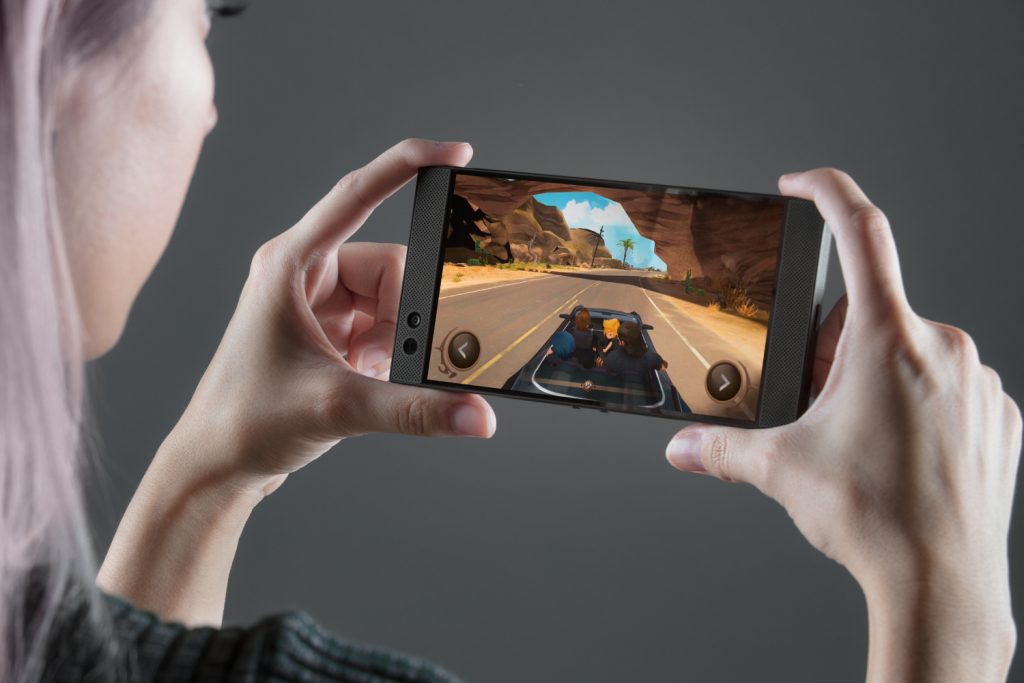
The design of the phone seems a bit like the Nextbit Robin. However, it has a few tweaks from that design. The device has a black finish on the back. It also has green icons, which is a known sign of all Razer products. The aspect ratio of the phone is 16:9. It also comes with a dual front facing stereo speakers. A rare feature in smartphones nowadays, each speaker includes its own amplifier.
Display of the Razer phone
On the side of displays, the device has a 5.7 inch QHD IPS Sharp IGZO screen. Users of Razer devices will realize this is the same display present in the Razer laptops. The display on this phone is the first display on a smartphone to have a variable refresh rate of a maximum of 120 Hz. Another major feature of the display is Ultra Motion. This is basically a smartphone version of NVIDIA’s Gsync which is available on PCs.
Specs on the Razer Phone
The specs on this device are up to 2017 standards. This means it comes with a Snapdragon 835 processor, 540 Adreno GPU, 64 GB of storage that can be expanded and 8 GB RAM. The entire framework is supported by a 4000 mAh battery. The company says that the device can stay powered for days. The Razer Phone is the first device to support Qualcomm’s Quick Charge 4.0+.
As with most 2017 devices, this phone has a dual camera setup. It has two dual camera lens on the back; one for wide angle photos and the second for telephoto. They come with phase detection autofocus and a dual tone LED flash to help with the image taking. Razer’s phone runs Android 7.1.1 with a scheduled update to Oreo.
Sunday, 29 October 2017
Rumors about the OnePlus 5T
Over the past few weeks, rumours about a new smartphone from OnePlus, called the OnePlus 5T have increased. With the company itself teasing us about the phone, it seems a release is inevitable. It will also be in line with the company’s strategy of the last year.
What do we know about the OnePlus 5T?
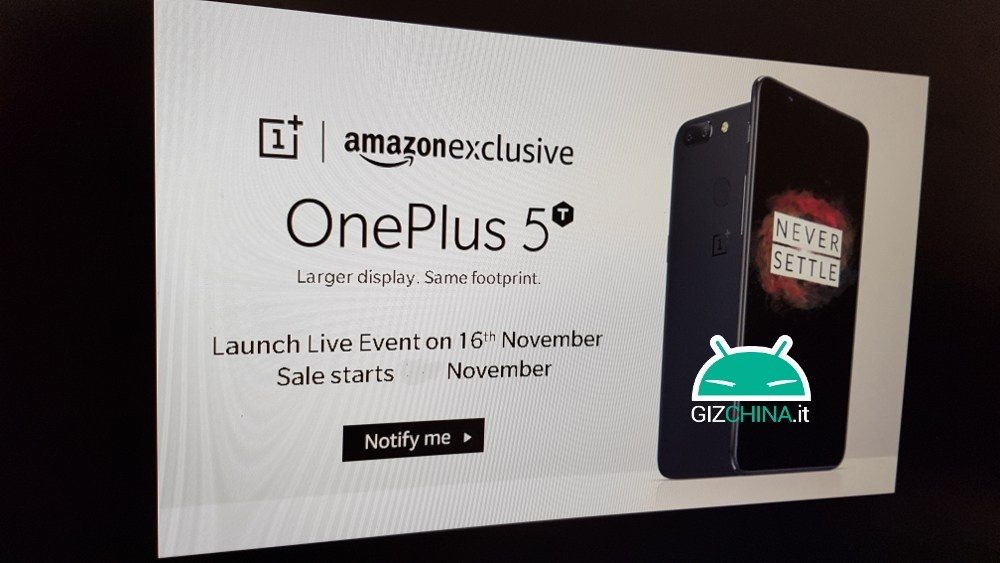
The latest of the leaks even show us how the phone would look. The leak further states the announcement date of the device. The leak was obtained by GizChina. For those who do not know, Amazon is the only seller of the company’s flagship phone. GizChina has obtained a promotional page that Amazon had prepared for the launch of the new model. The page is shown below.
What are the specs of the OnePlus 5T?
According to the rumors over the weeks, the new model will come with a six inch Full HD Plus display. This is a major change from the previous edition which had a 5.5 inch screen that was maxed out at Full HD. The aspect ratio of the device is 18:9. This means the device will look quite similar to the Samsung S8 and the Pixel 2 XL. It is said to come with a Snapdragon 835 processor. The RAM will vary between 6GB or 8 GB as will the storage between 64 GB and 128 GB. A 20 MP dual camera system will be on the back and a 16 MP camera on the front will take care of your selfie needs. It will also feature a rear based fingerprint scanner due to the lack of bezels.
Chances are the battery and the cameras will be tweaked with a bit. This was what was done last year with the OnePlus 3 and the OnePlus 3T and its likely the company will follow the same here.
Thursday, 26 October 2017
Sony Xperia XZ1: Hands On Review
The once prominent Japanese maker released their new phone; the Sony Xperia XZ1. Here we take a look at the device.
Design of the Sony Xperia XZ1
The Xperia XZ1 looks extremely natural and you can say the same when you touch it. It includes a similar general square shaped outline Sony has utilized for quite a long time. This device has a slight refresh, highlighting the circle design Sony executed a year ago which adjusts the sides for a smoother design. This circle configuration now reaches out to the best and base parts of the telephone. The smartphone manufacturer has tried to bring about a refresh of its design. However, it has not worked and the design looks very outdated. It has large bezels on the front that further ruin the design. The build quality is really great though and it does not suffer from fingerprint smudges.
Specs of the Sony Xperia XZ1
The device comes with a 5.2 inch display. Most of the smartphones are going towards AMOLED and QHD but Sony has stuck with an IPS LCD display. However, it is a great display and the colour reproduction is quite good. Even when it came to outdoor visibility, the phone held its own and is also HDR10 certified.
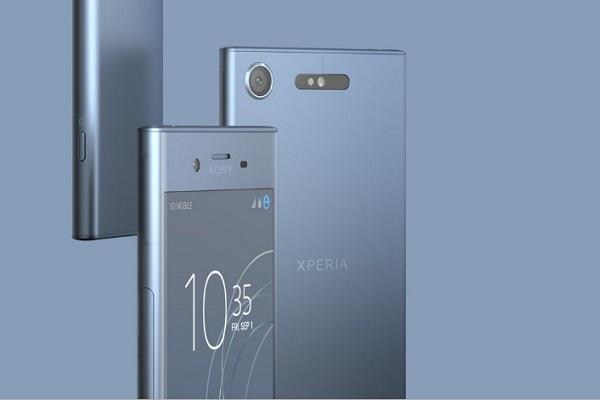
It has 2017 era specs such as a Snapdragon 835 processor and up to 4GB of RAM. This means multi tasking is a breeze and scrolling smooth as butter. It even played heavy games with no issue. The Sony device has 64 GB of storage and supports the insertion of micro SD cards to a maximum of 256 GB. Sony’s device is IP68 certified so you can dunk it in the water. The phone does not have a dual camera and is a single 19 MP Exmor RS sensor. It comes with 4K recording and slow mo at 960 fps.
WhatsApp unveils live location sharing
Information on the new WhatsApp feature
The company announced this yesterday through a blog. They are calling the feature “Live Location Sharing”. In the firm’s own words, they want to enable a “secure way to let people know where you are.” If you want to use it, you will be pleased to know it operated similar to the original feature where you could share your current location to someone in your contacts. On the WhatsApp conversation, you will be able to see the attach icon. It is in the form of a paperclip. Once you click that, click on Location. This is where you can find the new feature. Once you click on that feature, you can send a real time location to a person on your contact or even a group, should you wish to.

Is the WhatsApp feature secure?
Of course, the real worry with this feature is the security. The element takes advantage and utilizes end-to-end to encryption to keep the connection secure. Furthermore, you can quit giving your location whenever you want. The word from the company is that it is additionally with an expiring timer. They did not tell us how long this timer would stay in effect.
Google has a similar function too. They brought the feature to its Maps some time back and so has Snapchat.
Tuesday, 12 September 2017
Best 3 security apps to protect yourself
With many data breaches occurring it is natural to worry about your identity and security. There are plenty of apps one can make use of to stay on the safe side.
Below is the list of the 3 best security apps to safeguard your data and keep yourself secure at all times.
The Best 3 Security Apps
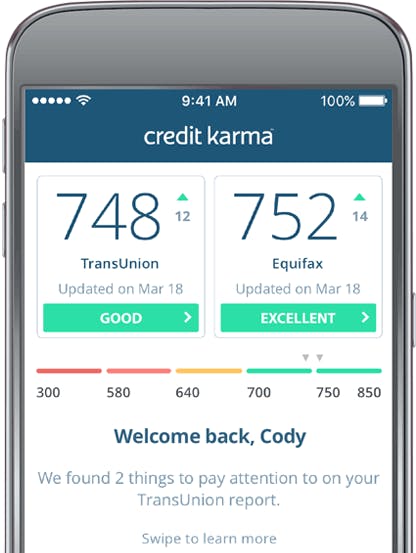
Credit Karma
Credit Karma is a credit check application. It"s anything but difficult to utilize. You sign up and it does the rest. You get updates on your balance in a regular time period.
In this way, you can check whether new credits cards or other huge debts appear in your name. The application keeps running on ads. You will see things like credit card promotions. They"re sufficiently simple to overlook. The application also has a couple of different highlights. Credit Karma is free with no in-application buys.
Find My Phone
Find My Phone is Google"s smartphone locating app. It comes preloaded on most smartphones. Turning it on is sufficiently simple. The application can enable you to locate a lost or stolen smartphone. The highlight here is the capacity to remote wipe your smartphone. That way, you can at least delete your own information in case of a stolen smartphone. You may lose the smartphone, however, it secures your identity and is one of the most important security apps to have.

LastPass Password Manager
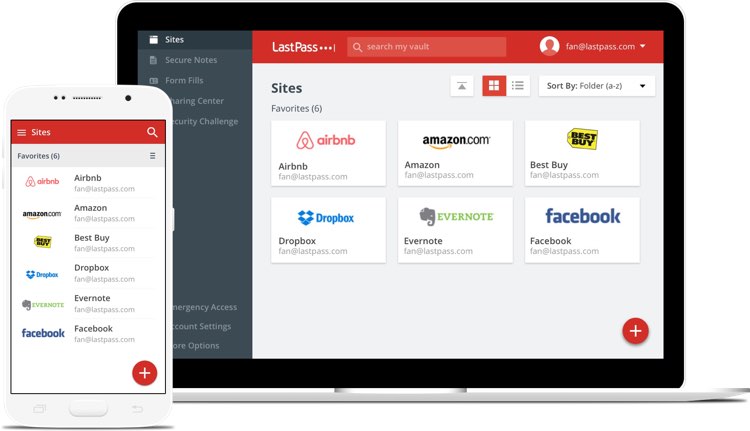
LastPass is a password managing app. It saves your passwords so you don"t need to. Moreover, it has a password generator. It generates some exceptionally strong passwords. An application like this helps keep your records firmly secured. The app can sync data between smartphones and PCs. Something like this makes it so you never need to really record a password. The vast majority of the application"s highlights are free. You can go professional for a few more add-ons.
Saturday, 9 September 2017
Hands On Review – Note 8
After the disastrous Note 7, Samsung attempts to revive the brand with the Note 8. Below we take a brief look at how Samsung fared.
The Note 8 features all the modern day features one expects from the flagship Note series. It has a beautiful Infinity Display, a dual lens setup and the iconic stylus that has defined the range of Note devices.
[caption id="attachment_4570" align="aligncenter" width="770"]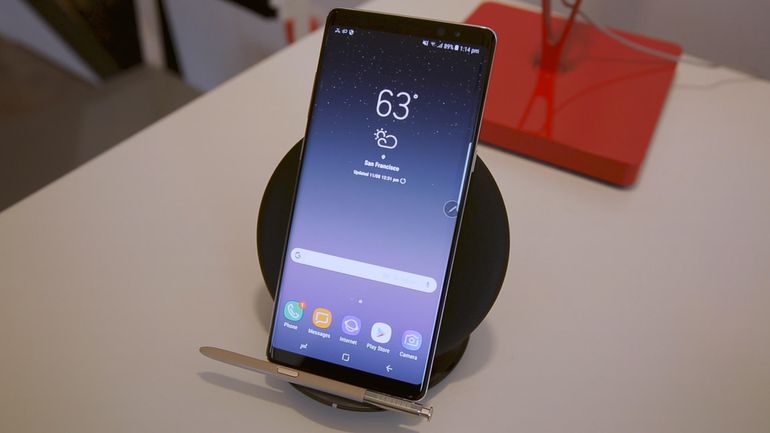 Note 8[/caption]
Specs of the Note 8
The device comes with a Snapdragon 835 chip that combines 6GB of RAM with 64GB of storage that is expandable. On the side of water resistance, the device comes with IP68 water & dust resistance. A fingerprint scanner, as well as an iris scanner, is present with a 3300 mAh battery to power you through the day.
Design of the Note 8
The Note 8 features a large 6.3-inch display that is a tad bit larger than the S8 Plus. The smartphone has a different design to the S series. Instead of the rounded and curved edges, the Note goes for square and flat edges. When it’s combined with the Infinity display, it gives an awkward design. It has minimal bezels and the fingerprint scanner sits right next to the camera. The position of the fingerprint scanner is due to the need to accommodate the Infinity Display.
Display of the Note 8
The resolution of the display is 2960 x 1440. Crowned the best mobile display currently, Samsung offers a maximum brightness of 1200 nits. This should be ideal for outdoor viewing. It’s also certified by the UHD Alliance as a Mobile HDR Premium device.
Camera of the Note 8
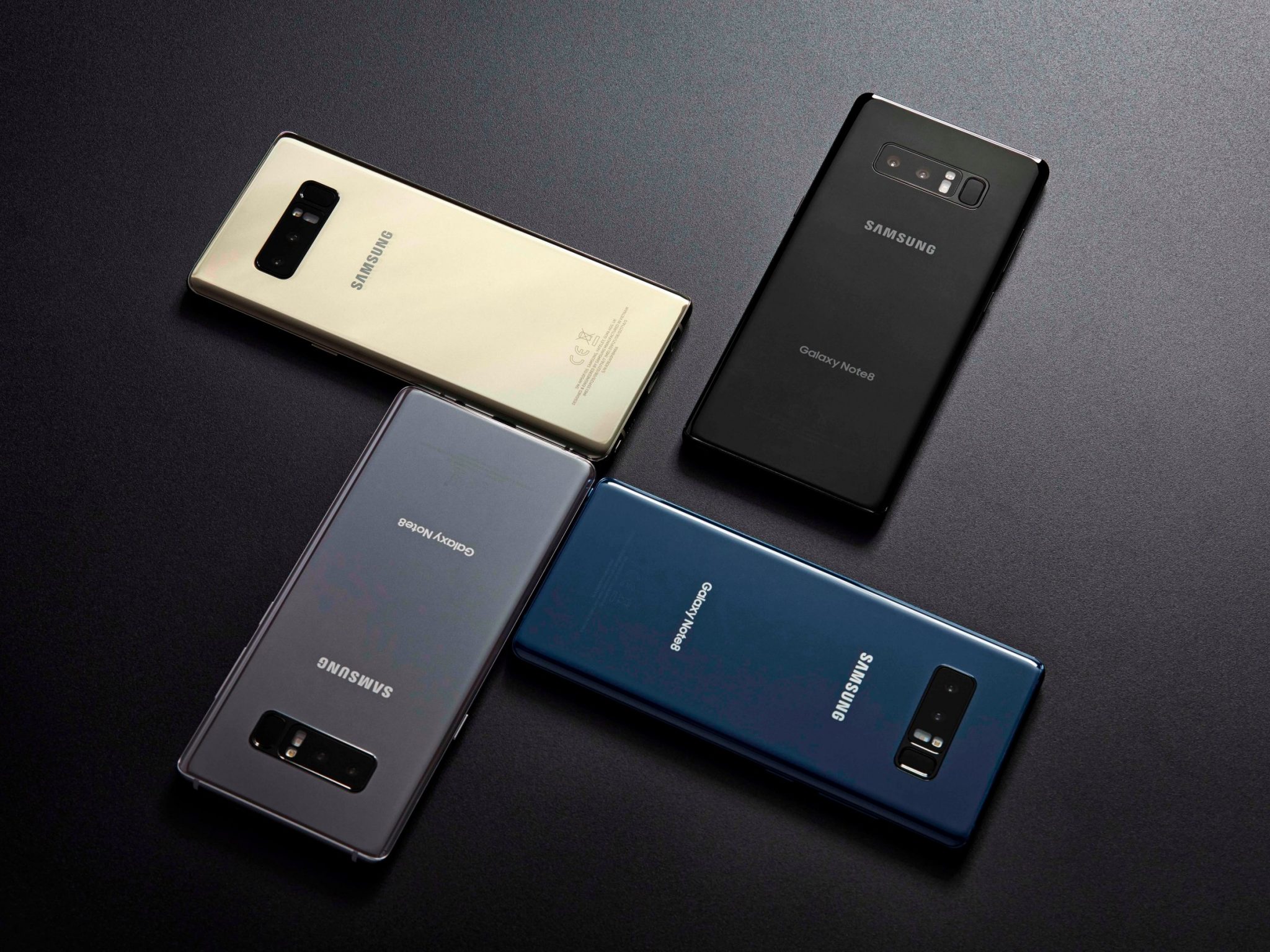
Two 12 MP cameras are included that are sure to offer wonderful bokeh pictures. The camera app comes with a host of new features such as Live Focus and delivers sharp and crisp pictures. Not only does the device offer plenty of pro-level settings, but the camera operates quickly. Auto focus is fast, while pictures are snapped in the blink of an eye.
Tuesday, 5 September 2017
Top 5 best SMS & Texting apps for Android
Text messaging has quickly become the most popular way to communicate. It’s quick, easy to do, and it doesn’t require you pausing what you’re doing like phone calls do. Below are the top 5 best Text & SMS apps for Android.
Top 5 best SMS & Texting apps
Android Messages
Android Message is a free texting app by Google. In terms of features, Android Messages keeps it light. You"ll have some light theming options, some organization and backup features, and a decent search function. The design is entirely Material Design. That means it looks good and it"s easy to use.

Chomp SMS
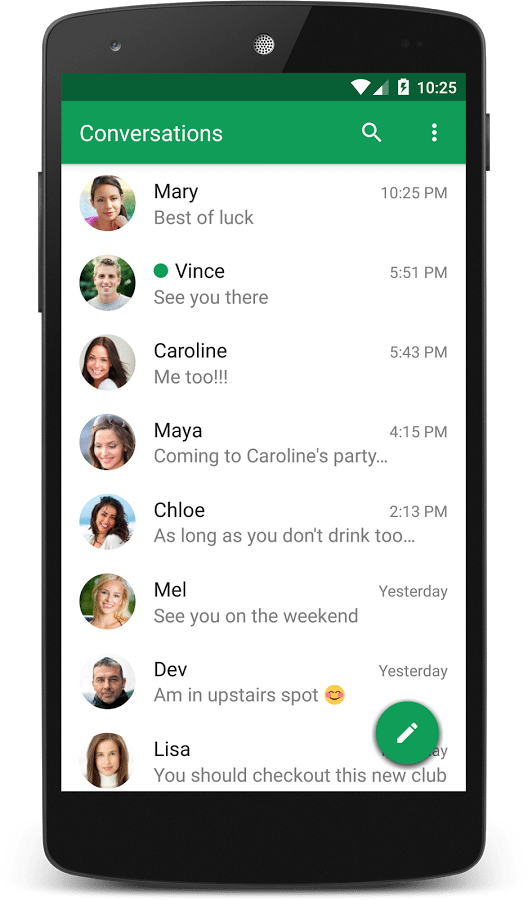
Chomp SMS is one of the oldest third party texting apps. It also makes use of material design. Features include emojis, SMS blocking, quick reply in the notifications, MMS, and group messaging. You can even stop a text mid-send if needed. It also comes with Android Wear and Pushbullet support.
Handcent Next SMS
Handcent, along with Chomp SMS, were the first two really good, really popular third party texting apps available on Android. Much like Chomp SMS, Handcent is a powerful and heavy texting application with a ton of features. Some of them include themes, a privacy box to store private conversations, SMS backup, eCards, emojis, and plenty more. One of the more interesting features is Handcent Anywhere, which lets you text on your computer and tablet if you want.

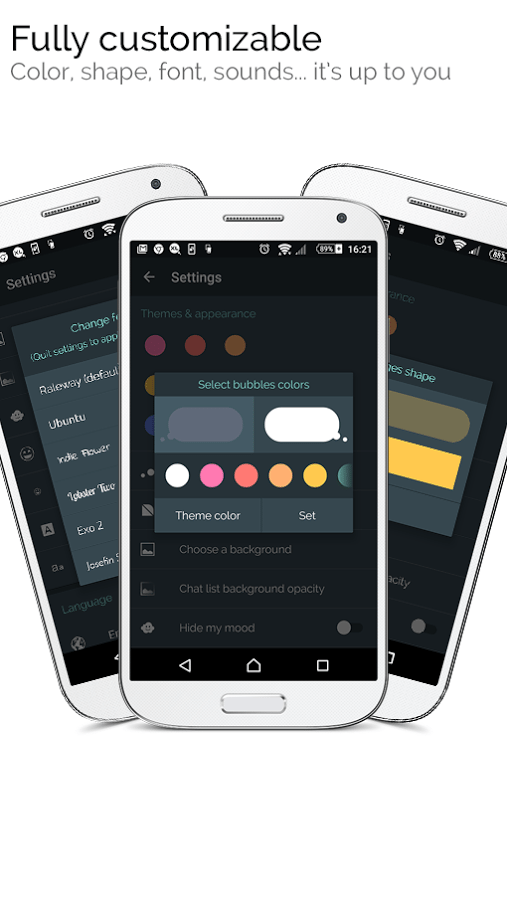
Mood Messenger
Mood Messenger is quite new to the market. The app is very simple when it comes to features but has all the important features. It supports Facebook Messenger esque chat heads. It also supports customization, theming, GIFs and location sharing.
Signal Private Messenger
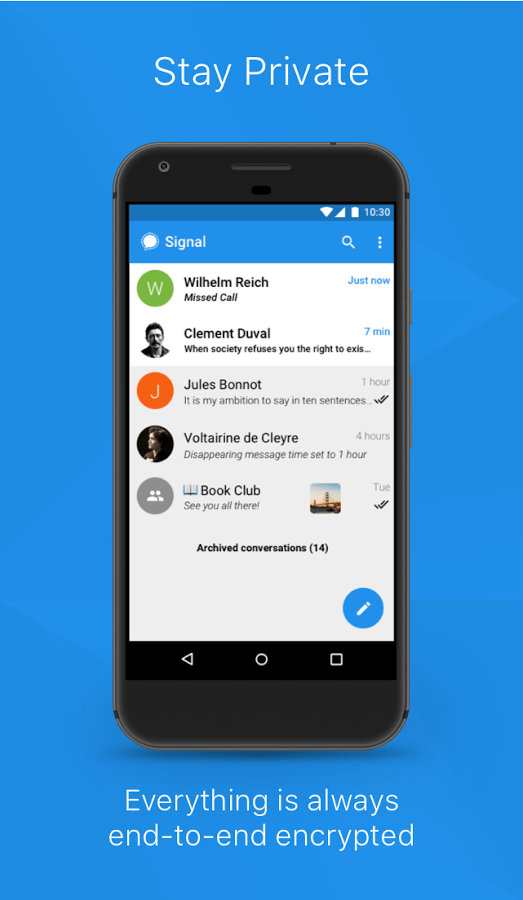
Signal Private Messenger is quite similar to Hangouts and Whatsapp but with a twist. It is more focused on security and provides end to end encryption. If your contact doesn’t have the app then it simply sends a text message.
Wednesday, 30 August 2017
Blackberry to release a more secure version of Android
Overview on BlackBerry
BlackBerry was once the go to device for corporates who wanted a secure phone. They started to fall behind when smartphones started rising. The company quickly fell behind. It was only in 2015 that they announced an Android smartphone. This was years after other competitors had made the move. Since then, it has partnered with various hardware manufacturers around the world to resuscitate the BlackBerry brand and reoriented its focus to providing BlackBerry software to Android users.
The former has been working out relatively well: it recently signed a 10-year brand licensing deal with Optiemus in India, which gives the Delhi-based telecommunications company the right to design, manufacture, and sell devices using the BlackBerry moniker. Not only that, it already has similar partnerships with BB Merah Putih for Indonesia and TCL (probably a better-known partnership) for the global market. The latter, on the other hand, has been limited to Google Play apps so far. This is about to change according to the latest report.
Called BlackBerry Secure, it will be based on Android. The Canadian company will make special security features. The company is right now discussing licensing agreements with various hardware manufacturers. Under the licensing deal, Android OEMs will be able to ship their devices with a modified version of Android. It will be packed with all the features that once made the company so appealing. This seems to be a good move by the company to revive its fortunes by doing what the company was famous for. Blackberry devices were widely used in the business sector during the height of their fame. It was because of the key emphasis on security and privacy.
Tuesday, 22 August 2017
Google announces Android 8.0 Oreo
Today google revealed the new version of Android. It is to be called Android 8.0 Oreo. The name was revealed earlier today during a live stream following the solar eclipse.
Android 8.0
The name has been licensed from Nabisco. This is not the first time Google has partnered up with another company to create a name for Android. Android 4.4 was called KitKat.
Features in Android 8.0
There are many changes that are to be introduced with Android 8.0. First and foremost, Oreo will bring a number of behind-the-scenes changes like background limits for apps to improve battery life. Bluetooth audio improvements and Google Play Protect to help on the security front, and other important changes will be implemented.
Android Oreo will also bring faster boot speeds (up to twice as fast on the Pixel), a much better Autofill implementation, plus support for Android Instant Apps. There are also some user-facing additions. These include adaptive notification dots, wider support for picture-in-picture mode, over 60 new emojis.
A new look for media notifications and the quick settings menu, a redesigned settings menu, adaptive icons, notification channels are some of the rest.
When will your device get Android 8.0
According to Google, Android 8.0 will roll out to the Pixel, Pixel XL, Pixel C, The Nexus 6P, Nexus 5X and Nexus Player very soon. If you are in the Android Beta Program, your device will automatically update to the stable version.
Google also notes that it’s been “working closely” with partner. By the end of 2017, Hardware makers including Huawei, HTC, Essential, General Mobile, HMD Global, Kyocera, LG, Motorola, Samsung, Sharp, and Sony are all scheduled to launch or upgrade devices to Android Oreo.
For those who aren’t keen on waiting for the over-the-air update to hit their devices, factory images will be available sometime, again, “soon” at the Google Developers website.
Sunday, 20 August 2017
First Opinions of the Nokia 8
HMD Global has just unveiled what will be the very first Nokia flagship running Android: the Nokia 8. Historical significance aside, does the Nokia 8 represent the return to form that legions of Nokia fans have been waiting for?
Well, it certainly looks and feels a whole lot like a 2017 flagship and like many flagships, it has a killer feature to set itself apart. Let’s dive right in.
Design of the Nokia 8
The Nokia 8 has most of the hallmarks of a modern flagship, while continuing the design language of the last three models. It has an attractive and very slim all-aluminum design with an average thickness of 7.3mm.
It has a 5.3 inch QHD screen with a brightness of 700 nits. The colors look very vibrant and bright. There is a fingerprint in the front of the phone that couples as a home button too. The back of the device looks great but it attracts quite a lot of fingerprints. It is splash-proof with an IP54 rating.
[caption id="attachment_4467" align="aligncenter" width="600"]
 Nokia 8[/caption]
Camera of the Nokia 8
The Nokia 8 camera is the result of a partnership between HMD and Zeiss and is the core experience the phone is designed around. The rear shooter utilizes two sensors: one color and one monochrome.
The two images are then combined into a single shot with greater contrast using ‘Image Fusion Technology’. This is essentially what we have seen from several other handsets recently, such as the Honor 9 and Huawei P10. There’s also a two-tone flash and both apertures are f/2.0.
Both rear sensors are 13 MP, but in a unique twist, so too is the front-facing camera which, in fact, utilizes the exact same camera module. That means you also get auto focus, which is another rare feature for a selfie camera. The camera app is pretty basic and does not include a manual settings mode.
Everything we know about the Samsung Note 8
The Samsung Galaxy Note 8 is the biggest comeback story in phones following all of the disastrous Galaxy Note 7 battery failures last year. Samsung will be looking to improve on their all screen technology. Just like the previous Note devices, they are likely to come with a S pen.
The release date of the Samsung Note 8
Samsung is going to announce the Galaxy Note 8 on August 23, according to the official invite sent to the media a month in advance. When will it actually be in your hands? The company recently hinted at an early September release date in some countries, with others getting it in October.
More specifically we"ve now heard from both an analyst and a South Korean carrier that the Note 8 will hit stores on September 15. Samsung will look to beat the iPhone 8 as it’s the same time the iPhone releases to the market.
Display of the Samsung Note 8
The Samsung Note 8 is rumoured to release with a 4K screen. While this might seem like overkill, it is has a major advantage when you are using the device for VR. The screen size is rumoured to be 6.3 inches and it is likely to have the infinity display.
Design of the Samsung Note 8
The Samsung Galaxy Note 8 design is likely to take almost all of its cues from the glass-and-metal sandwich that is the Galaxy S8 Plus. It"s almost a Note phone – minus the stylus. If the rumors are true, we will be presented with a larger Galaxy S8 Plus. But it will come with one more camera on the back of the phone and a place to store the S Pen. There is also talk of a dedicated button to use Bixby. The device will not have a physical home button. It is rumored to have a pressure-sensitive screen. The screen brings up different menus and options depending on how hard you press the display.