Showing posts with label Privacy. Show all posts

Monday, 8 January 2018

New Open Source Mobile OS Puts Privacy Front and Center

A renowned Linux innovator has developed a new mobile operating system, called "Project eelo," in an effort to provide a level of data privacy that traditional Android and iOS devices fail to offer.


The new eelo system will allow mobile phone users to regain control over their personal information at a price they can afford, said Gael Duval, who created Mandrake Linux back in 1998.

Apple has become too expensive, too boring and is "going crazy with its products," he said, while Google has "become too big" and is capturing too much information about what we do.

"They want to know us as much as possible to sell advertising," Duval wrote in a post introducing eelo"s Kickstarter campaign, which has more than doubled its goal with 14 days remaining.


"People are free to do what they want," Duval wrote. "They can choose to be voluntary slaves. "But I do not want this situation for me anymore."

After deciding to leave Google and Apple for eelo, Duval received more than 6,000 reads from a couple of articles he posted detailing his plans, he told LinuxInsider.

The eelo project on Kickstarter reached more than 200 percent of goal after only 15 days.

More than 2,000 people have registered at
eelo.io since December 20 in response to his posted updates, Duval added.

eelo"s Lineage


The new eelo project is a fork of the LineageOS, which is an open source system that runs mainstream Android applications. Open source modules are layered on top of that, which help create a consistent mobile and Web system, Duval said.

The project, which calls for the developers to sell preloaded eelo smartphones and provide some premium services, will run as a nonprofit. As a community project, it will welcome contributors.

The developers will release privacy-enabled smartphone ROMs, as well as smartphones for ordinary users, with associated Web services.

They have been testing custom builds of LineageOS/eelo on the LeEcho Le2 -- a 5.5-inch smartphone with a 1080 x 1920 pixel screen, 3G RAM, 32 GB storage, a finger sensor on the back and a 4K camera -- for about Pounds130, and on a Xiaomi Mi5S.

The developers plan to have downloadable ROMs for a range of devices by 2018, Duval said, as well as a limited number of post-market Flashed devices. He also plans to discuss partnerships with Fairphone, Essential phone or similar devices, and plans to industrialize the phone by 2019.

Privacy Tradeoffs


Many consumers have expressed a desire for greater control over their experience with mobile devices, but there has to be a balance between the value proposition and customers" willingness to share on a personal level.

"Information is currency, and people are going to want more control over who has information on their behaviors and habits on a mobile device," said Ryan Spanier, director of research at
Kudelski Security.

"Eelo is focused on maintaining privacy," he told LinuxInsider, "preventing tracking and monetization of your actions without your consent."

There is growing consumer interest in a potentially less-intrusive operating system for mobile devices, but the task of establishing one in the market is daunting, said independent analyst Jeff Kagan.

Though there have been some prior efforts, no alternative mobile OS has been able to compete with iOS and Android, he told LinuxInsider.

Even if privacy is a concern, the majority of consumers don"t understand the relationship between privacy and the mechanics of their personal technology well enough to persuade them to make the shift to eelo, suggested Paul Teich, principal analyst at Tirias Research.

"Success will be made on social media stickiness and whether enough consumers or organizations think they can get "more privacy" -- whatever that means to them -- than stock Google Android or Apple iOS products," he told LinuxInsider.

Developing leading products like the iPhone and other devices involves the willingness to make tradeoffs, noted Gartner analyst Tuong Nguyen.

Companies must invest substantial resources to make their products appeal to the specific needs of their customers, he told LinuxInsider.

"Google spends a lot of time and effort to make [products] easy to use," Nguyen said, "to keep you within their ecosystem."

Sunday, 7 January 2018

Apple Photos vs Google Photos: Cost, privacy, security and ease of use

Google Photos is an app where you can back up and browse your entire photo library from almost any device. Many people have drawn similarities between Google"s Photos app and Apple"s Photos app, which was introduced in iOS 7 and subsequently arrived on the Mac, so we"re going to compare the two and see exactly how similar they are, and which is the best for you.

Google Photos is a free download for iOS so you can run it on your iPhone or iPad - it"s not just for Android users.

For some related comparisons between Apple and Google products, take a look at Apple Maps vs Google Maps and Apple Music vs Google Play.

Organisation and search


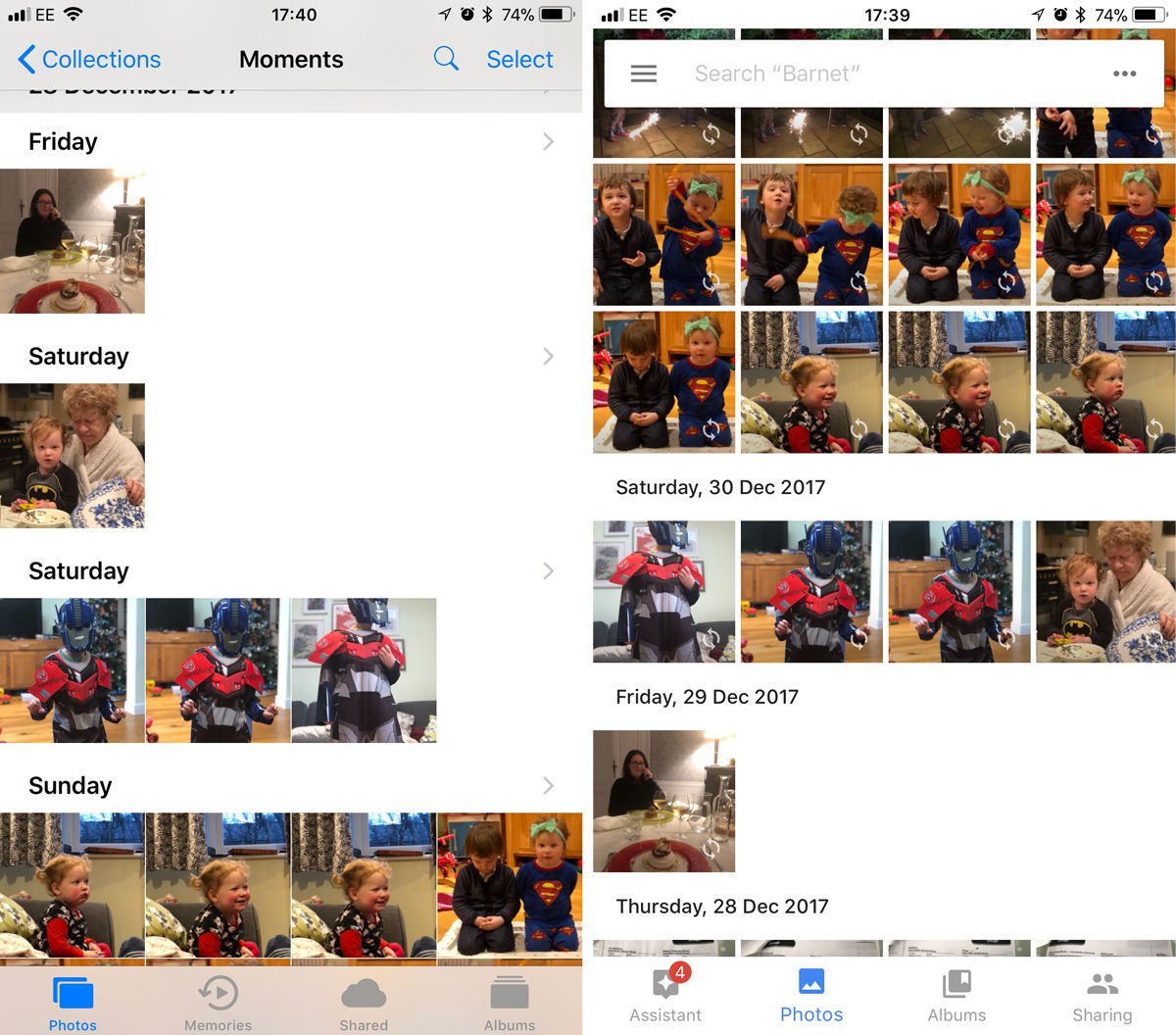
The way that both the Apple Photos and Google Photos apps organise your photos is very similar. Apple organises your photo library using smart groups based on time and location called "Moments", "Collections" and "Years".

Moments are groups of photos all taken over the course of a day (occasionally you"ll see a day split into two Moments). Collections are photos taken over a number of days or weeks: you"ll see a selection of photos taken around the same time, with some location data if you"ve got location services turned on. Years are an overview of photos taken over the course of the year (obviously).

Tapping at a point on the Year view will take you to the Collection of photos from around that time, tap again to be taken to the Moment, which will be all the photos from that particular occasion.

On Apple"s app you can also sort your photos into Albums, or tag a photo with a heart to automatically add it to your Favorites Album.
Apple Photos vs Google Photos: Organisation & interface

While the two apps may look somewhat similar, Google Photos takes a different approach to photo organisation. The order is reversed, for one thing: the most recent photos appear at the top and you swipe up to see more.

If you"re viewing the day"s photos in Google and want to see all the photos you took in a month, pinch to zoom out. Want to zoom in on a particular photo? Unpinch to zoom into it. If you zoom out from a photo back to the day, or month view, a side bar appears that lets you quickly scroll back in time by tapping, holding and dragging the side bar to a specific month. This side bar is slightly more precise than swiping up and down on the Apple app.

Search


However, that"s not the impressive part of Google Photos organisation - it automatically analyses your photos and adds them to categories such as "Cats" or "Skylines" that you can quickly access.

It doesn"t stop there, either, as you"re also able to keyword search to find a photo. For example, if we want to view all photos containing phones, type "gadgets" into the search bar and Google Photos should display every photo in your library that has a gadget in it. It"s not 100 percent accurate yet, but we"re surprised (and a little creeped out) by how well it works.

The Google app also sorted all our photos of cats into a folder for us: we didn"t even have to ask.

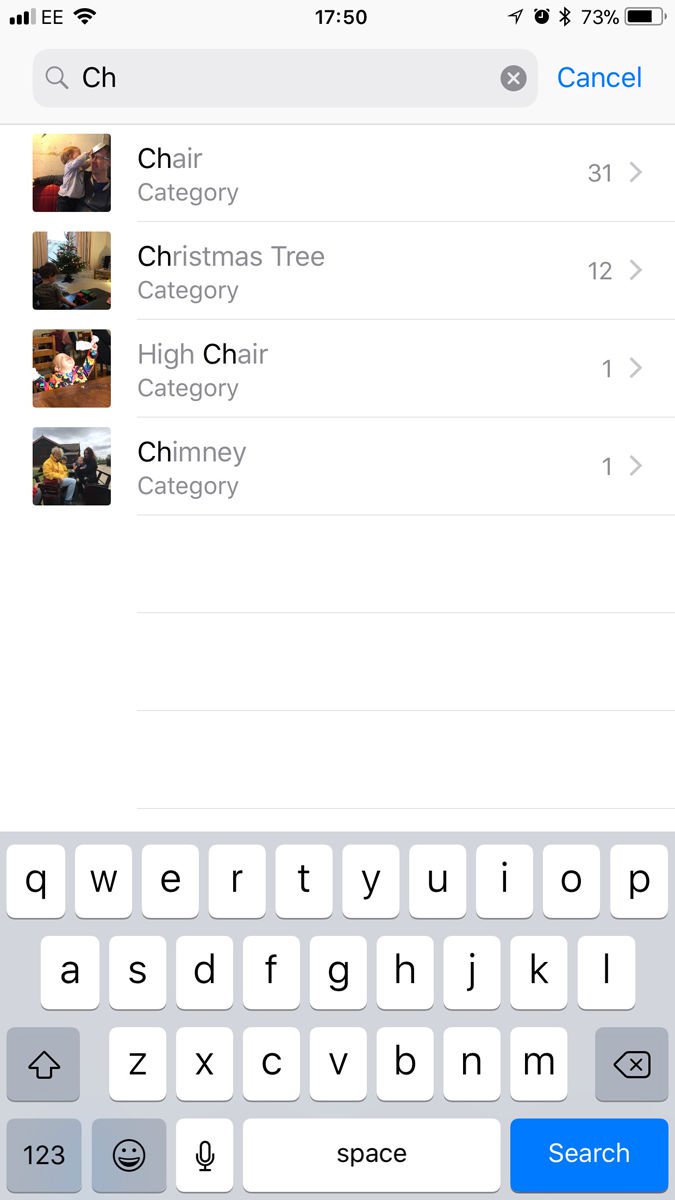
Apple also has a search feature within its Photos app, and this works well. Since launch this has evolved; it used to be limited to locations and dates, but now you can search for things as diverse as chairs, chimneys and Christmas trees.
Apple Photos vs Google Photos: Search

Editing


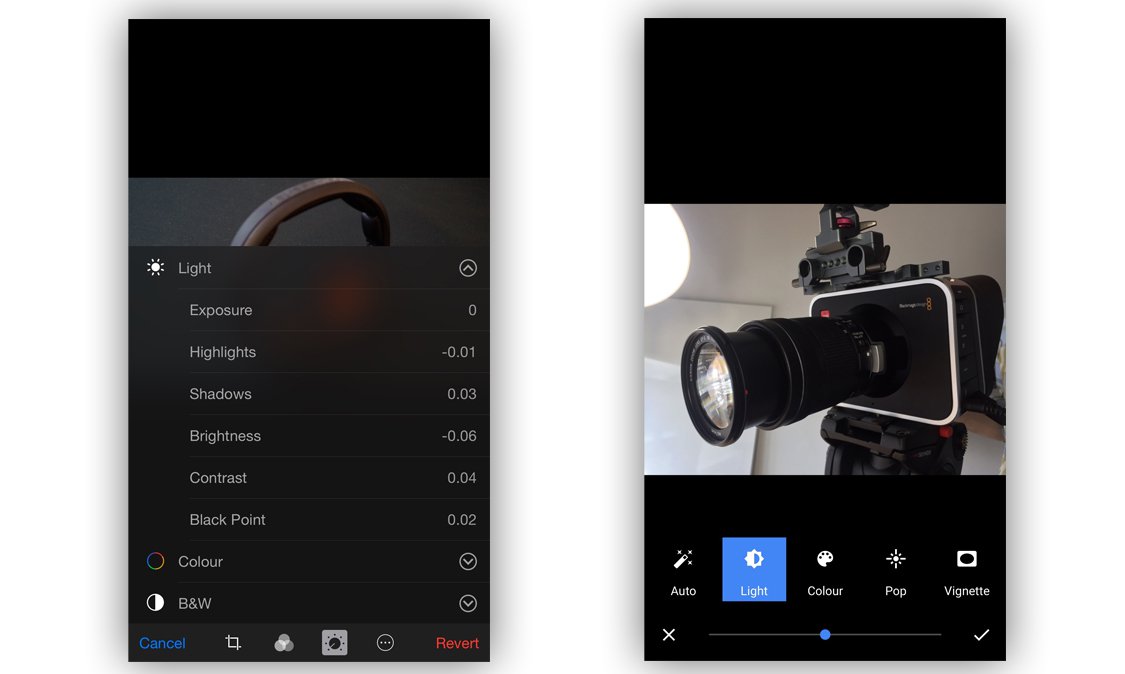
Let"s move on to another important aspect of any app that handles photos: editing. More specifically, photo editing. Google offers various editing tools to help spruce up your photos, including the standard "auto enhance" and a number of Instagram-esque filters for those of you that use them. It also offers tools to tweak the light, colour, "pop" (sharpness - we think) and vignette, however these are applied using sliders and offer no manual input.
Apple Photos vs Google Photos

Apple also offers auto enhancement, filters and controls over colour and light but takes it a step further than Google. As with Google Photos, edits can be applied using sliders - a consumer friendly way to enhance photos, and is perfectly acceptable for many people. However if you"re into photography and want extra functionality to enhance your photos, that"s also available. If needed, you can manually and precisely adjust:
  • Exposure

  • Highlights

  • Shadows

  • Brightness

  • Contrast

  • Black point

  • Saturation

  • Cast


If that"s still not enough, Apple has one more trick up its sleeve. Not only do Apple offer a set of tools built into the Photos app but you can edit photos within the Photos app using third-party editing tools (such as those used in Camera Plus).

That"s not it from Google Photos, though, as it has another impressive feature to offer. The analysis of your photos doesn"t only result in them being sorted into smart folders, as Google will also analyse them and suggest edits for you. These include GIFs, videos, collages and edits based on your photo library. If you like an edit that Google suggests, saving it won"t replace the original - it"ll be saved as a new file, accessible via the "Creations" folder within the app. These suggestions can be hit and miss, but we"ve also had some amazing GIFs and videos automatically generated for us.

We were initially concerned that these extra versions of our images would quickly clog up our iPhone memory, but all these versions are saved in the cloud (which means you need a web connection to view them). And there is no fear that the cloud space will quickly fill up either - Google gives up unlimited space for your photos (more on that below).

Incidentally, Apple doesn"t save extra copies of your adjusted images, it just saves the adjustments you have made in a file applies them to the photo when you view it.

Sharing


Sharing our photos online has become a daily occurrence thanks to the likes of Facebook and Instagram, so how do the two mobile titans handle photo sharing? iPhone users will be aware of the Share Sheet (part of iOS that appears in many different apps - it"s the icon that looks like a square with an arrow coming out of it). The Share Sheet displays a list of social networks and apps that you can share the selected file with (in this case, photos). This is what"s used primarily in the iOS version of Google Photos and Apple Photos, and performs as you"d imagine - simply tap the icon of the social network that you want to share the photo with. Nice and easy.
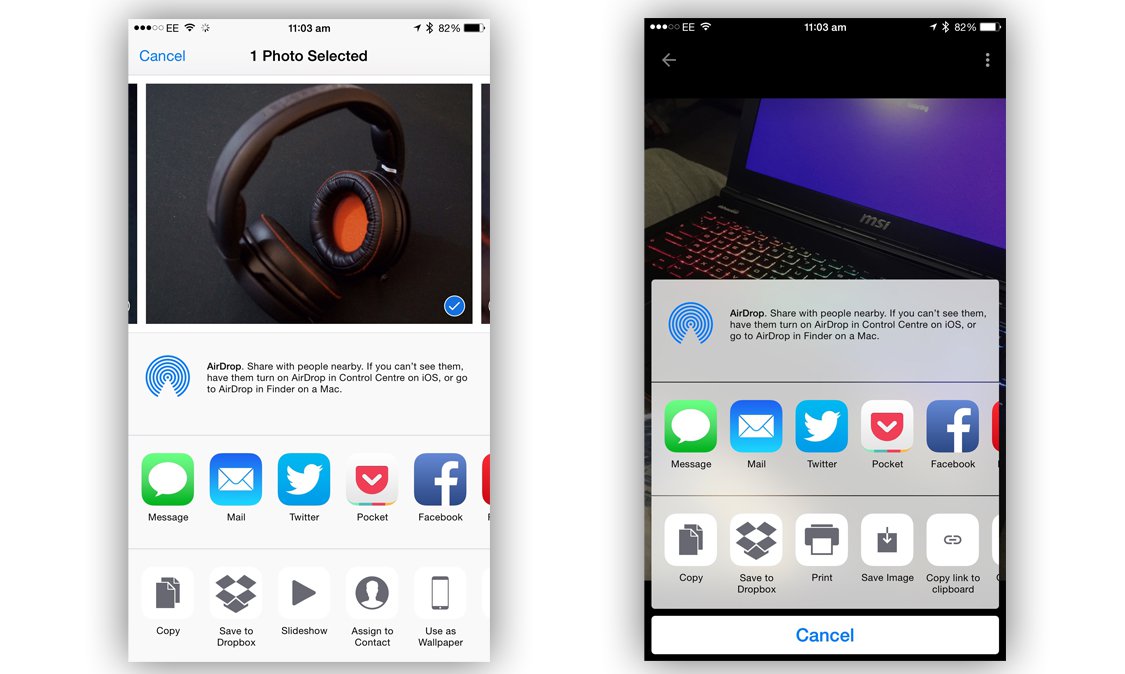


Apple also offers iCloud Photo Sharing via shared folders within the Photos app. You simply create a folder and add the email address of the person(s) you want to share the album with. Once created and shared, all members will be sent a notification whenever new photos are added. They can also add photos to the album. You can store up to 5000 images in a Shared Album. iCloud Photo Sharing also lets you create a pubic link to an album that anyone can view from a web browser (more on iCloud Photo Sharing below).

By default Apple stores your Photos in iCloud in My Photo Stream - you can store the last 1000 images, or 30 days worth of images for free. These images can come from any of your devices - even photos you"ve downloaded onto your Mac from your camera. If you want to store more photos you"ll have to pay though - Apple charges 79p a month for 20GB or £2.99 a month for 200GB for iCloud space.

This is the main thing that sets Apple Photos aside from Google Photos. Google Photos backs up your entire library to its servers, offering you unlimited space for free.
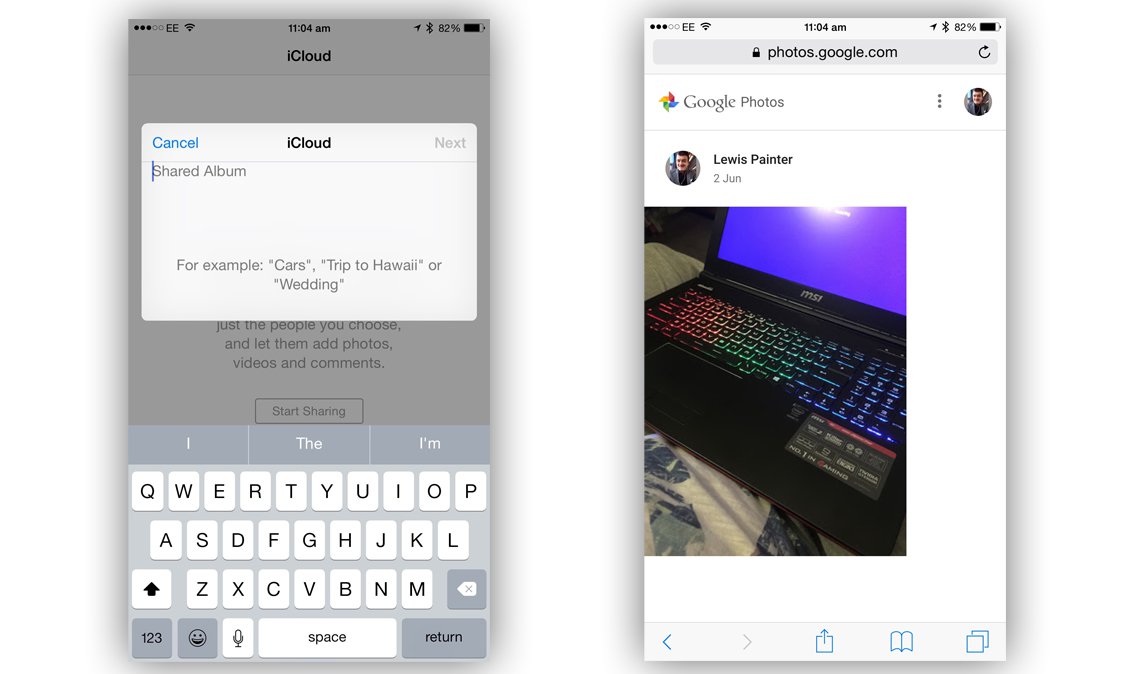


If you choose to share images with someone that person doesn"t need the Google Photos app, as the photos are accessible via web browser. The person in question can browse the photos and save them to either their device or Google Photos stream. If you want to revoke access to a link, simply delete it from the "Shared Links" menu from within the Google Photos app.

Accessing photos


Apple"s Photos app is available on every iPhone, iPad and iPod Touch running iOS 7 or later, and every Mac running OS X 10.10.3 as well as via iCloud on Windows. If you are on iOS 8.1, you also benefit from iCloud Photo Library, which means that if you have sufficient storage space on your iCloud account, your photo library should be synced between your Mac, Phone, iPad and iPod Touch and available on each device.
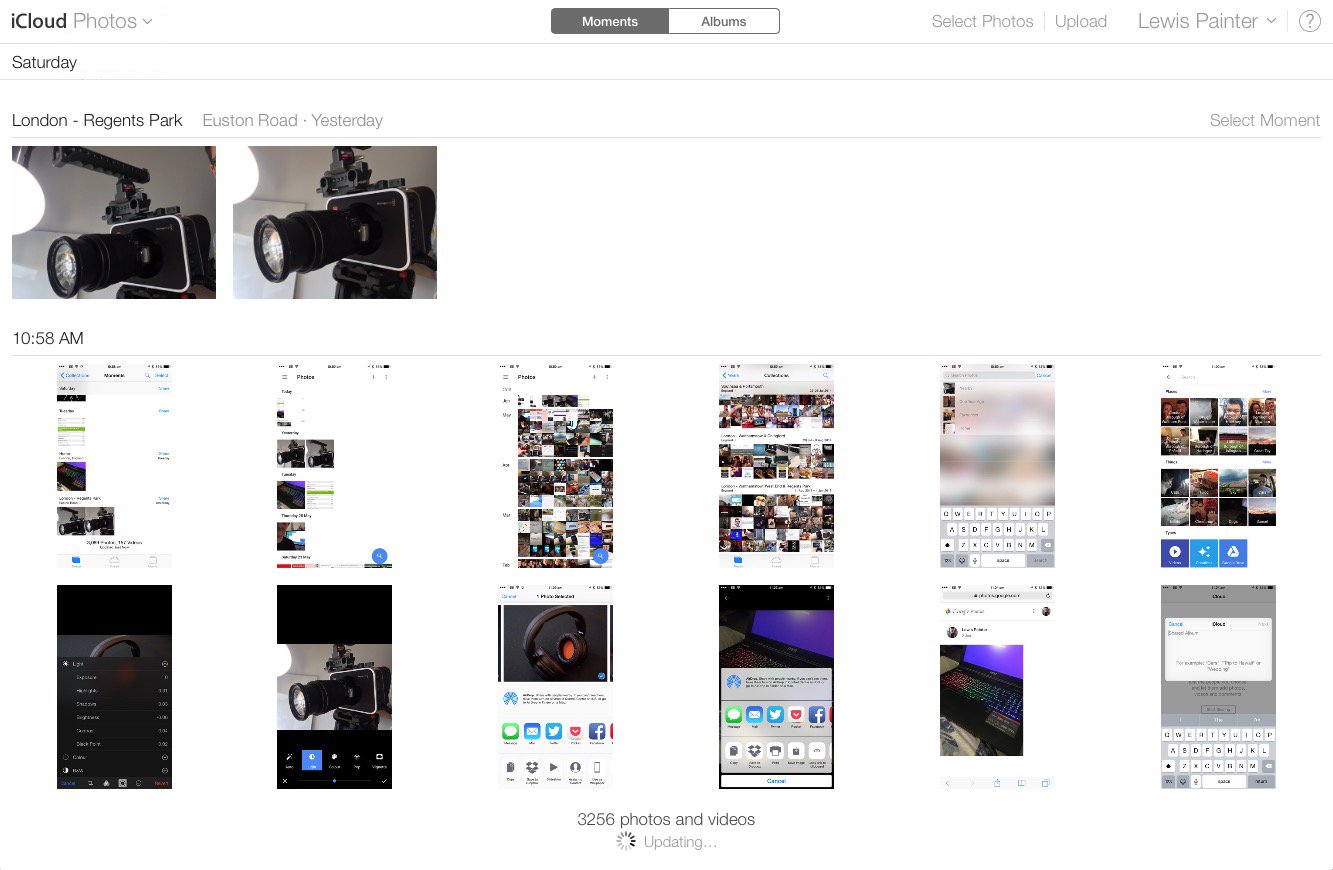


You can also access your iCloud Photo Library via the iCloud website, www.icloud.com. From here, log in with your Apple ID and click the Photos icon to access your complete photo library. You can download old photos as well as upload new ones through the iCloud website - very handy for use on a public computer.
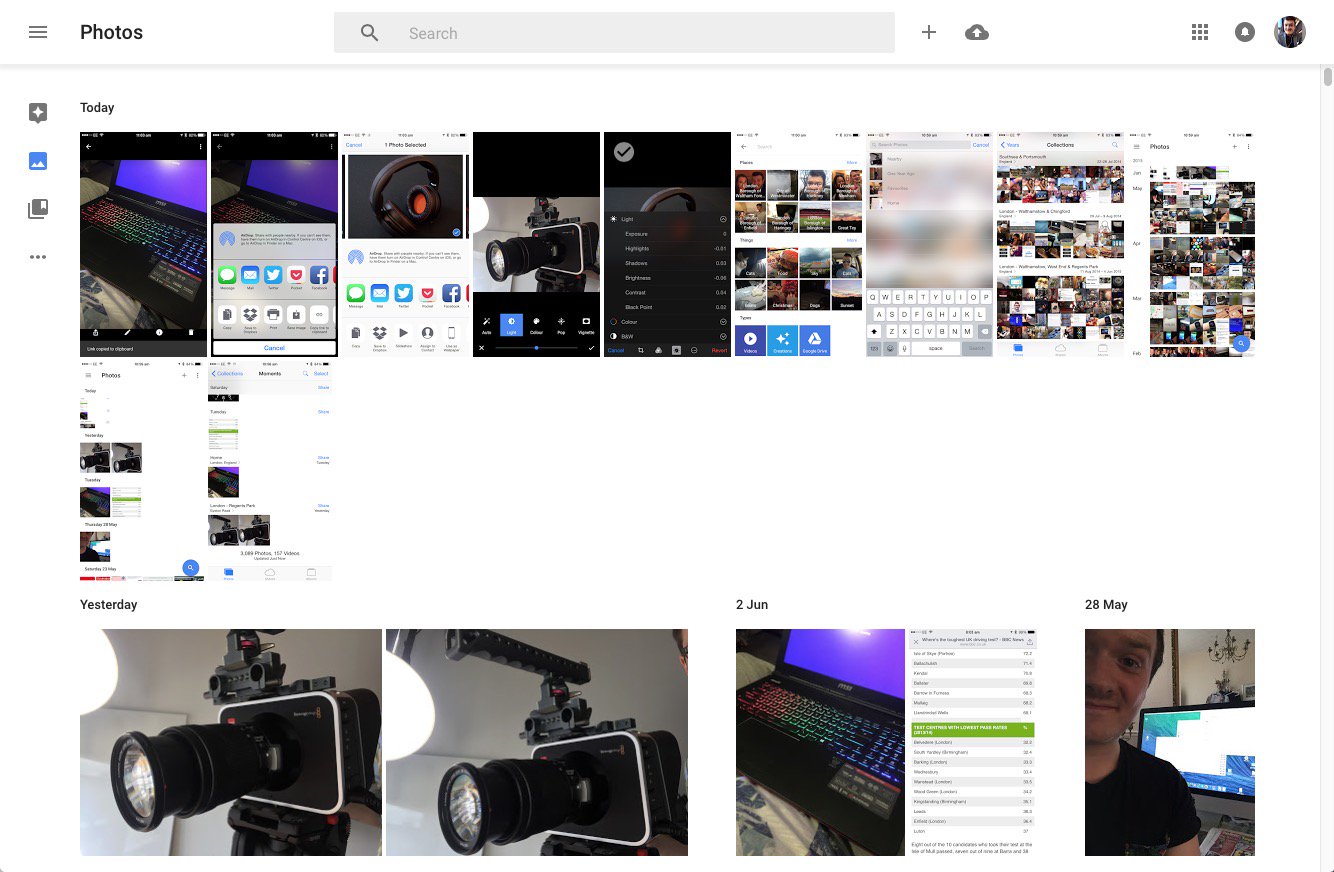


So, what platforms is Google Photos available on? It currently has an iOS and Android app, but no word yet on the Windows Phone platform. Much like Apple"s iCloud, Google Photos is also available via web browser at photos.google.com where you can view your photo library, download and upload new images.

It"s worth noting that the PC/Mac uploader does just that - upload photos. Unlike Apple Photos that has a Mac counterpart, there"s no native app for PC or Mac that allows you to browse your Google Photos library.

Cloud storage


Let"s talk storage, the most important factor in both Apple Photos and Google Photos. Apple"s iCloud is a cloud service that backs up not only your Photos, but your entire phone. The company offers 5GB of free storage, which for some users is okay, but others need more - which you have to pay for. 20GB is a reasonable £0.79 per month but if you need more than that, you"re forced to pay £2.99 per month for 200GB of storage.

Why is there such a jump? We want around 50GB, we"ll never use 200GB so why should we pay that much? It"s a lot of money to pay just to have access to all your photos all of the time. Which isn"t exactly a necessity. But then people might suggest that it"s not a necessity to have all your music on your device all the time, but that doesn"t stop people paying £21.99 a year for iTunes Match. Perhaps that is the sweet spot though - perhaps Apple should have priced it at around £25 a year, for 50GB, we"d be happy with that. £36 a year is just too much and 200GB is more than we really need.
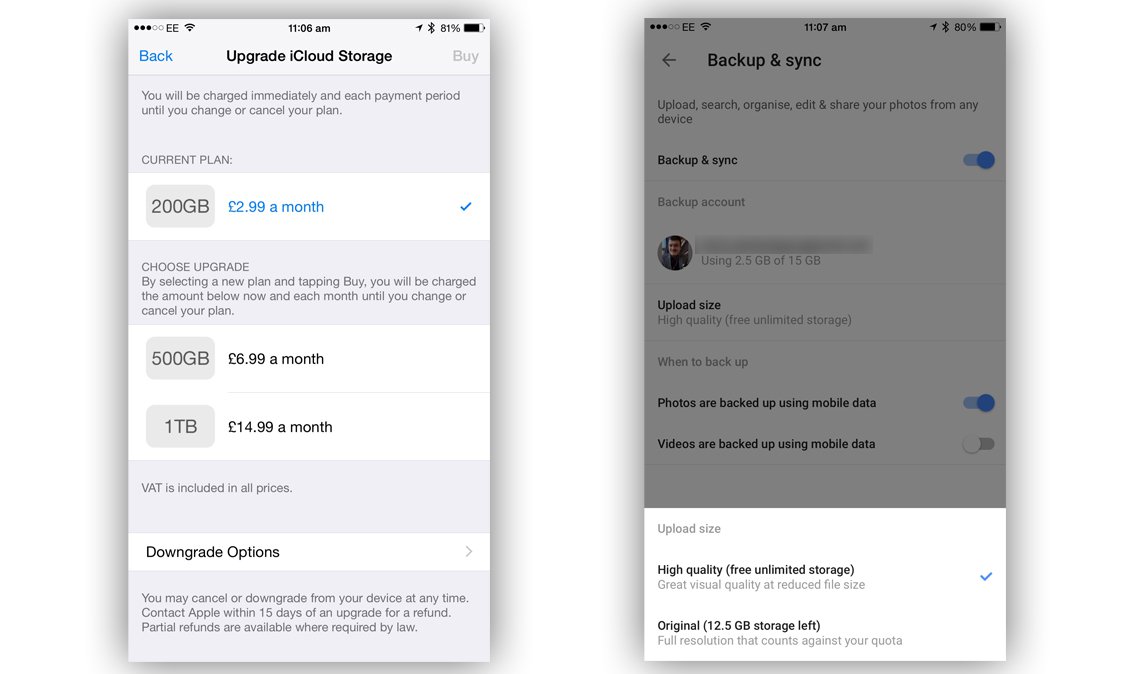


But why pay? Google has caught on to the frustrations of cloud service users and has offered something that the likes of Apple, Dropbox and Microsoft can"t (or won"t) compete with - completely unlimited photo and video storage, free of charge. Google Photos is available for iOS, Android and has a Mac and PC uploader so you can back up your entire photo library across all devices.

There are limits to what Google can offer though; the uploaded images and videos aren"t the original files, but are instead compressed copies. Google claims that it isn"t standard compression and that while the file size is minimised, there"s little or no affect on image quality. Magic, eh? There"s also a limit on resolution - 16MP for photos and 1080p HD for videos, and while you can still upload larger files, they"ll be shrunk down.

Of course, you still have the option to upload full quality original files, but this will eat up your Google Drive storage, which does cost you (you get 15GB for free though, Apple only gives 5GB free space in iCloud).

Security and Privacy


So the real question is "what is Google getting out of this?" because we all know that nothing in life is actually free. Google analyses the photos and assigns them metadata that can be used to build a better picture of the user, which is then used to serve more relevant ads. And of course, more relevant ads mean more clicks and more money for Google.

Apple has a very different stance on mining personal data, believing that people have a fundamental right to security and privacy. Speaking at EPIC"s Champions of Freedom event in Washington, Apple CEO Tim Cooke had the following to say about Google"s new service:

"We believe the customer should be in control of their own information. You might like these so-called free services, but we don"t think they"re worth having your email, your search history and now even your family photos data mined and sold off for God knows what advertising purpose. And we think some day, customers will see this for what it is."

In response to claims of monetising the service, a Google spokesperson told us:

"Our first priority - as with most products that Google builds - is to get the user experience right. So we have no monetisation plans at this time. Google Photos will not use images or videos uploaded onto Google Photos commercially for any promotional purposes, unless we ask for the user"s explicit permission."

Saturday, 30 December 2017

Is FaceTime safe for kids? Safety and privacy tips for iPad & iPhone

You could argue that FaceTime is one of Apple"s most significant products: it wasn"t the first video calling app, and certainly isn"t the best, but it brought the technology within the reach and understanding of tech beginners. The classic use case - elderly people meeting grandchildren born on another continent - illustrates its power as a tool for gentle social change.

But as with so many Apple products, the ease of use which makes it so powerful is also potentially a worry. Famously, young children instinctively know how to pick up and use an iPad without instruction; and FaceTime is one of its most intuitive apps. So what happens if your kid gets into a video conversation with a stranger?

For more advice on managing your children"s iPad usage, see How to set up an old iPad for kids and The best kids apps for iPhone & iPad.

Grooming


The most obvious and alarming risk with FaceTime is that of meeting strangers. Is this genuinely a risk? We would say there are dangers (and we would discourage children from using FaceTime unsupervised), but less so than with most other messaging, calling and chat services.

The first issue is making contact.

Can your child call a stranger?


Let"s say the young person manages to unlock a parent"s iDevice (or has one of their own), and opens the FaceTime app. At this point it"s easy to start a conversation with a contact who"s called or been called from this device before, since the default view shows recent conversations, and you just tap one to call it again. You can also easily call people via the Contacts app, by tapping the plus sign and selecting a contact with FaceTime-compatible details.

We are talking about strangers, and the people in recents and Contacts are by definition not strangers: in theory you should not need to worry about your child accidentally calling any of these. (It may be worth pointing out at this point that people we know are statistically a greater danger than strangers when it comes to violence and abuse, but we are straying beyond the remit of this article.) If you are worried about anyone in the recents list, however, you can tap Edit, select the person in the list and then hit Delete. Open the Contacts app to remove people from that list.

Calling someone entirely new is much more difficult: you have to tap the search field and manually enter a phone number or email address. So for this conversation to happen (assuming your child doesn"t hit upon a stranger"s contact details by blind luck) requires the stranger to have got in touch in advance to give them the correct number to call - in which case the dangerous contact has already taken place via other means. That doesn"t mean you don"t need to worry at all (a video-calling app could be used to escalate an existing relationship instigated elsewhere) but this is an issue that goes well beyond FaceTime.

Can a stranger call your child?


Anyone who isn"t on the blocked list can call an iPad or iPhone over FaceTime, and the device will show the incoming call in the usual way: the user has only to tap to accept the call and contact will be made. As described above, however, it is very difficult to accidentally call someone you"ve never called before, so the stranger would need to have your child"s details in advance, which most likely means contact has been made by other means (although your child"s details could conceivably have been obtained by hackers).

The limitations of video


The other thing to remember is that FaceTime is a video-based service, which means the person on the other end can see your child, as well as seeing identifying details in the background which could help locate the child too. But that cuts both ways: it"s much more difficult to groom someone over video when they can see that you"re older than you claimed to be.

How to protect your child on FaceTime


The most obvious step (particularly with slightly older children) is to speak frankly to your child about how to use FaceTime, how it can be used and abused, and what is and isn"t appropriate. Make sure they are aware of the dangers, but don"t scare them, and make it clear that the main thing you want is honesty: that if they do find themselves in a dodgy situation they can come and talk to you about it without worrying that they will be punished.

For younger children (and older ones if you don"t think they can be trusted) you can set up restrictions.

Open the Settings app and tap General > Restrictions. You will now have to create a passcode which will be used to bypass and adjust the restrictions, so make sure it"s not the same as the main passcode if your child knows that.

By default FaceTime is allowed. Tap the green slider next to FaceTime so it turns white; it now won"t be allowed unless the user inputs the restrictions passcode.

Friday, 17 March 2017

How to protect your privacy with a VPN on Android

You don"t necessarily have to spend money, but free VPN apps come with some drawbacks.

Using a VPN on Android can help you access content that’s blocked in your region and help maintain your anonymity around the web. There are plenty of apps that offer VPN services for free and as a paid service, but which of them are worth your time?

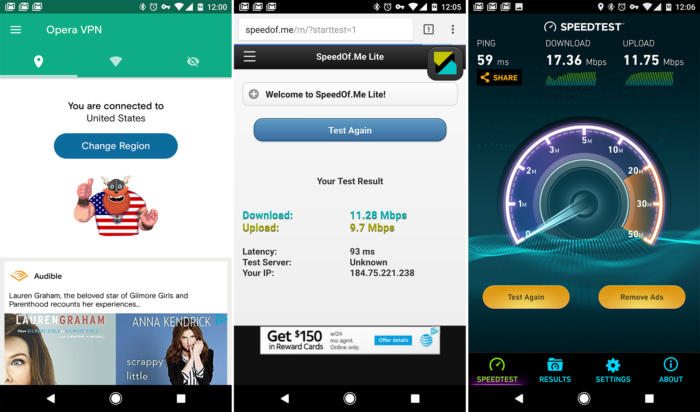
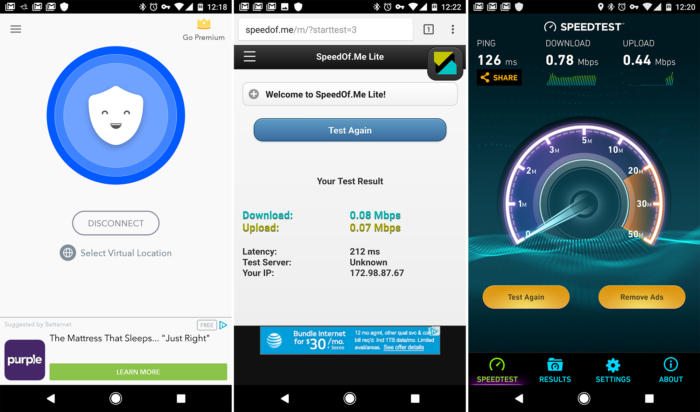
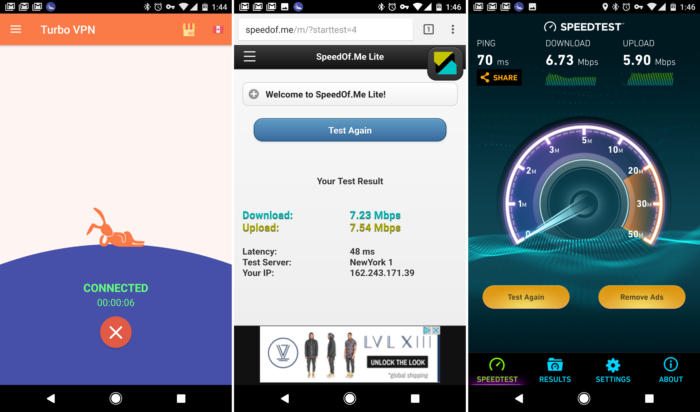
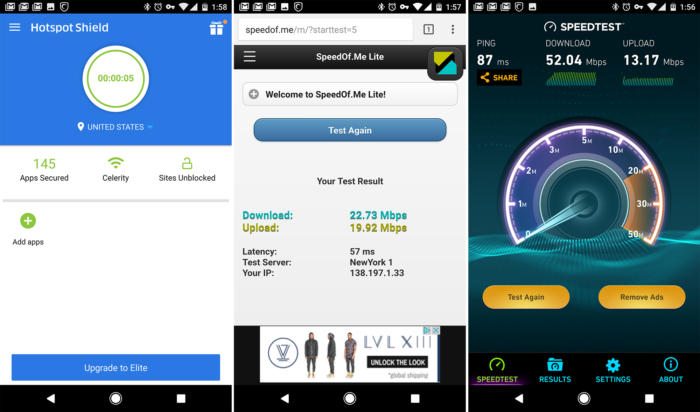
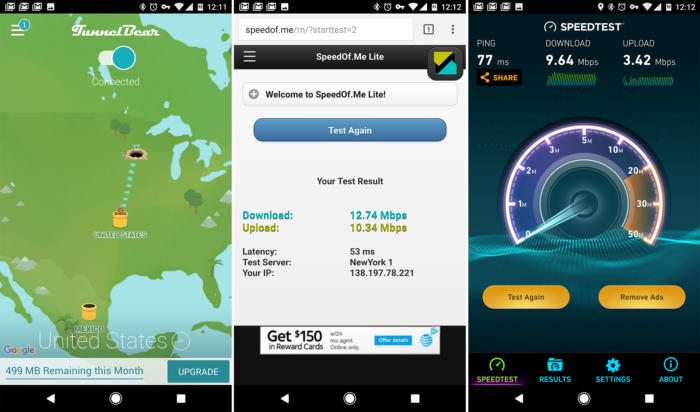
I tested six of the most popular VPN all-in-one apps (with Speedtest and the speedof.me HTML5 test) on Android to see how they stack up. You can also go your own way and use Android’s built-in VPN tool. With a few tweaks, you can make it a little easier to use, too.

Why use a VPN?


A VPN (Virtual Private Network) is basically a way to funnel all your web traffic through a remote server. This makes it look like you’re in a different location and obscures your real IP address. VPNs encrypt the traffic passing through them, making it harder for anyone else to listen in on your connection, even if you connect to an unsecured Wi-Fi network.

Since your connection appears to be coming from a different area, you can access geo-restricted services like the BBC. Some of the more popular ones like Netflix and Hulu have gotten serious about blocking VPNs, though. It’s also important to note possible security issues with the VPN providers. They are getting access to all your traffic, after all. Some providers like Hola VPN have had security issues, so you should steer clear.

Also Read: Top 10 Android Security Apps

VPNs do add another “hop” to your connection, so increased latency is usually part of the deal. A fast VPN shouldn’t add a perceptible amount of delay, but some free mobile VPNs will make it tough to do things like video calls. Speeds also vary dramatically from one service to the next, but that’s one of the things we’re here to test.

TunnelBear


TunnelBear

TunnelBear has a cute app and a bear for a mascot. The VPN performance is solid, and there are no ads. It’s a much more pleasant app to use than some other freemium VPNs out there. It has a good selection of servers across the world too.

The main drawback is limited data on the free tier. You get 500MB per month, and can earn more by tweeting about the service. If you want unlimited access, TunnelBear costs $4 per month. Be aware, you also need to set up an account to use TunnelBear.

Opera VPN


Opera VPN

Opera VPN is well designed with a slick material interface and a cool viking mascot. I guess VPN mascots are a thing? Anyway, Opera VPN was one of the faster connections I tested, but there were a few connectivity hiccups. The ads are not particularly intrusive, which is good seeing as there’s no paid tier.

Also Read: How to Hide Apps on Android

There are no limits on Opera VPN aside from a block on Torrents. However, there are only five server locations available right now. Still, it’s free and pretty fast.

Betternet


Betternet

The Betternet app is good enough, but has some odd design quirks like the full-screen navigation drawer. The ads aren’t too intrusive while the VPN is on, but there are full-screen popups when you open it. The big issue here is poor speeds in my testing. Both tests reported well under a megabit. You also cannot manually select any server locations in the free version. So, if you get a bad server (like I apparently did) you’re out of luck.

The paid version of Betternet is $12 per month (which is a lot) for fasterspeeds, no ads, and more servers. I’d probably pass on this deal.

Turbo VPN


Turbo VPN

The speed of Turbo VPN isn’t exactly “turbo,” but it’s in-line with most other VPN apps on Android. The app is clean and has a rabbit mascot. I like the rabbit, but it also has plenty of full-screen ads. I don’t like those very much.

Also Read: How to Hide Photos on Android

There are only five server locations, which isn’t bad for a free VPN app. The annoying ads make this a less viable option than Opera VPN, though.

Hotspot Shield


Hotspot Shield

Hotspot Shield is the fastest VPN I tested in both tests—it wasn’t even close. It has some ads that can get annoying, but not nearly as bad as Turbo VPN. The app itself is easy to use and not too cluttered. Unfortunately, you have very few server locations in the free version.

A premium Hotspot Shield account cost $12 per month. Again, that’s rather steep for a VPN on Android. This is actually a license that extends to other platforms like Windows and Mac, though. If you don’t need that, it’s not really worth the cost.

SuperVPN


SuperVPN

In my testing, SuperVPN wasn’t particularly fast, and the app is in need of some major updates. There are also a ton of ads—more than in any other app I tested. There are only four server locations available in the free version. The paid version that costs $5 per month with no ads and faster speeds. However, it requires a separate payment app, which is weird. There are better options.

Also Read: How to Hide Files on Android

Manual VPNs


The world of VPNs is larger than what you can get in the Play Store. There are VPN providers that offer services on multiple platforms, and you can use your account information to set up a native VPN connection on Android. It takes a little more legwork, but it can be cheaper and more powerful. You will often get multiple simultaneous connections, so all your devices can access the VPN at once.

Manual VPNs

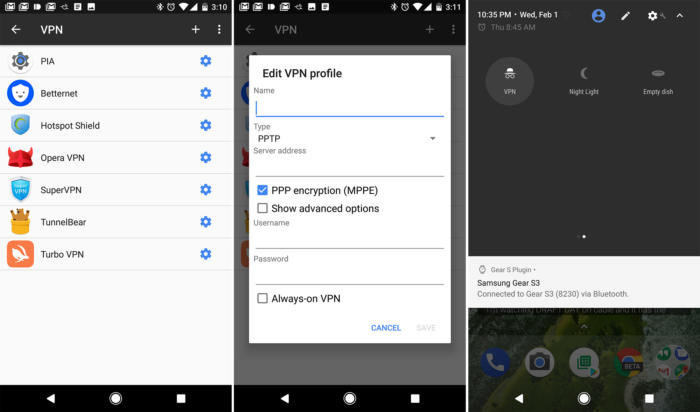
Some of the popular general VPN options are Private Internet Access, NordVPN, and KeepSolid. All will provide you with server and account details, which you can add to the Android VPN menu. That’s usually found under “More” in the Connections area of your system settings. Add the details provided by your VPN provider as a new VPN connection; you shouldn’t need to change the default connection type or mess around with the advanced settings.

One annoyance here is that you need to create a new VPN connection for each server location. That also means digging into the menu each time you want to toggle it on or off. You can alleviate some of that annoyance by creating a custom quick settings shortcut to your VPNs with Custom Quick Settings or a similar app.

However you decide to do it, using a VPN is good common sense when you’re connecting to networks you can’t completely trust. The privacy boost is desirable in this day and age. As for accessing content, that’ll work sometimes.

To comment on this article and other Greenbot content, visit our Facebook page or our Twitter feed.