WhatsApp has become an integral part of of our lives and has completely replaced the good ol’ text message. There’s hardly anyone we know who isn’t using the instant messaging app.
However, there are a lot of things that you can do on WhatsApp, apart from sending and receiving messages, photos and other media files.
Here is a list of 10 things that will make enhance the functionality of using WhatsApp:
Pin your chats
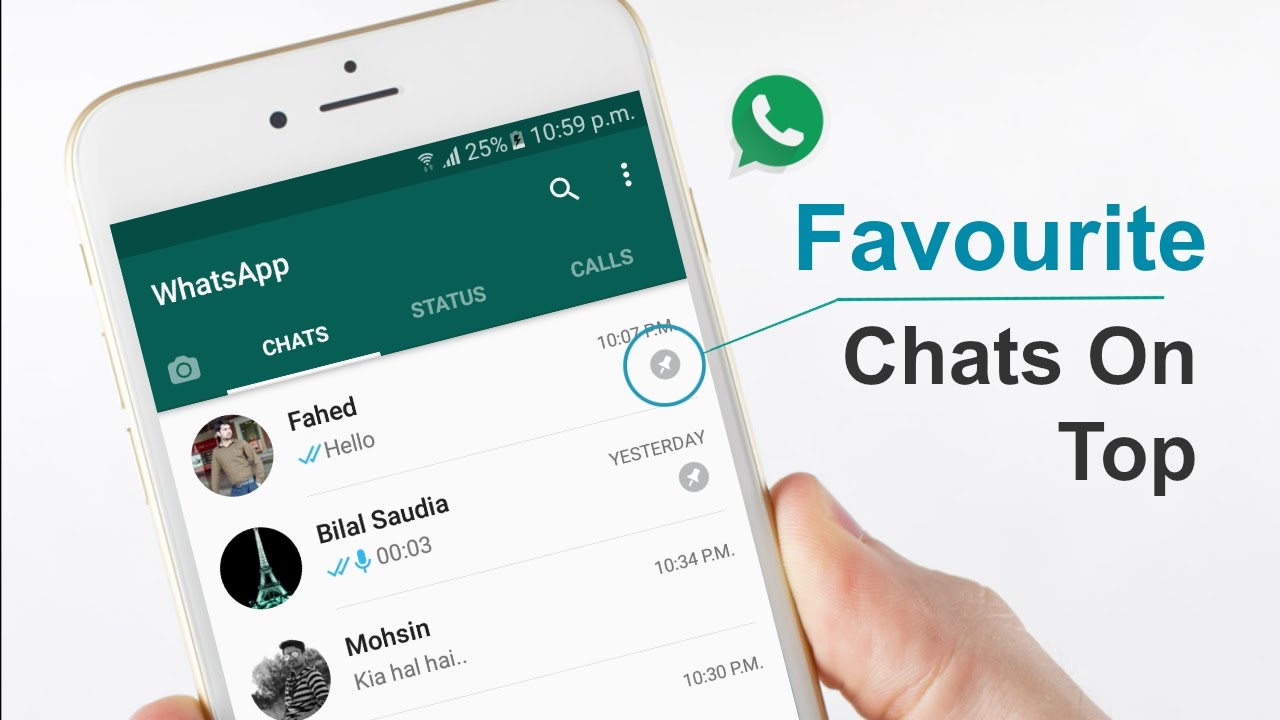
There are times when you want your most important chats on the top of your conversation list. Scrolling down through scores of messages to find that chat can be tedious. Not anymore. In a recent update, WhatsApp added this function.
To pin a contact to the top of the list, you have to long press on the chat from that person and then press the ‘pin icon’ that appears right next to delete, mute and archive icons on the top of the page. As of now, only three contacts can be pinned to place them on top of the conversation list.
Editing images

When we say that you can edit images on WhatsApp before sending them, we are not talking about Snapchat filters. What you can do here is doodle on pictures, and add text and emoticons on them before sending.
Select attach > Go to gallery > Select the image you wish to share. Once you do this, the image will open in WhatsApp’s photo editor. On top right, you’ll see options of adding text, emoticons and doodle. You can resize and change colours of all three once you add them to your image.
Format text

There’s a good chance you’re already aware of this feature but have never used it. Somehow, changing formats of text on WhatsApp never really caught on. We’ll tell you again how to format text on WhatsApp as it is a handy feature to use.
You can bold text on WhatsApp by starting it and following it with an asterisk ‘*’. Similarly, for italics, make sure the text is preceded and followed by an underscore sign ‘_’. You can also make your text appear struck off with Strikethrough. For that precede and follow it with tilde ‘~’.
Chat in different languages
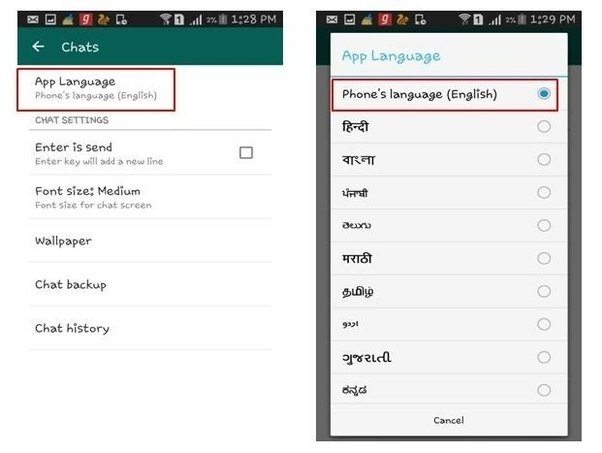
English isn’t the only language in which you can communicate on WhatsApp. You would be glad to know that WhatsApp supports a number of Indian regional languages.
If you ever want to type in a different language, open WhatsApp > Go to Settings > Select Chats > Click on App Language. You can then pick the language you wish to type in.
Add conversation shortcuts
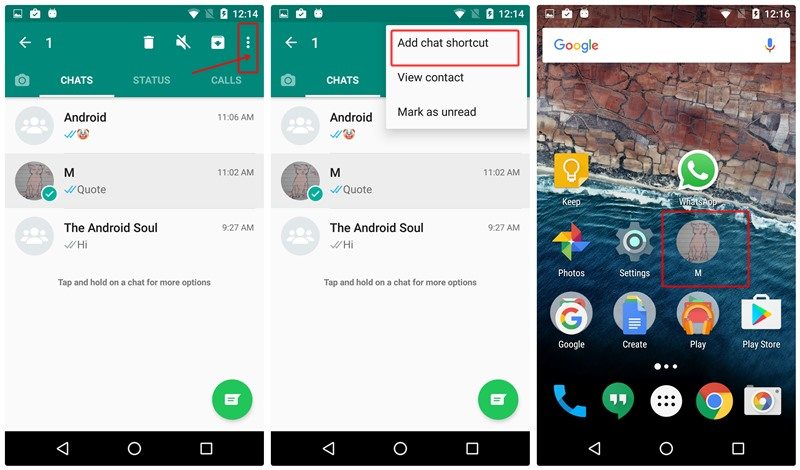
We all have a favourite friend with we are constantly yapping on WhatsApp. Rather than opening WhatsApp and going to their chat each time you want to talk to them, you can add a conversation shortcut on your home screen. Just long press on the conversation, click on three dot on top of the page and click ‘Add chat shortcut".
Create GIFs
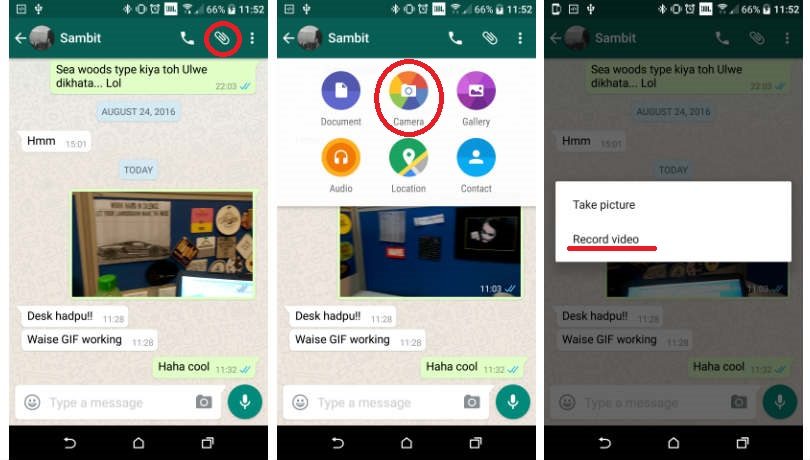
WhatsApp has been supporting GIFS for a while now. But did you know that you can even create GIFS within WhatsApp and send it to your friends? However, we should point out that you can only create GIFS using videos that are saved on your smartphone.
Open the WhatsApp chat of the contact whom you want to send the GIF to. Click on the attach icon > Select Gallery > Go to videos. Select the video you wish to create in a GIF from. As soon as you do this, it’ll open up in the video editing section of WhatsApp. Here, you have to adjust the length of the video to 6 seconds or less, as longer GIFS are not supported by WhatsApp.
Once the video length is less than 6 seconds, the option of converting it to a GIF will appear as a slider on top right. Now all you need to do is take the slider towards GIF, and you’re set.
Customize notifications
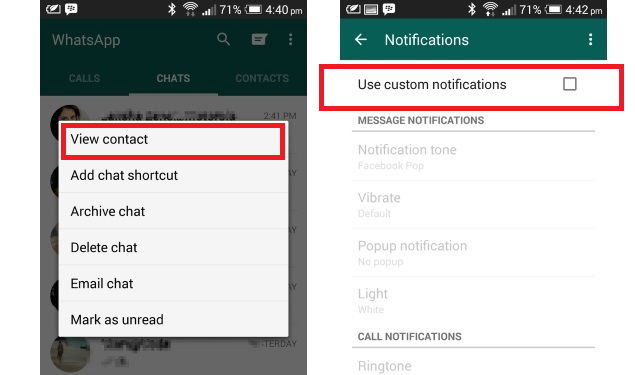
Did you know WhatsApp can send you customized notifications for certain contacts? It’s very simple to enable them. Open the contact you wish to customize notifications for, click on the top bar, and select ‘Custom Notifications".
Find out when your message has been read

With the option of turning read receipts and last seen off, it is hard to know if someone hasn’t read your message or they are simply ignoring you. WhatsApp, however, has a solution for this. Just long press on the message you have sent and then select information icon ‘i’ on the top bar.
You’ll get to know if your message has been read or not. However, you can only know the exact time of your message being read if the person does not have read receipts and last seen off.
Turn off last seen
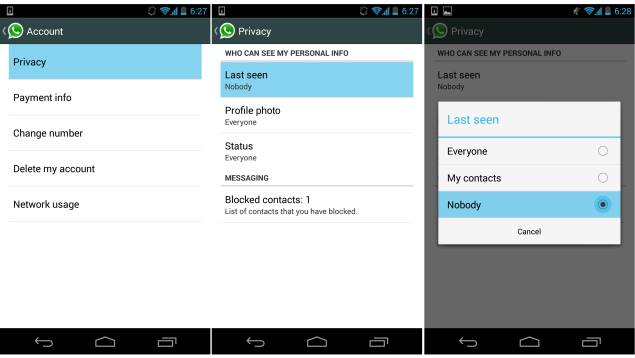
Do you feel that people getting to know when you last opened your WhatsApp is intrusive? You’ll be happy to know that WhatsApp lets you change that. Just go to Settings > Select Account > Click on Privacy > Choose Last Seen and then select the most suitable option.
Switch off media auto-download
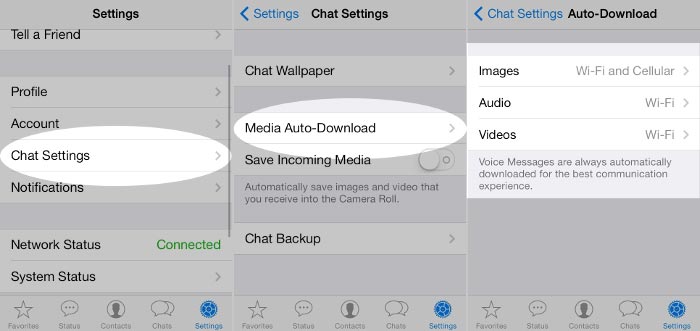
Almost on a daily basis you perhaps receive a multitude of photos and videos on WhatsApp -- half of them are actually not needed. If you are a part of any pesky Groups on WhatsApp, chances are you’ll be getting a lot of “Good Morning, have a nice day” type of pictures and videos on a regular basis. You can manage what gets downloaded automatically and what doesn’t. Go to Settings > Select Data usage and choose the most appropriate options.
