If you have a corporate email account at work, the chances are you"ll also have some kind of setting that enables you to tell people when you"re on holiday or out on the office on business. But what if you don"t? Or just want to set up an email auto reply on your Mac at home?
If you"re using Mail, you may be surprised to learn that there are no settings or preferences that can enable you to setup an auto-reply like you would on a corporate email system. And there are no preferences for it on iCloud either (hint hint, Apple). The only thing you can do to get around this problem is to setup an Auto Reply rule in Mail. And that"s what we"re going to show you how to do.
- Open Mail and choose Mail > Preferences from the top menu bar
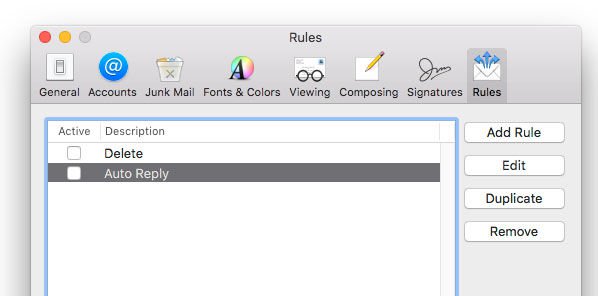
- Select Rules from the toolbar (it"s on the far right).
- You will see options to add, edit, duplicate and remove rules. By default you may have a News From Apple rule setup already. Click the Add Rule button.
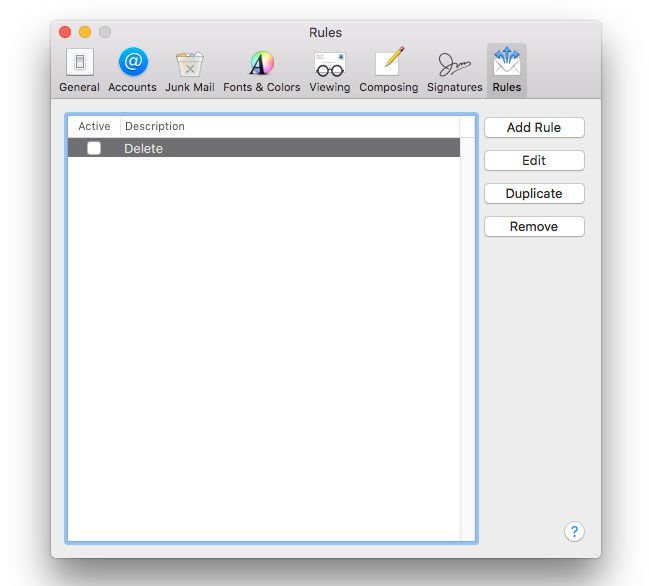
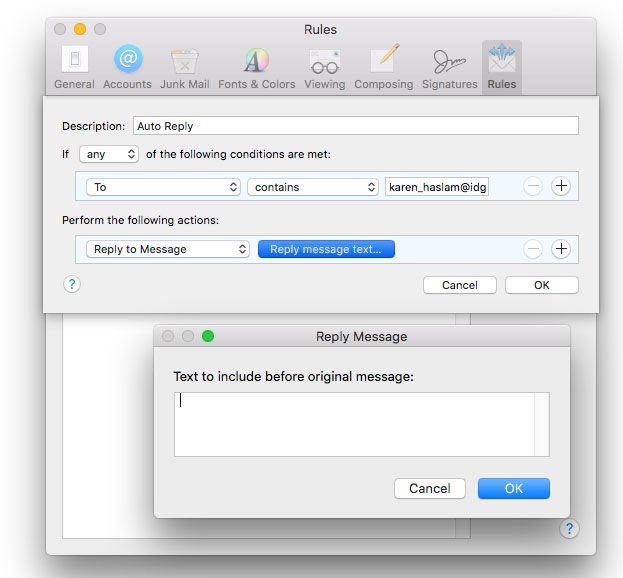
- You should now see a drop-down sheet that enables you to create a rule that you can apply to your incoming and outgoing emails in Mail. You can create and apply as many different rules as you like.
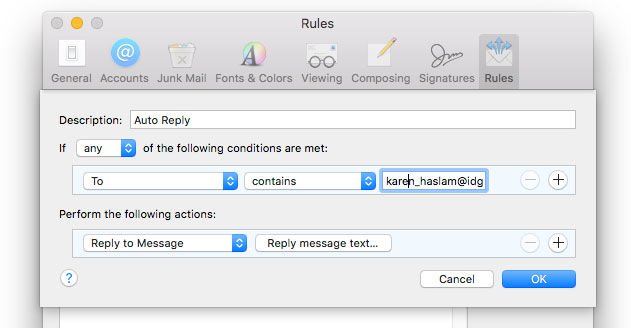
- The first thing to do here is to create a unique Rule name and add it in the Description field. You can call the rule anything you like, but it makes sense to call either something general like "Auto Reply" - so you can use the same rule again and again - or name it something specific if it"s a one off.
- Now you need to decide who your Auto Reply rule is going to apply to. This could be everyone that emails you while you"re away or you can break the rule down into specific groups of people. You could send up one Rule for friends and family and another Rule for work colleagues, for example, or even set up different rules for different email accounts. It"s up to you.
- For this tutorial we"re going to keep it simple. So underneath where it says “If any of the following conditions are met”. Change “From” to “To”.
- Leave “contains” as it is.
- And then add your email address to the empty box to the right.
- Under “Perform the following actions”
- Click “Move Message” and choose “Reply to Message” from the drop-down menu that appears.
- Then click on Reply message text...
- A pop-up window will now appear which enables to write your out of office message. When you"re happy with the result, click “OK” and the pop-up window will now disappear.
- If you"re ready to make the Rule live, now"s the time to make it happen. Click “OK” again on the Rules window.
- Your Auto Reply / out of office rule is now live. You can see whether it works by sending a test email to yourself.
- When you come back from your holiday or whatever, make sure you remember to switch off your Auto Reply otherwise people will think you"re still away.
- To do that, simply go to Mail > Preferences > Rules again and uncheck the Auto-reply rule you created previously.
Read our guide to setting up email on a Mac, iPhone and iPad here. Plus how to send email attachments in Mail on iPhone.