Showing posts with label dell. Show all posts

Saturday, 20 January 2018

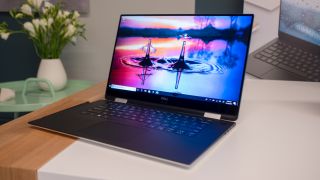
Dell XPS 15 2-in-1 hands on review

For CES 2018, Dell has brought with it not only the newly revamped Dell XPS 13, but also a brand-new take on its larger model: the Dell XPS 15 2-in-1. This revision not only features more powerful innards across the board, but never-before-used inputs for an even more modern feel.

Considering we already quite liked the previous XPS 15 model, giving it a 360-degree hinge and an optional 4K Ultra HD display powered by 8th-generation Intel Core processors with AMD Vega graphics built-in should only sweeten the deal. We’ll reserve full judgment for a complete review, but know that Dell has quite a versatile powerhouse on its hands.
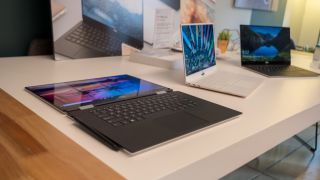
Dell XPS 15 2 in 1

Price and availability


Dell will begin selling the XPS 15 2-in-1 for $1,299 (about £957, AU$1,653) to start in the US this coming spring.

That price will get you an XPS 15 2-in-1 with a 15.6-inch Full HD touch display powered by an 8th-gen Intel Core i5-8305G processor with Radeon RX Vega M GL graphics, 8GB of DDR4 memory and a 128GB solid-state drive (SSD).

From there, Dell offers all sorts of configuration options, like a 4K Ultra HD (3,840 x 2,160) touchscreen to an Intel Core i7-8705G processor with Radeon RX Vega M GL graphics.

Dell can also up the RAM capacity to 16GB as well as the SSD storage capacity to as much as 1TB. Of course, Dell has yet to reveal the pricing scheme of these higher-end options.
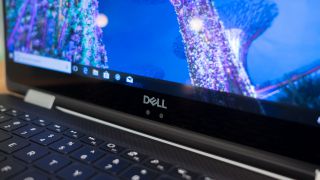
Dell XPS 15 2 in 1

Design and feel


Frankly, there isn’t much that’s visibly different about the XPS 15 2-in-1 from the smaller XPS 13 2-in-1 that Dell introduced at last year’s CES, beyond its obviously larger dimensions. Dell seems to have found a design that works and is sticking to it.

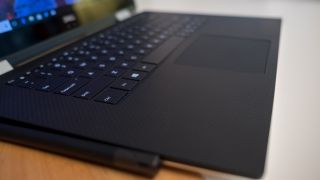
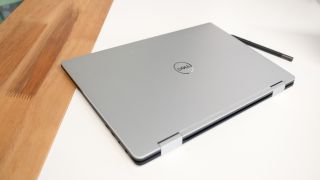
You’re getting the same silver-colored anodized aluminum lid and base with the carbon fiber keyboard rest that has released on prior XPS 15 models, this time with aluminum hinges that rotate 360 degrees.

However, something about the keyboard feels notably different, but more on that in a moment.

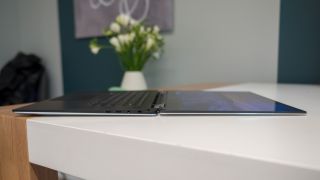
At any rate, Dell clearly has made some serious revisions, as it’s claiming this machine to be the smallest and thinnest 15.6-inch 2-in-1 laptop available today. At just 0.35 ~ 0.63 inches (9 ~ 16 mm) thin and 13.9 inches (354mm) wide, Dell may hold onto that claim for some time.

The laptop weighs 4.3 pounds (1.97kg) to start, with higher-end options likely to add a few ounces. To us, the laptop doesn’t feel much heftier than a 13-inch MacBook Pro – impressive for a 15-inch laptop with a touchscreen.

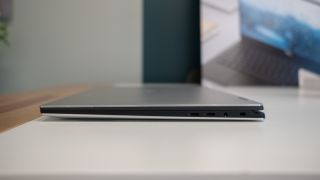
Given this laptop’s size and lightness, we’re surprised by the selection of ports Dell has managed to make available within the XPS 15 2-in-1: two Thunderbolt 3 and two USB-C 3.1 – all of which support charging and DisplayPort – a microSD card reader and a headset jack. (It’s sad to see the USB of old bite the bullet, but perhaps Dell held off long enough.)

What has made this incredibly diminutive size possible is two-fold.
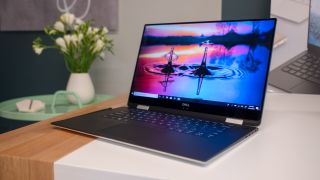


First is Dell’s use of its next-generation InfinityEdge display with a new 1,500:1 contrast ratio that makes blacks all but disappear on the screen. This nearly bezel-less display frame allows a laptop that’s just 13.9 inches wide to house a screen that’s 15.6 inches wide diagonally. Beneath said screen is a 720p webcam paired with an infrared lens for secure Windows Hello login – and it’s centered just like the new XPS 13.

Second is a brand-new keyboard technology that allows the base to be thinner than what was possible before (it also makes for more room inside for stronger thermal management). This new keyboard tech is known as maglev – kind of like those bullet trains in Japan, but applied at a much, much smaller scale. This maglev keyboard employs rare-earth magnets beneath the keys, rather than domed membraned switches like most laptops, mimicking the feel of a physical key response but with only 0.7mm of travel.

After typing on the keyboard for just a few moments, that shorter travel is apparent: it’s definitely not a 1:1 simulation of standard laptop keyboard behavior. The keys are more rigid in their response, and don’t allow for moving between keys as quickly as we’re used to – or at least how we’re used to.

It’s tough to bear judgment down upon the keyboard without more testing, but what’s clear is that it will present a learning curve to users. How long it will take to get over said curve is difficult to say. At any rate, it’s an impressive innovation that’s allowed for a mightily thin and light device with a comparably large screen.

All told, the glass-coated, Microsoft Precision touchpad remains unchanged and is as delightful to use as ever.
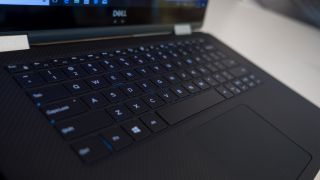
Dell XPS 15 2 in 1

Performance


This new keyboard technology also allowed Dell to introduce more thermal headroom for the XPS 15 2-in-1 components, as well as a new type of insulation from Gore. This insulation directs heat out of the device better than other solutions to allow components to operate at higher temperatures.

The new Intel-meets-AMD processor that Dell has placed inside the XPS 15 2-in-1 makes liberal use of this extra headroom, thanks to a new sensor hub that determines performance based on the use case at hand in regards to cooling and power. This sensor hub works in tandem with software on the processor to make those decisions for you as you’re using the laptop.

The end result is a 15-inch laptop with a solid amount of headroom with which to perform either more serious tasks, like photo and video editing, as well as more moderate tasks at once. Not to mention some light gaming, judging by Intel and AMD claiming Nvidia GTX 1050-grade game performance from its collaborative processor.

Rounding out the hardware offering is Killer 1435 802.11ac (2 x 2) Wi-Fi and Bluetooth 4.1 for wireless connectivity.

While we can’t say for sure what all of these changes has afforded the XPS 15 2-in-1 in terms of power, we at the very least know Dell has laid the groundwork for one helluva performant laptop, which can also be used as a tablet. Oh, and Dell claims it can last up to 15 hours on battery – we’ll just see about that in our full review.
Dell XPS 15 2 in 1

Early verdict


It’s this editor’s personal preference to avoid most 15-inch laptops on account of their size, but the Dell XPS 15 2-in-1 may very well change that. After all, it may as well be a 13-inch laptop, thanks to the latest InfinityEdge display.

That said, we are as put off by the feel of the new maglev keyboard as we are impressed by the innovation that has allowed such an approachable 15-inch device. While it will certainly present a learning curve, for how long? And, how will it feel, say, a week or two after purchase?

So, while we’re mightily impressed by the ‘smallest and thinnest 2-in-1 device of its size,’ thanks in no small part to a hugely expanded power profile (but mostly its size and feel), we’re left with a few hanging questions. Stay tuned for a full review later this year.

Thursday, 28 December 2017

Best Mac monitors & displays 2017/2018

Currently* there"s no home-grown Apple monitor available for "headless" Mac models, such as the Mac mini and the Mac Pro. And, of course, many MacBook owners also like to have a larger monitor in their office that will provide a bit more screen real estate for tasks such as video-editing or photography, or for working on some big spreadsheets in Excel.

A larger screen can come in handy for iPads and other mobile devices too. There are plenty of professional-level graphics and design apps available for the iPad that can benefit from a larger display. Or maybe you just want to put your feet up and binge-watch House Of Cards on a larger screen.

You don"t need to spend a fortune on 4K or 5K displays either. If you just want to watch streaming video on Netflix or YouTube then there are plenty of affordable HD displays with standard 1920x1080 resolution that will fit the bill nicely.

A simple 21-inch display may cost £100 or less, but many of us are used to working on larger screens these days, so we"ve tended to focus on 25-inch models and larger here. Even so, there"s plenty of choice, ranging from less than £200, right up to £1,200 for LG"s amazing new 38-inch curved display.

(*Apple discontinued its range of displays in 2016, leading most to assume that the company was pulling out of that market. However, in April 2017 Apple announced its plans to produce an Apple monitor to sit alongside the also promised Mac Pro when it launches at some point in 2018 or 2019. We have an article that discusses what new features the new Apple monitor may bring).

There are a couple of important things to consider before you take a look at the screens, displays and monitors we"d recommend, so here"s a brief breakdown of the differences and options to look out for.

Inputs and outputs


Monitors are traditionally connected to computers via a VGA or DVI connection, Apple"s favoured Thunderbolt 2 (which is backwards compatible with Mini DisplayPort) or, latterly, HDMI. HDMI is the newer and preferable form of connection, but not all Macs have this. The Macs that include an HDMI port are:
  • Mac mini (Mid 2010) and later models

  • MacBook Pro with Retina display (Mid 2012) and later models

  • Mac Pro (Late 2013)


If you"re using a MacBook Air, then you won"t have an HDMI port. However, you will likely have a Thunderbolt port, which supports HDMI output with a cheap but useful Mini DisplayPort to HDMI adaptor.

There"s also a new port in town - some new Macs are now shipping with Thunderbolt 3/USB Type-C ports (it"s the same port and it supports both standards). So you can expect to see lots of new displays that plug into this new port.

Here"s Apple"s official rundown of which of its Macs support HDMI and how they handle audio and video output. And here"s the company"s list of the ports on its latest Macs.

Read our article on how to connect a second screen to a Mac which explains everything you need to know about how to identify which ports you have, the adaptors you will require, and how to set things up on your Mac.

Ergonomics


This is the other important factor to bear in mind when choosing your monitor. If you are going to spend a lot of time sat at a desk looking at your new display then you need to keep ergonomics in mind, or you might end up with neck or back ache.

Ideally, look for monitors that are adjustable - you"ll want to make sure that the monitor is positioned so that you can comfortably look at the screen. There is a point at about 2 to 3 inches from the top of the screen that should be at eye level.

You also want to look for monitors that won"t suffer from glare, or you will be forever repositioning the monitor (or your head) to compensate for it.

With all that in mind, here are our recommendations for the best monitor for your Mac in 2017.

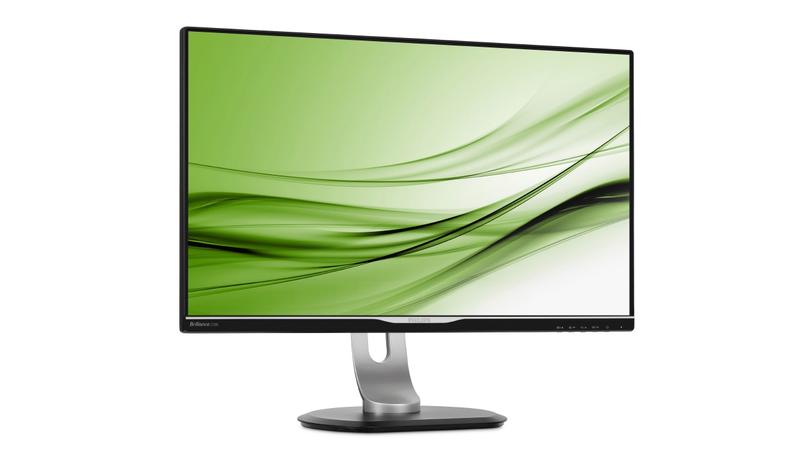
1. Philips 258B6QU


Philips 258B6QU

It"s always been annoying that Apple only offers iMac monitors in two sizes - compact 21-inch models for home users, and 27-inch for professional users.

The Philips 258B6QU is a good middle-of-the-road alternative, offering a high-quality 25-inch display that is suitable for either home or office use for around £360.

The 2560x1440 resolution may not be state-of-the-art, but it"s more than adequate for watching high-def video, web browsing, gaming or using Microsoft Office at work.

It"s bright and colourful, and while it might not provide the colour-fidelity required by designers or photographers it"ll still work a treat for most home users and office workers who simply need a compact and attractive screen.

It"s a very practical option too, as the stand allows you to tilt and swivel the screen, and adjust the height, with just slight pressure from a your fingers. You can rotate it as well, to provide an upright portrait display if required.

The monitor is also jam-packed with connectivity options that will come in particularly handy for office use. It"s got a USB-C port for connecting to the latest Mac models, along with DisplayPort for older Macs, and HDMI, DVI and VGA for everyone else.

The built-in USB hub includes three USB 3.0 ports - with one offering a "fast-charge" option for mobile devices - and there"s even an Ethernet port, which provides a wired network connection for MacBook laptops that don"t have Ethernet.

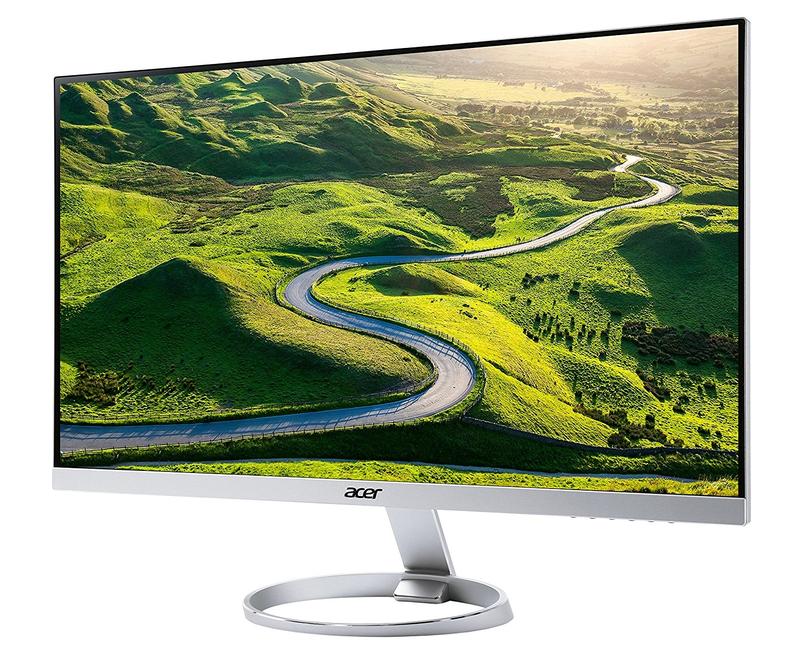
2. Acer H277HU


Acer H277HU

Acer"s H277HU is a little pricey for a monitor with sub-4K resolution, costing around £450, but it"s well connected and is a good option if you need a versatile display that you can use with multiple devices at home or in an office.

Tucked around the back of the slimline panel you"ll find a USB-C connector, which allowed us to quickly hook up our new MacBook Pro.

There"s a DisplayPort interface for older Macs, and HDMI for other types of computer, games consoles and set-top boxes. There are also two USB 3.0 interface as well, with one providing a "fast charge" option so that you can quickly top up an iPhone or iPad.

The 27-inch display only has a resolution of 2560x1440, which is relatively modest by Apple standards these days, but that"s still more than enough for watching HD video, doing a spot of photo-editing, or playing with really large spreadsheets in Excel.

The image is bright and clear, with very bold colours, but Acer also includes a blue-light filter to ease the strain on your eyes, and there"s a glare-reduction feature that works well even with the sun pouring through our office window on a bright summer afternoon.

Our only real complaint is that - like the monitor on the iMac - it doesn"t allow you to adjust the height of the screen.

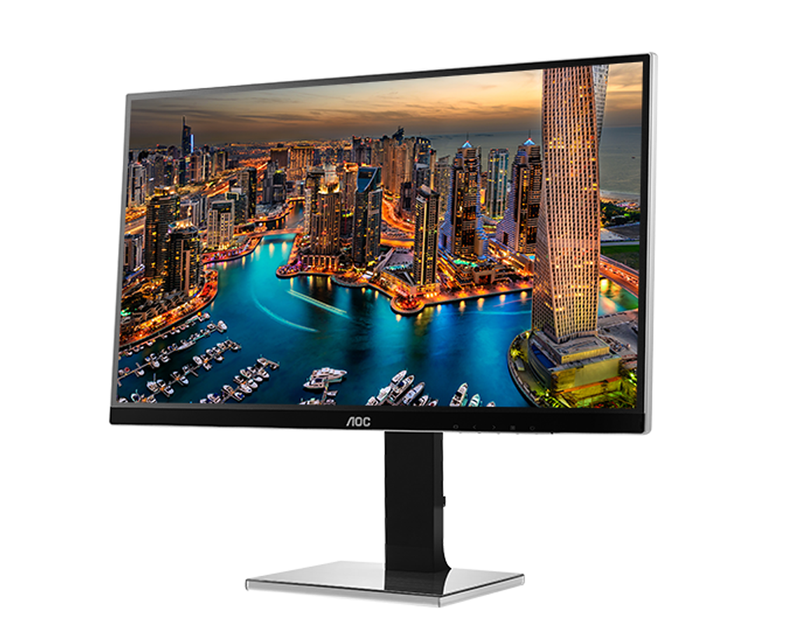
3. AOC U2777PQU


AOC U2777PQU

The LG monitors that Apple is currently promoting on the Apple Store are almost as expensive as Apple’s own monitors used to be, costing over £600 for a 4K display that is just 21.5-inches in size.

AOC’s U277PQU is a good alternative, as it provides a larger 27-inch display with 4K resolution (3840x2160) for only a little over £500.

Getting started is, admittedly, a bit of a hassle, as the screen, stand, and base all come as separate parts that have to be screwed together, and many of the controls and connectors are annoyingly tucked on the underside of the screen.

However, the U277PQU is one of the few monitors here that allows you to tilt and swivel the screen, adjust the height – and even rotate the screen into upright portrait orientation.

There’s no USB-C port, so you may need an adaptor for the latest Mac models, but the U277PQU does include HDMI, DisplayPort, DVI and even analogue VGA connectors for really old Macs and PCs.

It’s also got a good built-in USB hub with two USB 2.0 and two USB 3.0 connectors, so you can hook up a printer, hard drive and other peripherals in your office.

The 4K display is as clear and sharp as you’d expect, with well-balanced colours that are bold and strong without becoming over-saturated. It works a treat for watching 4K video, or simply juggling multiple open apps and windows on screen when you’re trying to get some work done.

The display also supports 100% of the Adobe sRGB colour-space, so that upright/pivot option will be handy for web design or photography too.

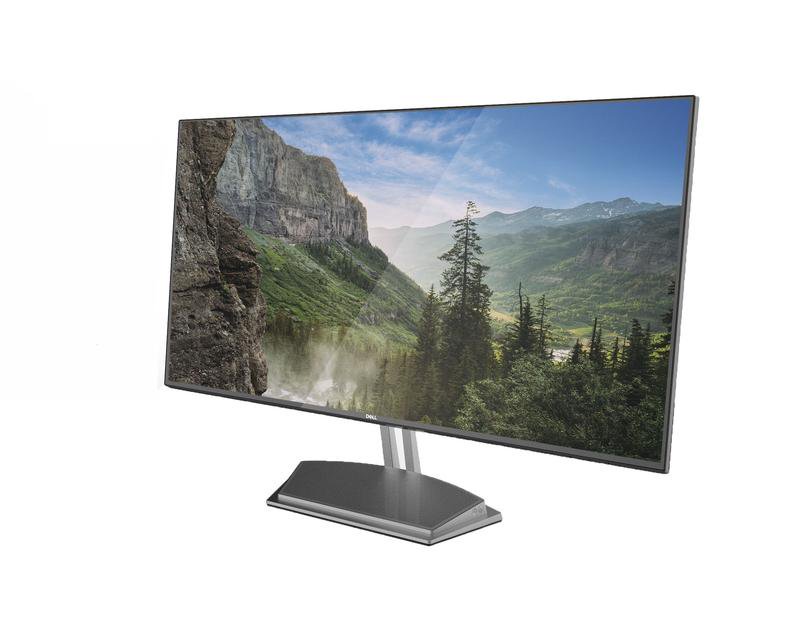
4. Dell S2718H


Dell S2718H

It"s not often that we recommend Dell products to Mac users, but the PC manufacturer does also have a very good range of monitors.

The S2718H isn"t the cheapest 27-inch monitor currently available, especially as it only has standard HD resolution (1920x1080 resolution). Even so, the image quality is very good, thanks to the monitor"s support for HDR - high dynamic range.

This provides a bright, colourful image that looks much crisper and sharper than you might expect from the relatively low resolution. It works really for watching streaming video and web browsing, with strong contrast that seems to enhance detail and colour and produce very realistic images.

We also like the anti-glare coating, which works well even under harsh overhead lighting in our office.

The monitor supports 99% of Adobe"s sRGB colour-space, so while pro users may prefer a display with higher resolution, the S2718H is still a good option for home users who want to do a spot of photo-editing, or business users who need to work on presentations or marketing materials.

And, of course, it"ll be a good option if you want to use a larger display with your laptop when you"re working in the office.

The only disappointment is that the 2718H is a bit more basic when it comes to connectivity and other features. There"s no USB hub, and it"s only equipped with HMDI and VGA interfaces, so you"ll probably need to buy an adaptor in order to use it with most Macs or iOS devices.

Even so, the HDR screen is very attractive, and is a good option for home or business users who don"t want to pay a fortune for a 4K or 5K monitor.

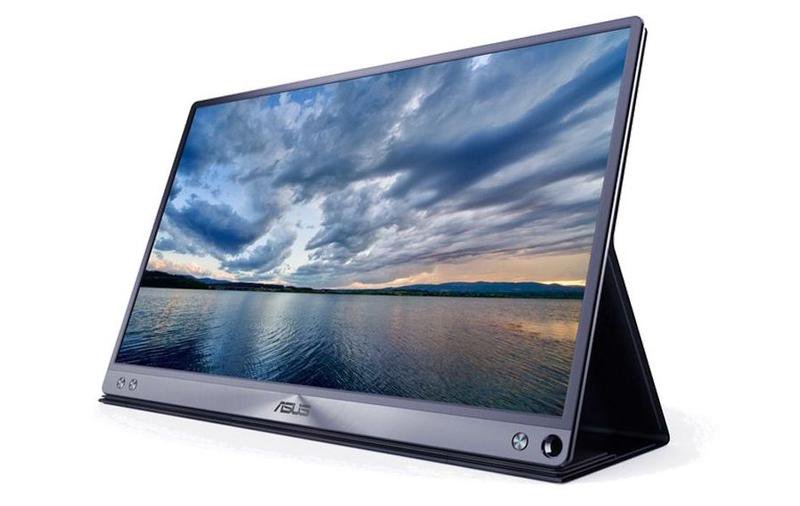
5. Asus ZenScreen MB16AC


Asus ZenScreen MB16AC

Apple and other companies are increasingly focusing on large, high-resolution displays suitable for 4K video editing, graphics, or gaming. And, of course, those big, heavy displays just tend to sit in one place at home or in your office. However, Asus has come up with an interesting twist, with its portable ZenScreen display.

The ZenScreen is a slimline 15.6in display that measures just 8mm thick, and weighs 0.8kg. It draws its power from a USB-C interface, so you can easily use it with a 12- or 13-inch MacBook laptop, perhaps to give a presentation when you"re travelling. It"ll come in handy in the office too, providing a larger screen for working with Microsoft Word or Excel documents, or just for watching a spot of Netflix at home in the evening.

Asus includes a smart wraparound cover with the ZenScreen, which looks similar to the smart covers that Apple makes for iPads and, like the smart covers, it can be folded so that it acts as a convenient stand to prop up the screen when you"re working. Like a conventional monitor, the ZenScreen has its own on-screen menu, which provides features such as a blue-light filter to ease the strain on your eyes, and there are preset viewing modes suitable for watching video, photo-editing or gaming.

It"s also possible to connect the ZenScreen to a laptop with an older USB-A interface, although this requires the use of additional software, called DisplayLink. Unfortunately, the DisplayLink software for Mac has always been a bit unreliable, so we"d recommend that you stick with newer MacBooks and other laptops that have USB-C.

6. LG 38UC99


LG 38UC99

With its own line of monitors discontinued (for now), Apple has been pointing people in the direction of LG"s attractive 4K and 5K monitors instead.

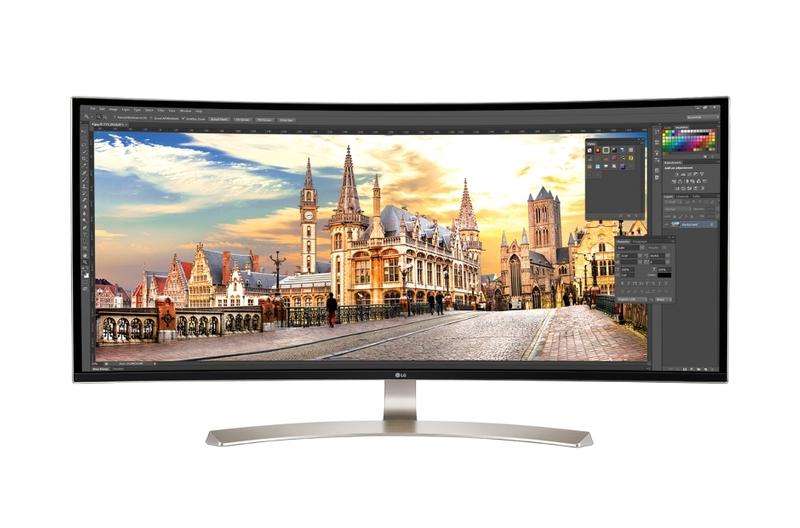
However, the latest addition to the LG range is even more striking - a monster 38-inch display with wide-screen 21:9 aspect ratio, that curves inward like your own personal home cinema.

Despite its enormous size, the 38UC99 doesn"t provide true 4K resolution (3840x2160) - opting instead for a resolution of 3840x1600.

However, that makes sense for the 21:9 aspect ratio, which is ideal for watching high-def video, or simply for juggling multiple documents or browser windows on screen all at the same time.

The image is wonderfully bright and colourful, and the curvature of the screen makes you feel like you"re being drawn right into the action when playing games or watching the latest action-packed movies.

And while the 38UC99 might seem tailor-made for home entertainment, it does support 99% of the Adobe sRGB colour space, so it can turn its hand to occasional graphics and web design work too.

To make sure that the 38UC99 earns its keep you"ll find a USB-C port on the back for the latest Macs, along with DisplayPort and two HDMI ports for other devices. There are also two USB-3 ports available, with one quick-charge port for your mobile devices.

It"s also one of the few monitors we"ve seen that actually has a decent set of internal speakers, with its "rich bass" effect digging down to 85Hz and below to really add impact to those Hollywood blockbusters.

Sunday, 24 December 2017

Dell XPS 13 review

For the third year in a row, the Dell XPS 13 is still our absolute favorite laptop. Seeing as it still looks the same as it did in years prior, you may be wondering what’s different about the 2017 version of the Dell XPS 13, the company’s flagship Ultrabook that we’ve still yet to fall out of love with all these years later.

Above all else, this update focuses on boosting specs. So while you’ll notice marginal changes made to the outside of the device, the inside now consists of Intel’s 8th-generation ‘Kaby Lake Refresh’ series processors, if you can afford them, for double the cores of the previous generation Dell XPS 13.

Of course, in directing its attention almost exclusively to performance enhancements this time around, the 2017 Dell XPS 13 still encounters some of the same issues we’ve been experiencing for quite some time now – particularly those related to webcam placement.

Here is the Dell XPS 13 configuration for review:

CPU: 1.8GHz Intel Core i7-8550U (quad-core, 8MB cache, up to 4.0GHz)
Graphics: Intel UHD Graphics 620
RAM: 8GB LPDDR3 (1,866MHz)
Screen: 13.3-inch FHD (1,920 x 1,080) InfinityEdge (400 nits; 1,200:1 contrast ratio)
Storage: 256GB PCIe SSD
Ports: 1 x USB 3.0, 1 x USB 3.0 w/PowerShare, 1 x USB-C 3.1 (Thunderbolt 3), SD card reader, 3.5mm audio jack
Connectivity: Killer 1535 802.11ac (2.4 & 5GHz); Bluetooth 4.1
Camera: 720p widescreen HD webcam with dual array digital microphones
Weight: 2.7 pounds (1.2kg)
Size: 11.98 x 7.88 x 0.33 – 0.6 inches (W x D x H) (304 x 200 x 9 – 15mm)

Price and availability


As we anticipated, the cost of the Dell XPS 13 hasn’t changed. The starting configuration retails at $799 in the US, and it doesn’t appear to be any different than last year. You’re still getting a 7th-generation Intel Core i3-7100U, 4GB of RAM and a 128GB solid-state drive (SSD) and a full HD InfinityEdge Screen.

The only models whose specs have changed are those that are higher tier. Because Intel’s 8th-generation processors for laptops only exist in a luxuriously high-speed vacuum, you can max out your Dell XPS 13 with an Intel Core i7-8550U, 16GB of RAM and 256GB of SSD storage for $1,749. The configuration we’ve tested here costs $1,299, £1,268.99 or AU$2,299.

(Pricier configurations include Windows Hello through a fingerprint sensor.)

In the UK, however, prices begin at £1,118.99 with a whopping 11 different configurations, starting with a 7th-generation Core i7 processor behind an FHD display as well as 8GB of RAM and a 256GB SSD. The top end sees the XPS 13 with a QHD+ touchscreen backed by an 8th-generation Intel Core i7 processor as well as 16GB of RAM and a 1TB SSD for a cool £1,818.98. (In the UK, you can also get several configurations pre-loaded with Ubuntu Linux instead of Windows 10.)

Finally, the Australian model starts at AU$799 for a 7th-generation Intel Core i5 processor behind an FHD panel and with 8GB of RAM and a 256GB SSD. At the highest end of its huge 10 configurations in the region, the XPS 13 costs AU$2,399 for a QHD+ display powered by an 8th-generation Intel Core i7 processor with 16GB of RAM and a 512GB SSD. The Rose Gold-colored model costs an extra AU$100 for the same innards.

For comparison’s sake, the 13-inch MacBook Pro starts the price discussion at $1,299, £1,249 or AU$1,899 for a 7th-generation Core i5 processor, 8GB of RAM and a 128GB SSD behind its 2,560 x 1,600 Retina display. Meanwhile, the Surface Laptop from Microsoft costs $999, £979 or AU$1,499 for a 2,256 x 1,504 PixelSense touchscreen backed by a 7th-generation Intel Core i5 processor with 4GB of RAM and a 128GB SSD.

For all intents and purposes, the XPS 13 seems to continue to present not only more options, but better value across the board than its highest-profile competitors.

Design


If you liked the look and feel of last year’s Dell XPS 13, then you’re in luck. If not, then this year’s rendition will do nothing to sway you. This is because absolutely nothing about the laptop’s dimensions, weight or frame design has changed.

The Dell XPS 13 is no thinner or lighter than before, at 2.9 pounds (1.29kg) for the glossy, QHD+ touchscreen model or 2.7 pounds (1.2kg) for the matte, FHD-screened version and at 0.6 inches (15mm) thick in either configuration.

Of course, the same gorgeous, machined aluminum lid and base that beset a comfy, carbon fiber keyboard deck coated in soft-touch paint are here – and in the expected Silver and Rose Gold colors, no less.

The keyboard and touchpad are just as sublime to use as they have been in years past. With deep-enough travel and punchy feedback, the keyboard remains among the best we’ve used on a laptop, while the glass-coated touchpad tracks gestures handily and offers strong palm rejection (which protects against accidental presses by your wrist when typing).

All told, we’re still taken by the XPS 13’s design, even if basically nothing was done for better or worse. All of the same ports feature in this model again, which is a major plus considering how comprehensive the set is. However, the 720p webcam – despite it working just fine – is still set to the bottom-left bezel of the display. Simply put, this is not great design and needs to be changed.

Display and sound


This time around, we’ve had the opportunity to test the FHD, or 1,920 x 1,080-resolution, version of the Dell XPS 13 InfinityEdge display. While QHD+ is a pleasure to work with, we find the FHD option to be just fine for what most folks will use the laptop for.

Color reproduction is still spot-on, and the matte coating versus the necessary glass for the QHD+ touchscreen actually works in its favor when under direct light, managing glare much more easily. Plus, the 400 nits worth of brightness works well to that end, too. Video still looks excellent on the laptop, but as for the sound, we’d appreciate an upgrade at this point.

You see, with just two, awfully-thin stereo speakers on each side of the laptop just above the point where the aluminum base and keyboard deck meet, only so much sound can get through. That leads to rather tinny audio despite strong volume, thanks to Waves MaxxAudio Pro tuning. While there’s a headphone jack, if there were top-firing speakers either beside or underneath the keyboard, that would go a long way to improving sound quality.

Still, despite these audio issues, we’d argue that the XPS 13 continues to make for a better professional or even ‘prosumer’ laptop than the 13-inch MacBook Pro. From the amount of configuration options to the ports on offer and the component quality versus the price, your mileage will vary far less with the XPS 13 than with Apple’s latest laptop.

Sunday, 15 October 2017

The best Chromebooks of 2017

Chromebooks are a refreshing take for someone looking for an alternative to Windows and Mac laptops. Very different from the conventional laptops, Chromebooks are made to work on the cloud with not much interaction done offline. This makes it ideal for someone who spends a lot of time online and specifically on the Google eco system. Here we take a look at the best offerings.

Asus Chromebook Flip


Before this laptop from Asus, consumers were hard pressed to find an inexpensive Chromebook that Intel’s Core processors and 1080 p screens. Other rare features were the touchscreen, a backlit keyboard and USB Type C cables; all of which Asus brought in a complete package; the Asus Chromebook Flip. It offers an LED 12.5 inch display and up to 4 GB of RAM. The tablet mode is also extremely elegant to use.

asus chromebook

Samsung Chromebook Pro


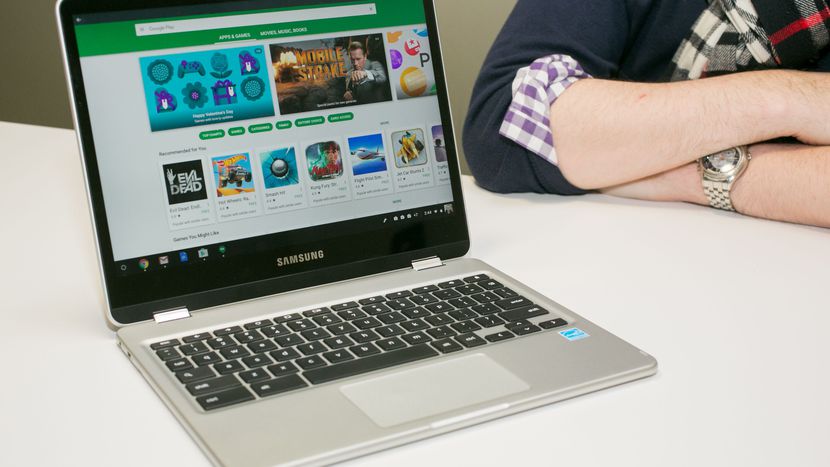
The Samsung Chromebook Pro is one of the first Chromebooks to allow Android apps to be used on its Chrome OS, which effectively brings the best of two worlds. This Chromebook also has a feature that allows it to stand out from the crowd; it is the first to have an in built stylus that makes it much better than even most tablets. It has a 12.3 inch QHD screen and the ability to fold 360 degrees. On the downside, the keyboard tends to feel a bit cramped and the speakers are horribly poor.

Samsung Chromebook Pro

Dell Chromebook 11


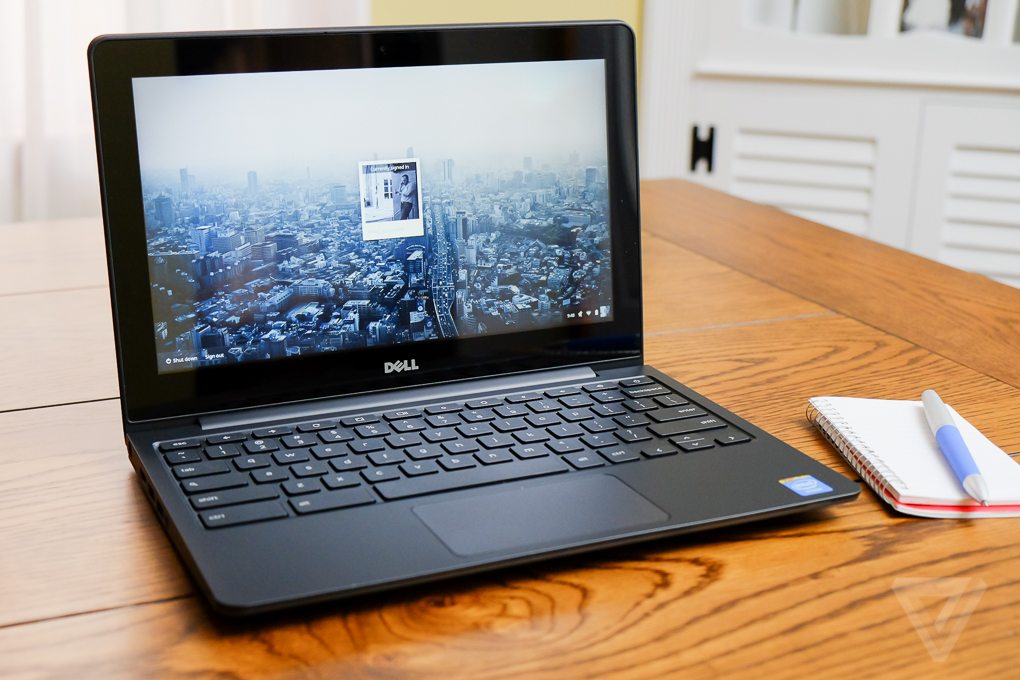
If you are looking for value for money, then Dell’s Chromebook 11 is just the device you need. It has a strong 180 degree hinge and a durable build along with a kick ass keyboard that is a thrill to type on. All of these make the Dell Chromebook 11 great for school goers and work oriented people. It has a 16 GB SSD for storage and comes with either 2 GB or 3 GB of RAM. With solid stereo speakers, this rugged Chromebook can handle a couple of dings too.

Dell Chromebook

Acer Chromebook 15


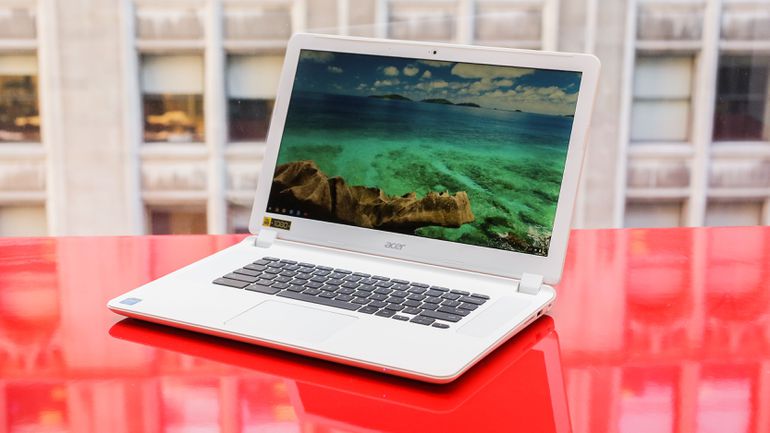
This Chromebook is one of the few Chromebooks to have a 15.6 inch screen. Another feature that is rare on Chromebooks is its optional i5 processor. While that much power is overkill, it is still a handy feature to haveAcer Chromebook on a device. The device is quite a bit on the heavy side due to its 15.6 inch display which is Full HD by the way. The Acer Chromebook 15 is known for its long battery life and quick processing speeds. One common complaint about the device is that the Chromebook’s keyboard is quite awkward to type on.