Showing posts with label Data. Show all posts

Saturday, 20 January 2018

5 Apps to Monitor Data Usage on Your Smartphone

It’s always a good idea to keep track of your mobile data usage so you can avoid exceeding your data usage quota. Among the two main mobile operating systems, Android natively provides you an interface to keep track and monitor mobile data usage; iOS on the other hand, doesn’t offer much information.

So in this post, I am going to discuss some useful apps (both iOS and Android) that you can download to keep track of mobile data usage, starting with the one I’m current using.

My Data Manager


My Data Manager is available for both Android and iOS. It’s free, doesn’t come with any ads, and tracks data usage for mobile, WiFi and roaming.

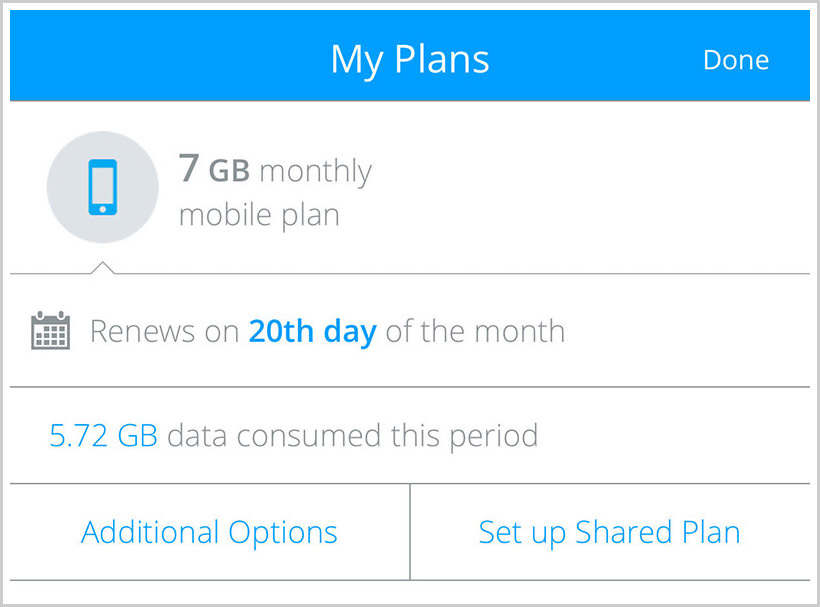
Input your data limit, renewal period and renewal date and you’re good to go.
my data mgr plans
Now, head over to the summary tab and you’ll get an overlook of your data usage for mobile, WiFi and roaming (if any).

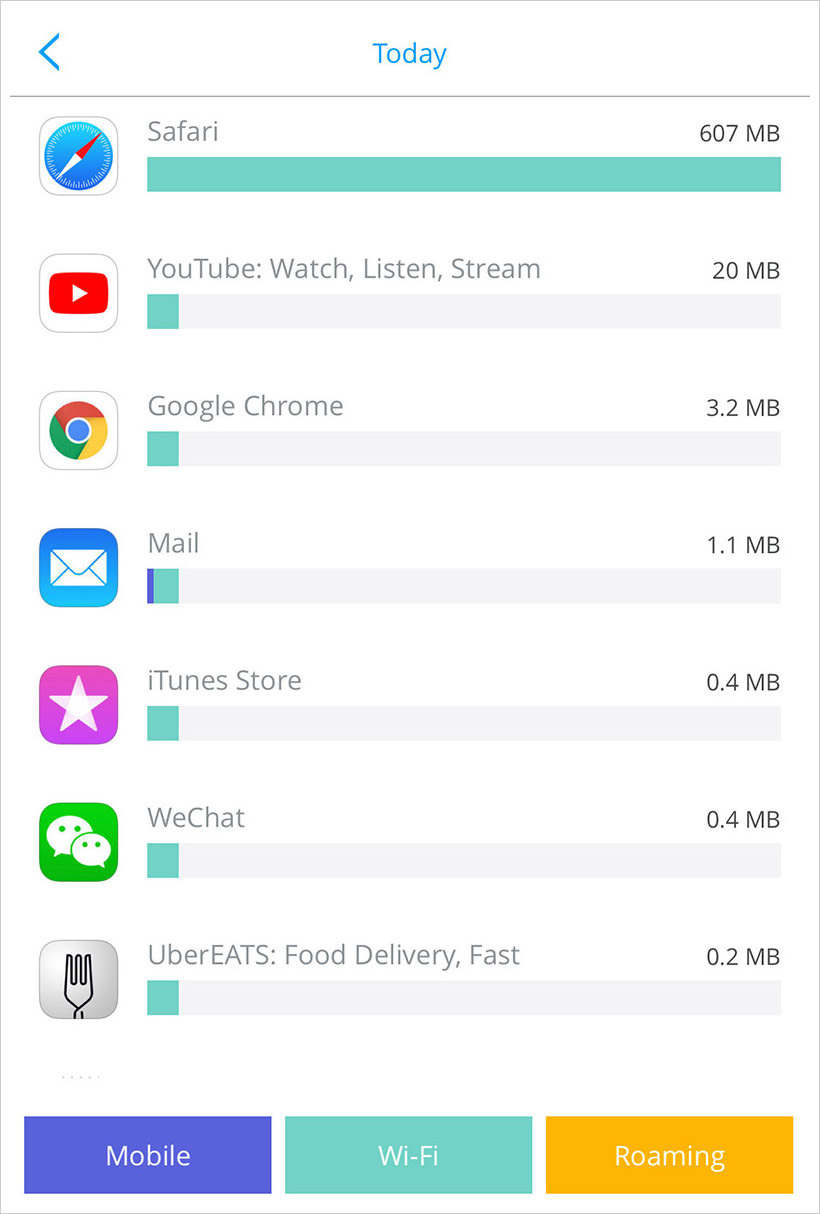
The app tracker tab gives you a list of apps that are utilizing your data, mobile or WiFi. This gives you an idea how to adjust your usage behavior in case your mobile data is reaching its limit.
my dta mgr app tracker
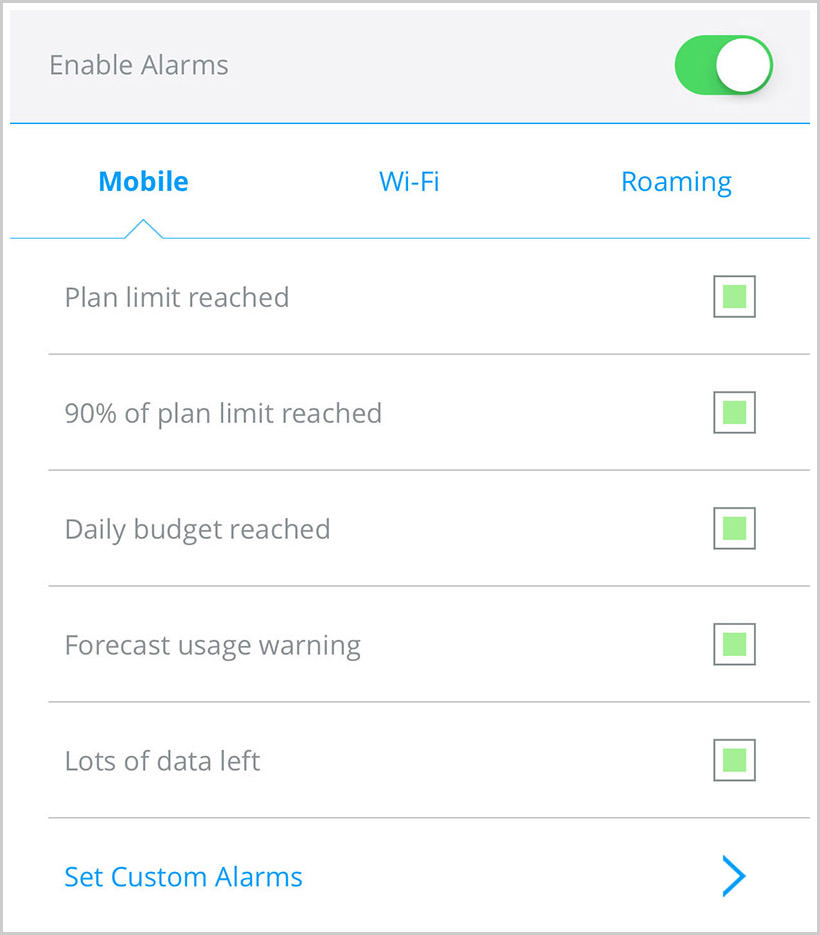
The other great thing about this app that I like is the ability to set all sorts of alarm (alerts) about my data usage.
enable alarm
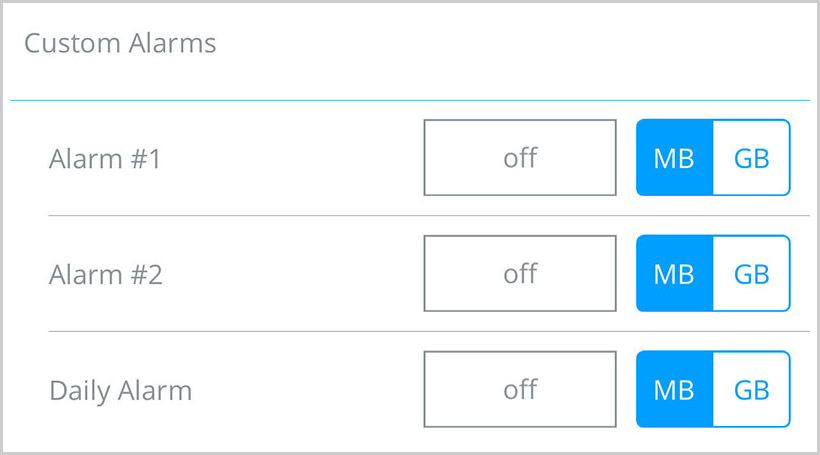
The “Set Custom Alarm” feature lets you set alarms to inform you when your mobile data reaches a specific limit.
my data mgr custom alarm

RadioOpt Traffic Monitor & 3G/4G Speed


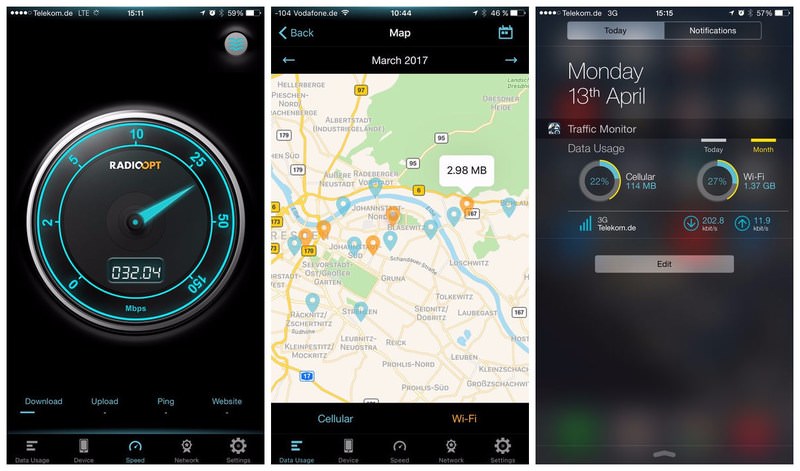
This one is basically a combination of a good data usage tracker and a speed and coverage testing app. The app will help you keep your wireless connection stable and also track how much you are using data.

You can specify your data plan period and limits and RadioOpt will both track your usage and alarm you when you are about to cross the limit. You’ll also not be surprised by roaming charges as it keeps a separate record of roaming data usage.
RadioOpt Traffic Monitor & 3G/4G Speed
The app has a powerful speed test tool built-in that will help you test the speed of your WiFi or mobile data connection, including upload, download and ping speed.

It can also create a coverage map for you to see where you can get the best signals from the nearest network tower. Interestingly, all these tests can be directly compared with people in your area to see whether you are getting comparable speed or not.

Glasswire Data Usage Monitor


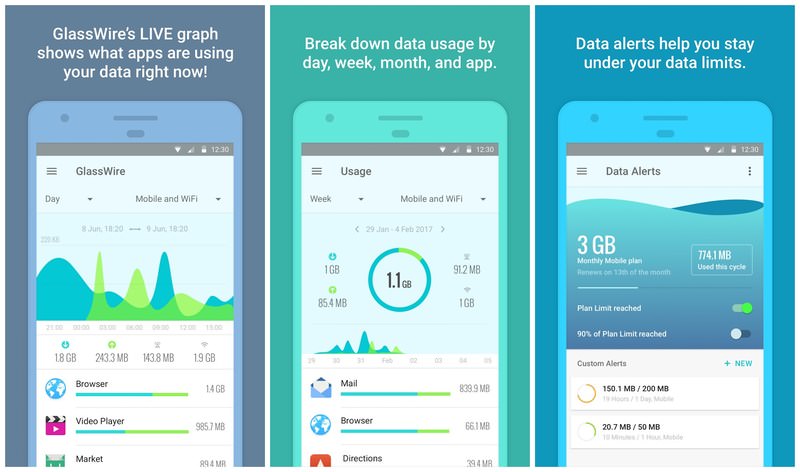
Glasswire, the popular network traffic monitoring app for desktops also has an app for Android devices. Like the desktop version, this app also focuses on tracking network usage and recording app behaviour.

It can track which apps are using your mobile data and WiFi and alerts you when you are about to exceed your data plan limit. You can track data usage in real-time, and even go back in time to see which app used data on a particular day.
Glasswire Data Usage Monitor
Glasswire also prompts you whenever a new app uses the internet, so you may never be surprised by an infected app. To top it off, if your data provider offers unlimited data usage for a particular app – Like Facebook – then you can also exclude it from data monitoring.

Data Usage


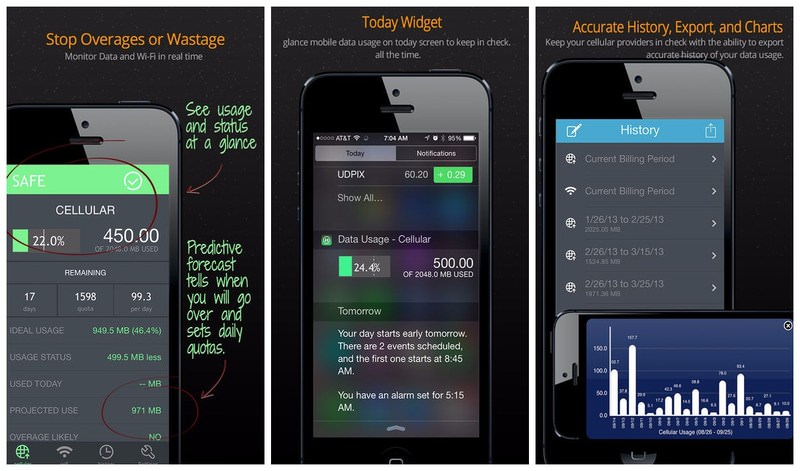
A reliable data usage tracking app that focuses on helping you evenly use your allotted limit over the given time. Apart from regular data tracking and alerts, Data Usage has a cool prediction feature that shows you when you’ll reach the data limit based on your regular usage. If some day you use more data than usual, you’ll be immediately alerted.
Data Usage
Furthermore, Data Usage has a dedicated widget that shows you your data usage in real-time and your overall daily usage. To take the matters a little further, the app is also capable of disabling your data connection if you reach your set limit.

DataMan Next


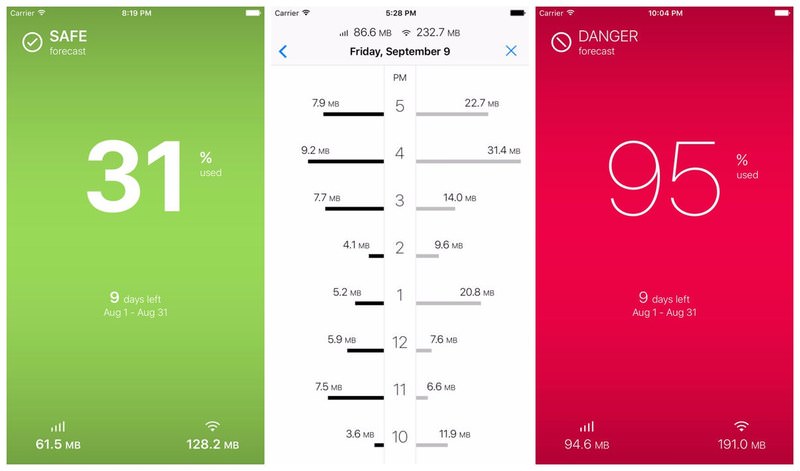
A beautiful app with a minimalist design, DataMan only offers the features you need and does its job perfectly. Without any confusions, the app lets you monitor data usage by each app and your overall data limit progress. It also has a handy widget that keeps your data usage in view all the time.
DataMan Next
It also has a prediction feature that tells whether you’ll stay in your limit or exceed it based on your current data usage. I am sure you will really like how DataMan Next visualizes each feature with different colors and custom notifications.

Conclusion


As I’ve mentioned above, My Data Manager is in my own use and it’s my favorite among this list, mainly because of its many features and a clean interface. However, if you think any other app strikes your interest, do give it a test run. And don’t forget to let us know about your experience

Thursday, 4 January 2018

Intel Claims Security Flaw Also Impacts Non-Intel Chips, Exploits Can"t Corrupt, Modify or Delete Data

Intel this afternoon addressed reports of a serious design flaw and security vulnerability in its CPUs, shedding additional light on the issue that was uncovered yesterday and has since received extensive media coverage.

In a statement on its website, Intel says that it planned to disclose the vulnerability next week when additional software patches were available, but was forced to make a statement today due to "inaccurate media reports."

According to Intel, the issue is not limited to Intel chips and the exploits in question do not have the potential to corrupt, modify, or delete data. Despite Intel"s statement, Intel chips are more heavily impacted, and it"s worth noting that Intel makes no mention of reading kernel level data.

Intel and other technology companies have been made aware of new security research describing software analysis methods that, when used for malicious purposes, have the potential to improperly gather sensitive data from computing devices that are operating as designed. Intel believes these exploits do not have the potential to corrupt, modify or delete data.

Recent reports that these exploits are caused by a "bug" or a "flaw" and are unique to Intel products are incorrect. Based on the analysis to date, many types of computing devices -- with many different vendors" processors and operating systems -- are susceptible to these exploits.

Intel says it is working with several other technology companies including AMD, ARM, and operating system vendors to "develop an industry-wide approach" to resolve the problem "promptly and constructively."

As outlined yesterday, the design flaw appears to allow normal user programs to see some of the contents of the protected kernel memory, potentially giving hackers and malicious programs access to sensitive information like passwords, login keys, and more. Fixing the issue involves isolating the kernel"s memory from user processes using Kernel Page Table Isolation at the OS level.

Despite reports suggesting software fixes for the vulnerability could cause slowdowns of 5 to 30 percent on some machines, Intel claims performance impacts are workload-dependent and will not be noticeable to the average computer user.

Intel has begun providing software and firmware updates to mitigate these exploits. Contrary to some reports, any performance impacts are workload-dependent, and, for the average computer user, should not be significant and will be mitigated over time.

Intel goes on to say that it believes its products are "the most secure in the world" and that the current fixes in the works provide the "best possible security" for its customers. Intel recommends that users install operating system updates as soon as they are available.

For Mac users, Apple has already addressed the design flaw in macOS 10.13.2, which was released to the public on December 6.

Sunday, 31 December 2017

Ad targeters are pulling data from your browser’s password manager

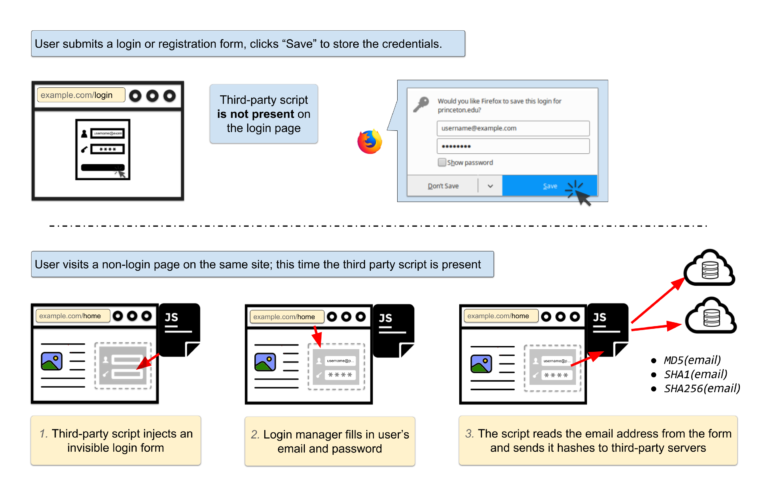
Nearly every web browser now comes with a password manager tool, a lightweight version of the same service offered by plugins like LastPass and 1Password. But according to new research from Princeton"s Center for Information Technology Policy, those same managers are being exploited as a way to track users from site to site.


The researchers examined two different scripts — AdThink and OnAudience — both of are designed to get identifiable information out of browser-based password managers. The scripts work by injecting invisible login forms in the background of the webpage and scooping up whatever the browsers autofill into the available slots. That information can then be used as a persistent ID to track users from page to page, a potentially valuable tool in targeting advertising.


The plugins focus largely on the usernames, but according to the researchers, there’s no technical measure to stop scripts from collecting passwords the same way. The only robust fix would be to change how password managers work, requiring more explicit approval before submitting information. “It won"t be easy to fix, but it"s worth doing,” says Arvind Narayanan, a Princeton computer science professor who worked on the project.


In the case of AdThink, that information was also being funneled back to Axciom, a massive consumer data broker, presumably to be added to the growing file on whoever was visiting the site. AudienceInsights, which operates AdThink, lets users see their unique user ID for the system and attempt to opt out, although it’s unclear how robust that opt-out truly is. Audience Insights did not respond to a request for comment.


For Narayanan, most of the blame goes to the websites who choose to run scripts like AdThink, often without realizing how invasive they truly are. “We"d like to see publishers exercise better control over third parties on their sites,” Narayanan says. “These problems arise partly because website operators have been lax in allowing third-party scripts on their sites without understanding the implications.”

Saturday, 22 July 2017

Google Cloud to boosts internet throughput with new congestion-control algorithm

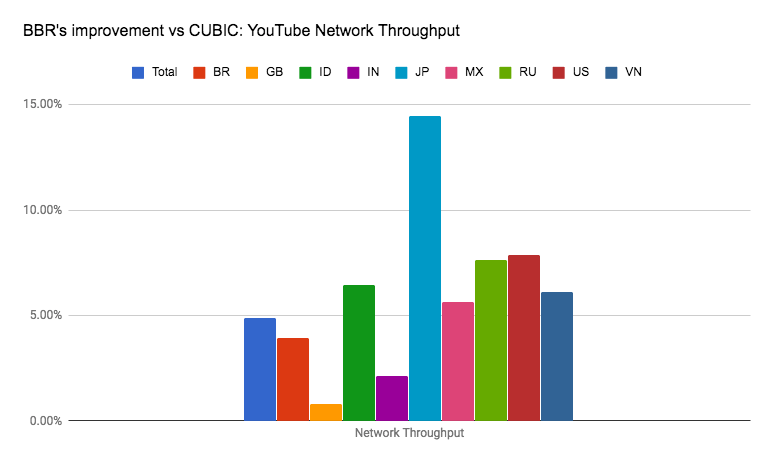
Google announced that TCP BBR, a new congestion-control algorithm that it has used to improve network throughput from google.com and YouTube by about four percent globally (and by more than 14 percent in some countries), is now also available to its Google Cloud Platform users.


The general idea here is to improve on the existing congestion-control algorithms for internet traffic, which have been around since the 1980s and which typically only take packet loss into account (when networking buffers fill up, routers will discard any new packets). These algorithms decide how fast a given device should be sending data into the network to avoid overloading it. When these systems realize that some of the data packets don’t make it to their final destination, they start sending the data more slowly, which ideally reduces the amount of congestion. There are all kinds of algorithms for working out the details of how exactly to do this (and how to speed up again over time), but at their core, they all tend to follow the same patterns.

BBR

BBR, which stands for “Bottleneck Bandwidth and Round-trip propagation time,” takes a different approach. It doesn’t just look at packet loss but also at how fast the network is actually delivering data. “For a given network connection, it uses recent measurements of the network’s delivery rate and round-trip time to build an explicit model that includes both the maximum recent bandwidth available to that connection, and its minimum recent round-trip delay,” Google explains. Using this data, BBR then decides how fast it wants to send its data.

The result of this is an algorithm that can send more data at any given time (without incurring losses), especially on long-haul links. Google says one of its benchmarks showed a 2,700x increase in throughput rate, but that’s obviously an edge case and a synthetic benchmark.

The company first publicly talked about BBR in a paper last year and has since open-sourced the protocol. Google has also contributed it to the Linux kernel TCP stack.

TCP BBR Animate

Google Cloud to boosts internet throughput with algorithm

Google announced that TCP BBR, a new congestion-control algorithm that it has used to improve network throughput from google.com and YouTube by about four percent globally (and by more than 14 percent in some countries), is now also available to its Google Cloud Platform users.


The general idea here is to improve on the existing congestion-control algorithms for internet traffic, which have been around since the 1980s and which typically only take packet loss into account (when networking buffers fill up, routers will discard any new packets). These algorithms decide how fast a given device should be sending data into the network to avoid overloading it. When these systems realize that some of the data packets don’t make it to their final destination, they start sending the data more slowly, which ideally reduces the amount of congestion. There are all kinds of algorithms for working out the details of how exactly to do this (and how to speed up again over time), but at their core, they all tend to follow the same patterns.

BBR

BBR, which stands for “Bottleneck Bandwidth and Round-trip propagation time,” takes a different approach. It doesn’t just look at packet loss but also at how fast the network is actually delivering data. “For a given network connection, it uses recent measurements of the network’s delivery rate and round-trip time to build an explicit model that includes both the maximum recent bandwidth available to that connection, and its minimum recent round-trip delay,” Google explains. Using this data, BBR then decides how fast it wants to send its data.

The result of this is an algorithm that can send more data at any given time (without incurring losses), especially on long-haul links. Google says one of its benchmarks showed a 2,700x increase in throughput rate, but that’s obviously an edge case and a synthetic benchmark.

The company first publicly talked about BBR in a paper last year and has since open-sourced the protocol. Google has also contributed it to the Linux kernel TCP stack.

TCP BBR Animate

Monday, 1 May 2017

How to Use Android Effectively [2017]

This How-To course aims to teach you how to use Android effectively, showing you the most important settings and methods needed to really become an Android pro and get the most out of your device.

Android is the most popular mobile operating system in the world. While Apple’s iOS (iPhone and iPad) receives lavish attention and has a devout following, Android continues to rack up impressive numbers. In fact, it holds roughly 88 percent of the global market share.

Part of the reason for this is that Android faces little competition. iOS continues to be its only viable foe, particularly in the United States with where it claims a 43 percent market share. Windows Phone and the ever-fading Blackberry can’t come close to stacking up.

All this really means is that a whole lot of people use Android and, time after time, we see people struggling to master it. It’s not that Android is hard to use, in fact, it’s very easy, but earlier versions are often slow and clunky while newer ones have a lot of features you need to learn to make the most of it. Also, people may simply not know or realize many of the ways you can better manage your device rather than it managing you.

That’s what we’re here to help with.

Understanding Android Versions


Android has seen many versions since version 1.0 was released in 2008. Since 2009 they have been named after desserts or sweets alongside their corresponding version numbers. For example, the first public version of Android was named “Cupcake.” Since then we’ve seen Donut, Eclair, Froyo, Gingerbread, Honeycomb, Ice Cream Sandwich, Jelly Bean, KitKat, Lollipop, Marshmallow, and Nougat.

Also Read: How to Hide Photos on Android

Unlike the iPhone, however, not all recent phones will necessarily get the latest and greatest version. Depending on your phone, its manufacturer, and the carrier you’re on, you could buy a phone that gets stuck on one version while everyone else moves on. That means there are a lot of different versions of Android out there still floating out in the wild.

Given how many versions are out there, it’s difficult to write instructions for everyone, but we believe in always having the latest version of any operating system installed. Not simply to take advantage of the latest features, but also because the most recent versions represent a long effort by Google to hone its operating system so that it works on much older hardware than previous Android versions.

If you cannot upgrade to the most recent versions of Android, then it probably means you’re stuck with the version you have until you can buy a new phone or tablet. Don’t worry, most of the information we cover here can still be applied in some way and, if it cannot, you still have this series as a resource when you do finally upgrade!

What’s the Difference Between “Pure” Android and Other Distributions?


Handset makers go through a vast array of tricks to make Android more user friendly. But what you often end up with is a convoluted mess of eye candy and unneeded apps that add more bloat than they’re worth. Unless you buy a Google Nexus or Pixel phone, your phone will probably have a custom “skin” for Android made by its manufacturer, like Samsung’s “TouchWiz” interface and LG’s “LG UX”. While they each have their own dedicated fans, this problem splinters the Android community even more, and gives everybody a different interface to learn.

But some phones–particularly Google’s Nexus and Pixel line–contain Google’s original version of Android, without the extra tweaks. This has attracted its own hardcore following of users who swear by stock, or “pure” Android.

Also Read: How to Hide Files on Android

The result of this is an Android distribution as Google intended. For the purposes of this series, we will refer to stock Android and, where necessary, Samsung Touchwiz or LG UX. We include Samsung simply because it is used by 29 percent of US Android users, and worldwide, the company accounted for 23 percent of all smartphone shipments in 2013.

Getting a Lay of the Land


Android is super easy to use. It employs a few consistent UI features and elements that can be found across nearly all Android devices. We’ll go on a little tour of these before diving a bit further into many of the settings you will encounter throughout this series.

The Home Screen


Unlock your device and you’re greeted by the home screen. Think of this as a desktop of sorts, but unlike a traditional PC, you can have as many home screens as you want, which you simply swipe left or right to access. You can place a whole variety of app shortcuts, app groups, and widgets on your home screen(s).

Below is a screenshot of stock Android’s home screen on the left, and Samsung Touchwiz on the right.


Android Home ScreenThe Home Screen


Note that your home screen will vary according to how your handset manufacturer lays it out or however you customize it.

The Status Bar


At the very top, ever-present, is the status bar. it rarely leaves the display, except in some full-screen applications (like video players or games). The status bar displays important information including the time, how much signal you have (both Wi-Fi and cellular), your battery, and notifications such as texts and e-mails. It will largely look the same across various manufacturer skins, save for some stylistic choices.

The Status Bar

Notifications


Notifications have always been one of Android’s strong points. With notifications, the system and apps can notify you when something needs attention, such as an e-mail, text message, or something app-specific such as a Facebook alert. When you get a notification, you’ll see an icon on the left of the status bar at the top of your phone. Pull down on the status bar to see all your notifications, which you can then attend to or clear out.
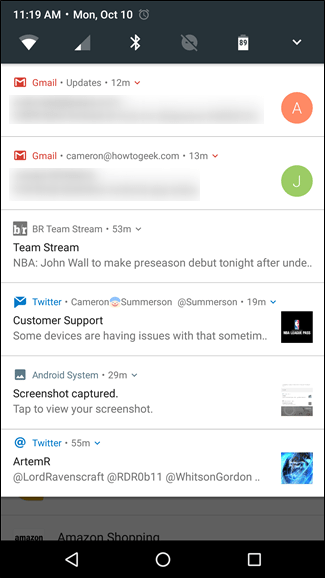
Notifications

You can tap a notification to open that email, text message, or whatever it is. If you want to clear it, simply swipe it away, or tap the clear notifications icon at the very top to take care of all of them at once.

The Quick Settings Panel


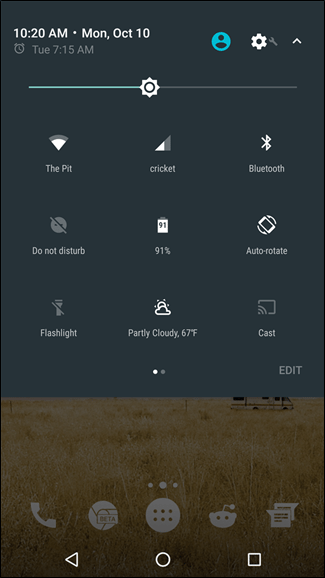
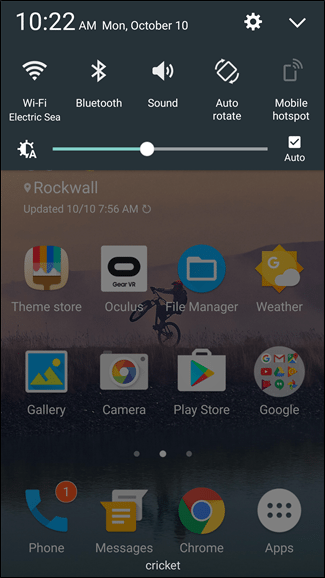
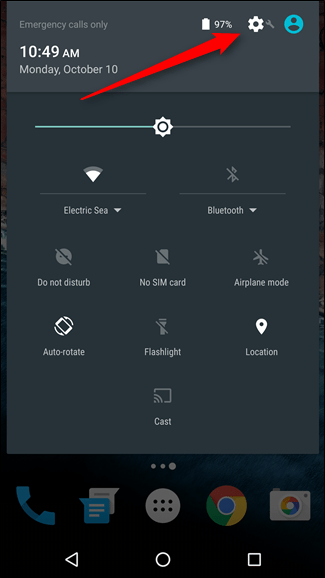
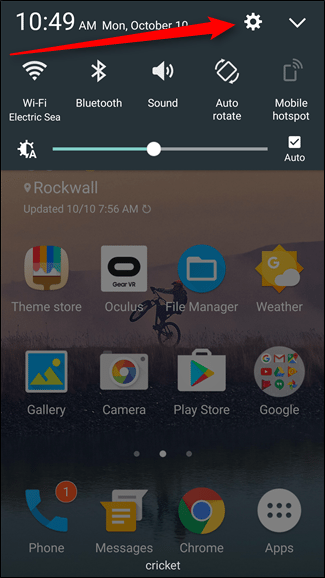
In modern versions of Android, you’ll find a “Quick Settings” panel nestled within the notification area. On stock Android devices, you pull the shade down twice to expose the Quick Settings, while other devices–like Samsung and LG–condense it into an always-visible part of the shade. Below we have at look at Stock Android on the left, and Samsung’s Touchwiz on the right.


Android Quick Settings PanelAndroid Quick Settings Panel

The Dock


The Dock–sometimes referred to as the “Favorites Tray”–allows you to pin certain apps such as your contacts and phone dialer, so they show up no matter what home screen you’ve swiped to. Further, you can stack apps into folders, or if the whim strikes you, remove them altogether.
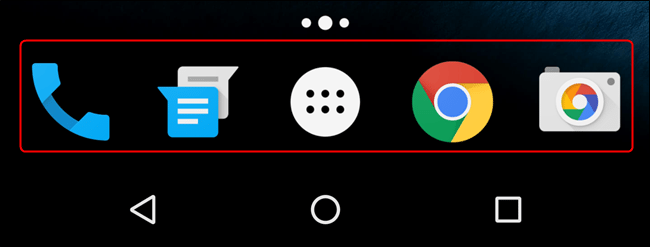
Android Dock

We’ll cover how to create app folders in the next lesson.

The Navigation Bar


At the bottom of your device is the “Navigation bar,” which–like the status bar–is always visible, except in full screen apps or games . The navigation bar almost always displays three symbols (left to right): back, home, and recent apps. Some manufacturers allow you to customize this layout or switch it altogether.
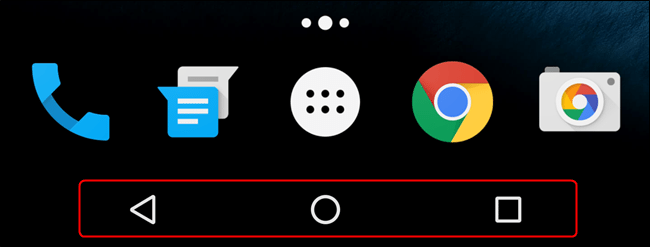
Android Navigation Bar

Regardless, you should always see these three navigation elements wherever you are on your device. It’s worth noting that Samsung is one of the last manufacturers that still uses physical capacitive buttons, not on-screen navigation like most Android devices.

The App Drawer


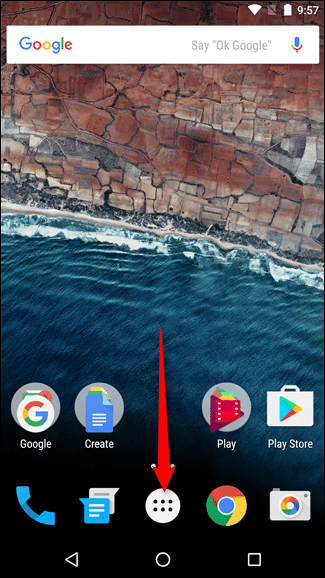
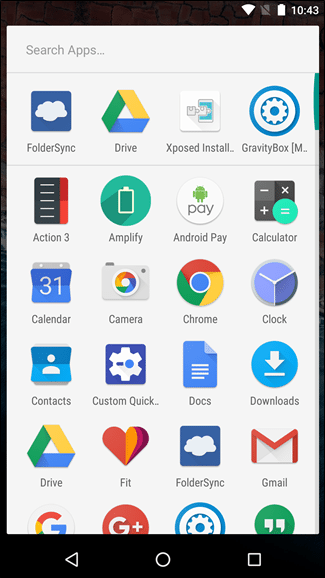
Finally, there’s the app drawer. This is where all your apps shortcuts hang out, and is accessed by tapping the circular button with six dots in it. It’s generally found in the center of the dock, but some manufacturers move it to the far right side in their respective launchers.


Android App DrawerAndroid App Drawer Open

From here you can open apps, uninstall them, or tap and hold to place shortcuts on the home screen.

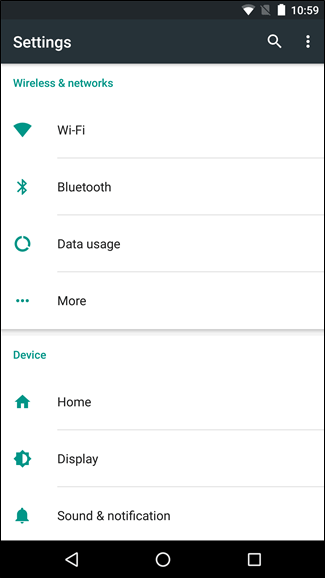
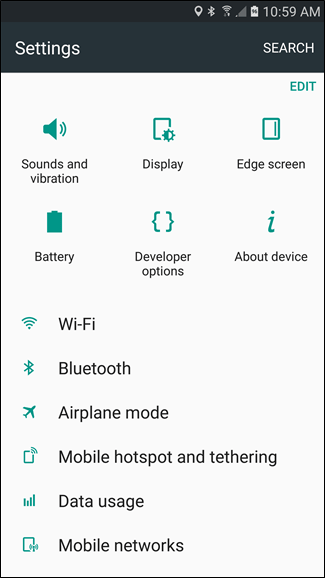
Android’s Settings


Get to know the settings menu, because this is how you will achieve maximum control over your device. There are two ways to access Android’s settings: you can either open the app tray and tap the “Settings” shortcut (not to be confused with the “Google Settings” shortcut, which is different), or you can pull down the “Quick Settings” panel and choose the cog icon in the upper right corner.


Android SettingsAndroid Settings Gear

While the Quick Settings menu allows you to toggle oft-used settings like Wi-Fi and Bluetooth, you’ll find much more granular controls in the main Settings menu. This is the heart and soul of doing more with your Android device.


Android Wireless NetworksAndroid Wireless Wifi

The Settings menu is broken down into several easy-to-follow sections on most devices, with Samsung’s most recent offerings being the exception to the rule–where stock Android (and many others) use subsections to break down this menu, Samsung tosses everything into one long list. It’s also worth mentioning that some manufacturers–LG comes to mind–will break the Settings menu down into tabs. In all honesty, it makes no sense to do this way–good thing there’s a way to fix that.
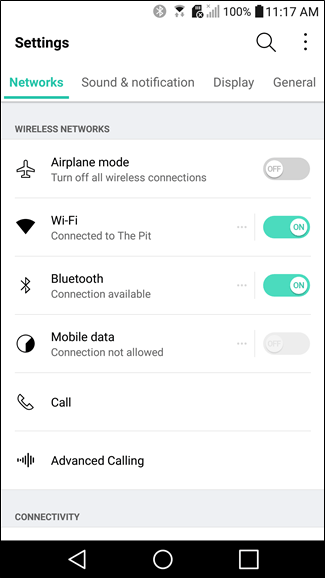
Android AirPlane Mode

Let’s take a stroll through each of the main options in Android’s Settings menu and talk about what you can do.

Wi-Fi


The Wi-Fi menu is where you’ll connect to and disconnect from Wi-Fi networks. You can also turn your Wi-Fi off entirely to save battery.
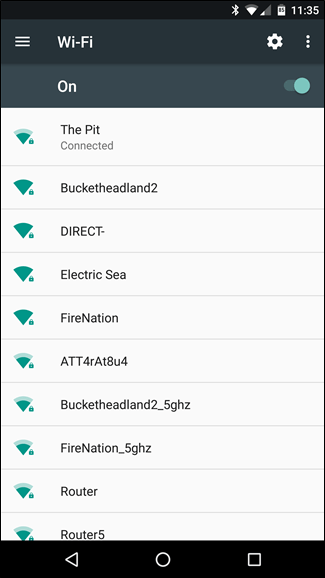
Android Wi-fi

We’ll talk more about this in Lessons 3.

Data Usage


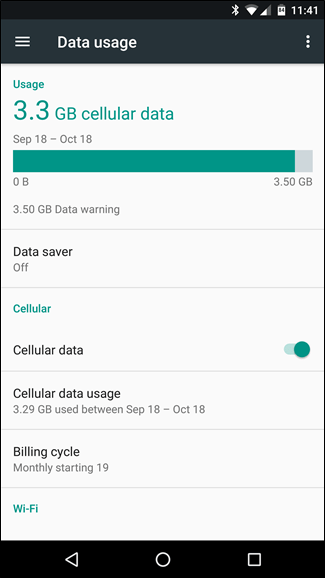
If you’re on a tight data plan and want to know how much data you’re using, or if you want to see how much data certain apps use, then you’ll definitely want to learn this setting and use it. Similarly, you may not want to use your phone’s mobile data when you have perfectly good Wi-Fi at home.

Also Read: How to disable Mobile Data on you Android Phone

Note, you can turn off mobile data, which will help save your battery, but this may have undesirable side effects, such as the inability to send and receive calls or text messages. So we recommend keeping “Cellular Data” turned on.


Android Data UsageAndroid Cellular Data Usage

Display


Using the display accounts for the majority of battery use. Simply put, if you never used your phone except when necessary, your battery would probably last for days (plural). But you don’t use your phone that way, so you can dial down the brightness and decrease the timeout period to eke a bit more time out of your battery. All this happens in the Display section of the settings.

Android Display

Managing Your Apps


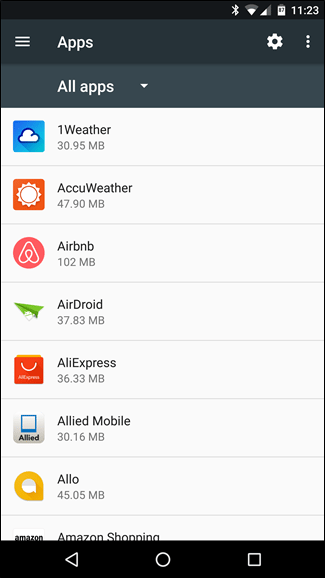
In the Settings menu, under the “Apps” section (or “Applications > Application Manager” on Samsung devices), you can find a list of everything that’s installed on your handset. Tapping on an application name will provide a list of useful information: how much storage it uses, how much data it has used since a certain date, any permissions it has been given, notification access, default settings, and how much battery it has used. On Nougat–the most recent version of Android–you can also see how much RAM is being used buy the app, as well as where it was installed from (the Google Play Store or if it was “sideloaded”).


Android Manage AppsAndroid App Info

If you want to uninstall an app, you can also do that here by tapping the big “Uninstall” button. You can also Force Stop an application if it’s misbehaving, though you shouldn’t have to do this very often.

Storage


Your phone has a certain amount of storage for apps, games, photos, videos, music, and other files. If you’re running out of space, the storage settings are an excellent place to determine what is taking up that space, and how much you can reclaim by removing applications and deleting stuff you don’t need. You’d be surprised how much space you get back this way.
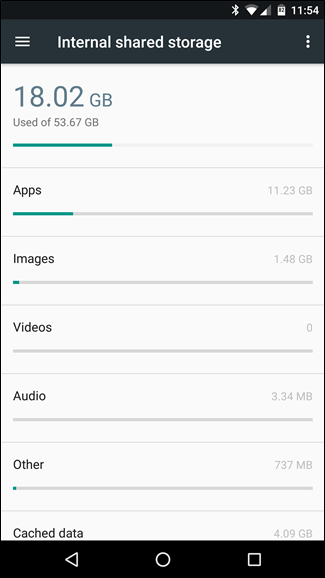
Android Storage

Battery


Battery life, or lack thereof, is a huge impasse to our cord-cutting desires. After all, what fun is a mobile device if you have to be near an outlet “just in case?” What’s the point of thinness and ultra-portability if you have to cart around a clunky charger and cable with you everywhere?

The battery settings give you an overview of how much battery you’ve used, how much longer it’ll last, and which apps are draining the most battery. You can also adjust Andriod’s “Battery Saver” setting here.

Android Battery

Location


Many of your apps, such as “Camera” and “Facebook,” use your location for certain features. This can lead to high battery use, and some people prefer to not give their location away to apps they don’t trust. You can adjust your location settings from this section. Generally, we recommend leaving the main setting on and set to “High Accuracy”, but you can tap any app on this page to revoke its access to your location.

Android Location

Security


There are a great many ways to protect your device and data on Android, and this subsection of where you’ll find the majority of those options. You’ll find the security section on “Lock screen and security” on Samsung devices.


Android SecurityAndroid Lock Screen and Security

Backup and Reset


Backing up your stuff is pretty important on any computer you use, but it’s even more important on your phone. Aside from the everyday disasters that can befall it, it’s also really easy to lose–in the back of taxi cabs, in toilets, or even to common thieves. Using your device’s backup abilities effectively can save you a lot of awful heartache.

Android Backup and Reset

We encourage you to familiarize yourself with your device’s settings before we get to good stuff tomorrow when we’ll talk all about managing your applications and getting to know the Google Play Store’s settings.

To comment on this article and other DIY Vila contents, visit our Facebook page, Pinterest page, Instagram Account or our Twitter feed.
Wednesday, 29 March 2017

Your browsing history may be up for sale soon. Here"s what you need to know

A vote could kill privacy rules that would prevent service providers from selling browsing histories and app usage histories to advertisers – here’s why it matters


A US House committee is set to vote today on whether to kill privacy rules that would prevent internet service providers (ISPs) from selling users’ web browsing histories and app usage histories to advertisers. Planned protections, proposed by the Federal Communications Commission (FCC) that would have forced ISPs to get people’s consent before hawking their data – are now at risk. Here’s why it matters.

What kind of personal data do internet service providers want to use?


Your web browsing patterns contain a treasure trove of data, including your health concerns, shopping habits and visits to porn sites. ISPs can find out where you bank, your political views and sexual orientation simply based on the websites you visit. The fact that you’re looking at a website at all can also reveal when you’re at home and when you’re not.

If you ask the ISPs, it’s about showing the user more relevant advertising. They argue that web browsing history and app usage should not count as “sensitive” information.

What’s changed?


The FCC has privacy rules for phones and cable television, but they didn’t apply to internet service providers. In October 2016 the agency introduced broad new privacy rules that prevent companies such as AT&T, Comcast and Verizon from collecting and selling digital information about individuals including the websites they visited and the apps they used.

The new rules – dubbed the Broadband Consumer Privacy Proposal – would require broadband providers to get permission from subscribers before collecting and selling this data. Currently broadband providers can track users unless individuals opt out. The new rules were due to come into play as early as December 2017.

“Getting these rules was probably the biggest win in consumer privacy in years. If the repeal succeeds it would be pretty bad,” said Jeremy Gillula, from the Electronic Frontier Foundation.

How could ISPs use my personal data?


They sell it to advertisers. Having all the data relating to your browsing behavior allows them to offer highly personalized targeted advertising at a premium to big brands, which are injected into your browsing experience. AT&T already tried such a program but killed it just before the FCC introduced the new privacy rules.

Meanwhile, Verizon attempted to insert undetectable “supercookies” into all of its mobile customers’ traffic, which allowed them to track all their browsing behavior – even if a web user was browsing in incognito mode or clearing their cookies and history. The company was sued for $1.35m by the FCC for not getting customer permission to track them.

Do all ISPs want to harvest our data?


No, not all ISPs want to abolish the privacy protections. A list of several smaller providers – including Monkeybrains.net, Cruzio Internet and Credo Mobile – have written to representatives to oppose the decision. “One of the cornerstones of our businesses is respecting the privacy of our customers,” they said.

How does this differ from the way Google and Facebook use our data?


It’s much harder to prevent ISPs from tracking your data. You can choose not to use Facebook or Google’s search engine, and there are lots of tools you can use to block their tracking on other parts of the web, for example EFF’s Privacy Badger.

Consumers are generally much more limited for choice of ISP, in some cases only having one option in a given geographical area. This means they can’t choose one of the ISPs pledging to protect user data.

Are any rules keeping ISPs in check?


In January the major ISPs signed a voluntary set of privacy principles, pledging to insist on opt-in consent before sharing “sensitive” information such as social security numbers and opt-out choice for “non-sensitive” customer information. Unfortunately, browsing history was included as “non-sensitive”.

These principles are based on rules created by the Federal Trade Commission, which used to be able to punish ISPs for violating customers’ privacy but is prohibited from regulating common carriers.

So how can users protect their browsing history?


You need to encrypt all your internet traffic. Some websites (like the Guardian) are already encrypted – marked out with HTTPS at the beginning of the URL – but ISPs would still be able to see which websites you have visited, just not the individual pages.

To mask all of your browsing behavior you can use a VPN service (which incurs a subscription cost) or try using Tor.

“Both make everyday browsing more complicated,” Gillula said.

To comment on this article and other TechViral content, visit our Facebook page or our Twitter feed.