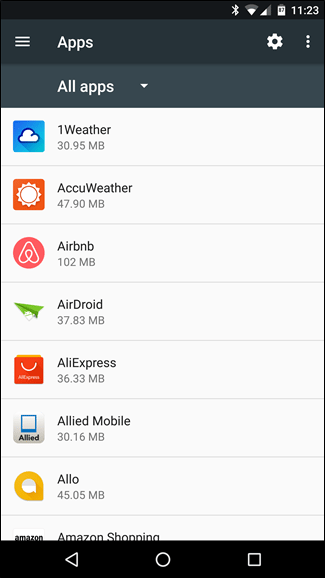
Showing posts with label Security. Show all posts

Wednesday, 10 January 2018

Intel Hit With Class Action Lawsuits Over "Meltdown" Security Flaw

The Spectre and Meltdown security stories were the major focus of the week. While both flaws are serious, Spectre hits everyone, while Intel is the company principally exposed by Meltdown. Meltdown is also the flaw associated with early reports of performance losses in some web servers and virtualization workloads, though it’s still not at all clear what kind of real-world penalties we should be expecting. Nevertheless, lawsuits are already starting to pile up, and there’s a lot of discussion over CEO Brian Krzanich’s recent stock sale.

Intel’s initial response to Meltdown was a masterful example of corporate doublespeak. It opens by noting Intel doesn’t believe the exploit can be used “to corrupt, modify, or delete data,” even though that’s literally not the problem being discussed. Meltdown allows data to be read out of kernel memory; it doesn’t let the attacker write it. Intel doesn’t distinguish between Meltdown and Spectre, and it name-checks AMD and ARM as a way of making the risk profile of the situation seem more evenly distributed than it appears to be. If Intel was hoping to avoid lawsuits, however, it hasn’t worked. As Gizmodo details, three separate class action suits have been filed against the company already.

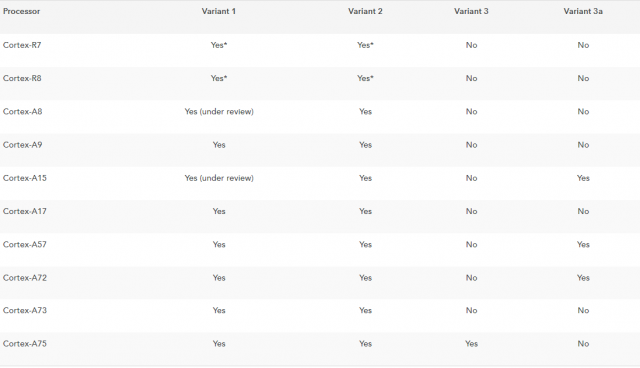
ARM defines its own 3a variant of meltdown but doesn’t believe a software fix is required. Only the Cortex-A75 is affected by Meltdown (Variant 3).


What’s less clear is whether these lawsuits have any meaningful reason to exist. They’ve all been filed on behalf of consumers on the basis of lost performance, but we don’t have any information yet showing that consumer applications are impacted by Meltdown or Spectre. Until that’s proven, the lawsuit standing seems a tad weak.

Intel CEO Brian Krzanich’s actions, however, could still spell some trouble for the CPU giant. On October 30, months after being informed of the Meltdown and Spectre security flaws, Krzanich announced he would liquidate some 245,000 shares of Intel stock. He currently holds 250,000 shares, the minimum he’s required to hold as company CEO. All told, he sold $50 million worth of stock at the tail end of the year, just before news of these bugs began to break. The SEC could choose to investigate the situation — it launched an investigation of suspiciously timed stock sales in the Equifax breach this year — but no announcements have been made yet.

But while Intel’s handling of its PR response to this set of flaws deserves criticism, the security flaws themselves will be difficult to pin on negligence. Speculative processing and out-of-order execution have been critical components of high-end CPU performance for decades. Intel may be uniquely exposed to Meltdown, but Spectre hits everyone precisely because it weaponizes functional characteristics in a way that wasn’t done before. It’s hard to argue that a company was negligent in its designs when no one had previously identified an attack vector to protect against, or created even a proof-of-concept to expose the issue.

Sunday, 7 January 2018

Apple Photos vs Google Photos: Cost, privacy, security and ease of use

Google Photos is an app where you can back up and browse your entire photo library from almost any device. Many people have drawn similarities between Google"s Photos app and Apple"s Photos app, which was introduced in iOS 7 and subsequently arrived on the Mac, so we"re going to compare the two and see exactly how similar they are, and which is the best for you.

Google Photos is a free download for iOS so you can run it on your iPhone or iPad - it"s not just for Android users.

For some related comparisons between Apple and Google products, take a look at Apple Maps vs Google Maps and Apple Music vs Google Play.

Organisation and search


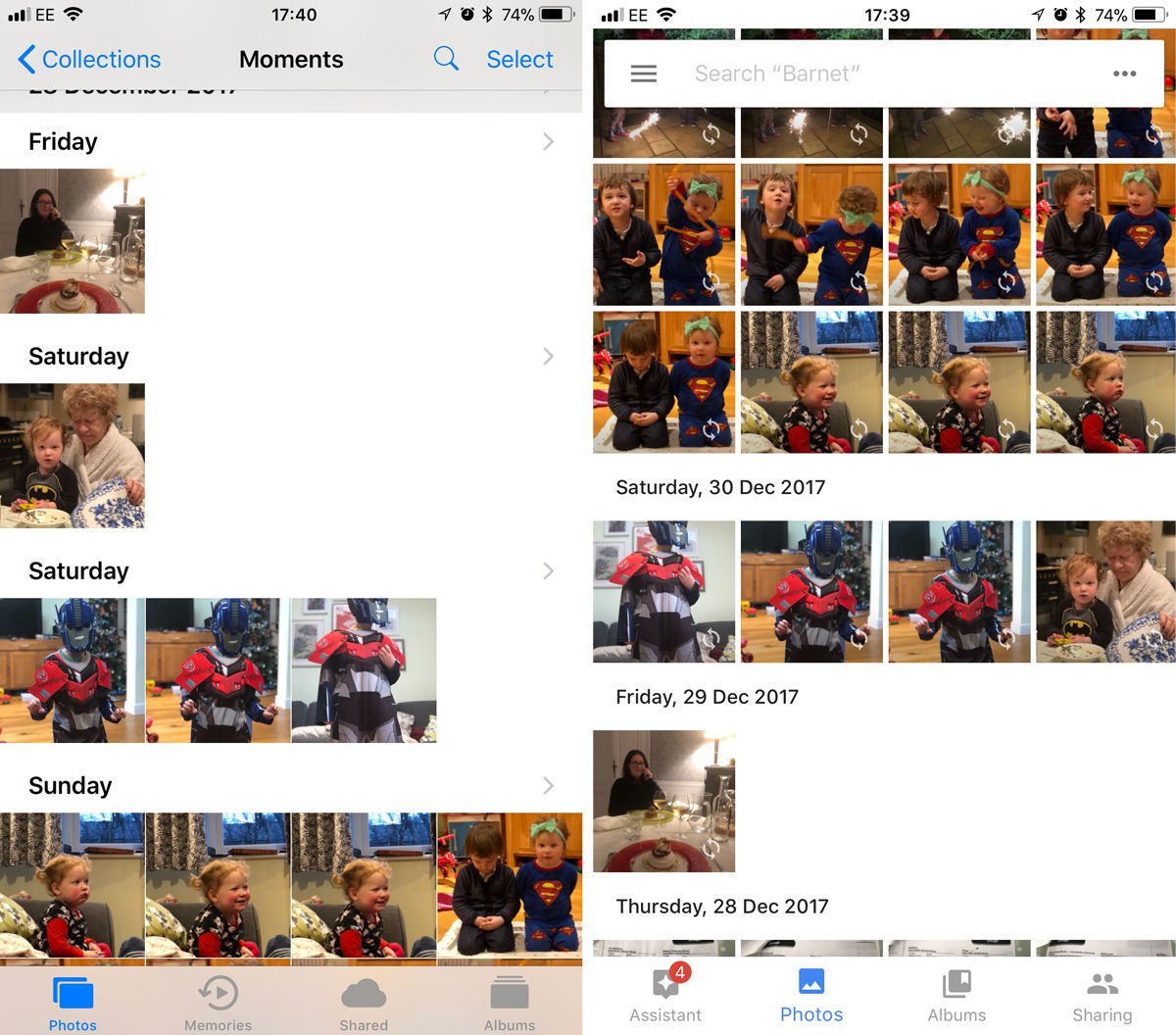
The way that both the Apple Photos and Google Photos apps organise your photos is very similar. Apple organises your photo library using smart groups based on time and location called "Moments", "Collections" and "Years".

Moments are groups of photos all taken over the course of a day (occasionally you"ll see a day split into two Moments). Collections are photos taken over a number of days or weeks: you"ll see a selection of photos taken around the same time, with some location data if you"ve got location services turned on. Years are an overview of photos taken over the course of the year (obviously).

Tapping at a point on the Year view will take you to the Collection of photos from around that time, tap again to be taken to the Moment, which will be all the photos from that particular occasion.

On Apple"s app you can also sort your photos into Albums, or tag a photo with a heart to automatically add it to your Favorites Album.

Apple Photos vs Google Photos: Organisation & interface

While the two apps may look somewhat similar, Google Photos takes a different approach to photo organisation. The order is reversed, for one thing: the most recent photos appear at the top and you swipe up to see more.

If you"re viewing the day"s photos in Google and want to see all the photos you took in a month, pinch to zoom out. Want to zoom in on a particular photo? Unpinch to zoom into it. If you zoom out from a photo back to the day, or month view, a side bar appears that lets you quickly scroll back in time by tapping, holding and dragging the side bar to a specific month. This side bar is slightly more precise than swiping up and down on the Apple app.

Search


However, that"s not the impressive part of Google Photos organisation - it automatically analyses your photos and adds them to categories such as "Cats" or "Skylines" that you can quickly access.

It doesn"t stop there, either, as you"re also able to keyword search to find a photo. For example, if we want to view all photos containing phones, type "gadgets" into the search bar and Google Photos should display every photo in your library that has a gadget in it. It"s not 100 percent accurate yet, but we"re surprised (and a little creeped out) by how well it works.

The Google app also sorted all our photos of cats into a folder for us: we didn"t even have to ask.

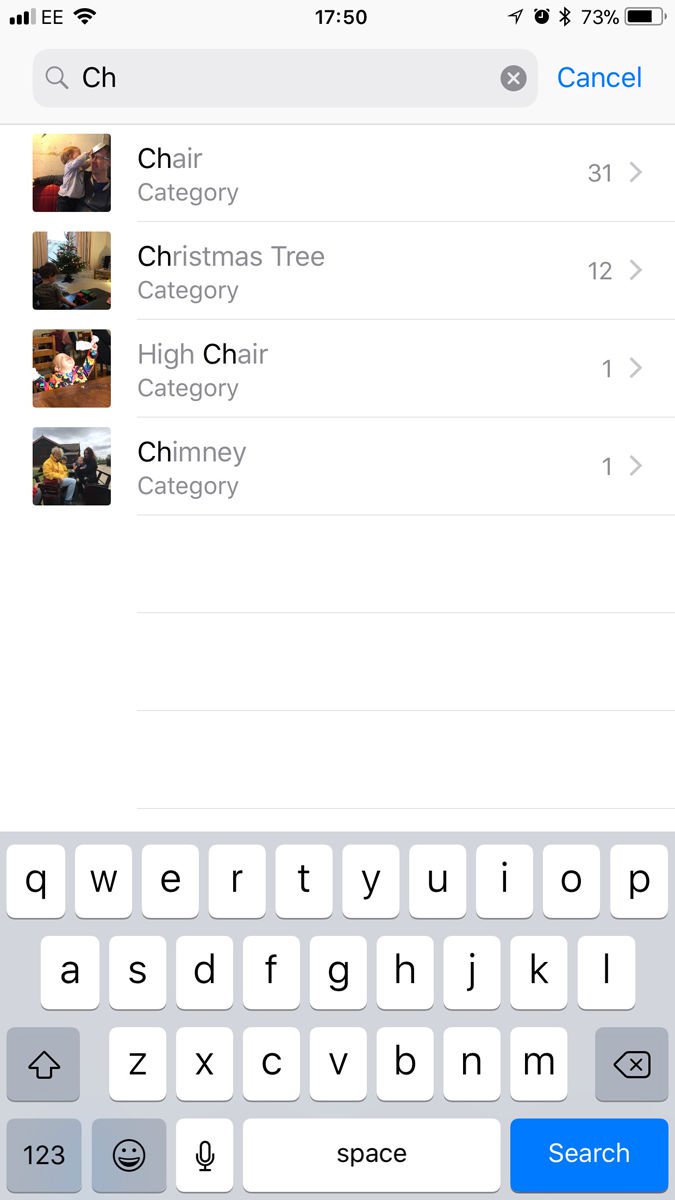
Apple also has a search feature within its Photos app, and this works well. Since launch this has evolved; it used to be limited to locations and dates, but now you can search for things as diverse as chairs, chimneys and Christmas trees.

Apple Photos vs Google Photos: Search

Editing


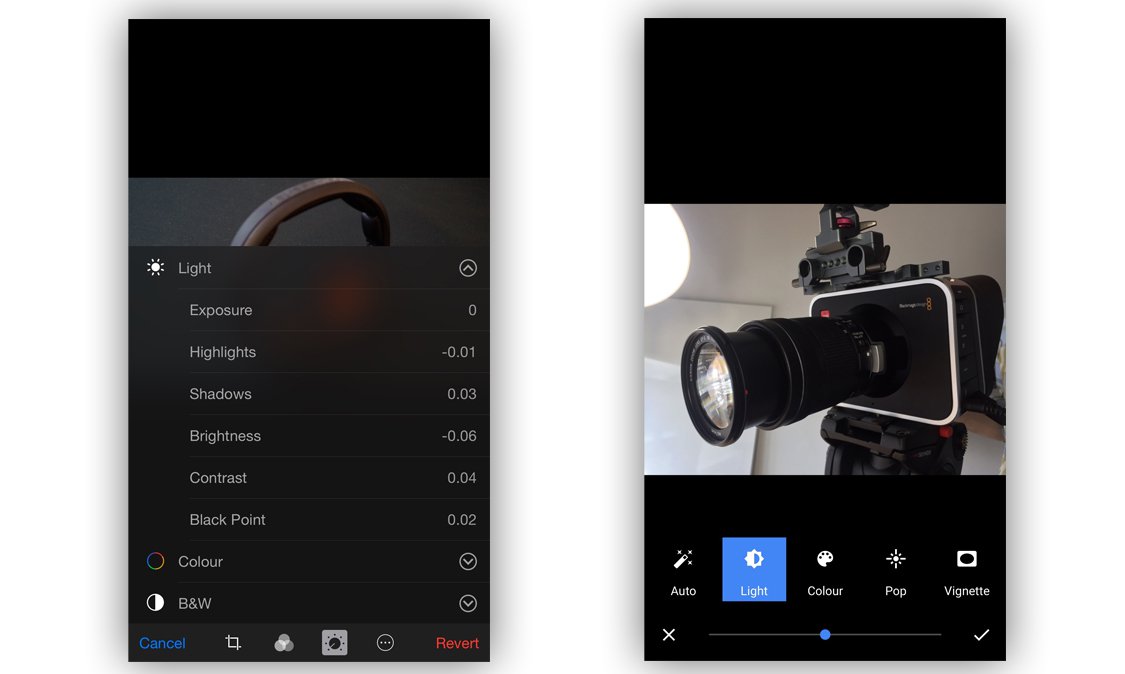
Let"s move on to another important aspect of any app that handles photos: editing. More specifically, photo editing. Google offers various editing tools to help spruce up your photos, including the standard "auto enhance" and a number of Instagram-esque filters for those of you that use them. It also offers tools to tweak the light, colour, "pop" (sharpness - we think) and vignette, however these are applied using sliders and offer no manual input.

Apple Photos vs Google Photos

Apple also offers auto enhancement, filters and controls over colour and light but takes it a step further than Google. As with Google Photos, edits can be applied using sliders - a consumer friendly way to enhance photos, and is perfectly acceptable for many people. However if you"re into photography and want extra functionality to enhance your photos, that"s also available. If needed, you can manually and precisely adjust:
  • Exposure

  • Highlights

  • Shadows

  • Brightness

  • Contrast

  • Black point

  • Saturation

  • Cast


If that"s still not enough, Apple has one more trick up its sleeve. Not only do Apple offer a set of tools built into the Photos app but you can edit photos within the Photos app using third-party editing tools (such as those used in Camera Plus).

That"s not it from Google Photos, though, as it has another impressive feature to offer. The analysis of your photos doesn"t only result in them being sorted into smart folders, as Google will also analyse them and suggest edits for you. These include GIFs, videos, collages and edits based on your photo library. If you like an edit that Google suggests, saving it won"t replace the original - it"ll be saved as a new file, accessible via the "Creations" folder within the app. These suggestions can be hit and miss, but we"ve also had some amazing GIFs and videos automatically generated for us.

We were initially concerned that these extra versions of our images would quickly clog up our iPhone memory, but all these versions are saved in the cloud (which means you need a web connection to view them). And there is no fear that the cloud space will quickly fill up either - Google gives up unlimited space for your photos (more on that below).

Incidentally, Apple doesn"t save extra copies of your adjusted images, it just saves the adjustments you have made in a file applies them to the photo when you view it.

Sharing


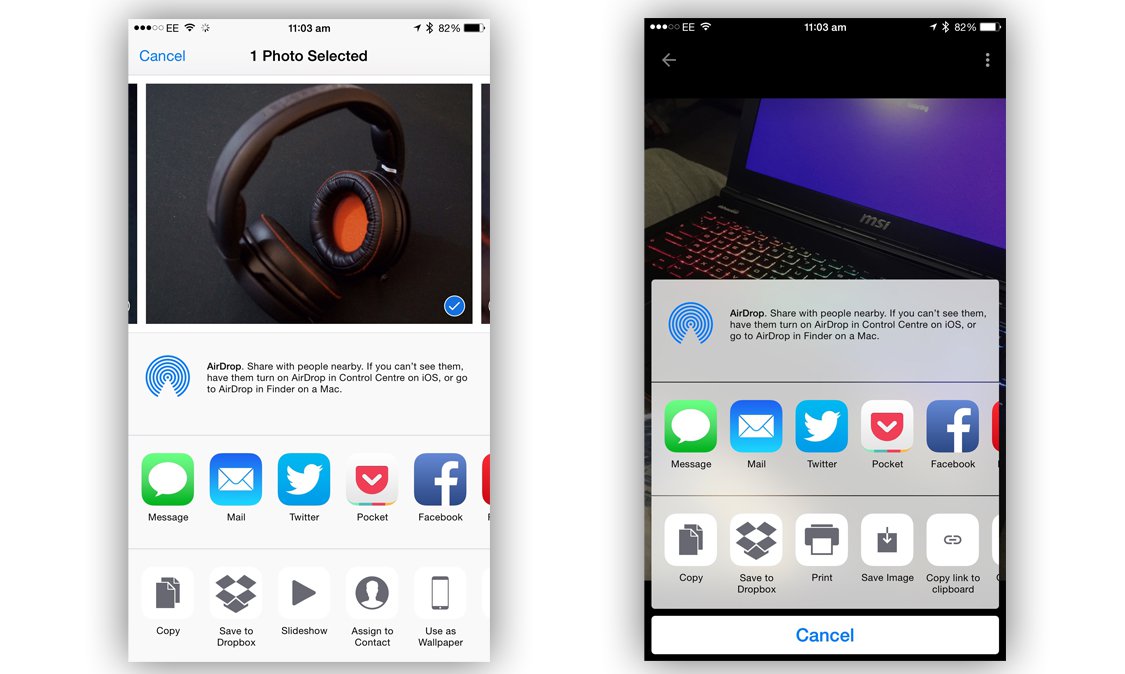
Sharing our photos online has become a daily occurrence thanks to the likes of Facebook and Instagram, so how do the two mobile titans handle photo sharing? iPhone users will be aware of the Share Sheet (part of iOS that appears in many different apps - it"s the icon that looks like a square with an arrow coming out of it). The Share Sheet displays a list of social networks and apps that you can share the selected file with (in this case, photos). This is what"s used primarily in the iOS version of Google Photos and Apple Photos, and performs as you"d imagine - simply tap the icon of the social network that you want to share the photo with. Nice and easy.


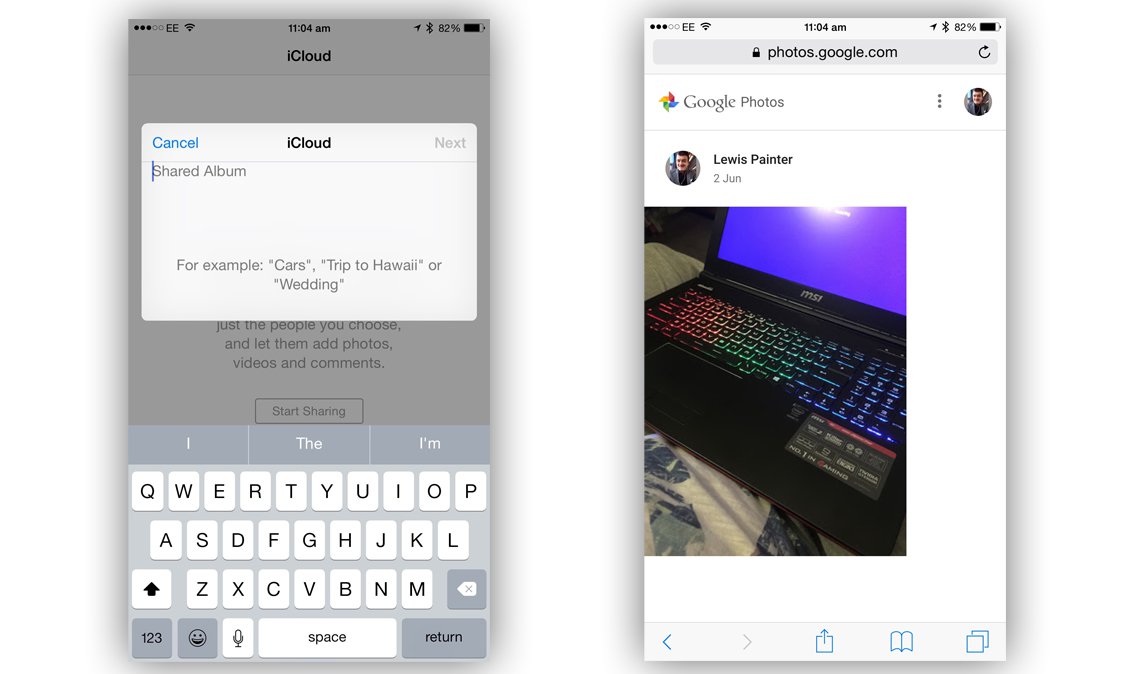
Apple also offers iCloud Photo Sharing via shared folders within the Photos app. You simply create a folder and add the email address of the person(s) you want to share the album with. Once created and shared, all members will be sent a notification whenever new photos are added. They can also add photos to the album. You can store up to 5000 images in a Shared Album. iCloud Photo Sharing also lets you create a pubic link to an album that anyone can view from a web browser (more on iCloud Photo Sharing below).

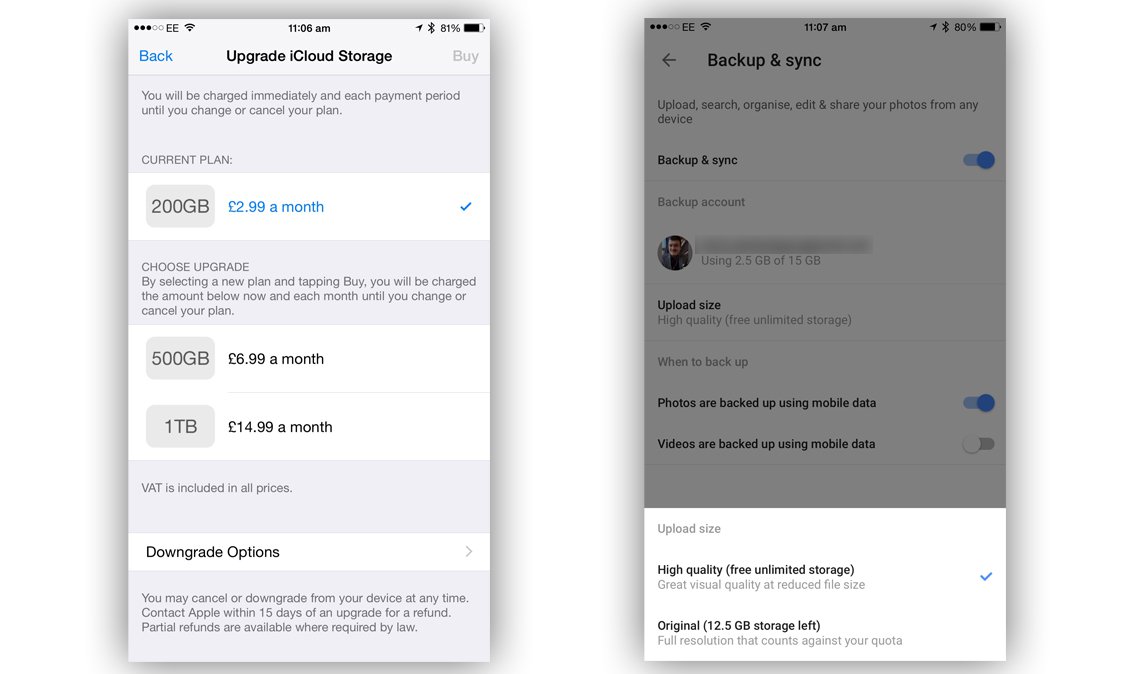
By default Apple stores your Photos in iCloud in My Photo Stream - you can store the last 1000 images, or 30 days worth of images for free. These images can come from any of your devices - even photos you"ve downloaded onto your Mac from your camera. If you want to store more photos you"ll have to pay though - Apple charges 79p a month for 20GB or £2.99 a month for 200GB for iCloud space.

This is the main thing that sets Apple Photos aside from Google Photos. Google Photos backs up your entire library to its servers, offering you unlimited space for free.


If you choose to share images with someone that person doesn"t need the Google Photos app, as the photos are accessible via web browser. The person in question can browse the photos and save them to either their device or Google Photos stream. If you want to revoke access to a link, simply delete it from the "Shared Links" menu from within the Google Photos app.

Accessing photos


Apple"s Photos app is available on every iPhone, iPad and iPod Touch running iOS 7 or later, and every Mac running OS X 10.10.3 as well as via iCloud on Windows. If you are on iOS 8.1, you also benefit from iCloud Photo Library, which means that if you have sufficient storage space on your iCloud account, your photo library should be synced between your Mac, Phone, iPad and iPod Touch and available on each device.


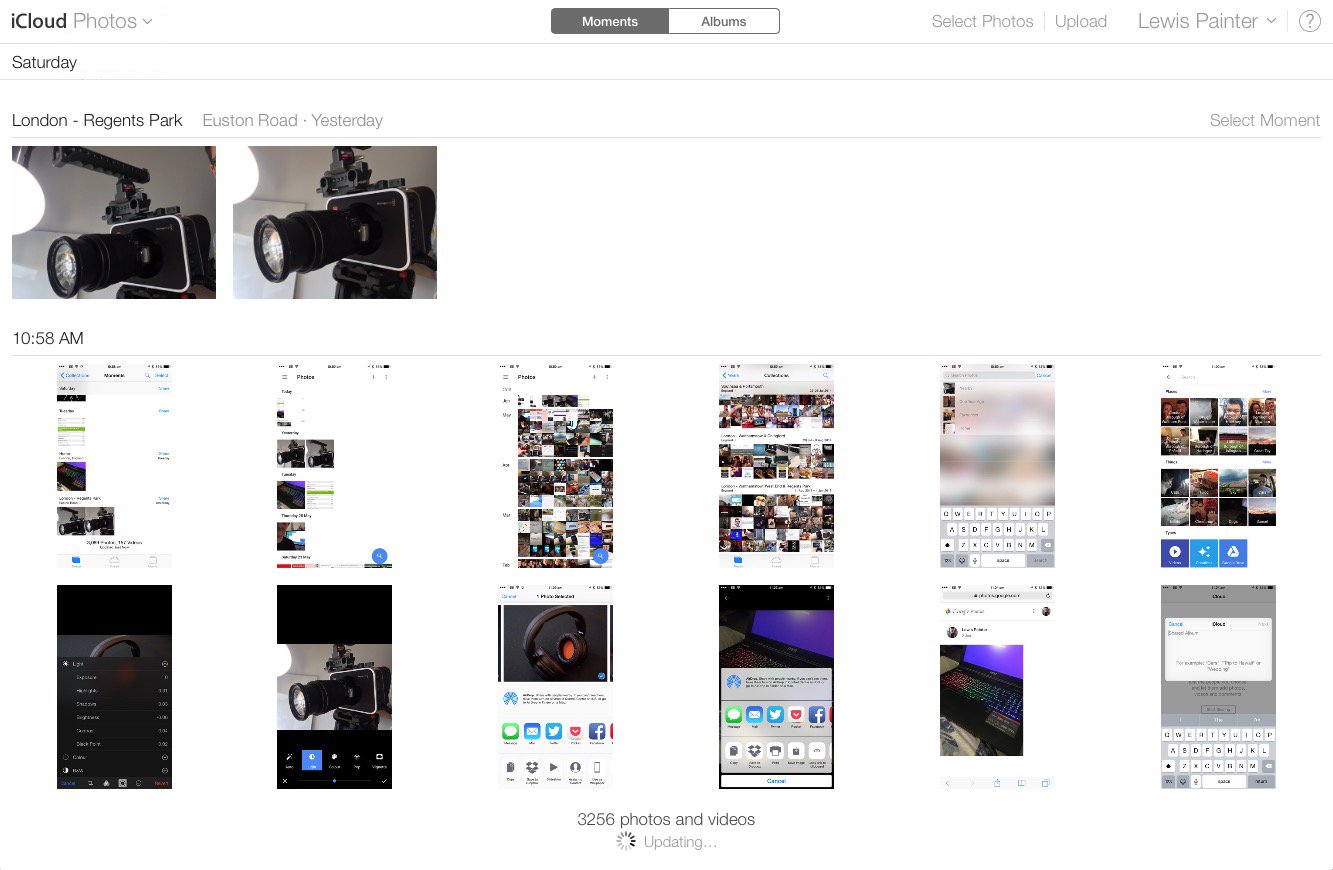
You can also access your iCloud Photo Library via the iCloud website, www.icloud.com. From here, log in with your Apple ID and click the Photos icon to access your complete photo library. You can download old photos as well as upload new ones through the iCloud website - very handy for use on a public computer.


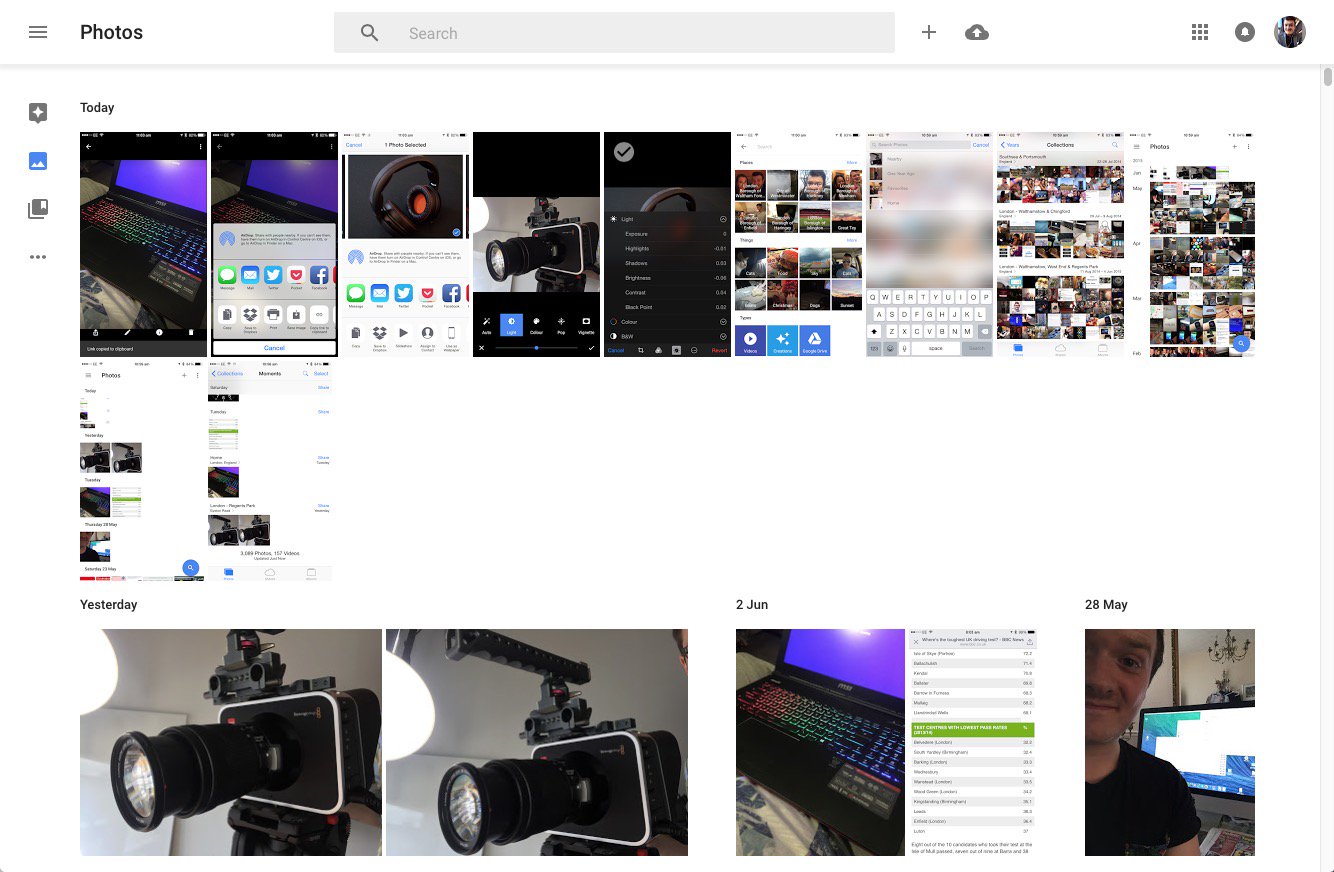
So, what platforms is Google Photos available on? It currently has an iOS and Android app, but no word yet on the Windows Phone platform. Much like Apple"s iCloud, Google Photos is also available via web browser at photos.google.com where you can view your photo library, download and upload new images.

It"s worth noting that the PC/Mac uploader does just that - upload photos. Unlike Apple Photos that has a Mac counterpart, there"s no native app for PC or Mac that allows you to browse your Google Photos library.

Cloud storage


Let"s talk storage, the most important factor in both Apple Photos and Google Photos. Apple"s iCloud is a cloud service that backs up not only your Photos, but your entire phone. The company offers 5GB of free storage, which for some users is okay, but others need more - which you have to pay for. 20GB is a reasonable £0.79 per month but if you need more than that, you"re forced to pay £2.99 per month for 200GB of storage.

Why is there such a jump? We want around 50GB, we"ll never use 200GB so why should we pay that much? It"s a lot of money to pay just to have access to all your photos all of the time. Which isn"t exactly a necessity. But then people might suggest that it"s not a necessity to have all your music on your device all the time, but that doesn"t stop people paying £21.99 a year for iTunes Match. Perhaps that is the sweet spot though - perhaps Apple should have priced it at around £25 a year, for 50GB, we"d be happy with that. £36 a year is just too much and 200GB is more than we really need.


But why pay? Google has caught on to the frustrations of cloud service users and has offered something that the likes of Apple, Dropbox and Microsoft can"t (or won"t) compete with - completely unlimited photo and video storage, free of charge. Google Photos is available for iOS, Android and has a Mac and PC uploader so you can back up your entire photo library across all devices.

There are limits to what Google can offer though; the uploaded images and videos aren"t the original files, but are instead compressed copies. Google claims that it isn"t standard compression and that while the file size is minimised, there"s little or no affect on image quality. Magic, eh? There"s also a limit on resolution - 16MP for photos and 1080p HD for videos, and while you can still upload larger files, they"ll be shrunk down.

Of course, you still have the option to upload full quality original files, but this will eat up your Google Drive storage, which does cost you (you get 15GB for free though, Apple only gives 5GB free space in iCloud).

Security and Privacy


So the real question is "what is Google getting out of this?" because we all know that nothing in life is actually free. Google analyses the photos and assigns them metadata that can be used to build a better picture of the user, which is then used to serve more relevant ads. And of course, more relevant ads mean more clicks and more money for Google.

Apple has a very different stance on mining personal data, believing that people have a fundamental right to security and privacy. Speaking at EPIC"s Champions of Freedom event in Washington, Apple CEO Tim Cooke had the following to say about Google"s new service:

"We believe the customer should be in control of their own information. You might like these so-called free services, but we don"t think they"re worth having your email, your search history and now even your family photos data mined and sold off for God knows what advertising purpose. And we think some day, customers will see this for what it is."

In response to claims of monetising the service, a Google spokesperson told us:

"Our first priority - as with most products that Google builds - is to get the user experience right. So we have no monetisation plans at this time. Google Photos will not use images or videos uploaded onto Google Photos commercially for any promotional purposes, unless we ask for the user"s explicit permission."

Intel plans security updates for 90% of past 5 years" processors by end of next week

Following up on yesterday’s confirmation that security exploits can compromise computers with Intel processors, Intel today announced a timetable for updates to render recent computers “immune” to the exploits, now referred to as Spectre and Meltdown. It also provided some guidance on mitigation of the performance hits machines may take following the update.

On the consumer and enterprise side, Intel says that it has “already issued updates for the majority of processor products introduced within the past five years.” By the end of next week, it plans to have issued updates for more than 90 percent of the past five years’ processors.

Additionally, Intel notes that “many operating system vendors, public cloud service providers, device manufacturers and others have indicated that they already updated their products and services.” But no timetable was announced for patching Intel processors greater than five years old, though reports have suggested that up to 15 years of Intel processors may be affected.

Third-party benchmarking of the performance hits on affected machines ranged from 5-30 percent depending on the specific processor, OS, and task. Without offering details, Intel suggests that “the performance impact of [its] updates is highly workload-dependent and, for the average computer user, should not be significant and will be mitigated over time.” In cases where performance hits are higher, the company expects that future “improvement of the software updates should mitigate that impact.”

Thursday, 4 January 2018

Intel Claims Security Flaw Also Impacts Non-Intel Chips, Exploits Can"t Corrupt, Modify or Delete Data

Intel this afternoon addressed reports of a serious design flaw and security vulnerability in its CPUs, shedding additional light on the issue that was uncovered yesterday and has since received extensive media coverage.

In a statement on its website, Intel says that it planned to disclose the vulnerability next week when additional software patches were available, but was forced to make a statement today due to "inaccurate media reports."

According to Intel, the issue is not limited to Intel chips and the exploits in question do not have the potential to corrupt, modify, or delete data. Despite Intel"s statement, Intel chips are more heavily impacted, and it"s worth noting that Intel makes no mention of reading kernel level data.

Intel and other technology companies have been made aware of new security research describing software analysis methods that, when used for malicious purposes, have the potential to improperly gather sensitive data from computing devices that are operating as designed. Intel believes these exploits do not have the potential to corrupt, modify or delete data.

Recent reports that these exploits are caused by a "bug" or a "flaw" and are unique to Intel products are incorrect. Based on the analysis to date, many types of computing devices -- with many different vendors" processors and operating systems -- are susceptible to these exploits.

Intel says it is working with several other technology companies including AMD, ARM, and operating system vendors to "develop an industry-wide approach" to resolve the problem "promptly and constructively."

As outlined yesterday, the design flaw appears to allow normal user programs to see some of the contents of the protected kernel memory, potentially giving hackers and malicious programs access to sensitive information like passwords, login keys, and more. Fixing the issue involves isolating the kernel"s memory from user processes using Kernel Page Table Isolation at the OS level.

Despite reports suggesting software fixes for the vulnerability could cause slowdowns of 5 to 30 percent on some machines, Intel claims performance impacts are workload-dependent and will not be noticeable to the average computer user.

Intel has begun providing software and firmware updates to mitigate these exploits. Contrary to some reports, any performance impacts are workload-dependent, and, for the average computer user, should not be significant and will be mitigated over time.

Intel goes on to say that it believes its products are "the most secure in the world" and that the current fixes in the works provide the "best possible security" for its customers. Intel recommends that users install operating system updates as soon as they are available.

For Mac users, Apple has already addressed the design flaw in macOS 10.13.2, which was released to the public on December 6.

Saturday, 25 November 2017

Uber hid a data breach for a year and paid hackers to delete the stolen data

Uber has had somewhat of a rough year and is under a lot of negative press at the moment. The latest news out of the ride-sharing service looks like it will add coal to the fire. The company has now revealed that the security of their service was breached roughly a year ago and that the hackers were paid around one hundred thousand US Dollars to delete the information they had acquired.

When did this hack at Uber happen?


The hack happened during the month of October in 2016. Two hackers are thought to have gained access to an archive of rider and driver information. This data was present in the Amazon Web Services servers that maintain computing tasks for the ride-sharing service. They got their hands on the login information via a private GitHub coding site.

These individuals then contacted Uber. The announced that they possessed sensitive information on riders as well as drivers. The information they had included email addresses, phone numbers and more importantly, the license numbers of six hundred thousand drivers employed at Uber. On the plus side, information like Social Security numbers and credit card details were withheld.

When such breaches occur, companies are mandated to inform people and government agencies. However, Uber took another route. They decided to pay the hackers to delete the information and kept everything under the sheets.

The current CEO believes the information was never used and had the following to say.

At the time of the incident, we took immediate steps to secure the data and shut down further unauthorized access by the individuals. We also implemented security measures to restrict access to and strengthen controls on our cloud-based storage accounts.

The company also recruited former National Security Agency general counsel Matt Olsen to further strengthen its cybersecurity division to present a reoccurrence. While the effects of it have now been neutralized, the company faces new problems.

A lawsuit was filed in federal court in Los Angeles against Uber for its failure to “implement and maintain reasonable security procedures and practices appropriate to the nature and scope of the information compromised in the data breach.”

Monday, 30 October 2017

How to Secure Your Webcam: Online security tips

From smartphones and tablets to notebook PCs, webcam seem to be standard equipment these days. Just about every device we use has a camera on it. Did you ever stop to think that while you"re staring at your screen, someone on the Internet might be staring back at you?

https://twitter.com/Slate/status/746484463543197696

How can you be sure that no one is watching you without your permission?


Many webcams on notebook computers have indicator lights on them that let you know when your camera is actively capturing video.

t may be possible (on some cameras) to disable the activity light through software hacks or modifying configuration settings. So, just because you don"t see an activity light on doesn"t mean that your webcam isn"t still capturing video.


What can you do to secure your webcam?


The Simple Solution: Cover It Up


Cover It Up

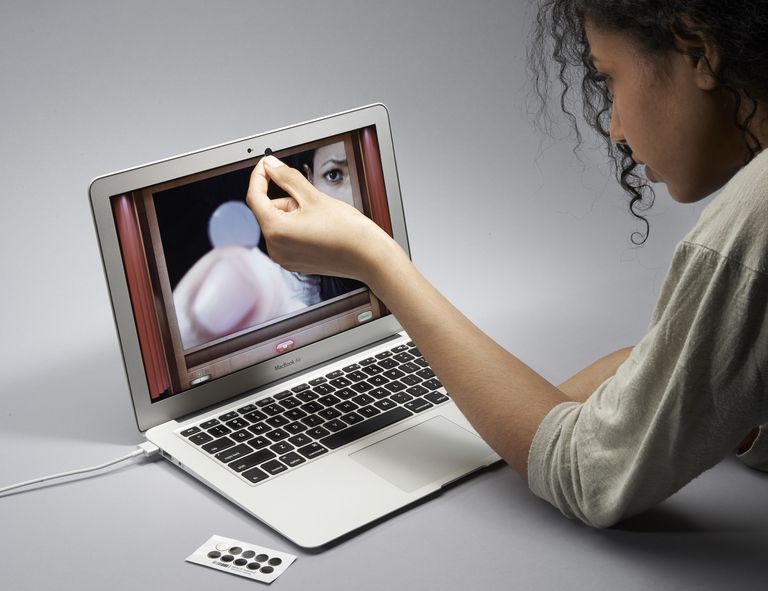
Sometimes the simplest solutions are the best ones. If you want to be absolutely sure that no one is watching you through your webcam, get some electrical tape and cover it. If you don"t want any tape residue on your camera then you can use a longer strip of tape and fold it back on itself. Not even the best hacker in the world can defeat electrical tape.

If you want to get a little more sophisticated, you can roll up a coin in the electrical tape so that the weight of the coin helps the tape stay positioned over the camera. When you want to use the camera, just lift the coin up and fold it back over the top of your computer screen.

The LED light means nothing


The LED light means nothing

Most of us tend to depend on the LED light (green or red) to show us that the webcam is working and recording. It has been proven that hackers can now turn this light off remotely leaving you completely unaware of when the cam turns on. Most people also leave their laptops open or half-shut when they"re not using it - opening up our lives to cybercrime without our knowledge.

Use a sticky note to cover the webcam.

Don"t click that link


Don

This is an almost cliched warning, yet people fall in the trap of bogus links disguised as promotion emails or even work emails from seemingly legitimate sources. When you click a phishing link, it downloads a program on to your laptop which allows remote access to your webcam and audio equipment.

Check every email address and if possible, contact the sender separately to find if the email with links was sent by the person intentionally.

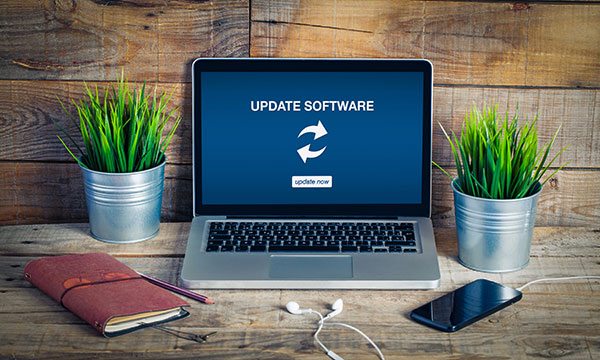
Update your software


Update your software

Trial versions and outdated software are susceptible to internet hackers and upgrades can help keep them at bay.

Use separate user accounts


Use separate user accounts

Some tech geeks recommend using separate user accounts - one as an admin account solely for software installations, upgrades and malware checks and the other for usual activity and no software edit permissions. This is just an additional level of security that can be set up easily.

Tape over webcams of your phablets/tablets


Tape over webcams

Just like laptops, mobile devices are also susceptible to camera hacking. A simple sticker tape can give you a feeling of security while also reminding you to be vigilant every time you"re online.

Did you know? Electronic Frontier Foundation (EFF) sells specially designed sticker tape sets for webcams

Switch that Bluetooth off


Switch that Bluetooth off

Keep Bluetooth connectivity on your mobile devices off before and after you"ve used it.

Tuesday, 12 September 2017

Best 3 security apps to protect yourself

With many data breaches occurring it is natural to worry about your identity and security. There are plenty of apps one can make use of to stay on the safe side.

Below is the list of the 3 best security apps to safeguard your data and keep yourself secure at all times.

The Best 3 Security Apps


Credit Karma


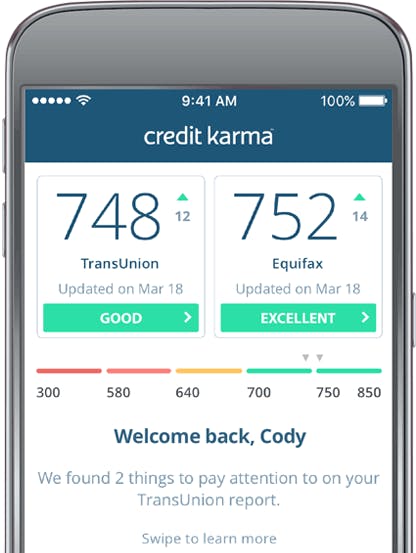
Credit Karma is a credit check application. It"s anything but difficult to utilize. You sign up and it does the rest. You get updates on your balance in a regular time period.

In this way, you can check whether new credits cards or other huge debts appear in your name. The application keeps running on ads. You will see things like credit card promotions. They"re sufficiently simple to overlook. The application also has a couple of different highlights. Credit Karma is free with no in-application buys.

Credit Karma

Find My Phone


Find My Phone is Google"s smartphone locating app. It comes preloaded on most smartphones. Turning it on is sufficiently simple. The application can enable you to locate a lost or stolen smartphone. The highlight here is the capacity to remote wipe your smartphone. That way, you can at least delete your own information in case of a stolen smartphone. You may lose the smartphone, however, it secures your identity and is one of the most important security apps to have.


LastPass Password Manager


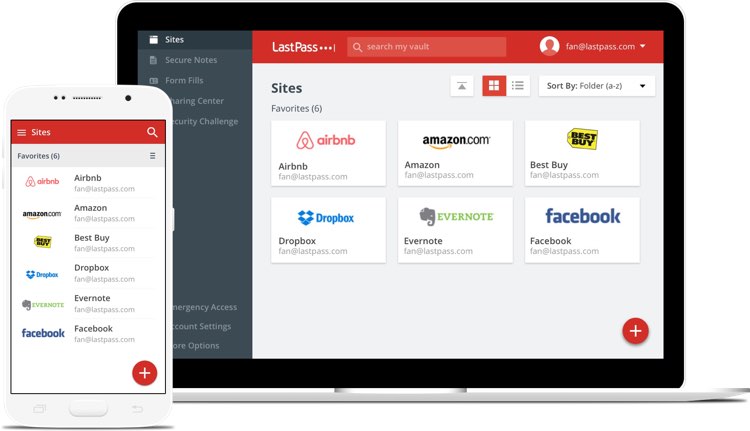
LastPass is a password managing app. It saves your passwords so you don"t need to. Moreover, it has a password generator. It generates some exceptionally strong passwords. An application like this helps keep your records firmly secured. The app can sync data between smartphones and PCs. Something like this makes it so you never need to really record a password. The vast majority of the application"s highlights are free. You can go professional for a few more add-ons.

security apps

Monday, 12 June 2017

3 Killer Features of iPhone That Will Make You Love It More

Android or iOS? Which one’s better? Which one to buy? Well, these are some questions that revolve around the minds of each and every person since the evolution of these two Operating systems. And even until now, the winner of the race is not confirmed.

No matter which OS be the winner, there are some killer features of iPhone, that makes it always better than the Android. So, in the following article, we are going to list some important features of iPhone, that will make you love it even more.


3 Killer Features of iPhone Making it Better than Android:

#1: Wide Color Range:

3 Killer Features of iPhone That Will Make You Love It More

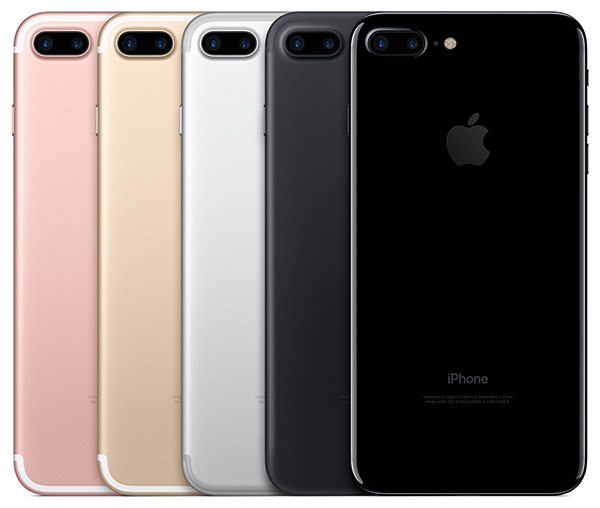
Although black, silver and white colors in phone never leave the trends, however, there are some people who want to ditch their phones just to switch the color that will go with every dress they wear. That is the reason why iPhone goes popular with its every new model in the market. Recently, the addition of the RED color in iPhone 7 gets the edge over the Android.

#2: Security:

3 Killer Features of iPhone That Will Make You Love It More

Regardless to say, iOS offers more secure features than any other Android device on the Earth. Tough Samsung has introduced many of the biometric features in its new flagship – Galaxy S8, still, iPhone has got more security features including the virus blocking without even letting the user know. Moreover, the apps available on the App Store are safe to download on iPhones, but this is not the case with Android phones, making them vulnerable.

#3: Over the Edge Performance:

3 Killer Features of iPhone That Will Make You Love It More

Performance is the most important feature of the iPhone, making it better than any other Android devices on the market shelves. Whether it is given by the speed tests or by personal experience, you will always find that Apple has got the smoothest performance.

Although you cannot get more choices from iPhone, still, these 3 features make them better than Android. For more tech know-how, keep visiting our Facebook page and our website!

Monday, 1 May 2017

How to Use Android Effectively [2017]

This How-To course aims to teach you how to use Android effectively, showing you the most important settings and methods needed to really become an Android pro and get the most out of your device.

Android is the most popular mobile operating system in the world. While Apple’s iOS (iPhone and iPad) receives lavish attention and has a devout following, Android continues to rack up impressive numbers. In fact, it holds roughly 88 percent of the global market share.

Part of the reason for this is that Android faces little competition. iOS continues to be its only viable foe, particularly in the United States with where it claims a 43 percent market share. Windows Phone and the ever-fading Blackberry can’t come close to stacking up.

All this really means is that a whole lot of people use Android and, time after time, we see people struggling to master it. It’s not that Android is hard to use, in fact, it’s very easy, but earlier versions are often slow and clunky while newer ones have a lot of features you need to learn to make the most of it. Also, people may simply not know or realize many of the ways you can better manage your device rather than it managing you.

That’s what we’re here to help with.

Understanding Android Versions


Android has seen many versions since version 1.0 was released in 2008. Since 2009 they have been named after desserts or sweets alongside their corresponding version numbers. For example, the first public version of Android was named “Cupcake.” Since then we’ve seen Donut, Eclair, Froyo, Gingerbread, Honeycomb, Ice Cream Sandwich, Jelly Bean, KitKat, Lollipop, Marshmallow, and Nougat.

Also Read: How to Hide Photos on Android

Unlike the iPhone, however, not all recent phones will necessarily get the latest and greatest version. Depending on your phone, its manufacturer, and the carrier you’re on, you could buy a phone that gets stuck on one version while everyone else moves on. That means there are a lot of different versions of Android out there still floating out in the wild.

Given how many versions are out there, it’s difficult to write instructions for everyone, but we believe in always having the latest version of any operating system installed. Not simply to take advantage of the latest features, but also because the most recent versions represent a long effort by Google to hone its operating system so that it works on much older hardware than previous Android versions.

If you cannot upgrade to the most recent versions of Android, then it probably means you’re stuck with the version you have until you can buy a new phone or tablet. Don’t worry, most of the information we cover here can still be applied in some way and, if it cannot, you still have this series as a resource when you do finally upgrade!

What’s the Difference Between “Pure” Android and Other Distributions?


Handset makers go through a vast array of tricks to make Android more user friendly. But what you often end up with is a convoluted mess of eye candy and unneeded apps that add more bloat than they’re worth. Unless you buy a Google Nexus or Pixel phone, your phone will probably have a custom “skin” for Android made by its manufacturer, like Samsung’s “TouchWiz” interface and LG’s “LG UX”. While they each have their own dedicated fans, this problem splinters the Android community even more, and gives everybody a different interface to learn.

But some phones–particularly Google’s Nexus and Pixel line–contain Google’s original version of Android, without the extra tweaks. This has attracted its own hardcore following of users who swear by stock, or “pure” Android.

Also Read: How to Hide Files on Android

The result of this is an Android distribution as Google intended. For the purposes of this series, we will refer to stock Android and, where necessary, Samsung Touchwiz or LG UX. We include Samsung simply because it is used by 29 percent of US Android users, and worldwide, the company accounted for 23 percent of all smartphone shipments in 2013.

Getting a Lay of the Land


Android is super easy to use. It employs a few consistent UI features and elements that can be found across nearly all Android devices. We’ll go on a little tour of these before diving a bit further into many of the settings you will encounter throughout this series.

The Home Screen


Unlock your device and you’re greeted by the home screen. Think of this as a desktop of sorts, but unlike a traditional PC, you can have as many home screens as you want, which you simply swipe left or right to access. You can place a whole variety of app shortcuts, app groups, and widgets on your home screen(s).

Below is a screenshot of stock Android’s home screen on the left, and Samsung Touchwiz on the right.


Android Home ScreenThe Home Screen


Note that your home screen will vary according to how your handset manufacturer lays it out or however you customize it.

The Status Bar


At the very top, ever-present, is the status bar. it rarely leaves the display, except in some full-screen applications (like video players or games). The status bar displays important information including the time, how much signal you have (both Wi-Fi and cellular), your battery, and notifications such as texts and e-mails. It will largely look the same across various manufacturer skins, save for some stylistic choices.

The Status Bar

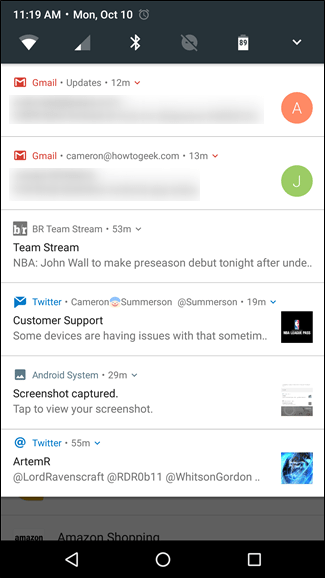
Notifications


Notifications have always been one of Android’s strong points. With notifications, the system and apps can notify you when something needs attention, such as an e-mail, text message, or something app-specific such as a Facebook alert. When you get a notification, you’ll see an icon on the left of the status bar at the top of your phone. Pull down on the status bar to see all your notifications, which you can then attend to or clear out.
Notifications

You can tap a notification to open that email, text message, or whatever it is. If you want to clear it, simply swipe it away, or tap the clear notifications icon at the very top to take care of all of them at once.

The Quick Settings Panel


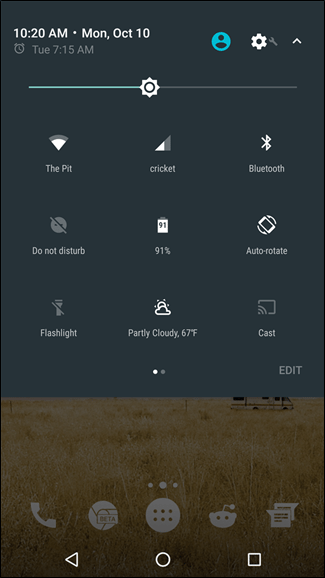
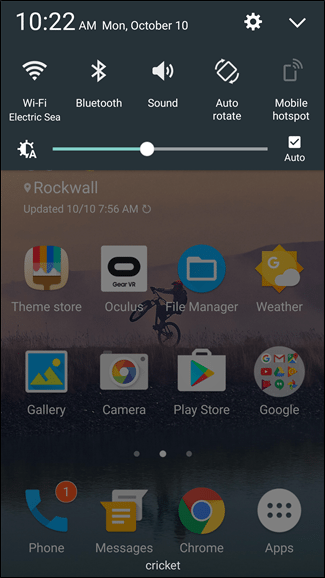
In modern versions of Android, you’ll find a “Quick Settings” panel nestled within the notification area. On stock Android devices, you pull the shade down twice to expose the Quick Settings, while other devices–like Samsung and LG–condense it into an always-visible part of the shade. Below we have at look at Stock Android on the left, and Samsung’s Touchwiz on the right.


Android Quick Settings PanelAndroid Quick Settings Panel

The Dock


The Dock–sometimes referred to as the “Favorites Tray”–allows you to pin certain apps such as your contacts and phone dialer, so they show up no matter what home screen you’ve swiped to. Further, you can stack apps into folders, or if the whim strikes you, remove them altogether.
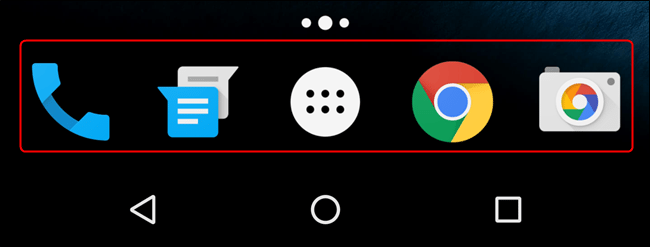
Android Dock

We’ll cover how to create app folders in the next lesson.

The Navigation Bar


At the bottom of your device is the “Navigation bar,” which–like the status bar–is always visible, except in full screen apps or games . The navigation bar almost always displays three symbols (left to right): back, home, and recent apps. Some manufacturers allow you to customize this layout or switch it altogether.
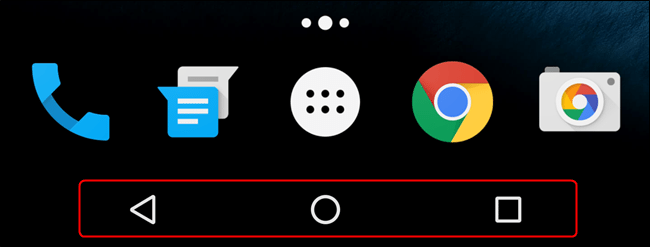
Android Navigation Bar

Regardless, you should always see these three navigation elements wherever you are on your device. It’s worth noting that Samsung is one of the last manufacturers that still uses physical capacitive buttons, not on-screen navigation like most Android devices.

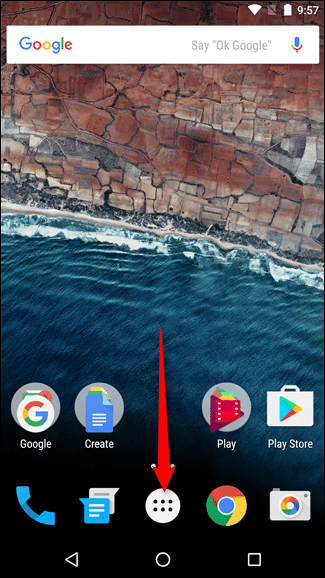
The App Drawer


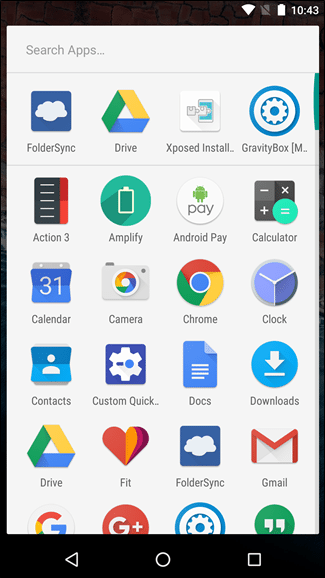
Finally, there’s the app drawer. This is where all your apps shortcuts hang out, and is accessed by tapping the circular button with six dots in it. It’s generally found in the center of the dock, but some manufacturers move it to the far right side in their respective launchers.


Android App DrawerAndroid App Drawer Open

From here you can open apps, uninstall them, or tap and hold to place shortcuts on the home screen.

Android’s Settings


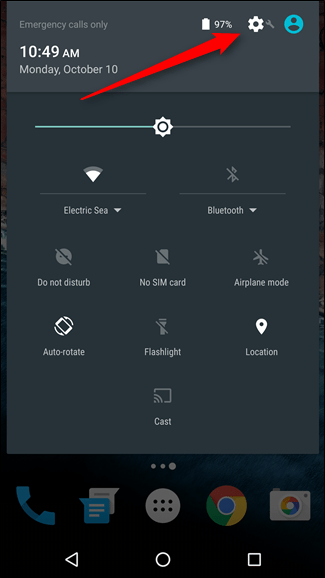
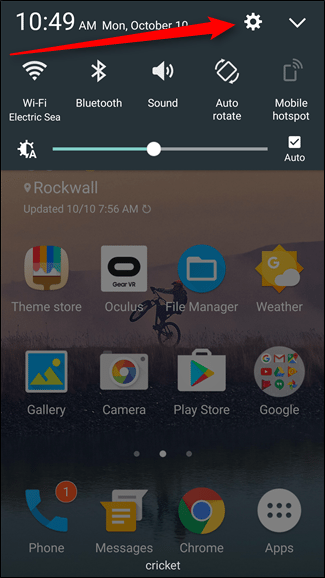
Get to know the settings menu, because this is how you will achieve maximum control over your device. There are two ways to access Android’s settings: you can either open the app tray and tap the “Settings” shortcut (not to be confused with the “Google Settings” shortcut, which is different), or you can pull down the “Quick Settings” panel and choose the cog icon in the upper right corner.


Android SettingsAndroid Settings Gear

While the Quick Settings menu allows you to toggle oft-used settings like Wi-Fi and Bluetooth, you’ll find much more granular controls in the main Settings menu. This is the heart and soul of doing more with your Android device.


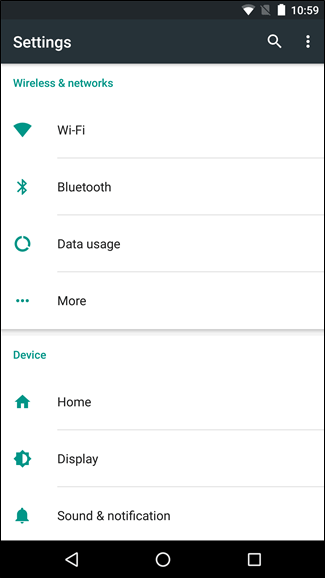
Android Wireless NetworksAndroid Wireless Wifi

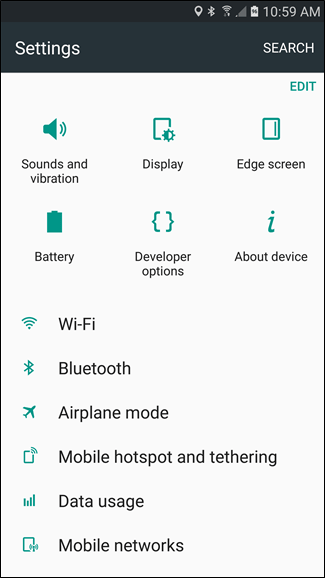
The Settings menu is broken down into several easy-to-follow sections on most devices, with Samsung’s most recent offerings being the exception to the rule–where stock Android (and many others) use subsections to break down this menu, Samsung tosses everything into one long list. It’s also worth mentioning that some manufacturers–LG comes to mind–will break the Settings menu down into tabs. In all honesty, it makes no sense to do this way–good thing there’s a way to fix that.
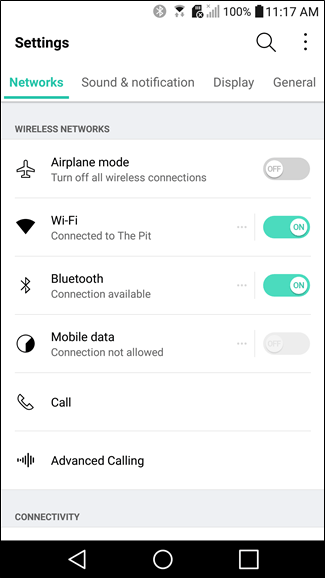
Android AirPlane Mode

Let’s take a stroll through each of the main options in Android’s Settings menu and talk about what you can do.

Wi-Fi


The Wi-Fi menu is where you’ll connect to and disconnect from Wi-Fi networks. You can also turn your Wi-Fi off entirely to save battery.
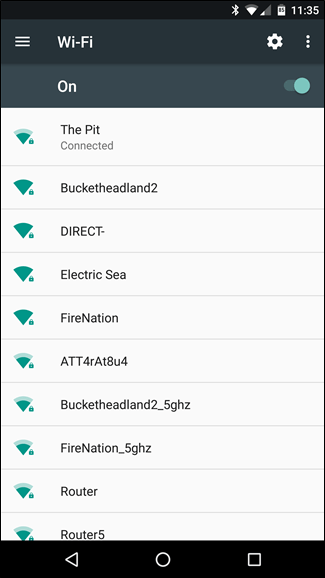
Android Wi-fi

We’ll talk more about this in Lessons 3.

Data Usage


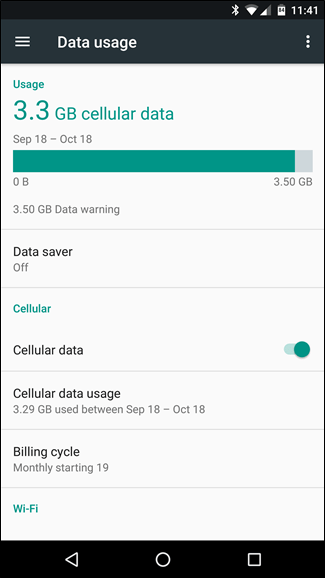
If you’re on a tight data plan and want to know how much data you’re using, or if you want to see how much data certain apps use, then you’ll definitely want to learn this setting and use it. Similarly, you may not want to use your phone’s mobile data when you have perfectly good Wi-Fi at home.

Also Read: How to disable Mobile Data on you Android Phone

Note, you can turn off mobile data, which will help save your battery, but this may have undesirable side effects, such as the inability to send and receive calls or text messages. So we recommend keeping “Cellular Data” turned on.


Android Data UsageAndroid Cellular Data Usage

Display


Using the display accounts for the majority of battery use. Simply put, if you never used your phone except when necessary, your battery would probably last for days (plural). But you don’t use your phone that way, so you can dial down the brightness and decrease the timeout period to eke a bit more time out of your battery. All this happens in the Display section of the settings.

Android Display

Managing Your Apps


In the Settings menu, under the “Apps” section (or “Applications > Application Manager” on Samsung devices), you can find a list of everything that’s installed on your handset. Tapping on an application name will provide a list of useful information: how much storage it uses, how much data it has used since a certain date, any permissions it has been given, notification access, default settings, and how much battery it has used. On Nougat–the most recent version of Android–you can also see how much RAM is being used buy the app, as well as where it was installed from (the Google Play Store or if it was “sideloaded”).


Android Manage AppsAndroid App Info

If you want to uninstall an app, you can also do that here by tapping the big “Uninstall” button. You can also Force Stop an application if it’s misbehaving, though you shouldn’t have to do this very often.

Storage


Your phone has a certain amount of storage for apps, games, photos, videos, music, and other files. If you’re running out of space, the storage settings are an excellent place to determine what is taking up that space, and how much you can reclaim by removing applications and deleting stuff you don’t need. You’d be surprised how much space you get back this way.
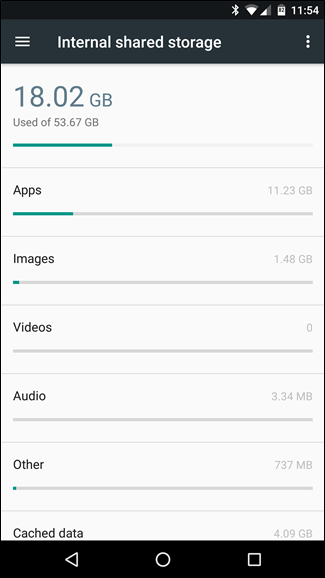
Android Storage

Battery


Battery life, or lack thereof, is a huge impasse to our cord-cutting desires. After all, what fun is a mobile device if you have to be near an outlet “just in case?” What’s the point of thinness and ultra-portability if you have to cart around a clunky charger and cable with you everywhere?

The battery settings give you an overview of how much battery you’ve used, how much longer it’ll last, and which apps are draining the most battery. You can also adjust Andriod’s “Battery Saver” setting here.

Android Battery

Location


Many of your apps, such as “Camera” and “Facebook,” use your location for certain features. This can lead to high battery use, and some people prefer to not give their location away to apps they don’t trust. You can adjust your location settings from this section. Generally, we recommend leaving the main setting on and set to “High Accuracy”, but you can tap any app on this page to revoke its access to your location.

Android Location

Security


There are a great many ways to protect your device and data on Android, and this subsection of where you’ll find the majority of those options. You’ll find the security section on “Lock screen and security” on Samsung devices.


Android SecurityAndroid Lock Screen and Security

Backup and Reset


Backing up your stuff is pretty important on any computer you use, but it’s even more important on your phone. Aside from the everyday disasters that can befall it, it’s also really easy to lose–in the back of taxi cabs, in toilets, or even to common thieves. Using your device’s backup abilities effectively can save you a lot of awful heartache.

Android Backup and Reset

We encourage you to familiarize yourself with your device’s settings before we get to good stuff tomorrow when we’ll talk all about managing your applications and getting to know the Google Play Store’s settings.

To comment on this article and other DIY Vila contents, visit our Facebook page, Pinterest page, Instagram Account or our Twitter feed.