Showing posts with label Free. Show all posts

Monday, 8 January 2018

Apowersoft Free Online Screen Recorder review

Apowersoft has two screen recorders. The first, which we"re reviewing here, is a web-based tool that runs in your browser, while the other (accessed on the same site by clicking "Download desktop version") is a premium application that"s only available as a limited free trial unless you buy a subscription.

Apowersoft Free Online Screen Recorder is completely free to use, with no time limitations, paywalls or watermarks. However, although it runs in your web browser, you"ll still need to download and install a small launcher application before you can use it. Click "Start recording" and follow the instructions (it works for both Windows and macOS).

You"ll be presented with a recording toolbar, and the centre of your screen will be selected by default. Use the drop-down menu to choose the part of your screen to be recorded (the full screen, a custom area, or a space the same dimensions as a mobile device).

The cog-shaped Settings button offers an impressive array of options. You can customize keyboard shortcuts, the output directory for your videos, cursor highlighting, frame rates and much more. Few desktop screen recorders offer so many customization options, let alone web-based tools.

When you"re ready to record, just click the red button and wait for the countdown. You can choose to capture footage from your screen or a webcam, with audio from your soundcard, a microphone, both or neither.

User experience


Apowersoft Free Online Screen Recorder is impressive. Once you"ve installed the launcher it"s very easy to use – if you"re happy with the default settings, you can start recording with a single click.

You can annotate the screen while you"re recording – ideal for software tutorials and walkthroughs – and the finished file can be uploaded to Vimeo, YouTube, Dropbox or Google Drive. You can also save it to your PC or Mac as a video or GIF file, or launch Apowersoft"s video editing application to edit it.

It"s not suitable for recording games, but for any other tasks, Apowersoft Free Online Screen Recorder is brilliant.

Tuesday, 2 January 2018

Generate Responsive Embed Codes Easily with This Free App

Every web designer knows how to embed videos. Embedding is the easiest way to share content and improve your articles with relevant media.

However, there’s a problem with iframes and other similar video embeds: the lack of responsive solutions. Every modern site is fully responsive and a fixed video can really break that flow on mobile.

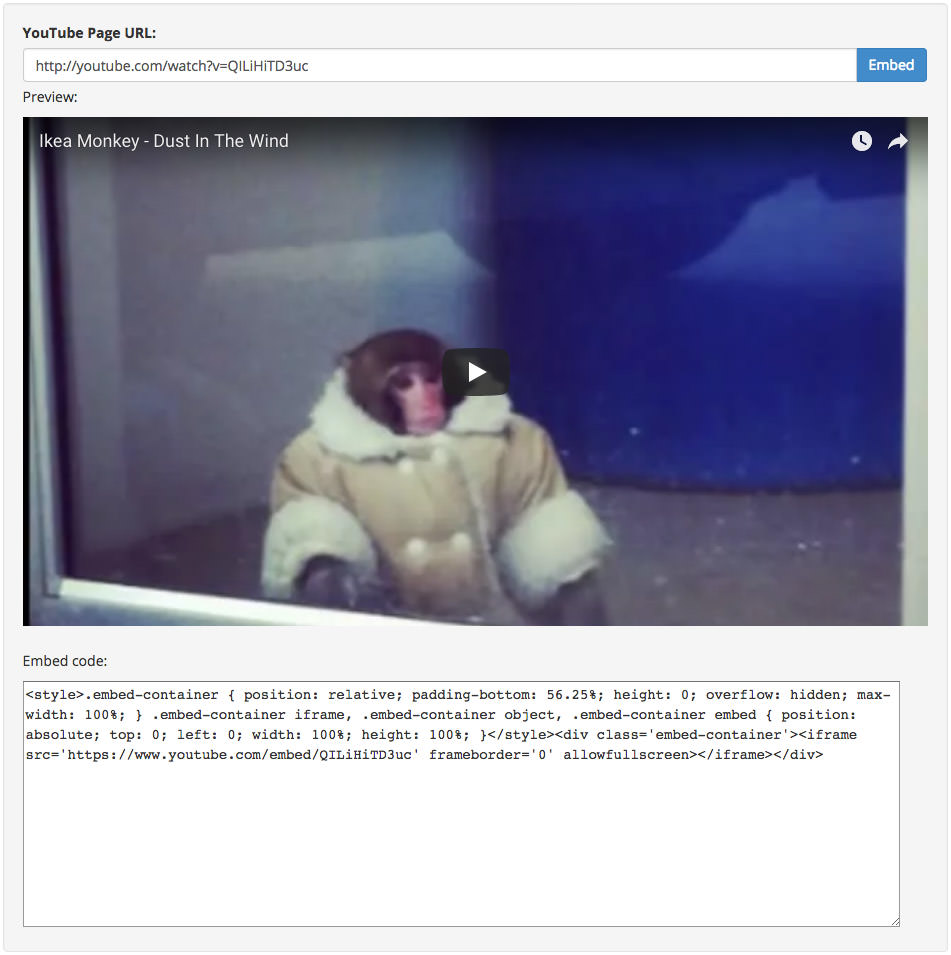
To counter this problem, try Embedresponsively.com. This free web app auto-generates embed codes for a wide array of media sites and even supports default iframe elements.

Youtube embed generator web app

By default, you can choose from a handful of multimedia sites that support native embeds:

  • YouTube

  • Vimeo

  • DailyMotion

  • Instagram

  • Twitter

  • Google Maps

  • Soundcloud

  • Scribd


You don’t need to memorize all these embed codes or mess with their embed widgets. Just copy the URL of whatever item you want to embed and paste it into the web app.

Once you click the “Embed” button, you’ll get a preview that you can test in your browser by resizing, to see how the video adapts. Underneath the preview pane, you’ll find a block of code that you can copy/paste and use to embed on your site.

This is one of the simplest solutions to the responsive embed problem. The goal is to keep the video flexible while maintaining the aspect ratio—not an easy task.

There’s a great piece on CSS-Tricks with another solution which relies more on classes and a container element. But, if you don’t want to always remember adding that container you might prefer Embedresponsively.com.

Take a peek at the site and give it a shot. If you don’t mind working with longer code snippets this is certainly a great solution for any responsive layout.

And, you can find the full source code for free on GitHub if you want to add support for more embeddable media.

Monday, 1 January 2018

Free PDF Apps For Smartphones & Tablets – Best Of

PDF is an easily accessible file and one of the most common forms of documentation. You can read anything from text-heavy manuals to documents with bulky images through PDF. And to use PDF files on the go through your smartphone or tablet, all you need is a good PDF app.

So for today’s post, I bring to you the best free PDF apps for mobile devices. These PDF apps do more than just open files, and provide a variety of navigation, annotation, and cloud storage functions with a full spectrum of document features.

Top 10


1. Adobe Acrobat Reader

Adobe Acrobat ReaderPlatform(s): Android, iOS, and Windows Phone

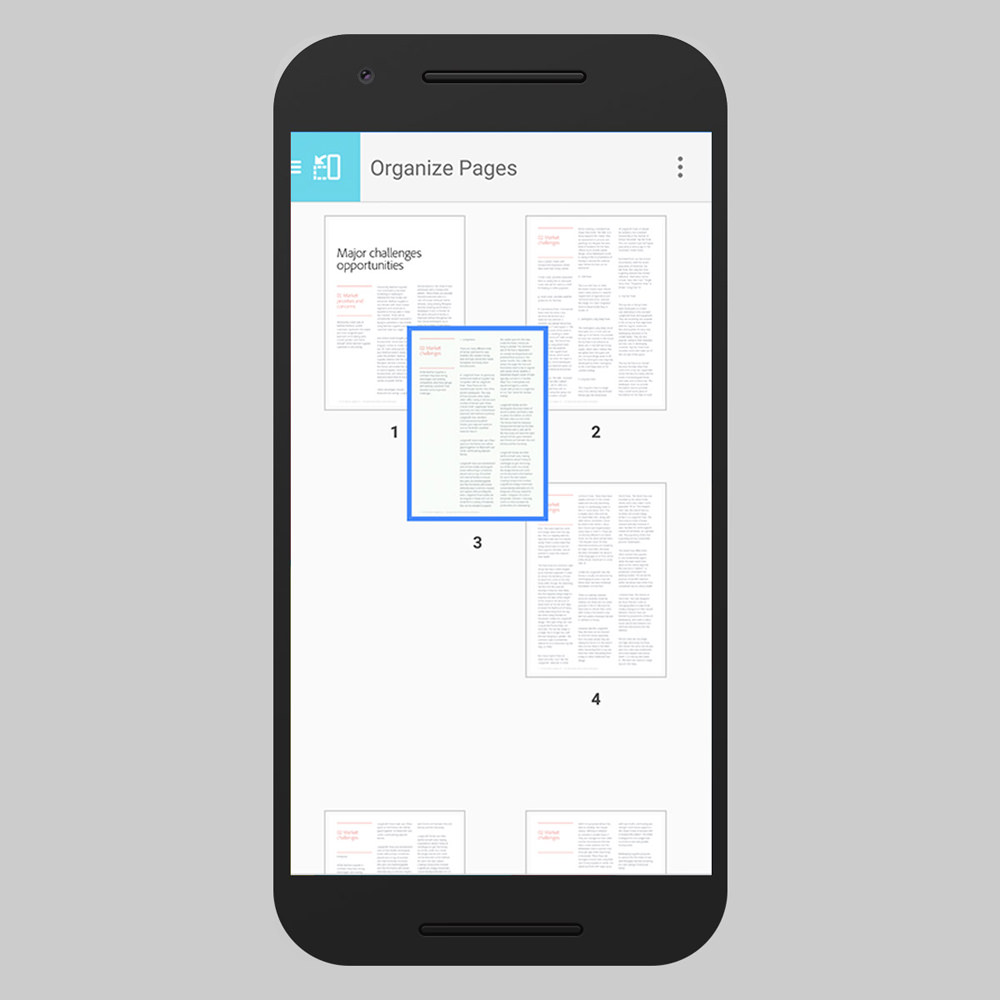
Adobe Acrobat Reader is a multi-functional app, with which you can view, annotate, and print PDFs. This mobile app allows you take pictures through the camera on your phone and save them directly to a PDF. What I liked more is, it can connect to Dropbox and Adobe Document Cloud, letting you access your documents wherever you go.

Moreover, you can view encrypted and password-protected PDF files as well. Some of its additional features include editing, signing, and converting PDFs to Word, Excel, PowerPoint, or RTF files. However, conversion feature is available for paid subscribers only.

Librera Reader

Librera ReaderPlatform(s): Android

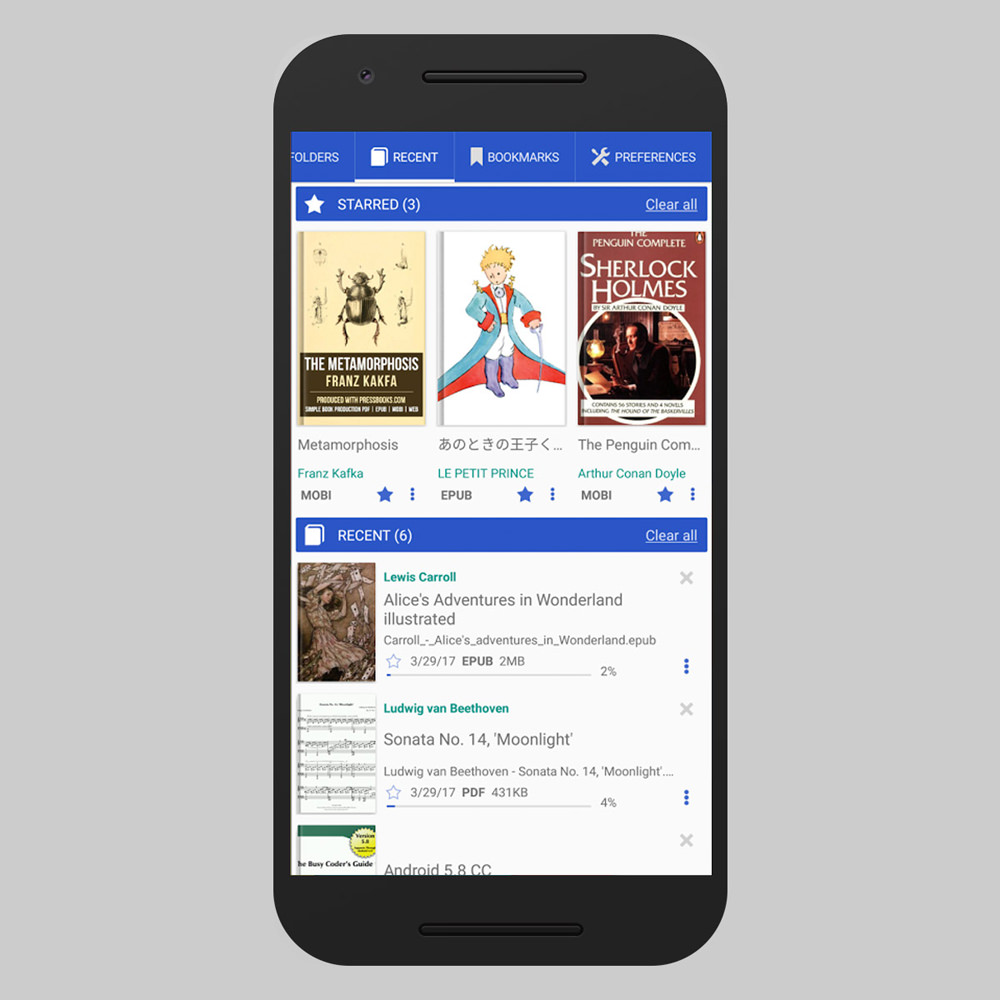
Librera is a full-fledged e-book reader that supports numerous digital book formats along with password-protected ones. Some of the supported files are EPUB, DjVu, RTF, HTML, and XPS. What fascinated me is its integrated voice reading capability, which can read aloud stories for you like bedtime stories.

Moreover, its features like automated scrolling and day and night modes make the reading a breeze on mobile devices. Like other apps, you can also manage bookmarks and annotations to make notes and create favorites for easy book keeping.

3. Google Play Books

Google Play BooksPlatform(s): Android and iOS

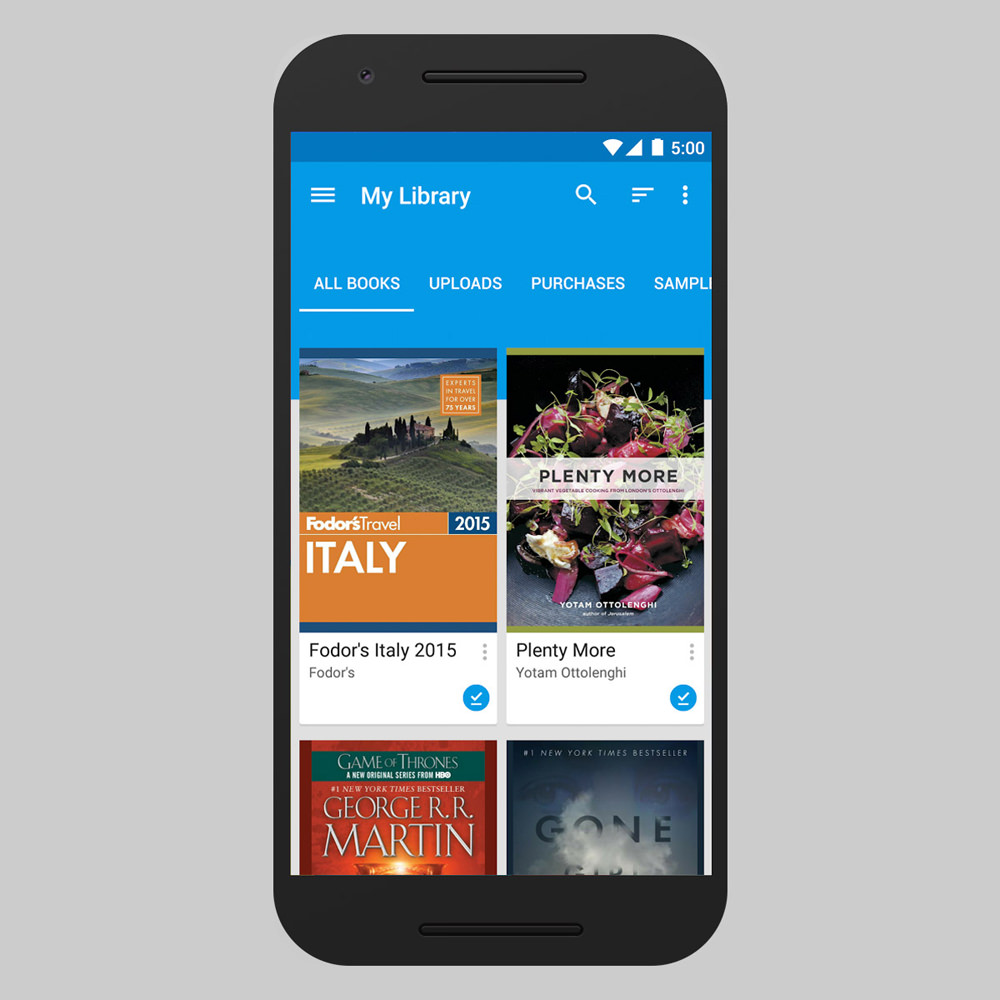
Google Play Books is the Google’s version of Amazon Kindle – a service for subscribing to and reading books. It lets you read and access your PDF and EPUB files. You can also change the font, personalize the display, and enable night-reading mode to experience a remarkable reading time on mobile.

Though its PDF features are limited unlike some other apps on this list yet it is a great app for reading books online as well as viewing PDFs stored on your device. Along with its superb features, it also supports VoiceOver feature in its iOS app.

4. WPS

WPSPlatform(s): Android, iOS, Linux

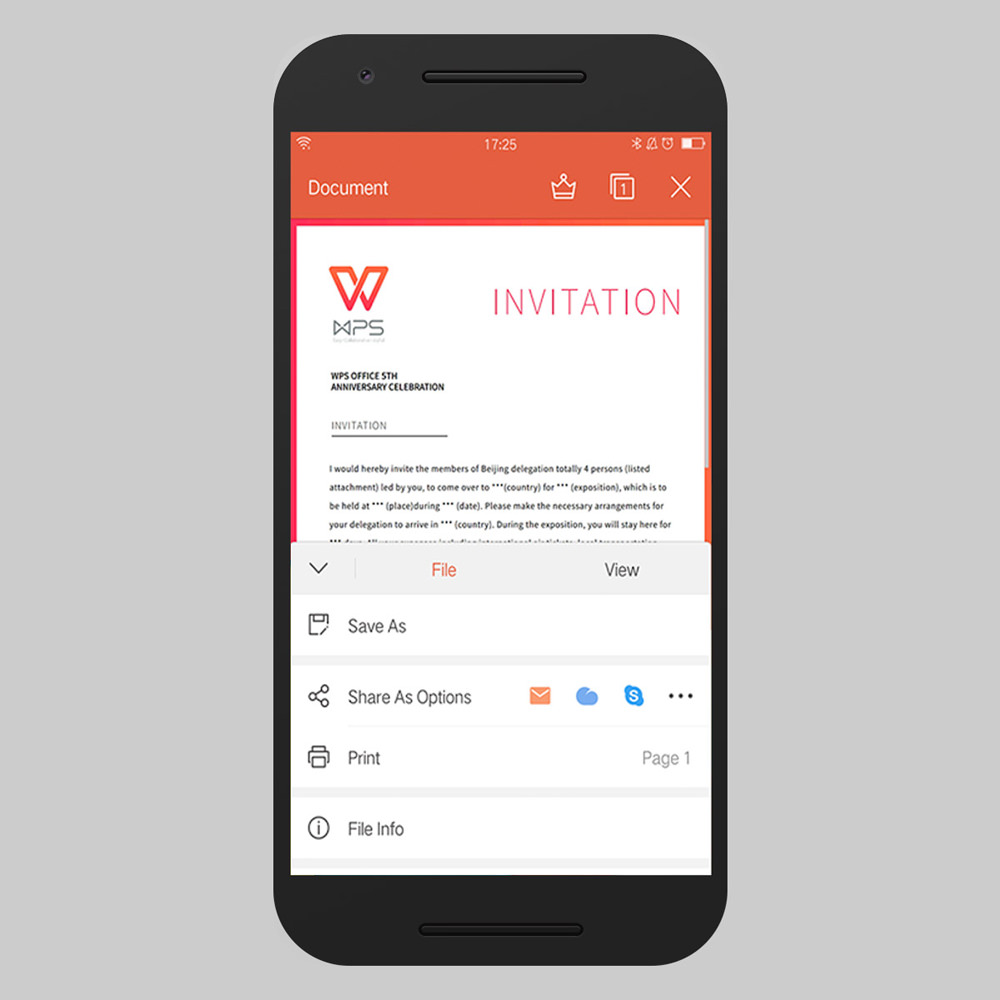
WPS Office is an all-in-one office app suite including a PDF Reader, Editor, and Converter. Just like Adobe Acrobat Reader, you can take pictures from your mobile camera and save them to a PDF. Moreover, this app also allows creating PDFs using Word, Excel, PowerPoint, and text files, add bookmarks, and view annotations.

You can also add electronic signatures as well as merge, split, or extract PDFs. Its also allows you to sync your files using Dropbox, Evernote, Google Drive, OneDrive, and Box, allowing you to view them on any device.

5. OfficeSuite
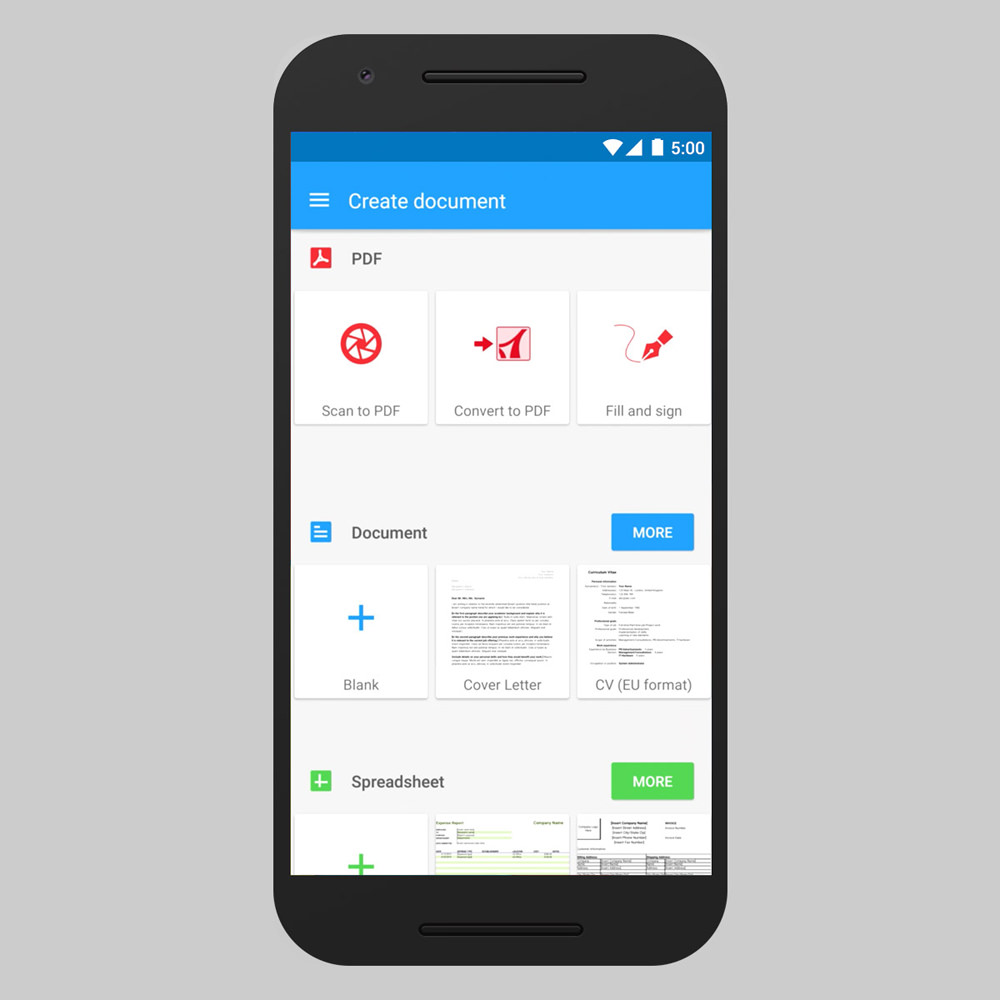

OfficeSuitePlatform(s): Android, iOS

Office Suite is an office pack like WPS that includes a PDF reader as well. Its reader lets you view PDFs and convert them to Word, Excel, or ePub files. It can scan physical documents and save scanned photos to PDFs. However, it avails many more features in its pro version, such as advanced security options, data sync across multiple devices, etc.

You can share the files through cloud services like Dropbox, Google Drive, OneDrive, Amazon Cloud Drive, and SugarSync. Moreover, it comes with more features like annotation viewer, permission management, and sharing using Bluetooth and more.

6. PDF Viewer
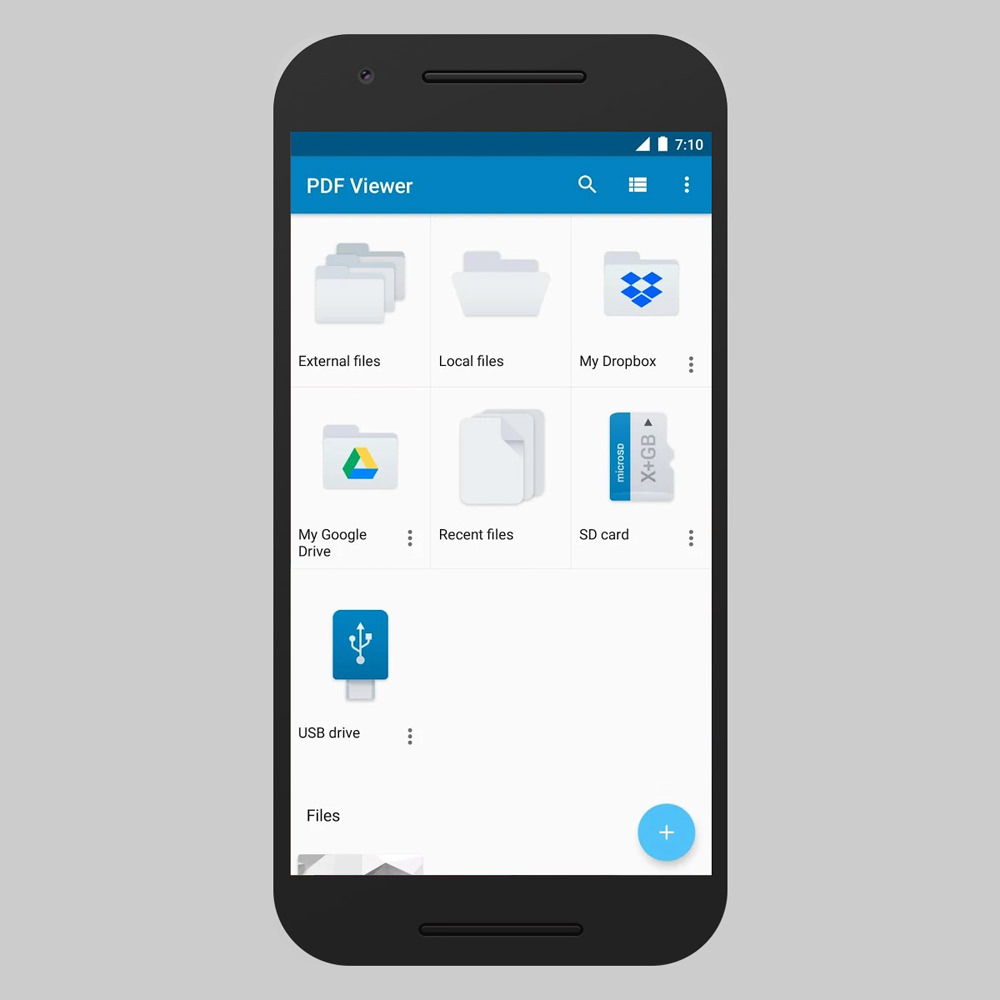

PDF ReaderPlatform(s): Android and iOS

PDF Viewer lets you read and manage PDF files. You can quickly search for your files, edit them, and access them right from this app. It also allows you to add bookmarks to the PDF files as well as rotate, split, or resize pages.

Along with its easy-to-use interface, it brings straightforward features for using PDFs. Its multi-window support and mobile optimizations provide superior experience on mobiles and tablets. In its iOS app, you can also work with and sync iCloud documents.

7. Polaris Office
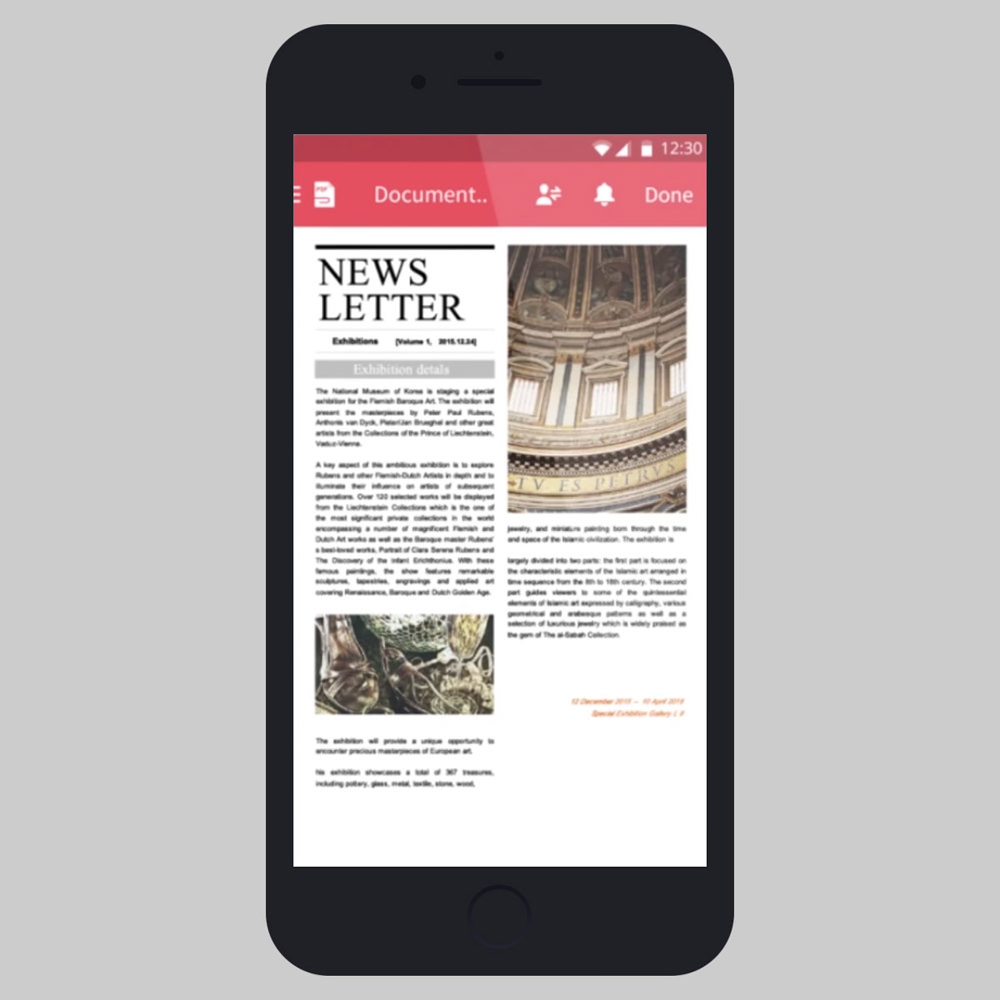

Polaris OfficePlatform(s): Android, iOS, macOS, Windows Phone

Polaris Office lets you work with multiple document types like WPS and Office Suite. Its PDF reader has features like adding annotations to files and converting files to PDFs. Also, it features a robust search option for finding PDFs using filename or some content within the files.

You can sync your files using supported cloud services including Dropbox, Google Drive, etc. Its office plans include a whole spectrum of features and bring support for Polaris Drive – its cloud solution for hosting and sharing files.

8. Google PDF Viewer
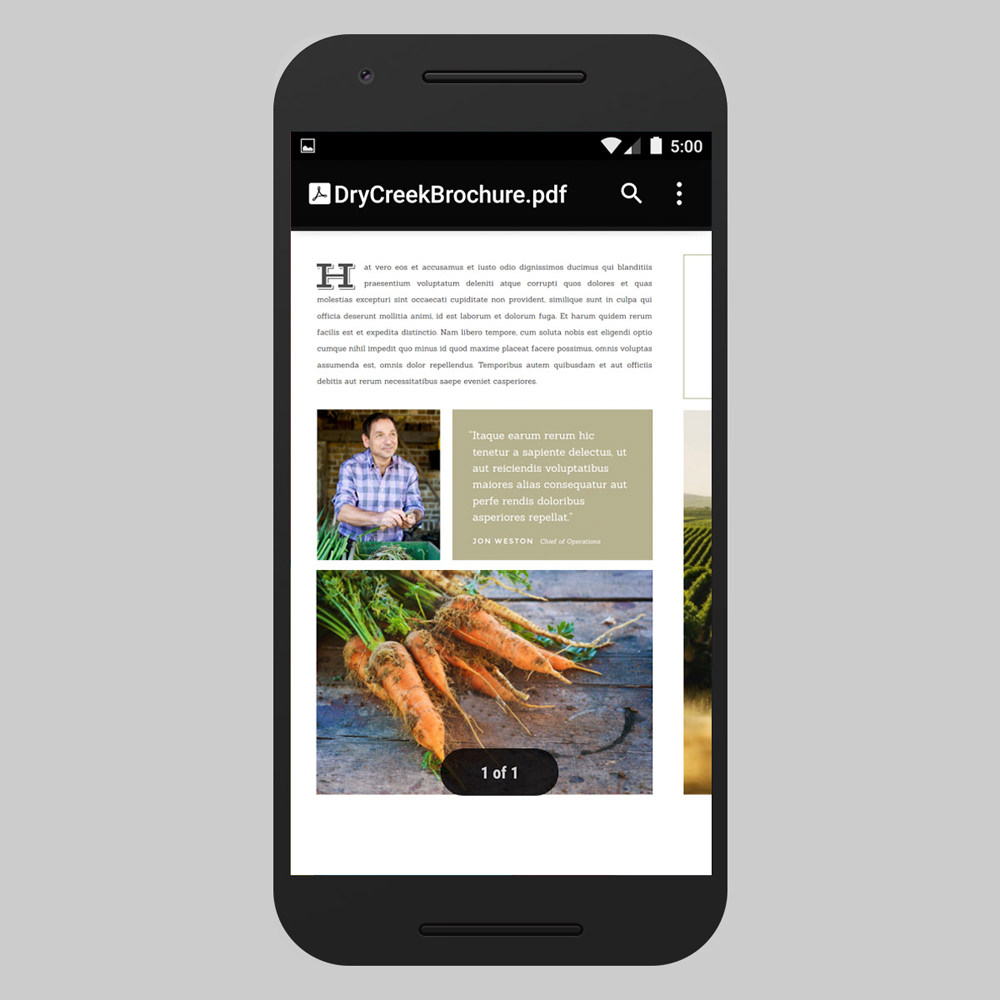

Google PDF ViewerPlatform(s): Android

Google PDF Viewer is another simple app for viewing PDFs. Though the PDF features are directly accessible through Google Drive app but you can also have this standalone app if you do not need or have the Drive app.

This app lets you search, view, print, and copy text from your PDF files on the go. However, you cannot launch or access PDF Viewer from the launcher, but it opens up automatically whenever you try to open a PDF file on your mobile device.

9. Xodo
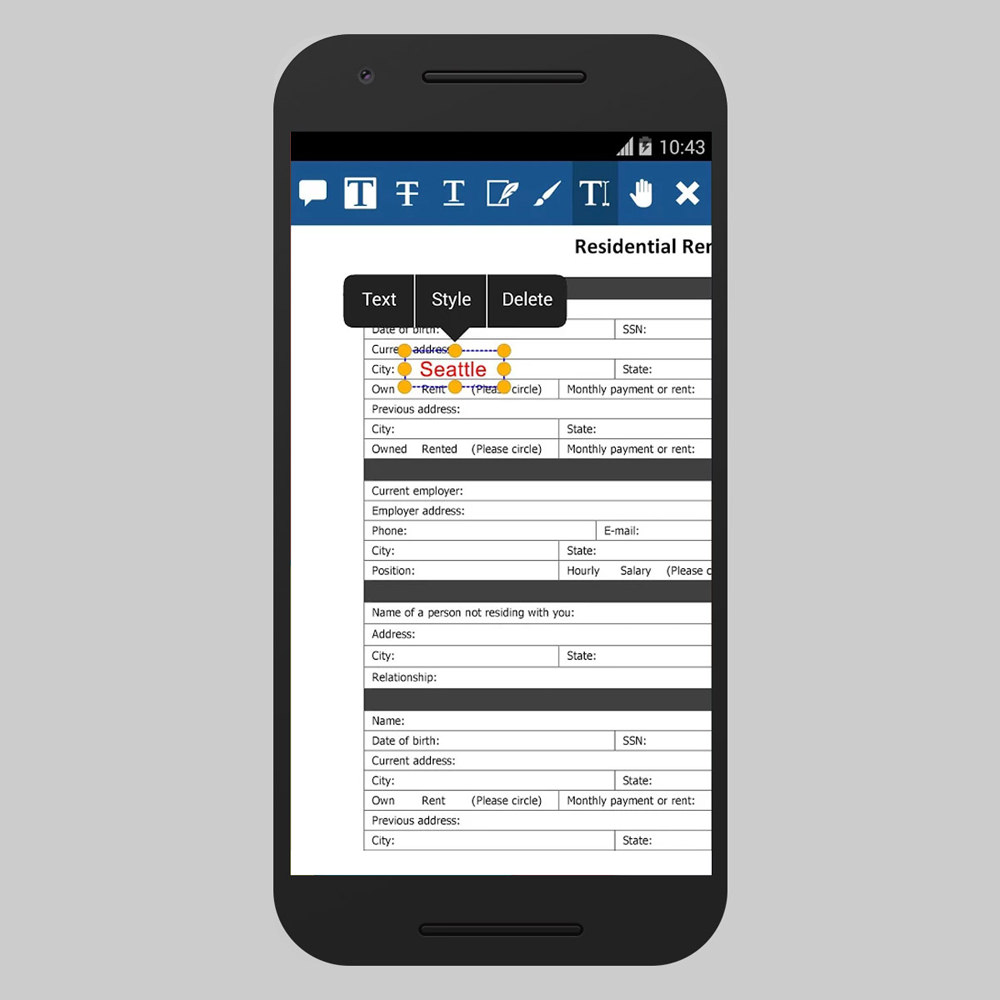

XodoPlatform(s): Android, iOS, and Windows Phone

Xodo comprises of a PDF reader as well as a PDF editor optimised to work on mobiles, letting you read, share, and annotate in real-time as well as fill forms and sign documents. Thanks to its annotation features, it allows you to jot down points, underline, and highlight text on PDFs. It can also open password-encrypted PDFs.

What I found interesting is its ‘Xodo Connect’ feature, which allows you and your teammates to annotate a copy of a document in real-time without requiring sign-ups – using just their email addresses. Also, like other apps above, Xodo supports auto-syncing with cloud apps like DropBox, Google Drive, OneDrive, and more.

10. Foxit MobilePDF
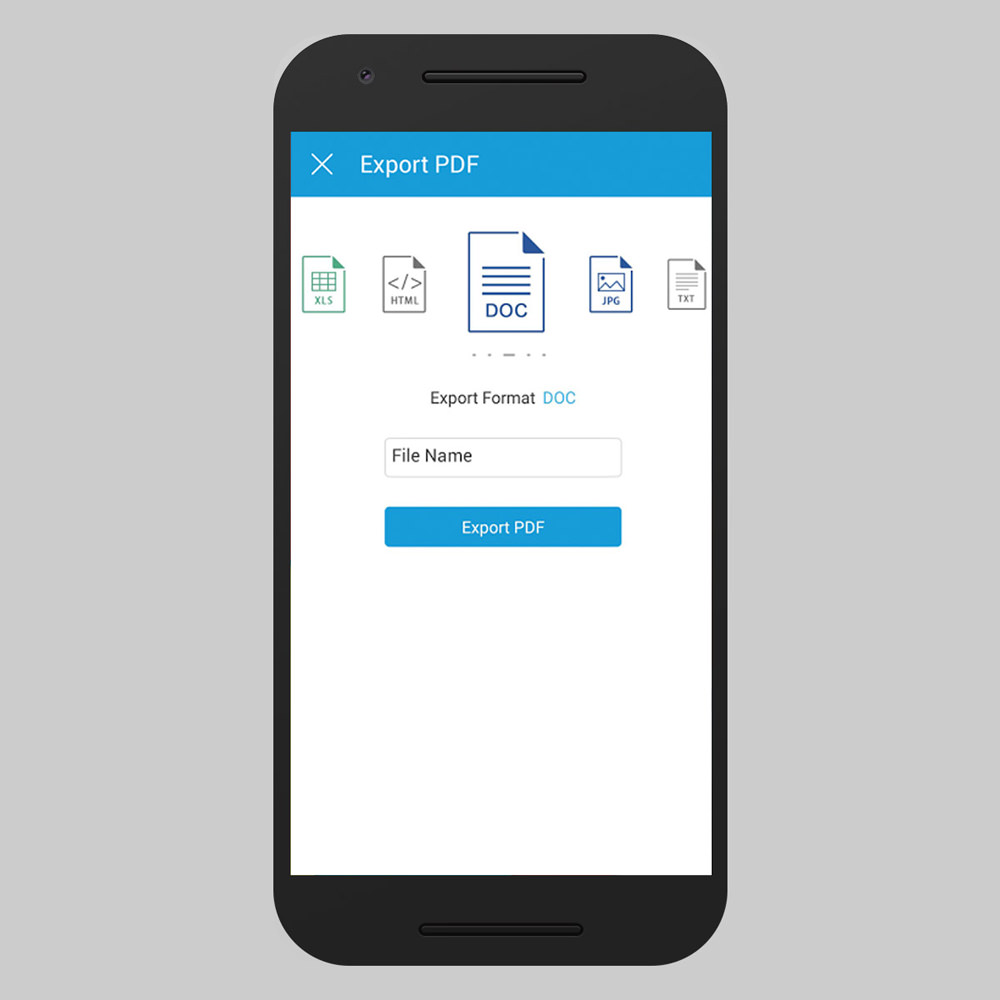

Foxit MobilePDFPlatform(s): Android, iOS, and Windows Phone

Foxit MobilePDF boasts of ConnectedPDF – a cloud technology for PDFs. Thanks to it, this app features brilliant collaboration features like you can share files among colleagues, do connected reviews, get notifications for document updates, track document activity, etc. Moreover, it offers bookmark and search options for a better experience.

Interestingly, it allows integration with Dropbox, Box, Google Drive, and OneDrive. You can also share files via Bluetooth, Evernote, etc. Furthermore, you can interconvert PDFs with Microsoft Office files, text as well as image files – right on your mobile.

Summary


AndroidiOSWindows PhoneOther OS
Adobe Acrobat ReaderYesYesYes–
Librera ReaderYes–––
Google Play BooksYesYes––
WPSYesYes–Yes
OfficeSuiteYesYes––
PDF ViewerYesYes––
Polaris OfficeYesYesYesYes
Google PDF ViewerYes–––
XodoYesYesYes–
Foxit MobilePDFYesYesYes–

Bonus: More PDF Apps


PDF Viewer & Book Reader
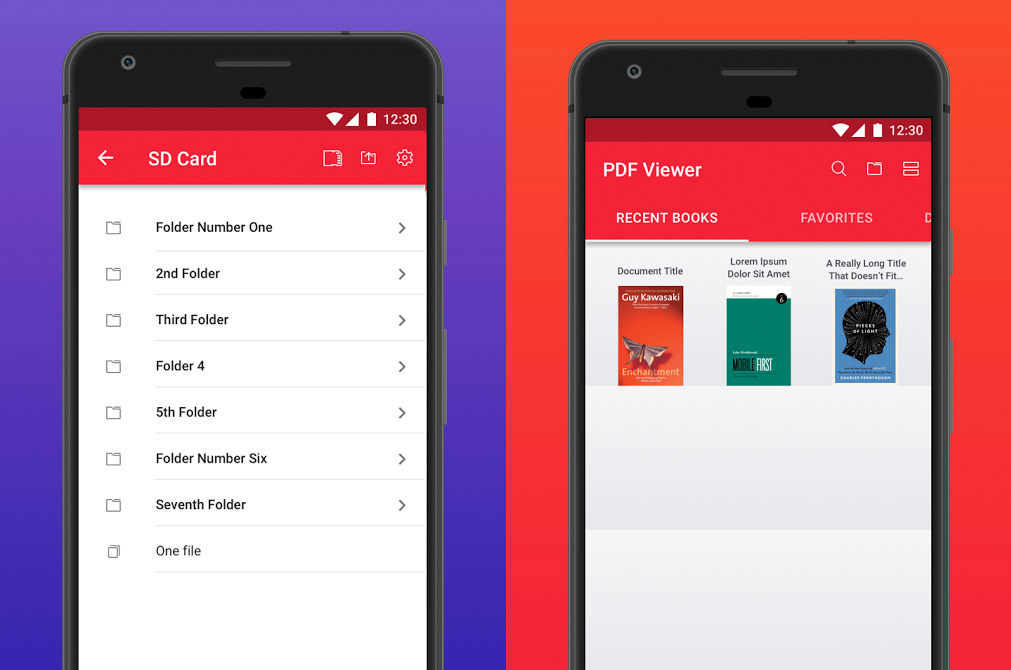
PDF Viewer & Book Reader Platform(s): Android

PDF Viewer & Book Reader helps you download, manage, and read PDF and eBook files on your mobile device. There’s an in-app file browser to browse and access the documents. Also, you can edit files and add bookmarks to continue from where you left off. You can also search for files through this small app.

Its day and night reading modes and page view options help you read comfortably any time. Furthermore, you can access as well as sync documents through cloud services like DropBox, Amazon Drive, and Google Drive, and share the files through apps like Skype and Slack.
Tucan Reader

Tucan ReaderPlatform(s): Windows Phone

Tucan Reader is an e-book and PDF reader for Windows Phone devices. It is an easy-to-use app with various features for a superior reading experience like auto-scrolling, brightness control, day and night modes, and other page control options.

You can also add bookmarks, pin book covers, sort and group books, and do a lot more like prevent lock screen, search books, etc. What caught my eyes is its feature to select a text and share it to social networks or translate it using the Bing Translator. The app also supports downloading books from cloud services like OneDrive, Dropbox, and others.
PDF Reader
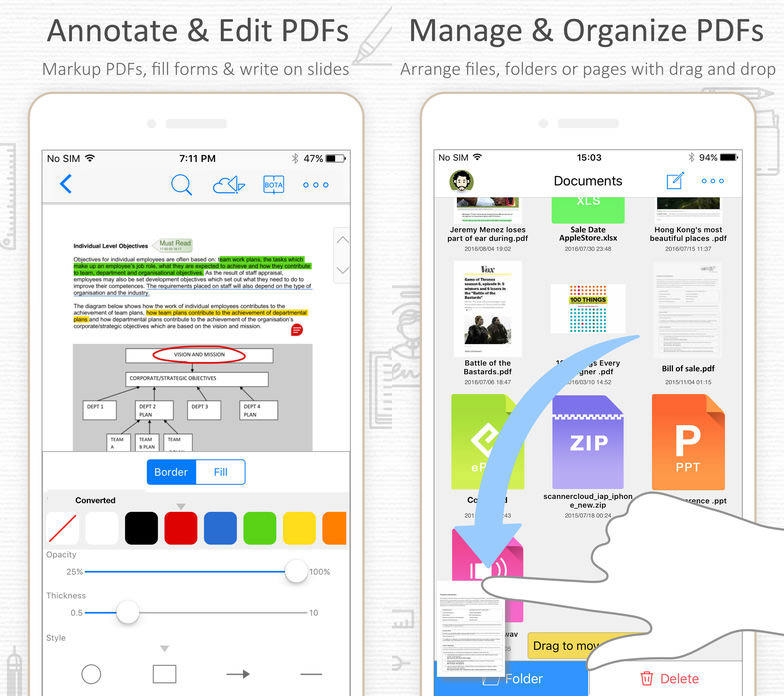
PDF ReaderPlatform(s): Android, iOS, macOS and Windows Phone

PDF Reader helps you to open and manage PDF files on your mobile phone. Its features include adding and exporting bookmarks, and creating PDFs using images, etc. There is also a built-in file search option to get files per your query.

As with above apps, PDF Reader features annotation tools as well including highlighting, note-taking, and writing tools. Interestingly, you can manage and sign documents using this app and open compressed archives to read the archived PDFs.
PDF Reader & PDF Viewer Ebook
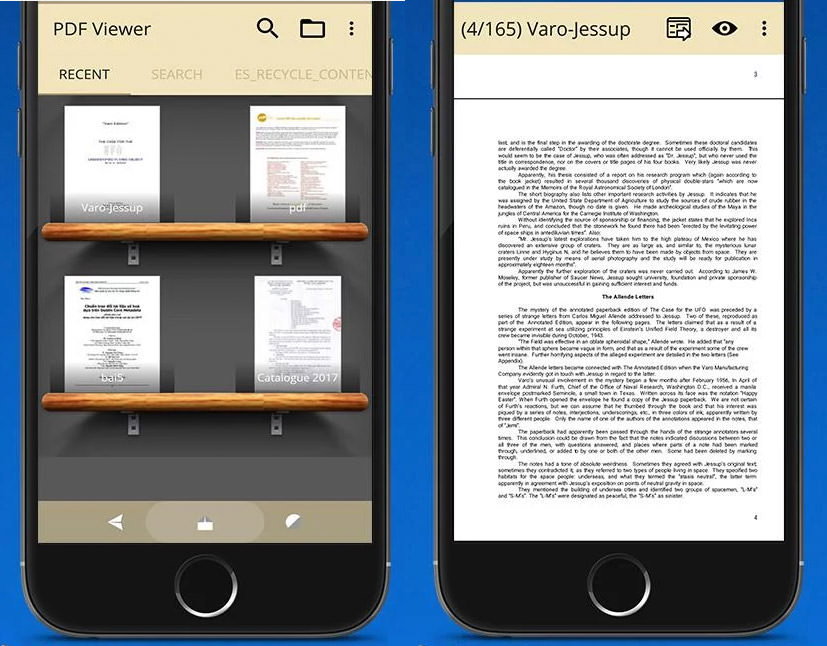
PDF Reader & PDF Viewer Ebook Platform(s): Android

PDF Reader & PDF Viewer e-book is a PDF reader with an easy-to-use interface. It works fast and smooth while opening PDFs and supports many more e-book formats including XPS, DjVu, and Comic books. Moreover, like other PDF apps, you can create bookmarks, add highlights, and search for files using this simple app.
Scanbot
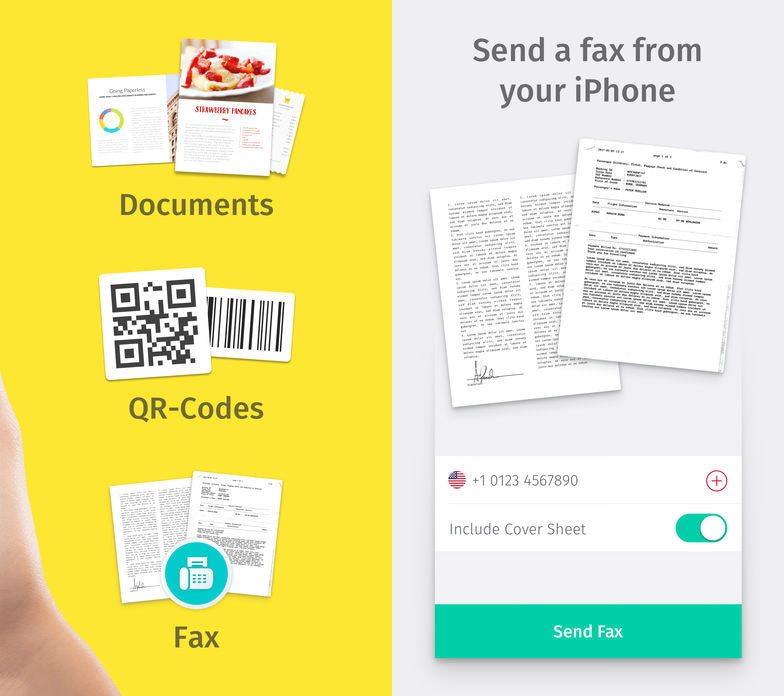
ScanbotPlatform(s): Android and iOS

Scanbot is a document scanning app which also functions well as a PDF app. Its primary function is to scan documents and help you crop, straighten, or apply filters to perfect the scans and later save them as a PDF document.

Some of its other features include a viewer and an editor that lets you view PDFs, highlight text, add notes to PDF files, and apply digital signature as well. You can also save your documents directly as images. Last but not the least, it also allows you to upload and share documents through cloud services and apps like DropBox, Slack, etc.

Sunday, 31 December 2017

5 Free Tools To Notify You of Website Content Changes

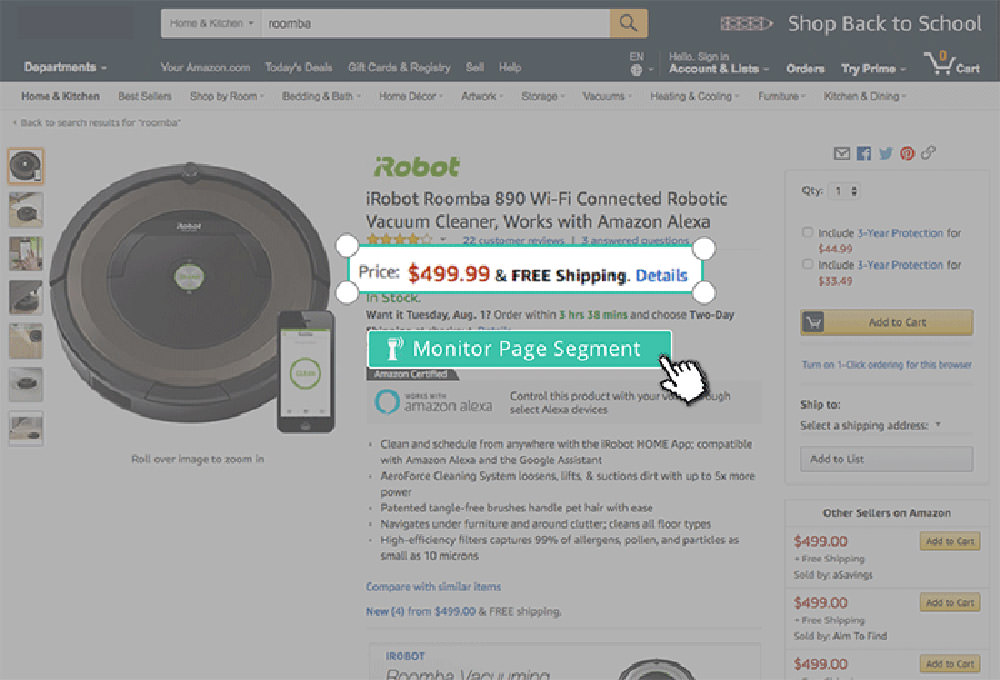
To know when a website changes its content, you have to go to that website and check it frequently and manually. This doesn’t sound like much work, unless it comes to an e-commerce site or a news website where web content changes happen quickly and suddenly. In such a case, you should leave it to web content monitoring tools.

Like price tracking tools that help you shop wiser, content monitoring tools help you track and monitor changes on any website under consideration so you can take immediate actions as you like.

For this purpose, here are 5 of the best content monitoring tools that notify you of any changes in your favorite pages without having to access them frequently. Let’s take a look.


Wachete


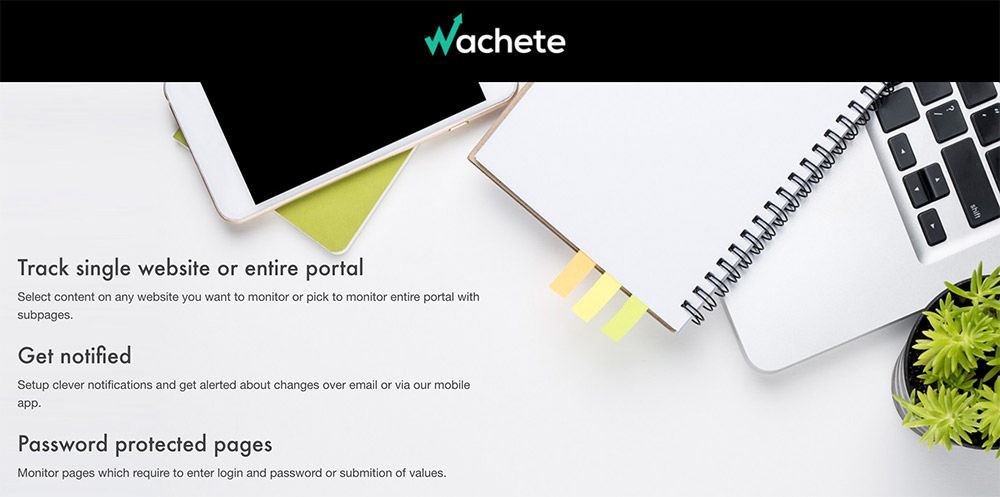
wachete
Wachete has a lot more to offer than other content monitoring tools on this list. What makes it stand out is its ability to monitor password-protected pages as well as dynamic and JavaScript pages. Moreover, you can track changes on pages that require a click or an input and monitor configured pages from different locations and more.

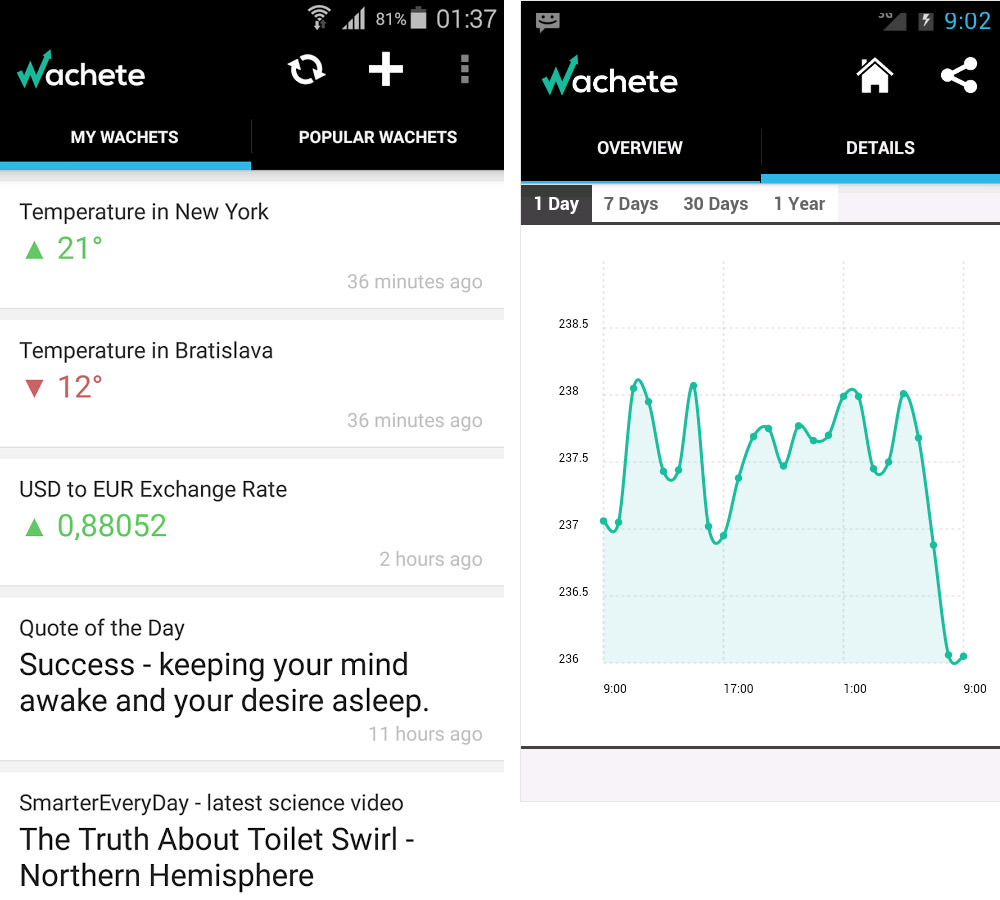
Surprisingly, you can also monitor specific parts of a web page or a site with sub-pages. Wachete sends instant or summary notifications (per your preference) over email and notifies about changes via its mobile app too. It collects and stores web content along with change history for up to six months, allowing you to track old pages or changes when required.
wachete mobile
You can freely monitor five pages, which suffices everyday users who wish to track product prices and job offers. You can also track the availability of a site, and download all the data as a spreadsheet. What I like most is its set of REST APIs as well as its feature to create an RSS feed from the content of a page, like a feed of your wishlist products.

OnWebChange


onwebchange
If you want to track an exact information, OnWebChange can do it as simply as possible. Though it is not as powerful as Wachete but some of its features even outstands the latter. What got me stuck is its public tracker feature that lets you place a button on your site that helps your visitors track any page on your website.

Additionally, you use its ‘Change Report’ feature to share a public tracker with friends and coworkers and help you track changes conjointly. OnWebChange tracks change for various types of content like images, documents, PDFs, etc. Another surprising feature is it creates an RSS feed to help you track the changes, unlike that of Wachete.

It allows three trackers for free and features multi-language support and powerful change detection system with lots of customizable options. It can send mobile or email notifications in single or digested form per your preference. Moreover, it sends emails to multiple persons, creates an email distribution list, and even notifies URL ‘Callback’, surprisingly.

ChangeTower


changetower
Using ChangeTower, you can monitor three addresses for free. It is a cloud-based, easily accessible tool that is capable of monitoring visual changes. You can track code updates, keywords and code changes, and visual changes made on a webpage. That said, it helps automate your research work.

What I like is that one can also check a site’s availability and receive alerts on configured conditions. ChangeTower can notify you, or your team using real-time email notifications and allows you to see notifications stream and check out detections. Also, you can check the changed data of three months in for free, and even export it to a spreadsheet.
changetower
Another interesting feature is it sends you detailed report of content, snapshot, and HTML changes, helping you to easily understand the changes. Some of its use cases include monitoring key compliance requirements, legal and corporate compliance info, or content (like product prices) on any website including that of your competitors.

Visualping


visualping
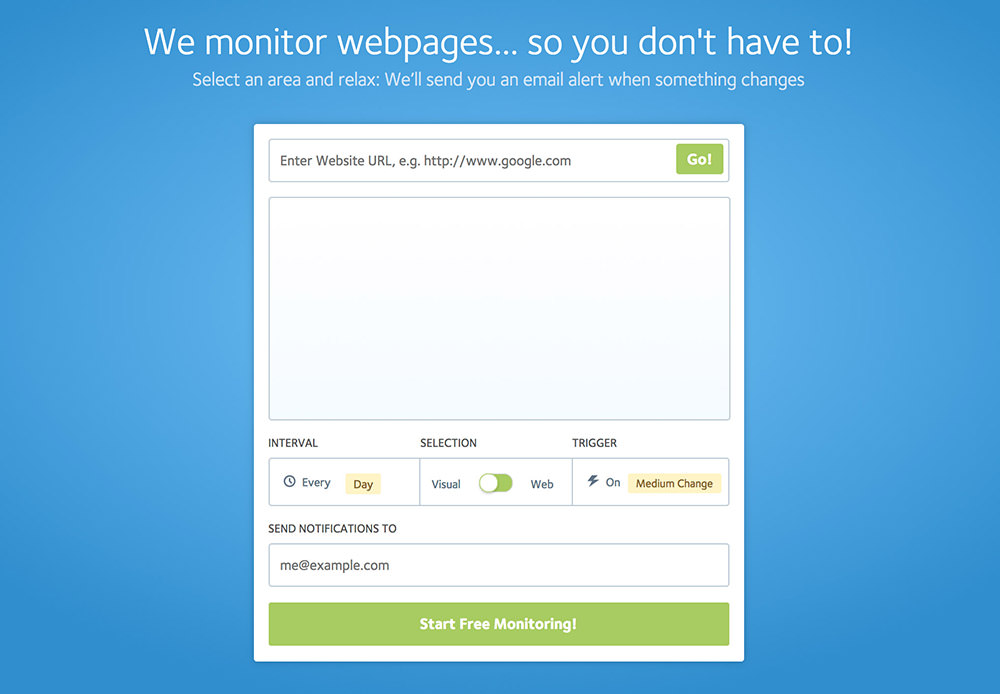
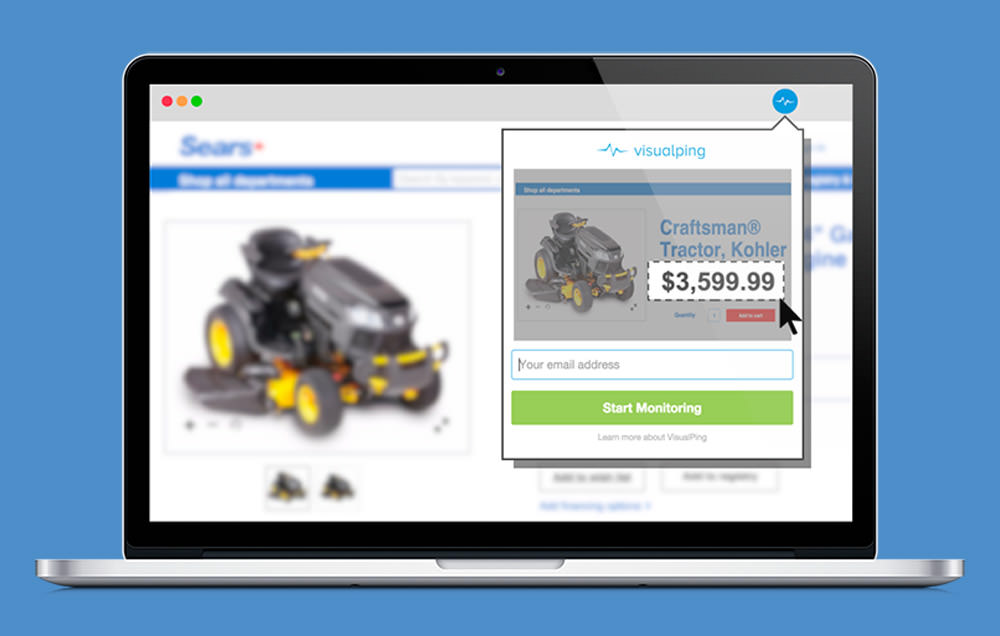
If you are searching for a free, easy to use content monitoring tool for the web, then Visualping is just for you. Amazingly, you can receive notifications with screenshots of the change you are tracking – big or small. These can be received every hour, day, week, or month to an email address or a Slack channel, unlike ChangeTower.

What got my interest is it detects visual changes too, like ChangeTower. Its Chrome app can be set to track pages and send alerts about anything that matters to you. Having said that, you can easily monitor content changes and automate research tasks like monitoring special prices, discounts, job offers, search page rankings, news feeds, etc.
visualping
With Visualping you can select to monitor a page using visual-mode or web-mode. Moreover, you can choose to use a proxy for monitoring the page, and even use its blocker feature to block any obstructive ads, newsletter signup pop-ups, etc.

Versionista


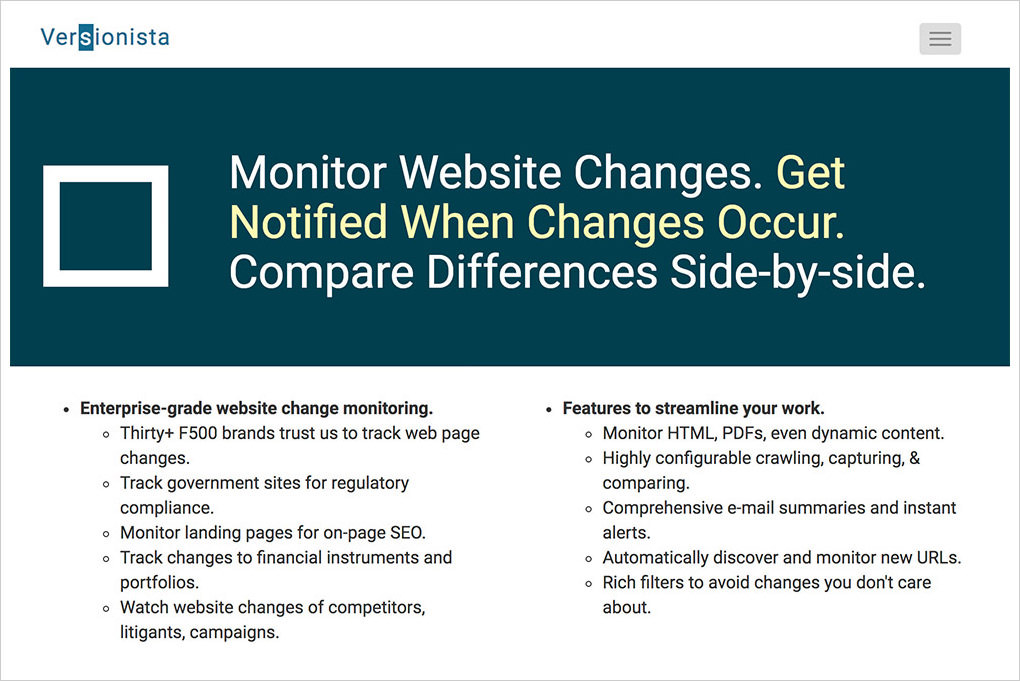
You can easily get alerts for changes to sites using Versionista. It offers five monitors in its free account, which is enough to try it out. Though it is not as eye-catching as ChangeTower or Visualping yet it packs powerful features. It easily compares differences between a site’s multiple versions and stores version history for you.

Interestingly, you can get instant alerts and email summaries of content changes and view detailed change data to track added or removed text content, links, or assets. What I like more is its comparison viewer that shows changes side-by-side for a website. Moreover, its advanced set of filters allow you avoid unwanted notifications.

You can configure the tool to crawl sites per needed frequency from the required location. Versionista lets you categorize pages for easy management and workflow and track details of every change or version monitored by the tool. Its dashboard is expandable, filterable, and sortable to show just a partial list of pages with their recent changes.

Hola Free VPN review

Hola is an interesting free VPN which takes an unconventional approach to preserving your online privacy. Unlike the competition, Hola doesn"t rely on a fixed network of managed servers. The company describes itself as more of a "peer to peer" VPN, where browser traffic is routed through its users. Your traffic will pass through the computers of others who"ve installed the service, and some of their traffic might pass through PC.

This has some advantages. There are no fixed routes or destination servers, making it more difficult for sites to detect that you"re using a VPN. It also keeps costs down, as there are no servers or bandwidth bills, allowing the basic service to be offered for free.

One potential issue is that you"re allowing Hola to use some of your system and network resources. But the company says it only uses devices when they"re idle, and connected to an electricity source. Even then, it claims "the amount of traffic that Hola passes through a peer on its network per day on average is less than a 20 second YouTube clip." That doesn"t mean much without knowing the resolution, but if we take it as 720p, that could be 4-5MB.

Maybe a more significant concern is that any Hola user could effectively become an exit server for someone else. If they"re sending spam, hacking or doing anything else dubious, your IP address could become the one associated with that action.

You can avoid this problem by upgrading to Hola Premium, which doesn"t share your bandwidth with other users.

If you can live with its basic principles, though, Hola"s core service is free for non-commercial use, and that"s the product we"re reviewing here.

Privacy


Most VPNs route your traffic through their own servers, providing at least the possibility that they can log what you"re doing. Hola"s model of routing data through its users might seem a better way to protect your privacy, but it"s not quite that simple.

Here"s an interesting section from Hola"s security and privacy FAQ:

"Hola’s architecture allows Hola to see the origin and destination of each request, thus if our network was abused, the abuser"s information may be passed on to the authorities. This makes Hola unattractive to abusers. Some VPN networks ... don"t see both ends of the connection, and are therefore much more attractive for these uses."

The company says it can trace every request on the network, its source and destination, in a way that isn"t always possible with regular VPNs.

Hola"s privacy policy further reveals that the company collects a substantial amount of "anonymous information" about service usage.

Data recorded includes your “approximate geo-location, hardware specifications, browser type and version, the date of the Software installation, the date of your last use of the Services, your operating system type, version and language, registry entries, your URL requests, and respective time stamps.”

The firm continues: “We do not make any efforts to reveal your identity through this information. We may also collect information that will help us understand whether your device is used at a given moment so that we will not send it any requests.”

This information isn"t linked to an account, and the company says it doesn"t try to make the link, but it"s still a lot of data. And there"s more. Hola maintains server logs, too, and this is what they include:

"Log Data may include information about your device such as: your IP address, browser type, webpages you visit, time spent on those pages, access times and dates, and the unique identifier generated for your device (if you use the Services from your mobile device then such an identifier may be your mobile number). We use such data in its aggregated form and is not combined with any Personal Information."

Again, the company is saying that data is "aggregated" and "not combined with any personal information". But it also says that data could include something which directly relates to you – your mobile number. Even if the logs aren"t linked to your account originally, further analysis might be able to link at least some of this information to people.

How much does any of this really matter? If you"re not doing anything online that might provoke someone to try and track you down, then it probably won"t affect you at all. But if anonymity is your top priority and you"re looking to reduce even the possibility of monitoring, Hola"s logging policies should be a concern.

Performance


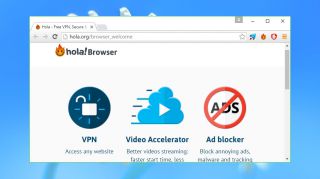
Hola installs as a browser extension, instantly adding its logo to the Chrome address bar. There"s no immediate need to adjust or configure the service, and the simplest option is to continue your browsing as normal.

If a site blocks you, clicking the Hola icon displays a list of source countries you can choose, often with the most appropriate at the top. Choose a region and Hola connects you to the site via users in that country, hopefully solving the problem.

Does this work? Well – sometimes. We were able to access Comedy Central and BBC iPlayer without any difficulty, but YouTube videos left us watching an endlessly spinning wheel, and Netflix just displayed its standard ‘proxy detected’ error message and refused to stream anything.

Click the Hola icon again and you"re asked whether the service worked. If it didn"t, a Fix It button reloads the page, presumably using another IP address in the same region. This occasionally worked for us with smaller sites, but made no difference to YouTube and Netflix.

The Hola FAQ has lots of ideas on how to fix problems: disable and enable the extension, force the browser to reload the page, clear your browser cache and cookies, disable other extensions. Or indeed it’s suggested that you uninstall and reinstall Hola, make sure your browser is up-to-date, and optionally disable your firewall and antivirus to see if they"re to blame. But although these might help in a few situations, they"re not going to get you into Netflix or other sites that are specifically targeting the service for blocking.

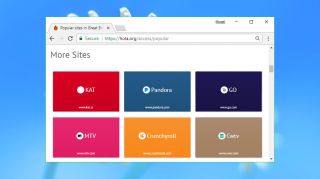
Hola does have other benefits. Open the full app from your start tab and it displays tiles for popular streaming, news, search and other sites. Click Hulu, Spotify, Sky Sports or whatever else looks interesting and Hola opens that site using the most appropriate country.

This approach makes life very easy as there"s no need to manually switch countries, or worry about regions at all. All you have to do is pick a site, and Hola takes care of everything else. If the service unlocks your favorite sites, this could save you a lot of time.

Windows users can optionally install a standalone desktop version of Hola. Tap an icon in your system tray and a specially configured version of Chromium appears, with Hola pre-installed, and you can browse and unlock sites as usual. Installing a new browser just to run Hola seems like overkill to us, but it might be worth a try if you can"t get the service working on your existing setup.

It"s always difficult to get a useful measure of VPN performance, but Hola takes this to a whole new level. There"s no fixed network of servers to assess, the route your traffic takes will change every time – and your hardware, browser type and setup could influence the results in unexpected ways. Hola works so differently that synthetic benchmarks may not give you meaningful information about the service, anyway.

For this review, we replaced our regular benchmarks with a more straightforward task: streaming 4K video from YouTube and other sites. Playback ran smoothly at all times, without any buffering, quality or other issues. A network traffic monitor confirmed that we were consistently downloading at 20-30Mbps, and there"s no reason to think that"s the limit – Hola probably has more to give. We may not be huge fans of Hola"s peer-to-peer approach, but there"s no doubt it delivers in terms of speed.

It was a very different story with our final privacy tests. Doileak.com found Hola was allocating IP addresses in our requested locations, but our real IP was available via multiple HTTP request leaks, and there were DNS leaks, too. That probably won"t matter for simple browsing and unblocking sites like BBC iPlayer, but if anonymity really matters, Hola shouldn"t be on your shortlist.

Final verdict


Fast, free and user-friendly, Hola is an excellent tool for unblocking some streaming websites. But it didn"t work with Netflix or YouTube for us, and multiple logging and privacy issues mean the service can"t match the safety or anonymity of a real VPN.

Friday, 29 December 2017

How to Get Apple Music for Free

Apple Music, Apple’s music streaming service and Spotify rival, arrived in 2015 for iPhone and iPad. It’s now also available for Android, PC, Mac, Apple Watch, CarPlay, Apple TV and Sonos. Here, we show you how to get Apple Music for free.

Apple Music gives you access to more than 30 million tracks, and you’ll get playlists and recommendations tailored to you.

Apple Music free trial


If that sounds like something you’re interested in, you’ll be pleased to hear that Apple offers a really great free trial of Apple Music. If you’ve never tried Apple Music before you’ll be able to get three months absolutely free of charge, with no catch and no questions asked.

To do so, visit Apple’s website by clicking here, and choose ‘Free Trial’ in the top right corner, or click ‘Try it free for three months’ on the relevant plan.

There are three plans available: Student, Individual and Family. Each can be purchased as a monthly subscription or annual (which gets you 12 months for the price of 10).

If you absolutely don’t want to pay for Apple Music once your three month trial is over, you must make sure to cancel your subscription as it automatically renews. Find out how in our article on how to unsubscribe to Apple Music.

How to get an extra three months of Apple Music


Once you’ve used the trial you won’t be able to get another three months free using the same method, even if you wait a year or so. But there is a trick to getting an extra three months.

If you’re happy to use Family Sharing, you could get another member of your family to sign up for the free trial of the Apple Music Family Sharing plan, and then share that with you. You’ll then be able to take advantage of an extra three months for free. In fact, it can be shared between up to six people so you could share the free trial with other family members too.

You can find out more about Family Sharing and how to set it up here.

Apple doesn"t offer a free version of Apple Music. There is no ad-supported option available, although you can access a few of the Apple Music features such as Beats1 Radio and the ability to follow an artist"s Connect stream. You can also listen to selected ad-supported radio stations but there will be limited song skips available there.

If you"re looking for an alternative streaming service, check out our sister title Tech Advisor"s round-up and comparison of the best.

Thursday, 28 December 2017

Presentator – A 100% Free Design Collaboration Platform

A quick Google search yields dozens of results for collaboration tools. But, most of them cost money and very few are geared towards web design or visual work.

Presentator is different. It’s a free open-source platform made for designers who work in teams or with clients online.

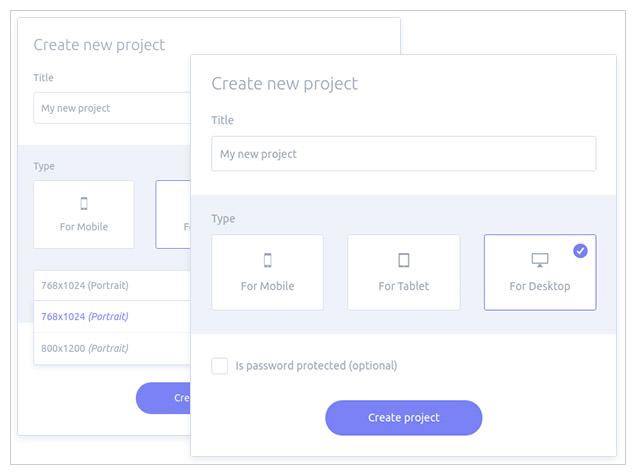
It allows you to set up an online workspace where you can share early drafts, revisions, and final designs at each stage of the creative process. It supports version control and even lets you create password-protected areas so that only certain members (or clients) can see your work.

Presentator online sharing tool

On the homepage, you can sign up for a free account and get started right away. Upload screenshots or product designs right from your computer and share them with your team.

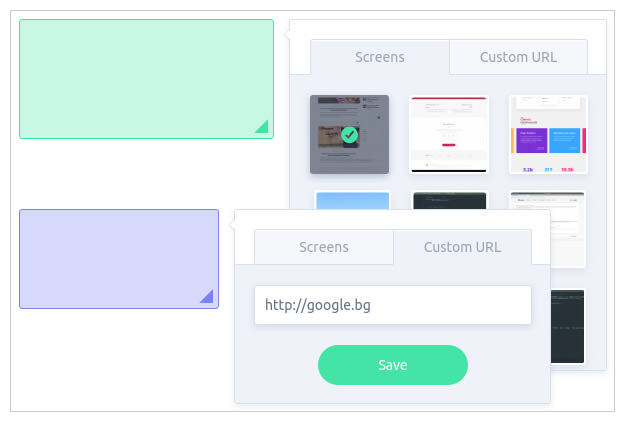
Each member can leave comments on your work, including different comments for each different variation if you’re in the early drafting phase.

Many designers compare Presentator to InVision or UXPin since it works in-browser and supports collaboration. But this is only a presentation & workflow tool, not a wireframing tool. You won’t find many custom creation tools out there, but Presentator is by far the best web app for presenting design work.

Here are some of the best features that grabbed my attention:

  • No ads

  • Custom workspaces for individual projects

  • Unlimited projects, comments, and uploads

  • Supports as many users as needed


Not to mention the whole thing is free on GitHub if you wanna sift through the source code.

I have not looked into the environment setup guide but it seems like you could get it running on your own server, too (with a bit of work). It even has a free REST API, so you can build a platform on top of Presentator’s core features.

Presentator live annotations

Check out the homepage and see what you think. This might be the perfect collaboration tool for larger teams who want a simple workflow, without spending any money on new tools.

How to Download Windows 10 For Free, But Only Until December 31

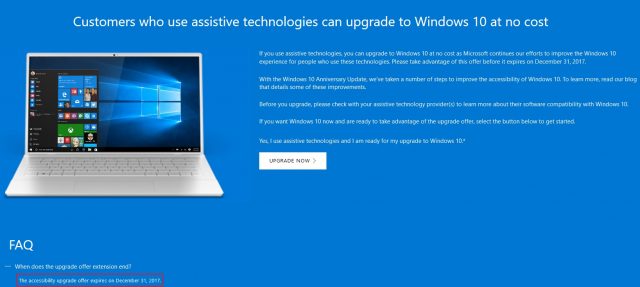
Ever since Microsoft launched Windows 10, it’s made the OS officially or unofficially available. Officially, you stopped being able to download or upgrade your system to Windows 10 on July 29, 2016. Unofficially, you can still download an upgrade license for the OS, but you’ve got to do it soon — as in before December 31, 2017.

Microsoft’s first giant push to convince customers to use Windows 10 was marred by an increasingly heavy hand as the campaign went on, to the point that it was both accused of malware tactics and later admitted to the same. We’ll never know exactly how many people avoided the upgrade for this reason alone, but some readers have indicated they were disgusted by the company’s behavior and refused to update.

Win10-Update

Without implying that Windows 7 or Windows 8 users have to change their mind on that, it’s worth noting Windows 7 exits support by 2020, with Windows 8.1 out of long-term support in 2023. Windows 8 users have a little while, Windows 7 users have less. Microsoft also now locks out updates on Intel and AMD systems based on Kaby Lake, Ryzen, or Bristol Ridge, though there are some ways to bypass that block. Either way, Windows 10 may be a nice OS to have as an option, even if you don’t immediately start using it.

Here’s how you can still get a free copy of Windows 10 directly from Microsoft: Visit this webpage, attest that you use assistive technologies baked into Windows, and download the executable provided. It’s that simple.

As for why MS is pulling the rug now, I’m guessing the company has seen adoption rates from already running computers fall off over time. It’s been 2.5 years since Windows 10 launched, and MS was never going to leave this backdoor in its own policy open forever. If you haven’t upgraded by now, I suppose Microsoft thinks you’re never going to actually upgrade, and OEMs would be happier if MS shut down the option since it competes with their ability to offer Windows 10 as a new OS on their devices. Microsoft has also plowed ahead with the idea of Windows-as-a-service, in a bid to convince customers that being upgraded to the latest and greatest is the best way to be. Closing this loophole may be an attempt to shove customers towards new hardware as opposed to letting them upgrade existing installations — though again, I’m not sure the volume is high enough to matter either way.

Either way, the clock is ticking. You’ve got until December 31 to download.

Sunday, 24 December 2017

Tidal is free for anyone for 12 days over Christmas, no strings attached

Tidal is looking to bag some extra subscribers over the Christmas period by letting anyone try out the service free of charge for 12 days, starting on Christmas Day. If you"ve been meaning to check out what Tidal has to offer, then now"s the perfect opportunity.

The high fidelity music streaming service actually offers a 30-day trial for new subscribers, but for this one-off promotion you don"t even need to provide a credit card - and that means you don"t need to remember to cancel your subscription when the free trial comes to an end either.

Even if you"re not interested in signing up for Tidal in the long term, it"s one option to bear in mind if you"ve got the family round and want to bang out some Christmas tunes for a good old-fashioned sing-a-long.

All the fidelity


The free taster period includes the full-fat HiFi plan - the one with the lossless audio quality, which Tidal has been pushing as a way of differentiating itself against the likes of Spotify and Apple Music. That plan is typically $19.99 or £19.99 a month.

Despite a massive cash injection last year, rumors are currently swirling that Tidal is running out of money fast, and if that"s the case then this might be your last chance to compare it with the other streaming services out there. First appearing in 2014, Tidal was relaunched in 2015 with a host of high-profile artists on board.

To take advantage of Tidal"s Christmas offer, head to the Tidal website from Christmas Day onwards. You get the usual collection of web, Windows, macOS, Android and iOS apps to pick from, and the service recently launched dedicated apps for the Apple TV and Android TV too.

Thursday, 21 December 2017

Get Folder Marker Home free

Folder Marker Home solves one of Windows" biggest problems by letting you customize folder colors and icons so you tell the difference between them at a glance.

To get your free license, download and install Folder Marker Home, then register for free on the web page that opens in your web browser. You"ll then receive a license key by email – copy and paste this into the Folder Marker Home registration window.

Folder Marker Home integrates directly with Windows, so changing a folder icon or color is as simple as right-clicking and choosing a new option.

Folder Marker Home screen grab
To change a folder icon or color, just right-click it and select a new option


That"s not all; you can also add new icons to Folder Marker Home, and apply the custom color or icon to all the sub-folders within a given folder.

You can even make your customized folders distributable so they keep their new colors and icons, even if they"re copied to a different PC.

This exclusive offer runs from December 20-22 inclusively, so download Folder Marker Home now and get your PC organized.

Sunday, 19 March 2017

Free Online Word Processors


The Office 2.0 movement brings with it some great free online word processors, many of which that are as feature-rich as their desktop counterparts. An online word processor offers data security since documents can be stored online as well as on your computer, and they also excel in the area of collaboration.

Most of these online word processors are still in beta, but the good part is that most of them are free and plan to continue being free after they get out of beta.


Zoho Writer


Zoho Writer

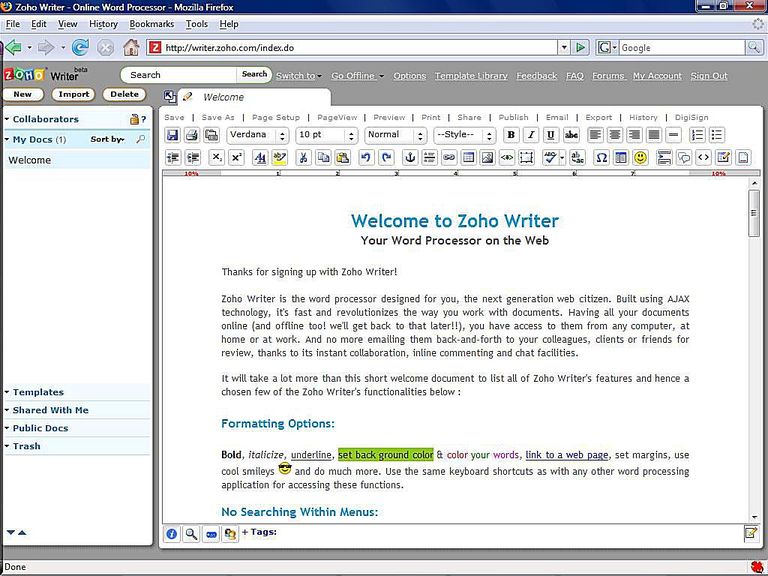
Features: Lists, images, tables, styles, almost twenty fonts, spell checker, form fields, emotions, export to supported blogs, and save as a Microsoft Word, Adobe PDF, DOCX, SXW, ODT, HTML, rich text or plain text document.

Description: A very feature-rich online word processor, Zoho Writer can do just about anything a normal word processor can do and more. One very nice extra is the ability to export to blogs, which makes it a nice blog editor if your blog software supports the Blogger or metaWeblog API.

Buzzword


Buzzword

Features: Lists, images, tables, seven different fonts, spell checker, and save as a Microsoft Word, Rich Text, HTML or plain text document.

Description:Buzzword is an Office 2.0 word processor being created by Virtual Ubiquity, an Adobe company. While still in beta, it promises to be an amazing product. As a flash-based online word processor, it offers a look-and-feel that rivals desktop applications while being completely web-based.

iNetWord


iNetWord

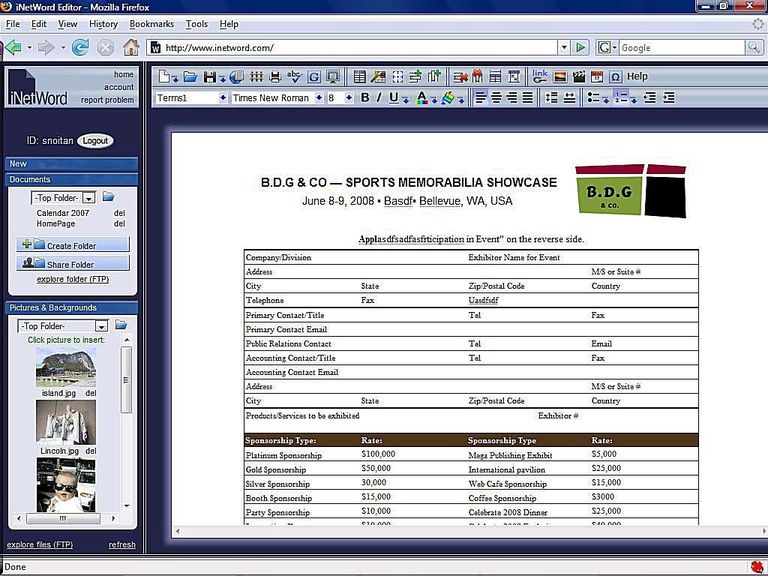
Features: Lists, images, tables, styles, a host of fonts, insert videos, track changes, spell checker, and save as a Microsoft Word, Adobe PDF, or HTML document.

Description: iNetWord has all the capabilities you would expect from a word processor including the ability to track changes and to share folders with others. Still in beta, it is already a highly-functional online word processor.

Thinkfree


Thinkfree

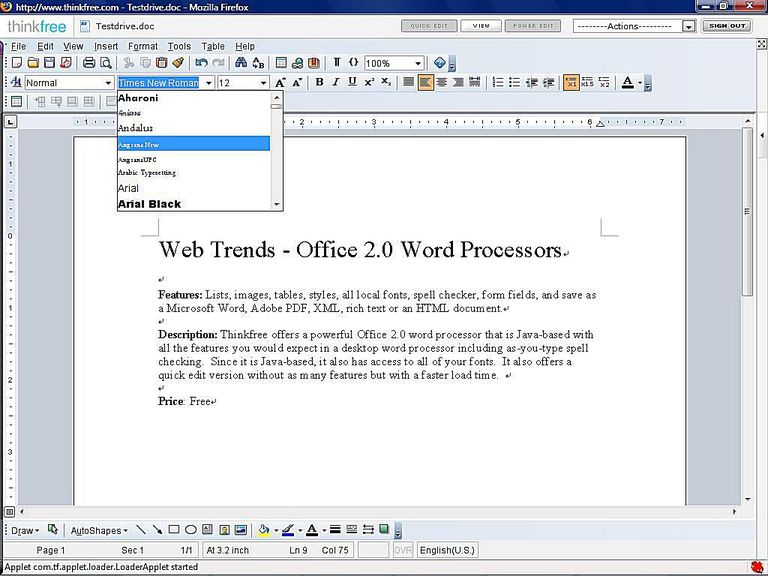
Features: Lists, images, tables, styles, all local fonts, spell checker, form fields, and save as a Microsoft Word, Adobe PDF, XML, rich text or an HTML document.

Description: Thinkfree offers a powerful Office 2.0 word processor that is Java-based with all the features you would expect in a desktop word processor including as-you-type spell checking. Since it is Java-based, it also has access to all of your fonts. It also offers a quick edit version without as many features but with a faster load time.

Google Docs


Google Docs


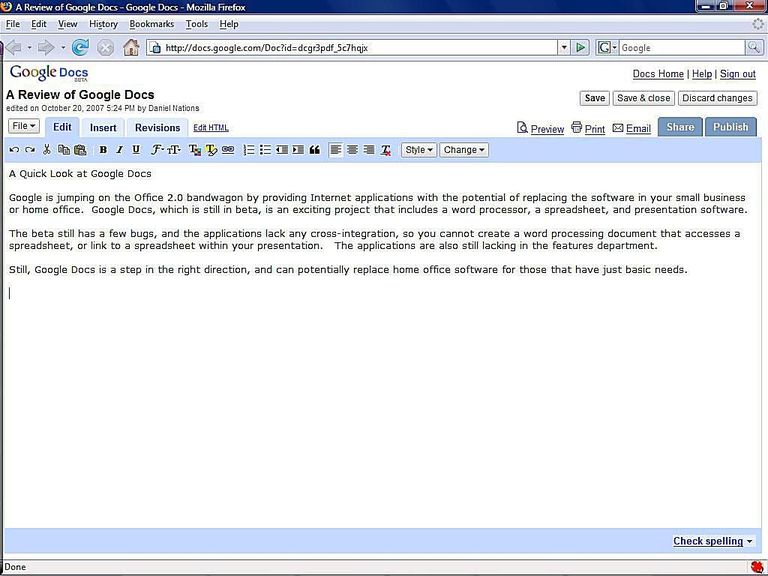
Features: Lists, images, tables, styles, almost a dozen fonts, spell checker, and save as a Microsoft Word, Adobe PDF, OpenOffice Doc, HTML, rich text or plain text document. You can also save the document as a Google Docs compatible presentation.

Description: As one might expect from the no-thrills search company, Google"s answer to Office 2.0 is a no-thrills online word processor, but it is surprisingly feature rich and easy to use. It includes most of what you want out of a word processor, though the simplistic design isn"t quite as easy to use as some of the slicker offerings in the realm of Office 2.0 word processors.

Solodox


Solodox

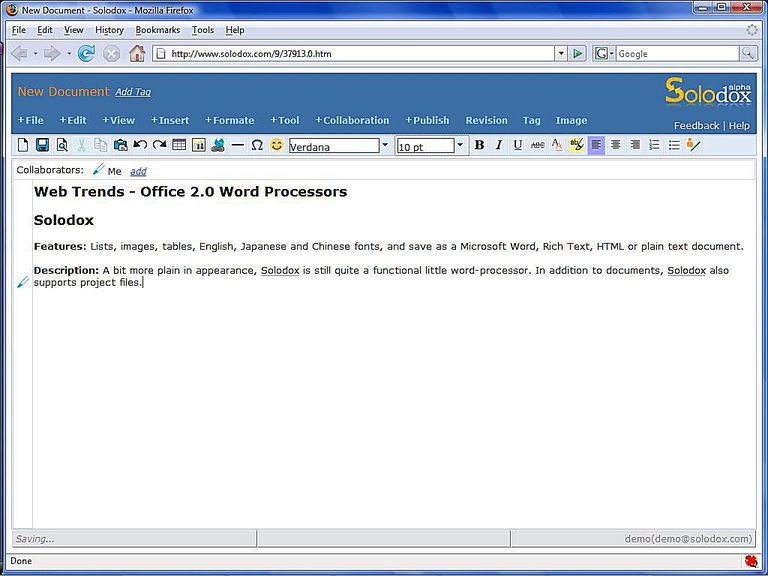
Features: Lists, images, tables, English, Japanese and Chinese fonts, and save as a Microsoft Word, Rich Text, HTML or plain text document.

Description: A bit more plain in appearance, Solodox is still quite a functional little online word processor. In addition to documents, Solodox also supports project files.

Writewith


Writewith

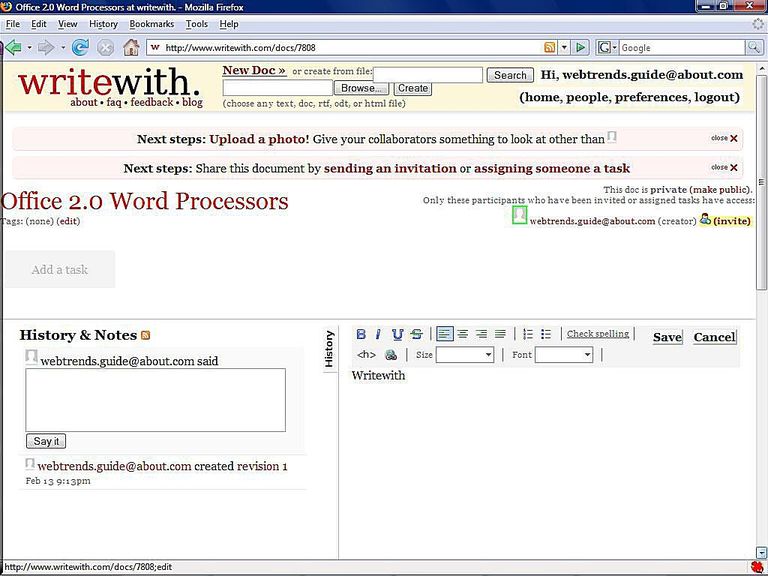
Features: Lists, spell checker, six fonts

Description: Writewith still has a ways to go to compete with some of the other Office 2.0 offerings out there. It does offer some limited features such as collaboration between multiple users, but it doesn"t offer advanced word processing features like embedding images or tables into the document.

Writer


Writer

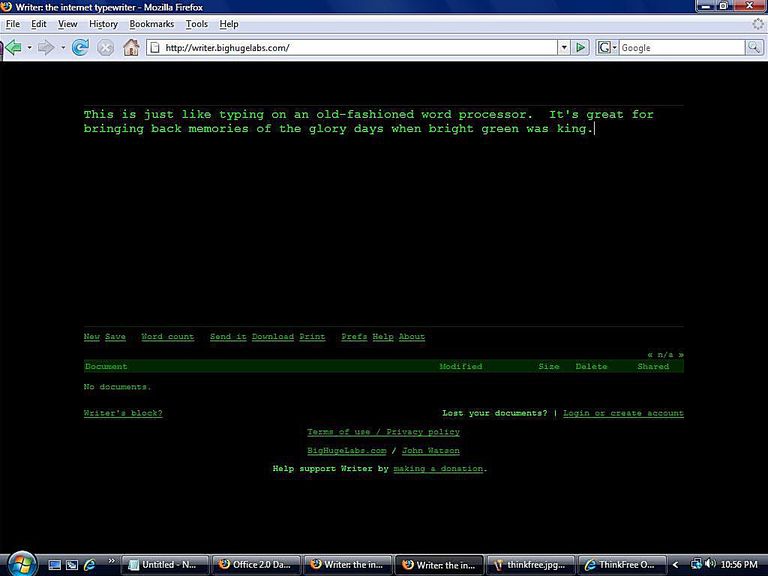
Features: Save documents and retrieve them later.

Description: There"s not much to say about Writer besides that it allows you to type in some text and save it, and it allows you to do this in bright green text that brings back memories of the old days when bright green on a black screen ruled the computing world. This isn"t to say that Writer is a complete waste. If all you need to do is type in some quick text and save it with no formatting, it"s actually very good. It"s when you need to bold something that you"ll need to move beyond Writer.

To comment on this article and other TechViral content, visit our Facebook page or our Twitter feed.